

Custom-License and Keyword Searches
FOSSA offers the ability to search your codebase using regular expressions and to report matches. These matches can be reported in two different ways: Keyword Searches or Custom-License Searches.
Overview
FOSSA offers the ability to search your codebase using regular expressions and to report matches. These matches can be reported in two different ways: Keyword Searches or Custom-License Searches.
For both of these searches, you provide a name and a matchCriteria. The name is a description of what you are searching for. The matchCriteria is a regular expression used to find the thing you are searching for.
The simplest way to provide these values is in your .fossa.yml config file. Here is an example config file that does both a Keyword Search and a Custom-License Search. It is searching case-insensitively for the phrase "this project is provided under a proprietary license" as a custom license with a name of "Proprietary License". It is also searching for the string "abc123" as a keyword search with a name of "Password".
version: 3 customLicenseSearch: - matchCriteria: (?i)this project is provided under a proprietary license name: Proprietary License experimentalKeywordSearch: - matchCriteria: abc123 name: PasswordBoth of these searches will run the regular expression provided in the matchCriteria field on every non-binary file in the directory that you are searching. The difference is in how the results are used.
Keyword Searches
If a match to a keyword search is found, then the results of that search are output in the scan summary that fossa analyze outputs. For example, if you have just the experimentalKeywordSearch entry in the above .fossa.yml file and search a project that contains the string "abc123" in two files, then you will see something like this in the scan summary:
* Keyword Search: succeeded
  ** Password - /Users/me/myproject/something.txt (lines 3-3)
  ** Password - /Users/me/myproject/some/subdirectory/anotherfile.txt (lines 31-31)
Custom License Searches
If a match to a custom-license search is found, then the CLI will add the match to the licenses reported for the project being searched. The license will be identified as a "Custom License", and the name that you provided will be used in the FOSSA UI and in reports when displaying that license.
The result will also be output in the scan summary, just as it is for Keyword Searches.
For example, if you have just the customLicenseSearch entry in the example .fossa.yml above and you find a match to the regular expression in two files, then the scan summary will look something like this:
* Custom-License Search: succeeded
  ** Proprietary License - /Users/me/myproject/LICENSE (lines 4-4)
  ** Proprietary License - /Users/me/myproject/src/main.rs (lines 2-3)
This will create a custom license match in your project in FOSSA. The results of that in the UI will look something like this:
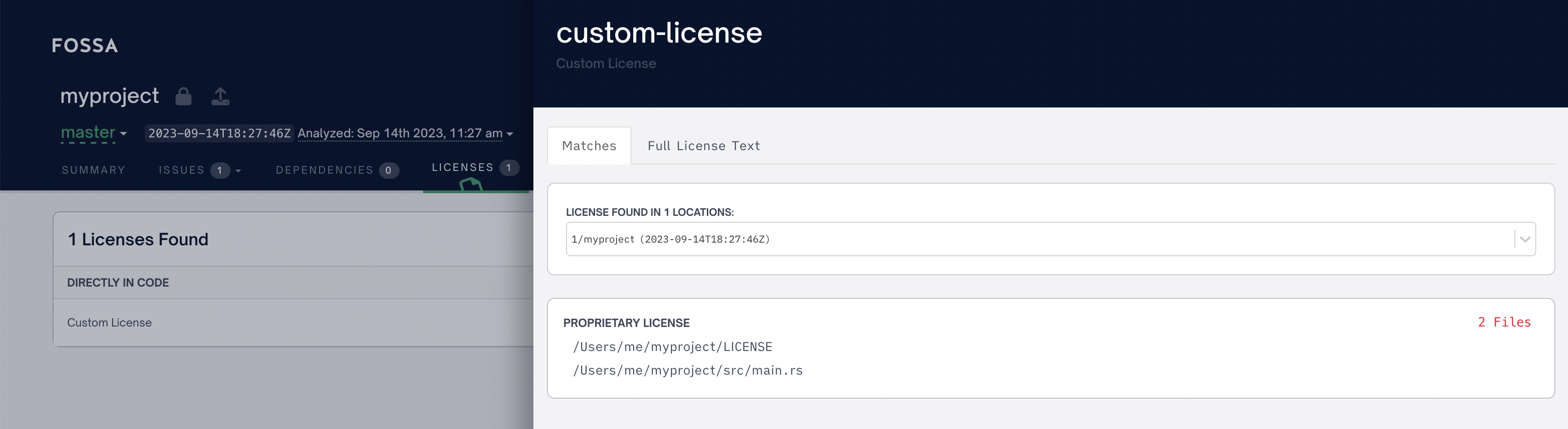
The custom license will also be included in reports, and will look something like this:
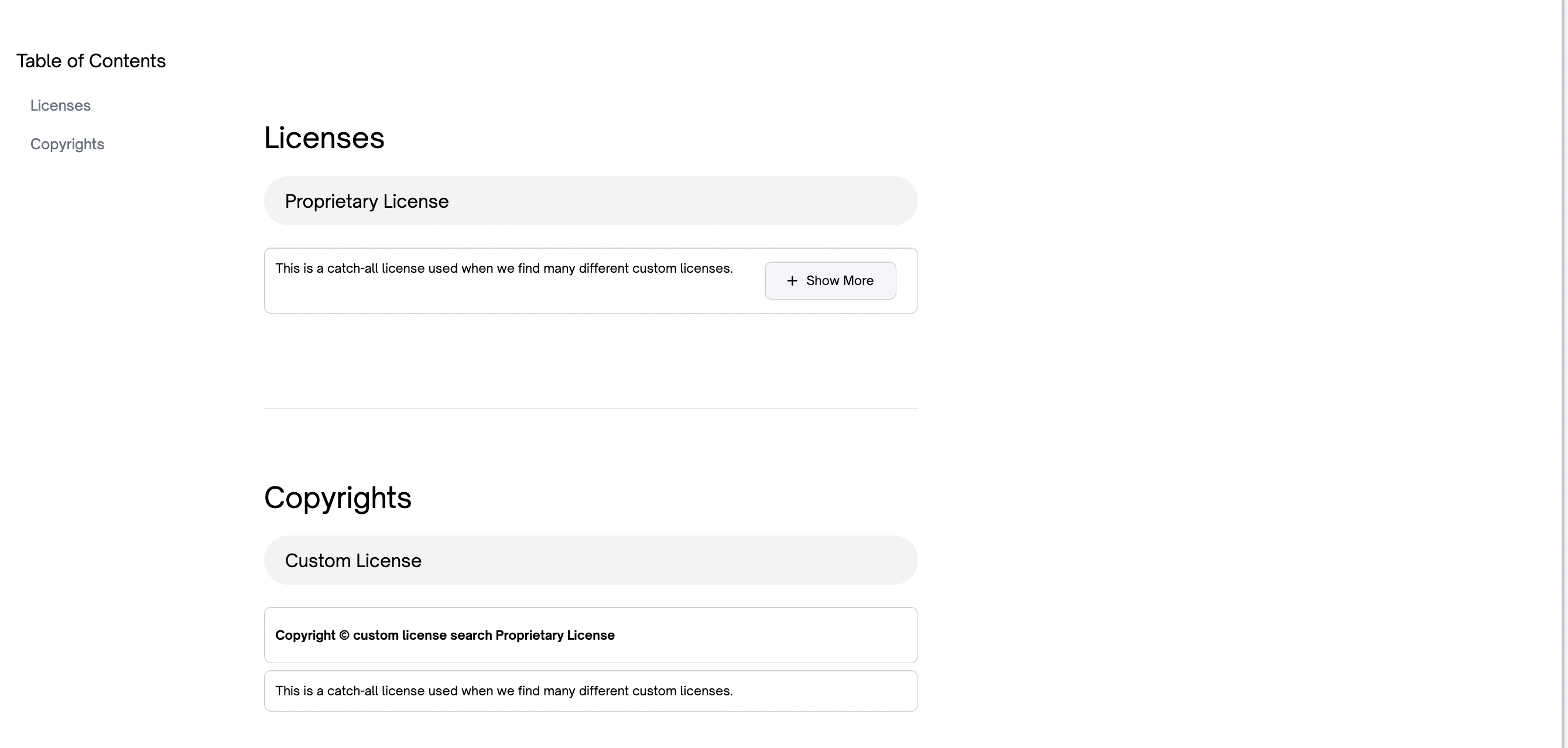
Note that the name will be used as the license's name in the UI, so it is important to use names that are understandable to someone looking at license issues and viewing a report.
If your project is set to raise issues for a license of type "Custom License", then an issue will be raised for any custom licenses found.
Regular expression format
The regular expressions in Custom License and Keyword searches use Rust's regular expression syntax. Here are a few examples. You can also view the full regular expression syntax documentation.
Searching for an exact match to some text
Most of the time, if you are searching for an exact match to some text you can just use the text. For example, if you wanted to find the phrase "This code has been released into the public domain", you could just use that as your match criteria:
customLicenseSearch: - matchCriteria: This code has been released into the public domain name: public domainIf the text you are searching for contains any special characters that need to be escaped, then you will need to escape those characters by prepending a \ to them. Please see the next section for a list of these special characters and some examples.
Escapes in your regular expressions
If the text you are searching for has one of the following special characters in it, then you will need to "escape" that character by prepending a \ to it.
Special Characters:
| . | | ^ | | $ | | * | | + | | ? | | ( | | ) | | [ | | { | | \ | | | |
For example, if you were searching for the text 'associated documentation files (the "Software").', then you would have to escape the opening and closing parentheses and the final period in the sentence, like this:
customLicenseSearch: - matchCriteria: associated documentation files \(the "Software"\)\. name: associated documentationIf you wrap your matchCriteria in single quotes or no quotes in .fossa.yml, then you should use a single backslash (\) to escape characters.
If you use double quotes, then you will need to use two backslashes (\\) to escape characters.
So in the example below, we are using the same regular expression three times. Once with double quotes, once with no quotes and the final time with single quotes.
Note that we have to escape the double-quotes in the regular expression when we wrap it in double-quotes.
version: 3 customLicenseSearch: - matchCriteria: "to any person obtaining a copy of this software and associated documentation files \\(the \"Software\"\\)" name: Obtaining Clause, double quotes - matchCriteria: to any person obtaining a copy of this software and associated documentation files \(the "Software"\) name: Obtaining Clause, no quotes - matchCriteria: 'to any person obtaining a copy of this software and associated documentation files \(the "Software"\)' name: Obtaining Clause, single quotesWe recommend using single quotes or no quotes.
Searching for a phrase with some characters capitalized
If you want to search for the phrase "proprietary license", but you know that the "P" and the "L" are sometimes capitalized, you can use a character class to match the capitalized and uncapitalized versions.
[Pp]roprietary [Ll]icenseThis will match "Proprietary License", "proprietary license", "proprietary License" and "Proprietary License". It will not match if any of the other characters are capitalized. For example, "PROPRIETARY LICENSE" will not match.
Ignoring case
You can ignore case by using the case-insensitive flag, i. This is done by prepending (?i) to your regular expression. Everything after (?i) will be matched case-insenitively.
(?i)custom licenseThis will match "Custom License", "CUSTOM LICENSE", "custom license" or "CusTOm LiCenSe".
Matching newlines
If you have some text that has newlines in it, you can match it by using \s+ wherever there is a newline.
For example, if you had this text in a file:
Note
This is one of of my license
and this is the second line
Then you could match this with this regular expression:
This is line one of my license\s+and this is the second lineWe use \s+ instead of just \s so that this will match both Unix-style newlines (which are a single character) and Windows style newlines (which consist of two characters).
The \s+ character class will match to spaces as well as newlines. So the following text will also match:
Note
This is one of of my license and this is the second line
Matching at the beginning or end of a line
In a regular expression, ^ matches to the beginning of the string we are searching in (the haystack) and $ to the end of the haystack. If you turn on multi-line mode using (?m), then ^ matches to the beginning of a line in the haystack and $ matches to the end of a line.
So if you want to find the string "Permission is hereby granted, free of charge", but only if it happens at the beginning of a line, then you would use this regular expression:
(?m)^Permission is hereby granted, free of chargeWithout the (?m), it would only match at the beginning of a file.
If you wanted to allow some optional whitespace before "Permission", you could add a \s* after the (?m) flag, as \s* matches zero or more space characters:
(?m)^\s*Permission is hereby granted, free of chargeFinally, if you also wanted to allow an optional comment delimiter before the license, you could do this:
# is for Bash, Perl, Ruby, etc
/*, // and * are for c-like comments
-- is for Haskell
(?m)\s*(#|/\*|\*|//|--)?\s*Permission is hereby granted, free of charge
Matching to a year
To match to a year, you can use the number character class) four times. This will match a four digit year:
(?i)this document was last updated in \d\d\d\dYou could also specify the number of repetitions, by putting the number of repetitions in curly quotes ({4}), like this:
(?i)this document was last updated in \d{4}These regular expressions will both match, for example, "This document was last updated in 2023".
Troubleshooting Regular Expressions
It can be extremely useful to use a tool that allows you to debug your regular expressions. We recommend using Regex 101, as it has support for Rust regular expressions.
To use this tool, go to Regex 101 and select "Rust" for your regular expression flavor. Then, after removing any sensitive data, enter the text you would like to search for in the "Test String" box and the regular expression in the "Regular Expression" box.
Configuring custom-license searches for your whole organization
If you want to search for the same custom licenses for every project you analyze with fossa analyze, you can set up custom license searches in FOSSA's admin UI.
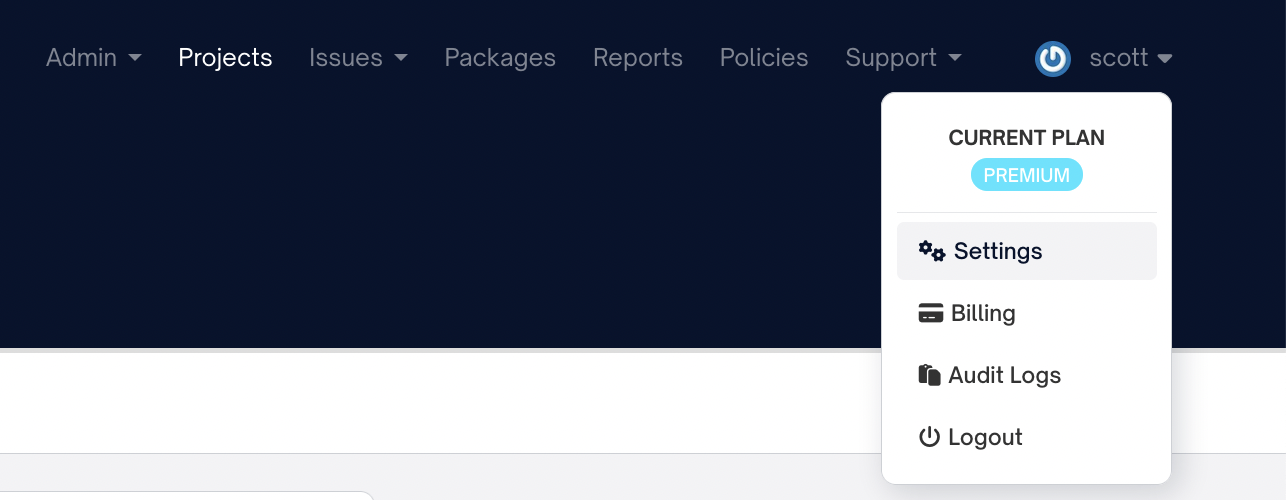
In order to do this you must have permission to edit your admin's Integration Settings. If you have this permission, you can go to the "account settings" page, click on the "Integrations" tab and then the "Custom License Scans" sub-navigation.
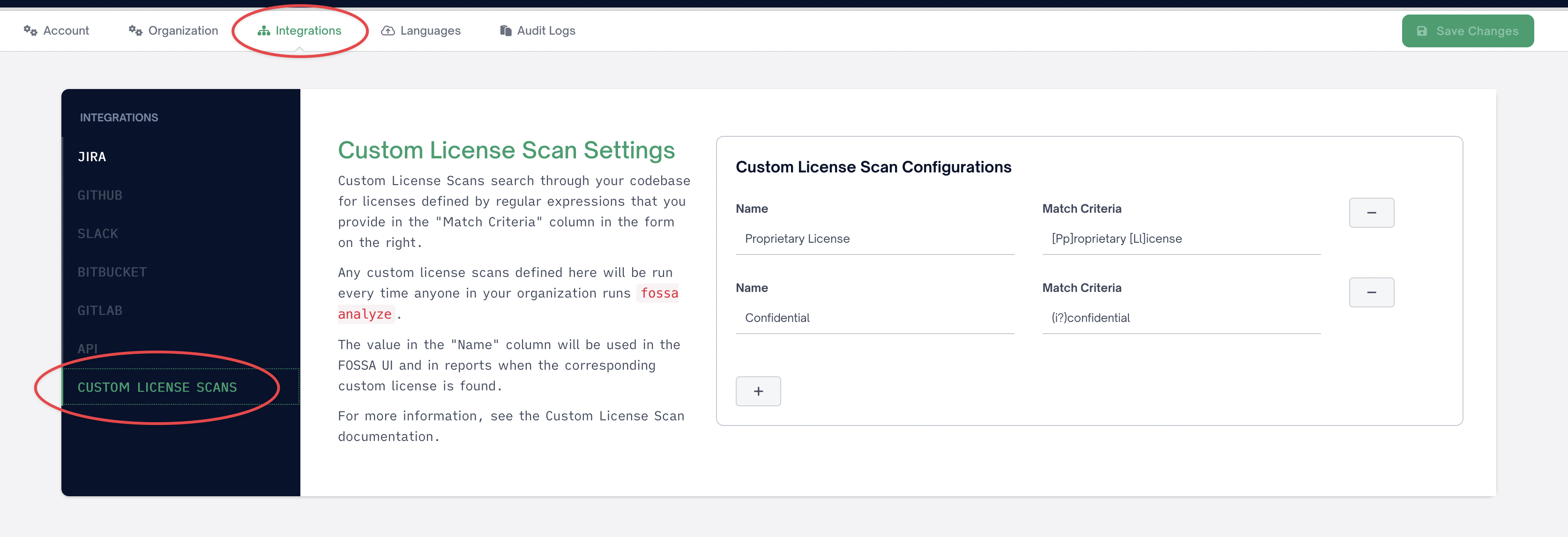
You can then add custom license searches. Once you do this, anyone in your organization who runs fossa analyze will run the configured custom-license searches.
Any custom-license searches configured in the repositories .fossa.yml file will also be run.
Escape characters in custom-license searches for your whole organization
The match criteria in the admin interface should be escaped with single backslashes (\). For example, if you wanted to match a phrase containing a four-digit year, you would use
(?i)this document was last updated in \d\d\d\dTurning off organization-wide custom-license searches
You can ignore the organization wide custom-license searches by providing the --ignore-org-wide-custom-license-scan-configs flag when you run fossa analyze:
fossa analyze --ignore-org-wide-custom-license-scan-configsYou can also set the orgWideCustomLicenseScanConfigPolicy flag to true in your .fossa.yml file. For example:
version: 3orgWideCustomLicenseScanConfigPolicy: true