

Incomplete and Unknown Dependencies
Resolve Unknown or Failed dependencies by overwriting them with a manual entry or adding a new dependency.
Overview
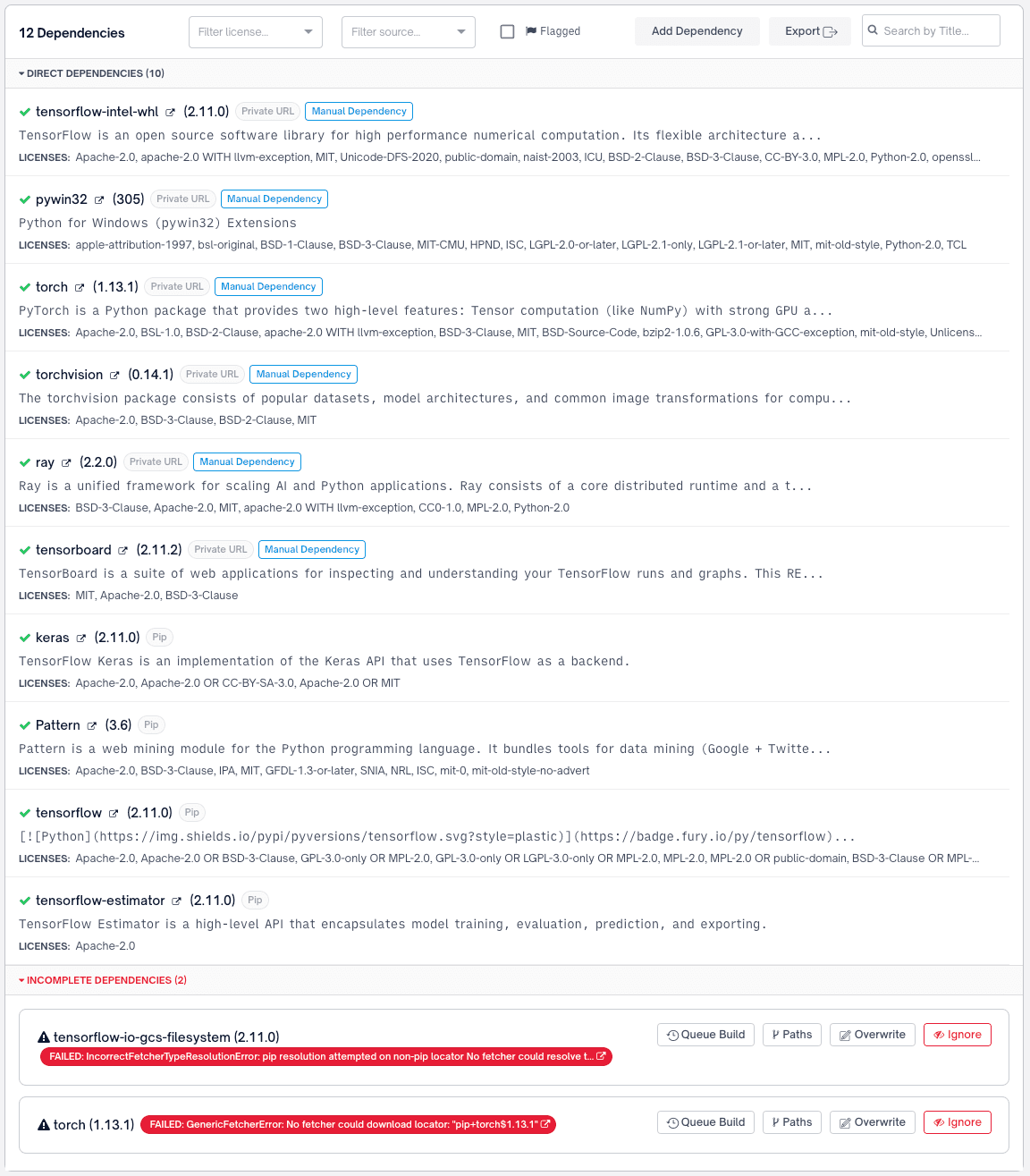
When FOSSA cannot locate or resolve a dependency during analysis, it appears in Inventory → Dependencies with a status of Unknown or Failed. There are three ways to address this:
- Add authentication: if the dependency is hosted in a private registry, configure credentials so FOSSA can access it
- Overwrite: replace the unresolved entry with a manually specified version
- Add: introduce a net-new dependency that FOSSA didn't detect automatically
Adding authentication for a private registry
If the dependency is hosted in a private registry such as Artifactory or Nexus, FOSSA can't access it without credentials. Open the three-dot action menu on the dependency and select Add authentication. This navigates you directly to the language settings page where you can configure access for the relevant ecosystem.
Once credentials are saved, trigger a new analysis for the data to populate.
Overwriting an unknown dependency
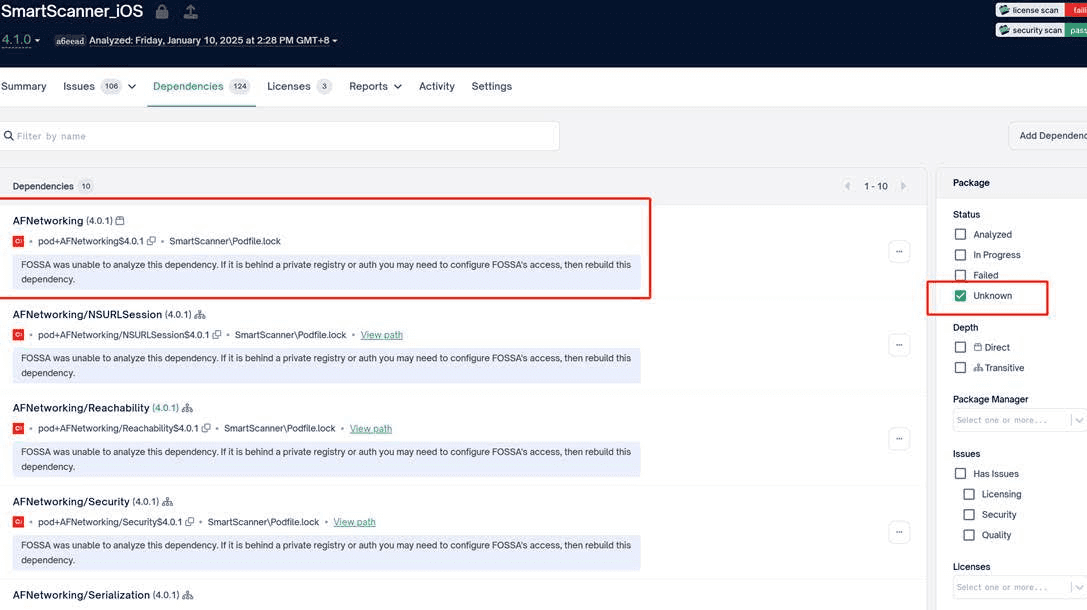
Use this when FOSSA found the dependency in your manifest but couldn't resolve it, for example, because it's in a private registry or has an incorrectly formatted locator.
- 1
Open the action menu
Find the Unknown dependency in Inventory → Dependencies. Open its action menu and select Overwrite package.
- 2
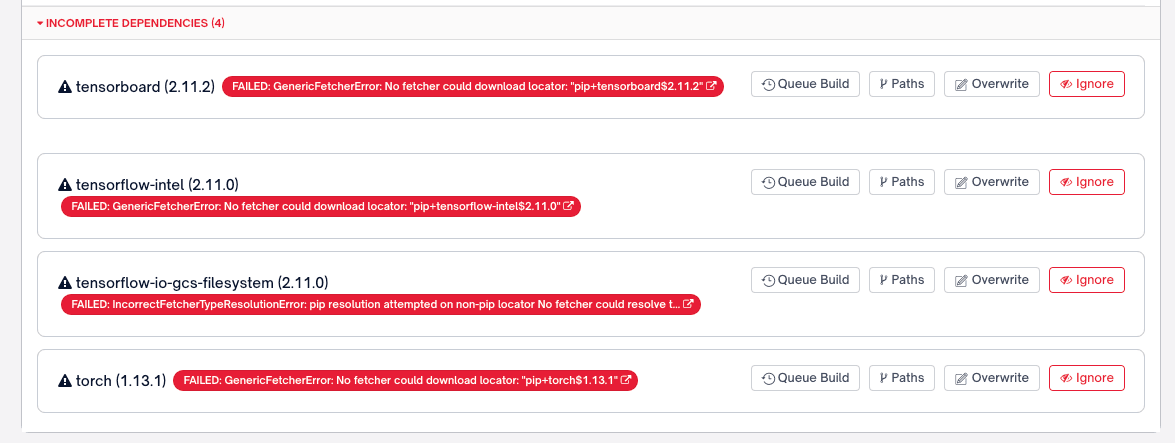
Fill in the dependency details
The Overwrite Dependency dialog gives you three options:
- Search: find the package in FOSSA's database
- Upload: upload a package binary
- Create: manually enter the package name, version, description, and homepage
Copy the description and homepage if available; this metadata will be visible in the FOSSA web app and may be useful later.
- 3
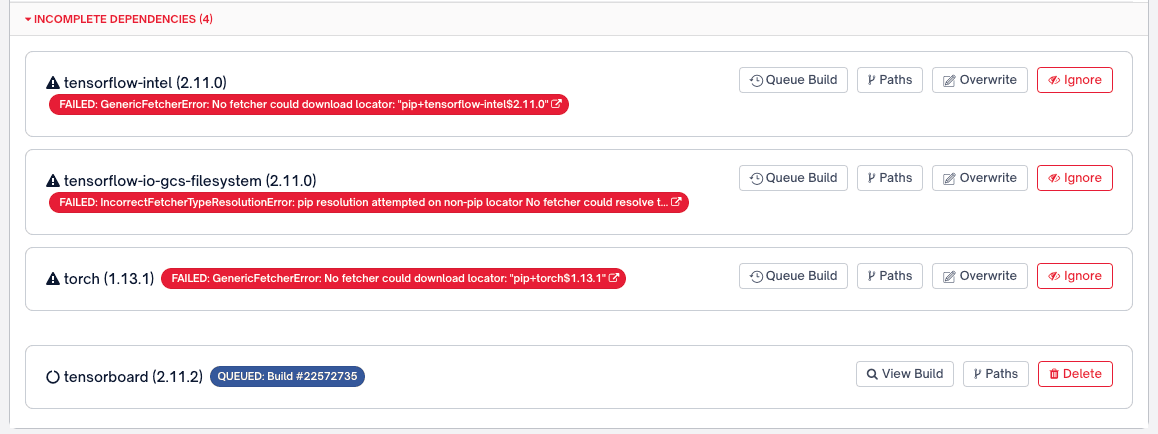
Submit
Click Overwrite. The modal closes and the project re-queues for analysis.
- 4
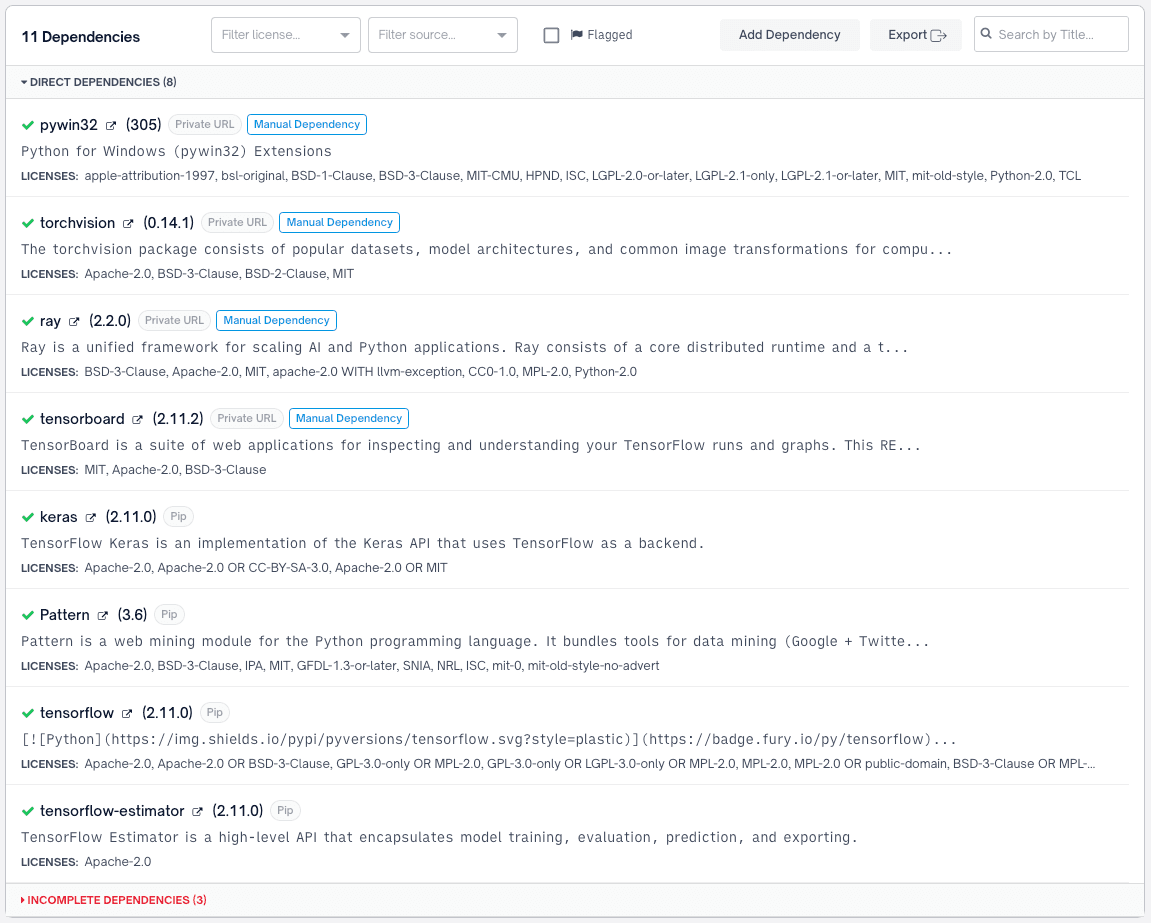
Verify
Once analysis completes, the overwritten dependency moves to the top of the dependencies list and is tagged Manual Dependency.
Adding a new dependency
Use this when FOSSA didn't detect a dependency at all and you need to add it manually, for example, a statically bundled library with no manifest entry.
- 1
Open the Add Dependency dialog
At the top of Inventory → Dependencies, click Add Dependency.

- 2
Fill in the dependency details
The Add Dependency dialog gives you three options:
- Search: find the package in FOSSA's database
- Upload: upload a package binary
- Create: manually enter the package name, version, description, and homepage
- 3
Submit
Click Add. The page reloads and the new dependency appears in the list alongside any existing entries.
Note
If you're still seeing Unknown dependencies after overwriting or adding, contact support@fossa.com with your project locator and the affected dependency names.