

Global License Corrections
Override FOSSA's license detection for a package across all of its revisions, from the on-premises Admin Dashboard.
Enterprise feature
Enabled per organization through a Helm feature flag; only an on-premises administrator can turn it on (see Enabling Global License Corrections below).
Overview
Global License Corrections (GLC) let you override FOSSA's license detection results for a package at a global scope. The correction applies to every revision (version) of that component, not just the one you're looking at. This is useful when FOSSA's automated detection is consistently wrong for a package your organization relies on.
Enabling Global License Corrections
To enable GLC, add the globalLicenseCorrections flag to the enabledFeatureFlags section of your Helm values for the org IDs that should have access, then apply the change (see Updating Helm values):
enabledFeatureFlags: - globalLicenseCorrectionsHow corrections are scoped
A GLC override is keyed to a component locator and applies to all revisions of that component. Locators uniquely identify a package and take the form:
<fetcher>+<package_spec>$<rev_spec>| Part | Meaning | Example |
|---|---|---|
fetcher | The ecosystem the package comes from | npm |
package_spec | The package name | react |
rev_spec | The specific revision (version) | 16.2.0 |
For example, npm+react$16.2.0 identifies React 16.2.0 from npm. Because corrections apply to all revisions of a component, the rev_spec is not required when supplying a locator for GLC.
Finding a component locator
If your organization has the Packages product enabled, search for any package. The locator is shown beneath the package name.
Applying a correction
- 1
Open the correction tool
In the Admin Dashboard, scroll to Update Licenses.
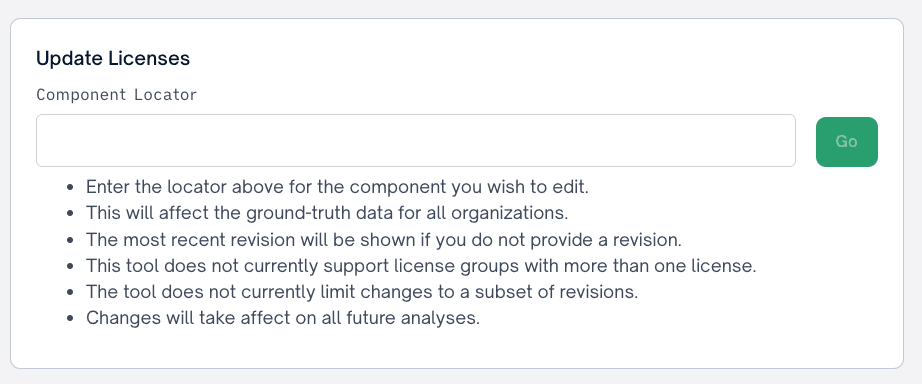
- 2
Supply a component locator
Enter the component locator for the package you want to correct. FOSSA shows the licenses detected for that component along with their file matches.
- 3
Edit the detected licenses
Select the X next to a file match or a license name to remove that file match, or to remove the license from the component entirely.
- 4
Add a license
Select Add License at the bottom left. Search for an existing license, or add a custom one by searching for
custom-license. After choosing the license and entering any applicable raw license text and copyright headers, select Add.
Danger
Editing licenses here changes the detected licenses for all revisions (versions) of the component, regardless of which revision is currently displayed.
Reverting a correction
Any change (adding a license, removing a file match, or removing a license) can be undone. Where the X icon was, you'll find a Revert this override action.