

Sharing SBOMs
Share SBOM data publicly via the SBOM Portal or directly with specific partner organizations.
Overview
FOSSA provides two ways to share SBOM data outside your organization: the public SBOM Portal and direct cross-organization sharing. Both require an Enterprise plan and must be enabled by the FOSSA team. Contact your account team or support@fossa.com to request access.
SBOM Portal
The SBOM Portal gives you a public-facing URL where external stakeholders (customers, auditors, partners) can view your SBOM data without a FOSSA account. Once enabled, SBOM Portal appears in the main navigation.
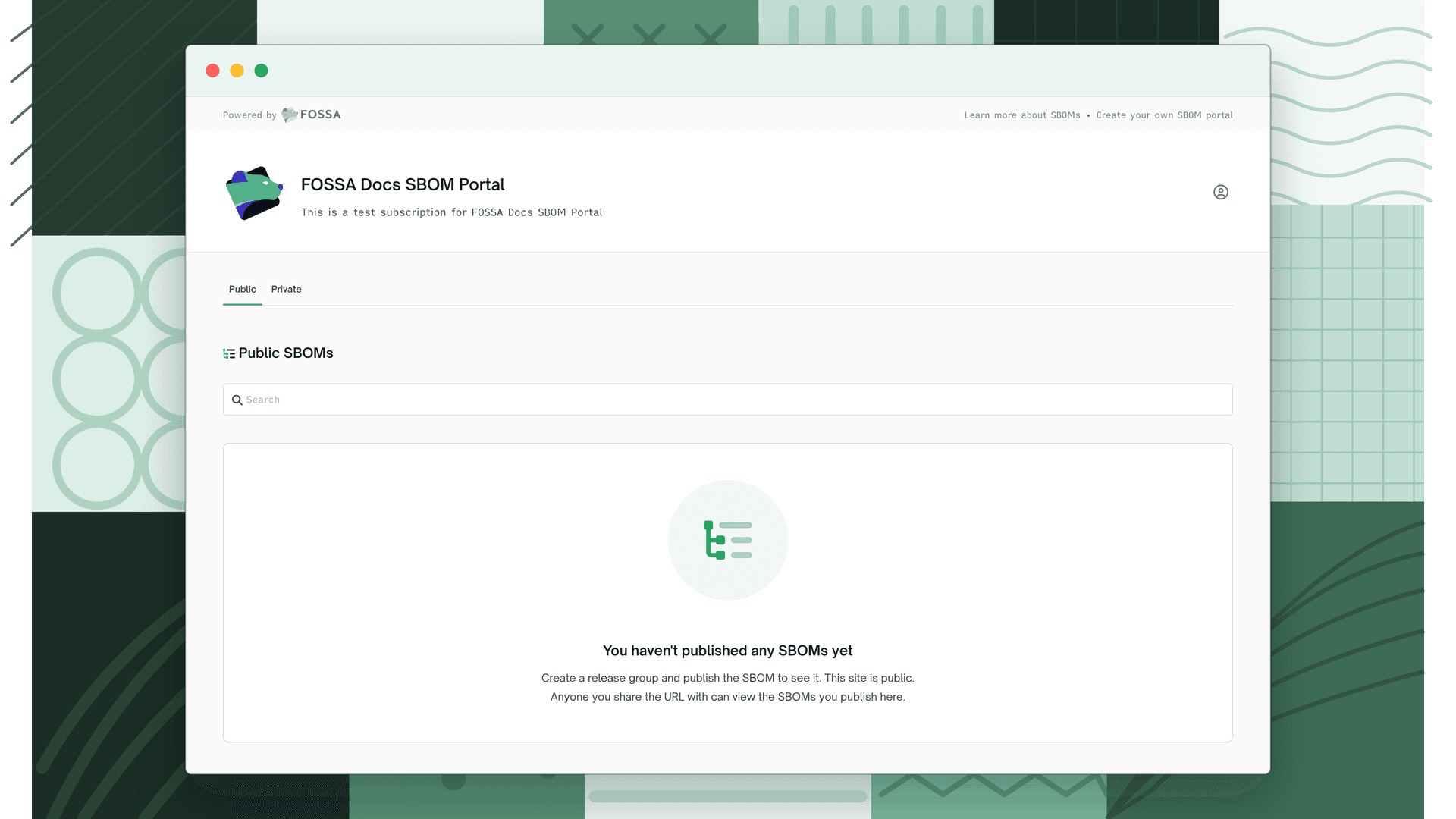
From the Portal Settings page you control which projects and release groups are visible on the portal and configure the portal's appearance. The portal URL can be shared freely; no FOSSA login is required to view it.
You enable and configure the portal from the Portal tab in Organization Settings.
Cross-organization sharing
Enterprise feature
This functionality is gated behind a feature flag and may not be enabled for your organization by default. Reach out to your account team to request access.
Cross-organization sharing lets you push a specific project revision's SBOM data directly to another FOSSA organization. The receiving organization gets the shared project imported into their own FOSSA account, where they can view its dependency data, licenses, and vulnerabilities.
This is useful when:
- A vendor needs to provide a software component manifest to a customer who also uses FOSSA.
- A parent organization wants visibility into the dependency health of a subsidiary's projects.
- Partners exchanging SBOMs for due diligence or compliance purposes both use FOSSA.
Unlike the SBOM Portal, which publishes data for anyone to view, cross-organization sharing grants one specific FOSSA organization access to a project's dependency data.
Prerequisites
Before sharing, your FOSSA account team must establish a link between your organization and the receiving organization. Once linked, the receiving organization appears as an option when you share a project.
Sharing a project
- 1
Open the project's share action
Navigate to the project revision in FOSSA and open the Share action from the project summary page (in the Actions menu).
- 2
Choose an organization
Select the linked organization you want to share with from the list of organizations your account is connected to.
- 3
Confirm
Click Share. FOSSA sends the revision's SBOM data to that organization as a background job and imports the shared revision into their account as a project.
If the project is updated, return to the Share modal and click Send Update to push the new revision. FOSSA prevents sending the same revision twice; the button is disabled if the current revision has already been shared with that organization.
What the receiving organization sees
The shared revision appears as a regular project in the receiving organization's FOSSA account. They can view its dependencies, licenses, and vulnerabilities.
Sharing is per revision. If you scan and share again, a new revision is created in the receiving organization.
Managing shares
You can view all revisions you have shared from the Share modal on the project. Contact your FOSSA account team to remove a share or modify the organization link.
Permissions
Sharing a project requires Edit permission on that project in your organization.
FAQ
Does cross-organization sharing expose my source code? No. Only the dependency graph, license data, and vulnerability information are shared, never source code.
Can the receiving organization re-share the project with others? No. A received shared project cannot be shared onward. Only the original project owner can control sharing.
Is shared data kept in sync? Sharing is per revision. To give the receiving organization access to updated data, share the project again after a new scan completes.