

Organization Settings
Configure organization-wide defaults (title, billing email, default user role, project and package labels, and internal package signatures) from the General settings page.
Overview
Organization Settings hold the organization-wide defaults FOSSA applies across your projects and reports. The General tab is where owners and admins set your organization's identity (title and billing email), the default role for new users, project labels and package labels, and internal package signatures.
To open it, hover over your username in the top-right corner of FOSSA, select Settings, then open Organization. The General tab loads first.
General settings
The General tab is divided into the sections below, in the order they appear on the page. Some sections only show for paid plans or when a feature is enabled for your organization, so you may not see all of them.
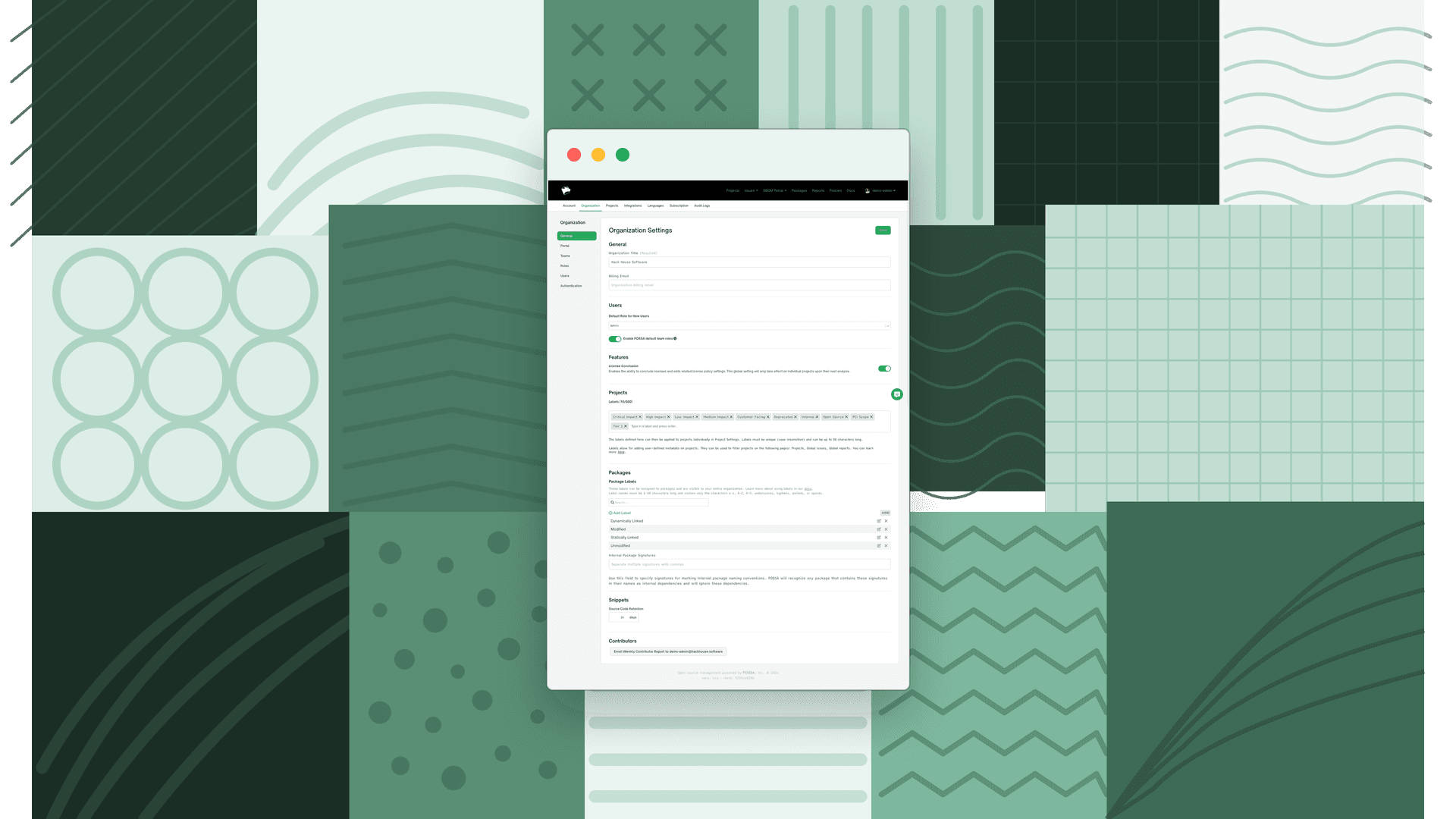
General
Organization Title (required): Your organization's display name; defaults to your email address.
Billing Email: The address FOSSA uses for billing-related communication.
Users
Note
The Users section is available on paid plans (Business and Enterprise) and is hidden on the free tier.
Default Role for New Users: The role automatically applied to each new user invited to your organization. Defaults to None. When your organization uses single sign-on for role management, this field is locked and the role is controlled by your identity provider.
Enable FOSSA default team roles: Toggle that controls whether FOSSA's built-in, out-of-the-box roles are available. Disabling it hides those roles and leaves only your custom roles.
Features
Shown only when License Conclusion is enabled for your organization.
License Conclusion: Toggle that enables concluding licenses and adds the related license-policy settings. This global setting takes effect on each project at its next analysis.
Projects
Note
Project labels are available on paid plans (Business and Enterprise) and are hidden on the free tier.
Labels: User-defined metadata you apply to projects individually. Use them to filter projects on the Projects, Global Issues, and Global Reports pages. Labels must be unique (case-insensitive), can be up to 50 characters long, and are capped at 500 per organization. The labels you define here are applied to projects in Project Settings.
Packages
Note
Package Labels are available on paid plans (Business and Enterprise) and are hidden on the free tier. Internal Package Signatures are available on all plans.
Package Labels: Labels you assign to packages, visible across your entire organization. Label names must be 1 to 50 characters and contain only letters, numbers, underscores, hyphens, periods, or spaces, with a limit of 500 per organization.
Internal Package Signatures: A comma-separated list of naming signatures that mark internal packages. FOSSA treats any package whose name contains one of these signatures as an internal dependency and ignores it.
Warning
A signature excludes every matching package from all reports, projects, and issue scans across the entire organization, not just the project you're viewing.
Snippets
Note
Snippet settings are available on paid plans (Business and Enterprise), and only when snippet detection is enabled for your organization.
Source Code Retention: Controls how long, in days, FOSSA retains the source code snippets collected during analysis.
Contributors
Email Weekly Contributor Report: Sends a weekly snapshot of contributors across your analyzed projects to your account email. You need view access to at least one project to use it.
Default project settings
FOSSA also lets you set the default Security, Licensing, and Quality policy settings that new projects inherit, and propagate them onto existing projects. That behavior has its own rules, so it lives on its own page: see Default Project Settings.
Navigating Settings
Settings is organized into top-level areas, shown across the top of the page in this order: Account, Organization, Projects, Integrations, Languages, Subscription, and Audit Logs. The General tab above lives under Organization. Each area opens a sidebar of its own pages, and an item appears only if you have permission to view it. The map below mirrors that navigation and links to the docs for each page.
Organization
The General tab covered above, plus:
- Portal: Set up your SBOM portal, FOSSA's public portal for publishing your SBOM files. See Sharing SBOMs.
- Teams: Create teams and assign users and projects to them. Users without org-level permissions can only access data associated with their teams. See Teams.
- Roles: Manage roles and permissions. See Role-Based Access Control.
- Users: Invite users and edit their roles. See Inviting Users.
- Banners: Create notification banners that display information to your colleagues on the sign-in and project index pages.
- Authentication: Set up your authentication method and add a login subdomain. See Single Sign-On.
Projects
Organization-wide defaults for projects:
- General: Default project-level settings. See Project Settings.
- Issue Policies: Default security, licensing, and quality policies new projects inherit. See Policies and Default Project Settings.
- Notifications: Configure how FOSSA notifies you about projects. See Notifications.
- Hooks: Configure hooks that fire when projects update.
Integrations
- Jira: Connect Jira to create and sync tickets from FOSSA issues. See Jira.
- GitHub: Connect GitHub for project import and pull request checks. See GitHub.
- Slack: Send FOSSA notifications to Slack. See Slack.
- Bitbucket: Connect Bitbucket for project import. See Bitbucket Cloud and Bitbucket Server.
- GitLab: Connect GitLab for project import and merge request checks. See GitLab.
- API: Create and manage API tokens. See API Tokens.
- API Service Accounts: Manage non-user service accounts for automation. See API Tokens.
- OIDC Providers: Configure OpenID Connect providers for keyless authentication. See OpenID Connect.
- Custom License Scans: Define custom license detection rules. See Custom License Scans.
Languages
Configure private registry credentials per language so FOSSA can fetch dependencies from your internal registries. Each language has its own page in the sidebar: Java, NPM, Bower, Cocoapods, Ruby, Rust, Python, .NET, Git, Go, and Pub. These settings apply org-wide and are used at analysis time. See JFrog Artifactory and Nexus for setup details.
Subscription
Review your plan and the features included at each tier in your organization's subscription settings. This area is hidden on on-premises deployments.
Audit Logs
A timestamped record of significant actions across your organization. See Audit Logs.
Editing settings
- 1
Open the General tab
Hover over your username, select Settings, then open Organization.
- 2
Change a setting
Update any field, for example, edit Billing Email or pick a Default Role for New Users.
- 3
Save
Click Save in the page header to apply your changes.
Note
Editing these settings requires admin permission: the Edit action on Organization General Settings. Without it, the fields are read-only.
FAQ
Why don't I see the Project Labels or Package Labels fields? Labels are a paid feature and are hidden on the free tier. Contact your FOSSA account team to enable them.
Why is the Default Role for New Users field locked? Your organization uses single sign-on to manage user roles, so the default role is controlled by your identity provider rather than set here.
What's next
- Inviting Users: Add team members to your FOSSA organization.
- Role-Based Access Control: Configure roles and permissions to control what users can do.
- Single Sign-On: Set up SSO to let users sign in through your identity provider.