

Custom License Scans
Define your own licenses so FOSSA detects and reports them like any other license, and governs them with the same policy rules.
Enterprise feature
Available on: Business, Enterprise.
Overview
FOSSA ships a large license database, but it can't cover everything: an internal or proprietary license, company-specific terms, or any text you want surfaced. Custom License Scans let you define that text yourself so FOSSA detects it in your scanned code and reports it as a license.
What a custom license is
A custom license is a license you define, with two parts:
| Part | What it is |
|---|---|
| Name | The title shown in the UI and in reports (e.g. Company Proprietary License). Make it descriptive, since this is what report readers see. |
| Match criteria | A regular expression FOSSA matches against the text it scans. When it matches, FOSSA records the custom license on that file/dependency. |
Once detected, a custom license behaves like any other license in FOSSA: it shows up in the dependency's Licenses grouping (alongside detected and declared licenses) and in your inventory next to FOSSA's known licenses, not as a separate, special-cased thing.
How custom licenses are governed by policy
Because a custom license is a real license, your licensing policy treats it exactly like a supported one. In a policy rule you can mark a custom license as:
| Rule | Effect |
|---|---|
| Approved | Allowed; no issue is raised. |
| Flagged | Surfaced for review (a flagged issue). |
| Denied | Treated as a violation (a denied issue that can fail CI/CD). |
So you might flag your Company Proprietary License for review wherever it appears, or deny a license phrase you never want shipped, using the same Approve / Flag / Deny model you use for known licenses.
Configure org-wide (UI)
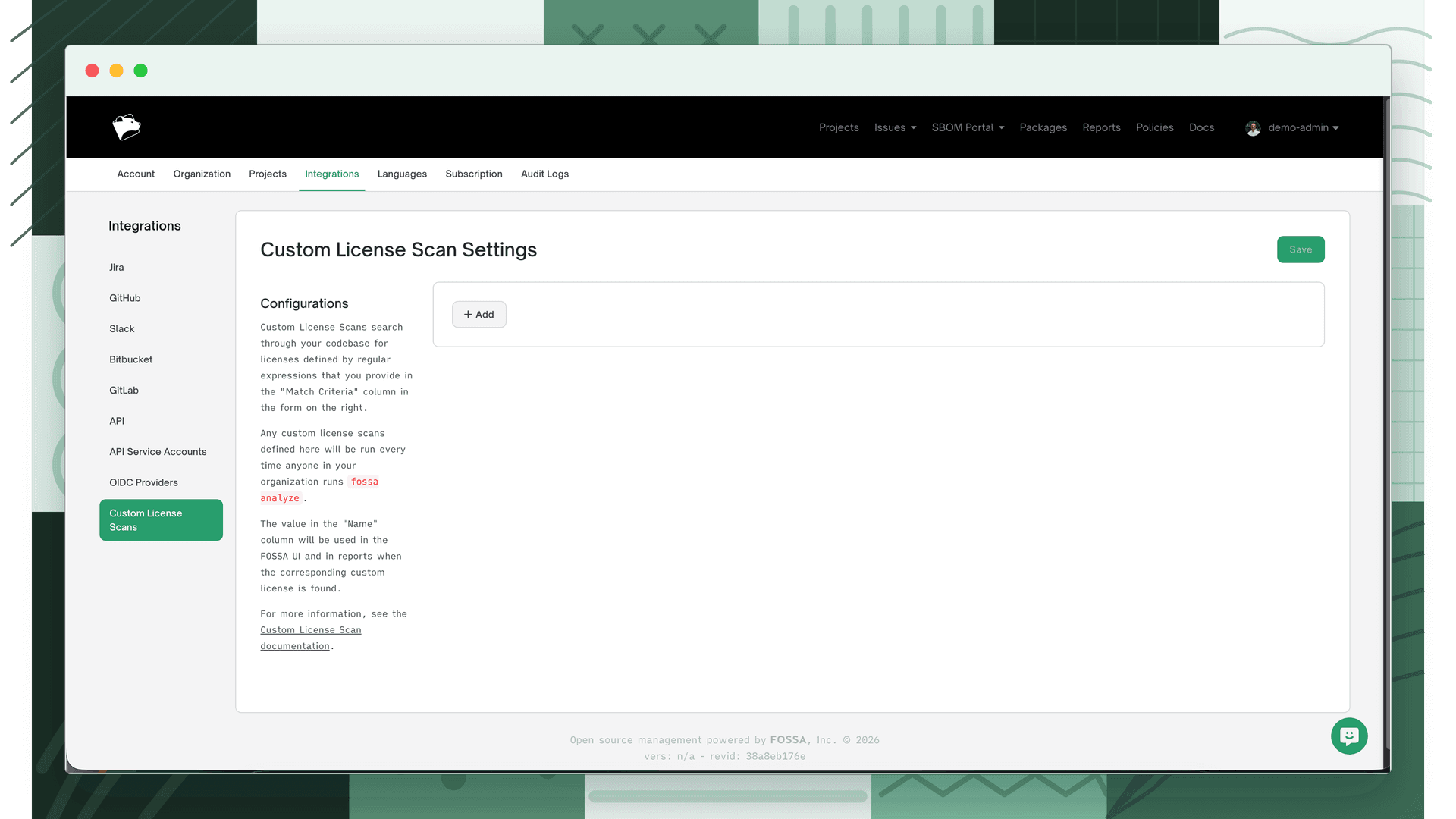
In the UI, custom license scans apply across your whole organization. Configure them at Organization Settings → Integrations → Custom License Scans (/account/settings/integrations/custom_license_scans), adding a name and match criteria for each.
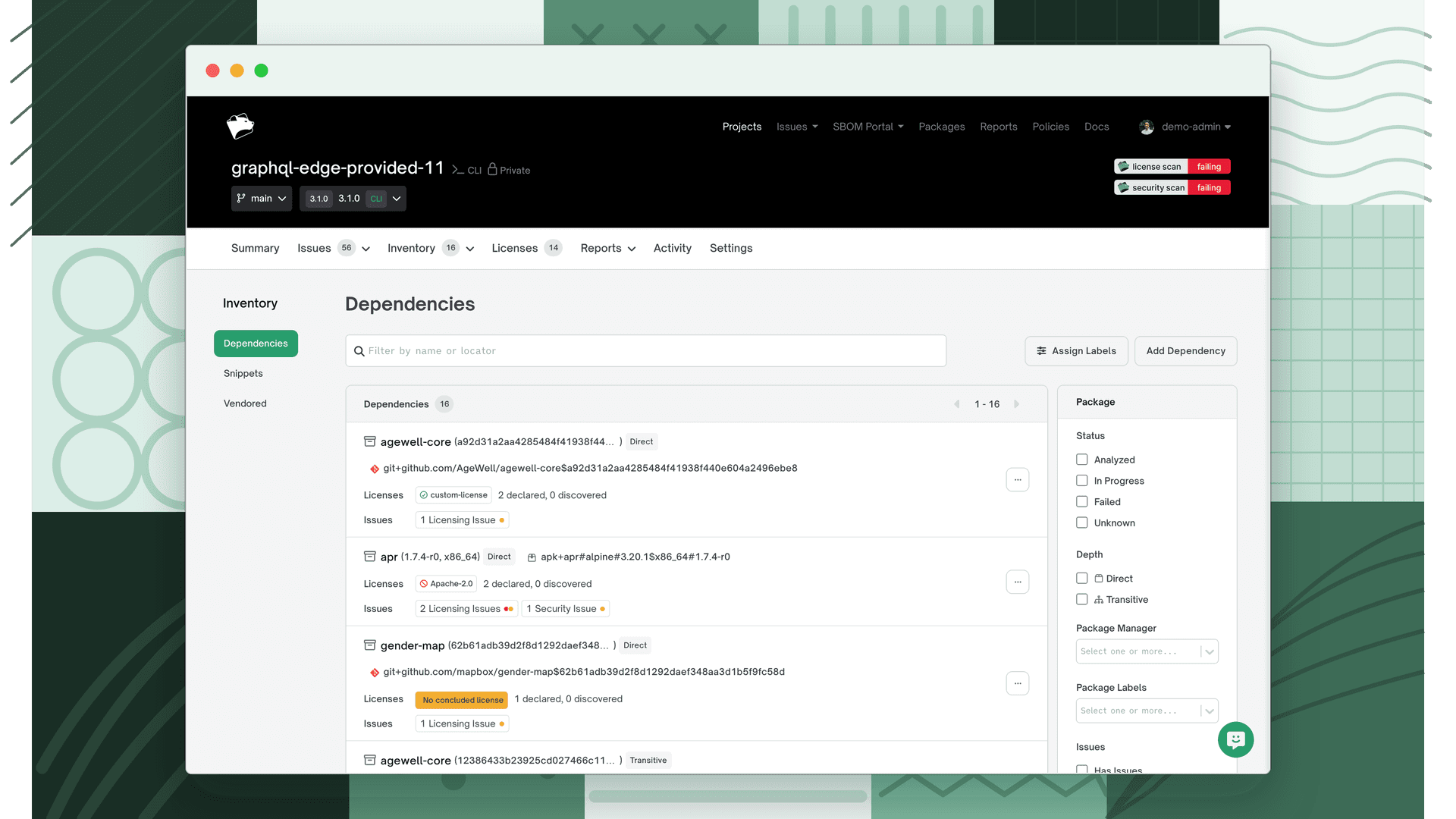
Once a scan runs, a detected custom license appears on the project like any other license, labeled in the dependency's Licenses column:
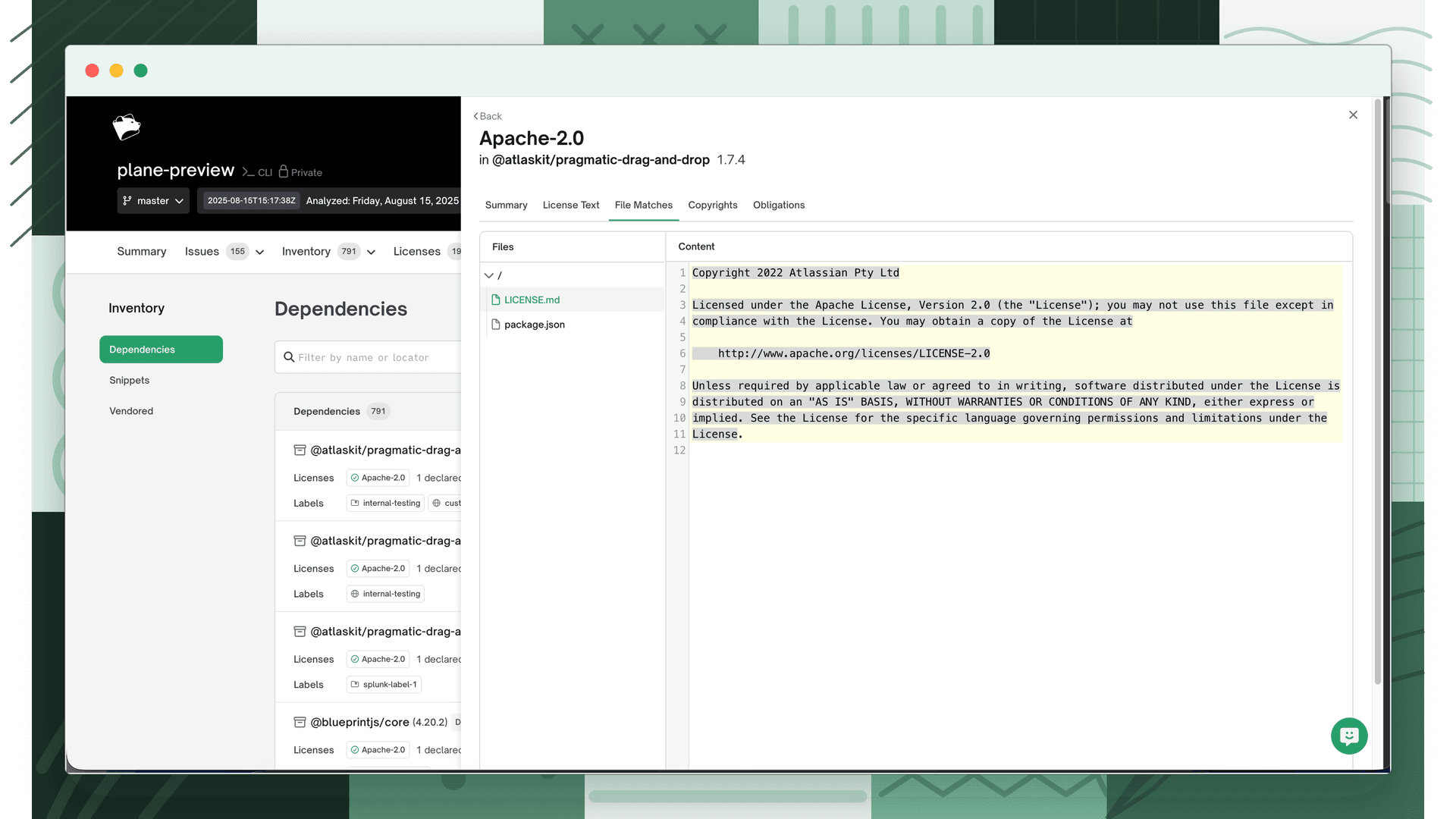
Click into the license to see the files that matched, and into a file to see the matches themselves:
What appears in reports
By default, only the custom license's name appears in reports, not the matched text. (This is why a clear, descriptive name matters: it's all a report reader sees.)
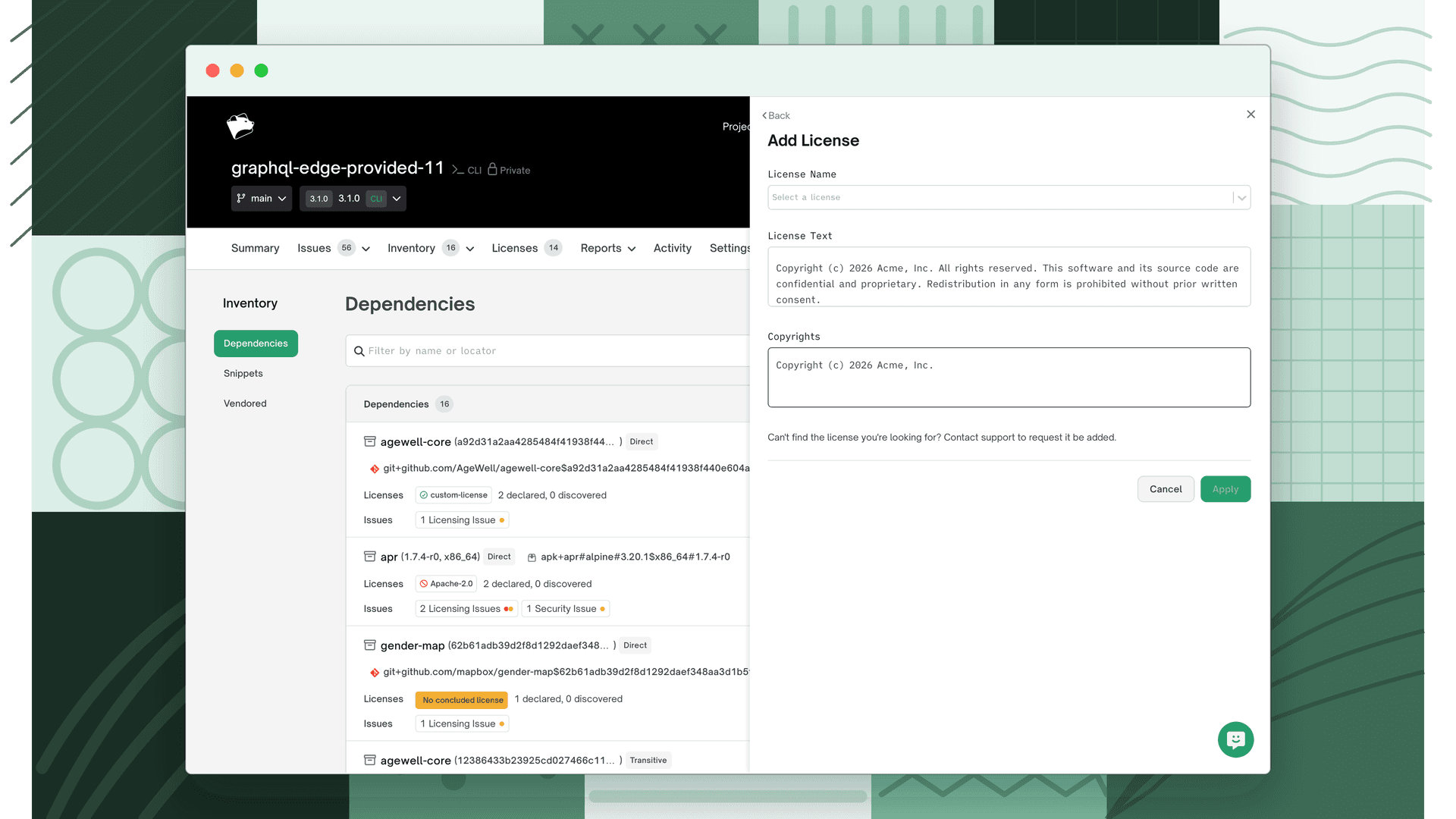
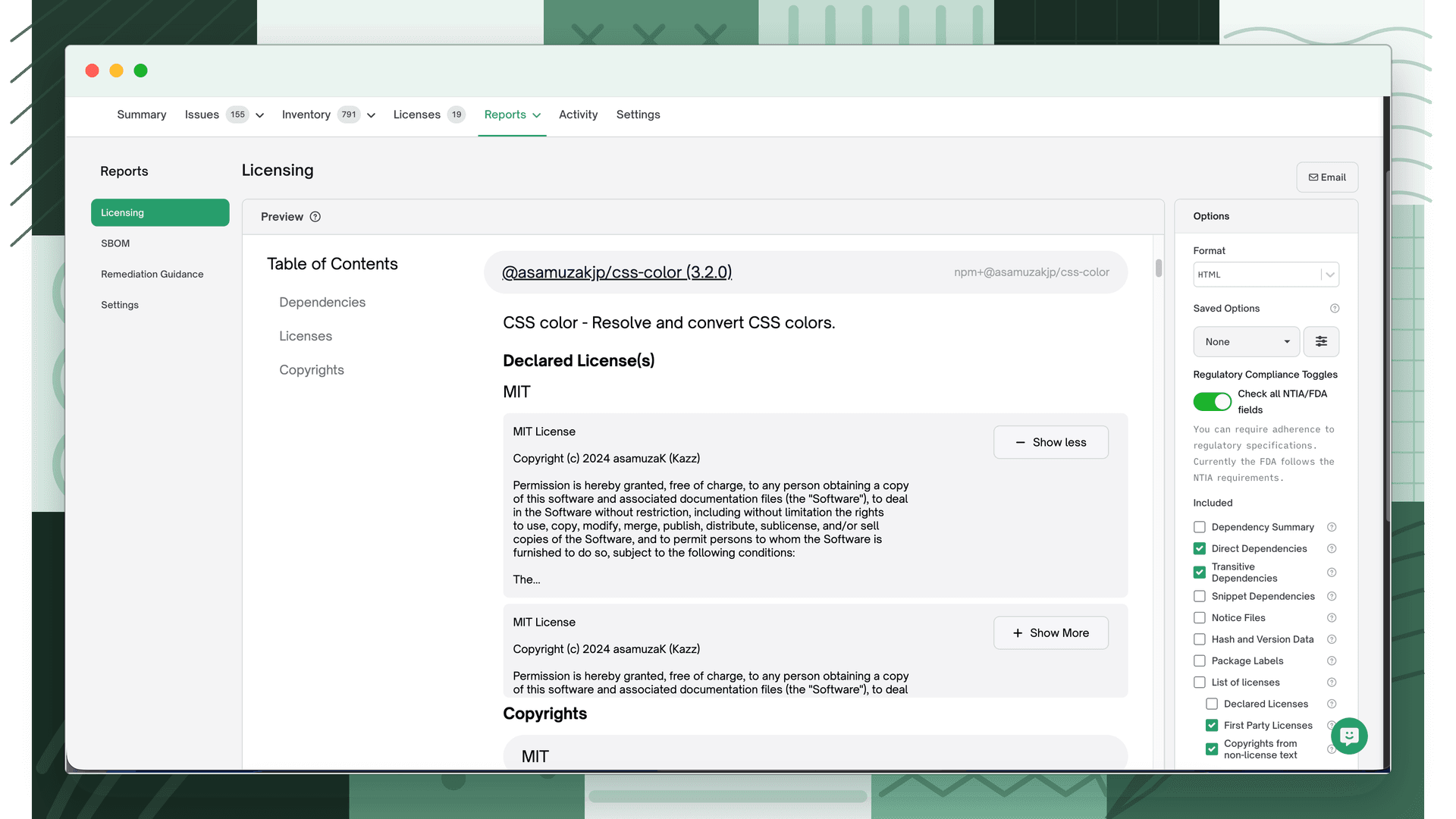
To include the full license text in reports, open the dependency's Licenses tab and edit its licenses. For each license you can fill in Raw License Text (or add a license group, then add and conclude the custom license). That text then appears alongside the license in the report.
Configure per project (FOSSA CLI)
To scope a custom license to a single project instead of the whole org, add a customLicenseSearch entry to that project's .fossa.yml, read by the FOSSA CLI. This is useful for team-specific rules that shouldn't apply org-wide.
# .fossa.ymlcustomLicenseSearch: - matchCriteria: (?i)this is a proprietary company license name: Company LicenseThe CLI then flags and reports Company License wherever it matches in that project.
Keyword search
Keyword search is also configured via the FOSSA CLI and warns you of matches at scan time, which is handy for catching sensitive data (e.g. an API key) before it's pushed.
# .fossa.ymlexperimentalKeywordSearch: - matchCriteria: api_key name: API Key FoundThis surfaces a warning in CLI/CI runs:
Scan Summary
------------

1 projects scanned;  0 skipped,  1 succeeded,  0 failed,  1 analysis warnings

* Keyword Search: succeeded with 2 warnings
  ** API Key Found - path/to/sensitive-file.yml (lines 1-1)
Pair it with the FOSSA CLI --output flag to keep findings local/offline.
Full reference
The .fossa.yml keys and CLI flags above are documented in full in the FOSSA CLI reference: