

Reviewing Licensing Issues
Filter, sort, and act on licensing issues, with bulk actions, auto-ignore rules, and the issue drawer explained.
Overview
The issues inbox is where you triage, resolve, and track licensing issues across your projects. Issues are split into two tabs:
- Active: issues that require attention
- Ignored: issues that have been reviewed and suppressed
For a breakdown of what each issue type means, see Understanding Licensing Issues.
Filtering
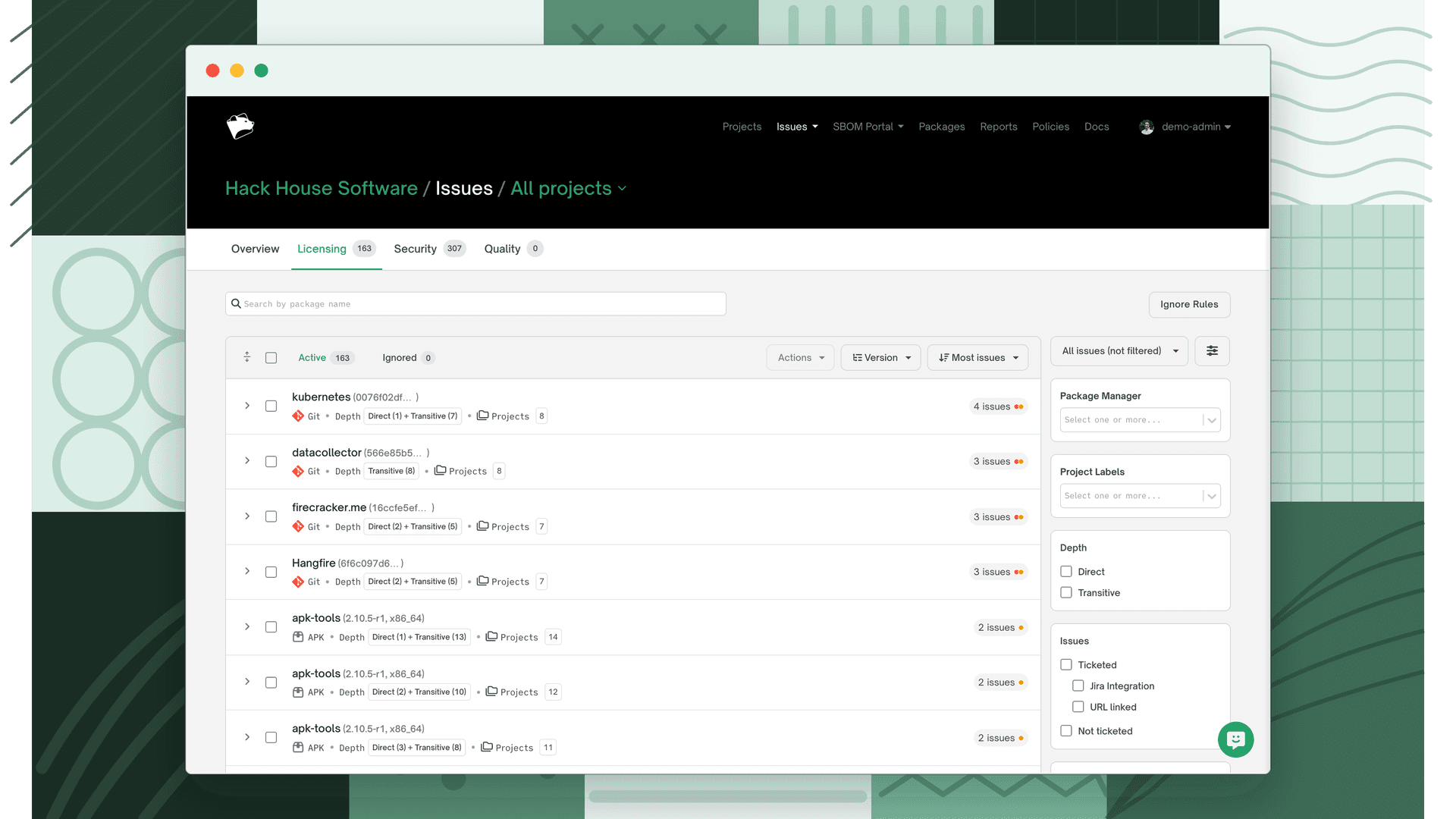
Depth
| Option | Shows |
|---|---|
| Direct | Issues on direct dependencies only |
| Transitive | Issues on transitive (indirect) dependencies only |
Ticket
Ticketed is a parent option with two children; selecting it includes both:
| Option | Shows |
|---|---|
| Ticketed → Jira Integration | Issues linked via the native Jira integration |
| Ticketed → URL linked | Issues with a manually added URL link |
| Not ticketed | Issues with no ticket association |
Issue Type
| Option | Shows |
|---|---|
| Denied | policy_conflict: license matched a Deny rule |
| Flagged | policy_flag: license matched a Flag for Review rule |
| Unlicensed | unlicensed_dependency: no license detected |
| Unconcluded | unconcluded_dependency: multiple licenses detected, none concluded |
| Concluded (Multi) | multi_license_concluded: multiple licenses detected, one manually concluded |
Note
Unconcluded and Concluded (Multi) filter options only appear when the License Concluded feature is enabled for your organization.
License Identification
| Option | Shows |
|---|---|
| Declared | Issues from licenses declared by the package author in the package metadata |
| Discovered | Issues from licenses FOSSA detected through scanning that the author may not have declared |
Issue Source
Enterprise feature
This functionality is gated behind a feature flag and may not be enabled for your organization by default. Reach out to your account team to request access.
Where the issue originates. Which options appear depends on the detection features enabled for your org.
| Option | Shows |
|---|---|
| Dependency | Issues on dependencies resolved from a package manager |
| Snippet | Issues on license matches found in your first-party source via Snippet Scanning |
| Managed Dependency | Package-manager dependencies (shown when Vendored Dependency Detection is enabled and you're outside global scope) |
| Vendored Dependency | Dependencies copied into your source tree (same condition) |
Licenses
A multi-select of every license currently present in the scope; filters issues down to the licenses you choose.
First Found
| Option | Shows |
|---|---|
| Anytime | All issues regardless of when they were found |
| Last 7 days | Issues first detected in the last 7 days |
| Last 14 days | Issues first detected in the last 14 days |
| Last 30 days | Issues first detected in the last 30 days |
Package Manager
Filters issues to those from a specific ecosystem or package manager. Only ecosystems present in the current scope (global, project, or release group) are shown.
Dependency Confidence
Enterprise feature
This functionality is gated behind a feature flag and may not be enabled for your organization by default. Reach out to your account team to request access.
Shown for binary projects (Binary Decomposition). Filters by FOSSA's confidence in the detected dependency: High, Medium, Low, or Unknown.
Layer
Shown for container projects. Filters by image layer:
| Option | Shows |
|---|---|
| Base Layer | Issues from the image's base layer |
| Other Layers | Issues from layers built on top of the base |
Project Labels
Global scope only. Filters to issues in projects tagged with specific FOSSA project labels. Select multiple labels (OR logic); disabled if your org has no labels.
Note
To narrow issues to a team, use the team selector in the inbox header; it's a scope control, not part of the filter panel.
Note
Select Reset all filters at any time to clear all active filters and show every issue.
Sorting
Use the sort dropdown to order issues by:
| Sort option | Description |
|---|---|
| Newest | Issues found most recently first |
| Oldest | Issues found longest ago first |
| Package (A-Z) | Alphabetical by package name |
| Package (Z-A) | Reverse alphabetical by package name |
| Most issues | Packages with the highest issue count first |
| Least issues | Packages with the lowest issue count first |
Note
Default sort is Most issues when grouped by version, and Package (A-Z) when ungrouped.
Issue grouping
Issues are grouped by semantic version by default. To switch to an ungrouped view, select Version in the inbox header and change it to Ungrouped.
Issue actions
Select one or more issues with their checkboxes, then open the Actions menu at the top of the inbox; it stays disabled until at least one issue is selected. Available actions depend on product type, issue status, scope, and whether you're acting on one or many issues.
Warning
Not all actions are available in every context. Check the table below for the full breakdown.
Note
Under an organization setting, the Ignore / Unignore actions can instead display as Resolve / Unresolve: same behavior, different wording. The "current version only" vs "all versions" choice below is made in the ignore modal, not as two separate menu items.
| Action | Description | Type | Products | Status | Scope |
|---|---|---|---|---|---|
| Ignore (current version only) | Ignores the issue for the current semantic version of the affected package, in the selected project(s) only. A new revision with any other version will generate a new active issue. | Individual, Bulk | Licensing, Security, Quality | Active | Global, Release group, Project |
| Ignore (all versions) | Ignores the issue across all semantic versions of the affected package. Only available for individual project issues. Scoped to the selected issue type only. | Individual | Licensing, Security | Active | Project |
| Create ticket | Creates a Jira ticket containing the selected issues. If a previously ticketed issue is selected, it links to the new ticket only. | Individual, Bulk | Licensing, Security, Quality | Active, Ignored | Global, Release group, Project |
| Unlink ticket | Removes the association between the selected issues and any linked tickets. | Individual, Bulk | Licensing, Security, Quality | Active, Ignored | Global, Release group, Project |
| Generate CSV | Downloads a CSV of the selected issues, scoped to the current issue status tab. | Individual, Bulk | Licensing, Security, Quality | Active, Ignored | Global, Release group, Project |
| Unignore | Changes selected issues from Ignored back to Active. Does not stop any existing auto-ignore rules. | Individual, Bulk | Licensing, Security, Quality | Ignored | Global, Release group, Project |
Auto-ignore rules
Auto-ignore rules persist an ignore decision beyond a single revision or project. When you ignore an issue, you can configure the scope of that decision so it applies automatically to future versions or projects.
Warning
Auto-ignore rules apply to current and future projects within the selected scope. Use with care; see Managing auto-ignore rules for how to stop them.
Auto-ignore applies to the combination of:
- Package(s)
- Project(s)
- Issue type (Denied license, Flagged license, or a CVE)
Where should it be ignored
When ignoring an issue with the necessary permissions, you'll see a Where should it be ignored? prompt:
| Scope | Effect |
|---|---|
| In this project | Auto-ignore rule scoped to the selected project only |
| Include release groups | Scoped to the selected project and any release group containing it, including future ones |
| In this release group | Scoped to the selected release group only (release group inbox only) |
| In the licensing policy | Scoped to the policy used by the selected project; applies to any other project or release group using that policy |
| Globally | Scoped to all projects and release groups regardless of policy |
Which versions
| Scope | Effect |
|---|---|
| Selected version | Auto-ignore rule scoped to the current package version only |
| All versions | Scoped to all versions of the package, current and future |
Note
Selecting In this project and Selected version together does not create an auto-ignore rule. The issue is suppressed in all revisions of this project that include that exact package version, but will become active again for any new package version or new project.
Managing auto-ignore rules
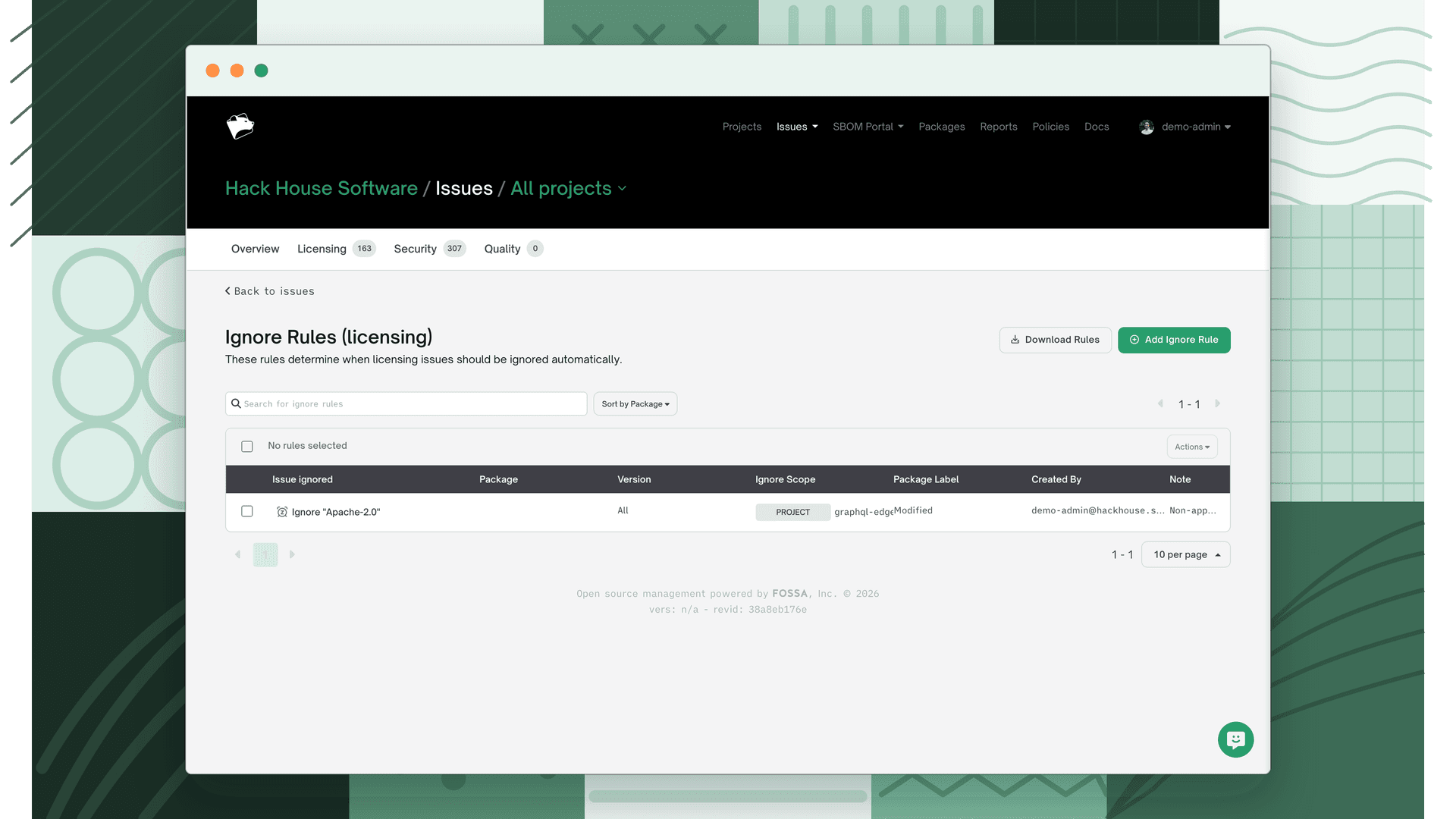
From any issue inbox (Global, Project, or Release Group), click Ignore Rules to see all applicable rules for that scope.
- The Global inbox shows all auto-ignore rules across every scope
- Project and Release Group inboxes show only applicable scoped rules plus all global rules
Each ignore rule shows:
| Column | Description |
|---|---|
| Issue Ignored | The issue type (Denied, Flagged, Unlicensed) and the specific license |
| Package | Package name |
| Version | Specific package version, or All |
| Scope | Global, Policy, Project, or Project + Release Group |
| By | User who created the rule |
| Note | Reason provided when the rule was created; also shown in issue details |
Use the action icon on the far right of any row to remove a rule.
Auto-ignore permissions
| Scope | Required permissions |
|---|---|
| Project | Resolve Licensing issues of projects for the selected project or all projects |
| Release group | Resolve Licensing issues of release group and access to the selected release group or all release groups |
| Project + release group | Resolve Licensing issues of project and Resolve Licensing issues of release group, plus access to the selected project and all release groups |
| Policy | Create Licensing policy |
| Global | Resolve Licensing issues of project and Resolve Licensing issues of release group, plus access to all projects and release groups |
Note
Permission names in this table are taken from the legacy docs and have not been verified against current permission settings. Confirm exact names in Settings → Organization → Roles.
Issue drawer
Click anywhere on an issue row to open the issue drawer for a detailed view without leaving the inbox.
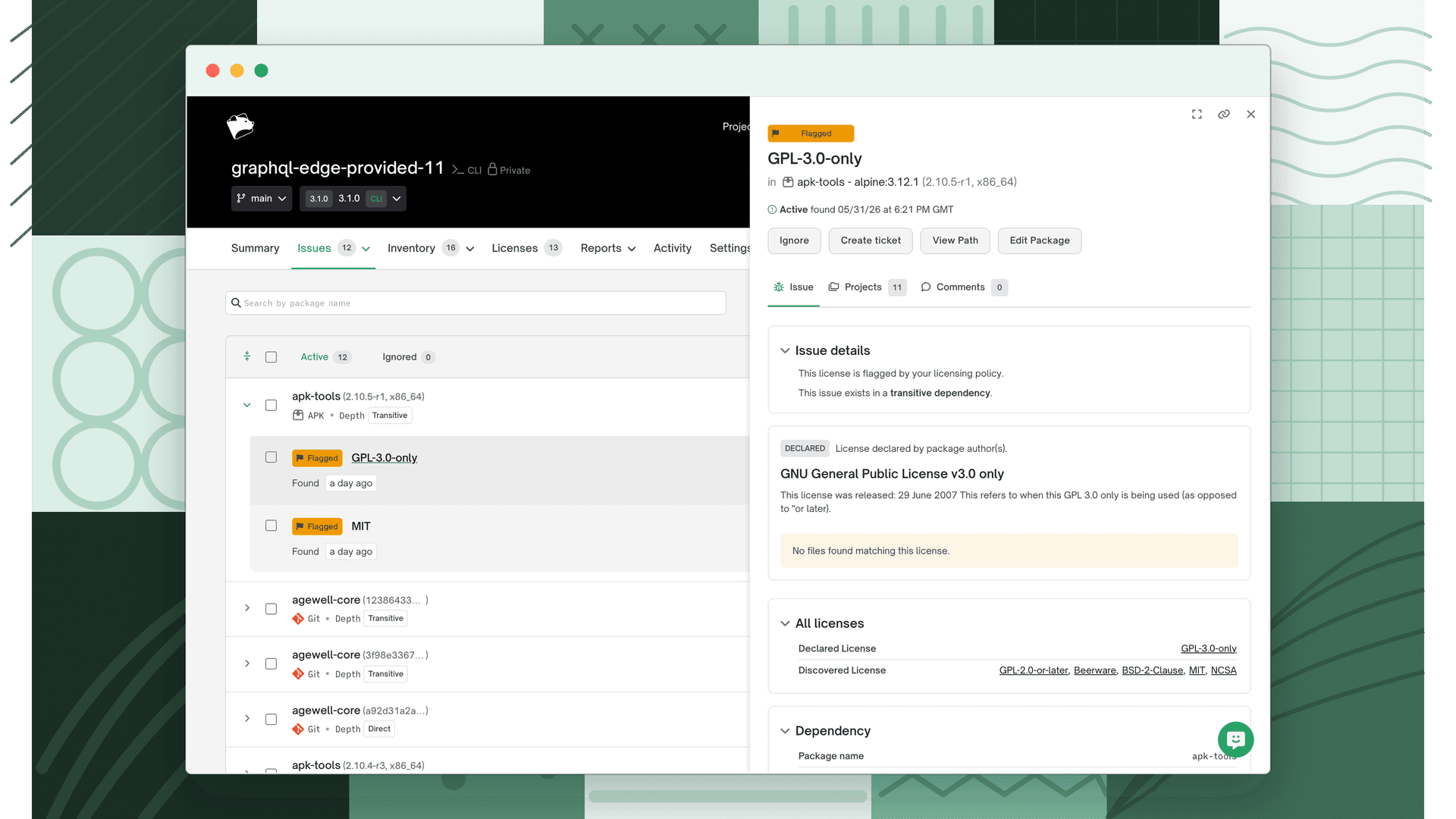
Controls in the top-right corner:
| Control | Action |
|---|---|
| Expand | Opens the issue in a full-screen view in a new tab |
| Share | Copies a link to the expanded issue view |
| Close | Closes the drawer |
Drawer tabs
The drawer has top-level tabs:
| Tab | Shows |
|---|---|
| Issue | The issue itself, in the stacked sections below. |
| Licenses | Every license detected on the package, each marked Declared or Discovered. (Appears for a licensing issue when License Conclusions is enabled.) |
| Projects | The affected projects (with a count badge). See the table below. |
| Comments | A time- and user-stamped comment thread for triage discussions (with a count badge). |
Within the Issue tab, content is stacked in these sections:
| Section | Shows |
|---|---|
| Issue Details | Issue type (Flagged, Denied, Unlicensed…), package depth per project, and any policy notes for the detected license |
| File Matches | Where the license was found (Declared or Discovered), with file path and line numbers; use the dropdown to explore additional paths |
| Dependency | Package name, version, depth, and package manager/ecosystem |
The Projects tab lists every affected project:
| Column | Description |
|---|---|
| Project Name | Title of the project in FOSSA |
| Issue Status | Whether the issue is Active or Ignored in that project |
| View Path | The dependency path showing where the package was detected |
What's next
- License Corrections: Fix incorrect or missing license data when FOSSA's detection doesn't match reality.
- License Conclusions: Determine a single dominant license per dependency when multiple licenses are detected.
- Licensing Policies: Set up policy rules to automatically flag, deny, or permit licenses across your organization.