

Licensing Policies
Create, configure, and roll out licensing policies. Pick a builtin template, tune its approve/flag/deny rules, and apply it across your organization.
Enterprise feature
Available on: Business, Enterprise.
Overview
A licensing policy controls which licenses and dependencies FOSSA approves, flags for review, or denies across every project you scan. FOSSA ships three builtin templates tuned to different distribution models. Use one as-is or customize its rules. Once configured, a policy can be set as your organization default or applied to individual projects.
Note
The Standard Bundle Distribution template is applied by default to all newly imported projects unless you set a different policy.
How licensing policies work
A licensing policy is a collection of rules. Each rule assigns an action (Deny, Flag for Review, or Approve) to a specific license or dependency. On every analysis run, FOSSA evaluates each detected license and dependency against the active policy and raises issues accordingly.
| Action | What it does |
|---|---|
| Deny | Generates a Policy Conflict issue. The license or dependency must be removed or resolved before the project can pass. |
| Flag for Review | Generates a Policy Flag issue requiring manual approval. Use when the license needs case-by-case evaluation. |
| Approve | Suppresses issues for the license or dependency. FOSSA will never flag it, regardless of what other rules exist. |
The three builtin templates
Each template is tuned to a different distribution model. They differ mainly in how they treat copyleft licenses, which scales with how much the distribution model exposes you to copyleft obligations.
Warning
This guidance reflects common patterns observed across FOSSA's customer base and incorporates insights gathered through our work with open-source compliance teams. It is intended to provide general best-practice guidance for configuring license compliance policies. It is not a substitute for legal advice, nor does it represent a legal opinion. Organizations should apply these recommendations in alignment with their own internal policies, governance standards, and risk tolerance.
| License family | Website/Hosted Service | Standard Bundle Distribution | Single-Binary Distribution |
|---|---|---|---|
| MIT, Apache-2.0, BSD | Approved | Approved | Approved |
| LGPL | Flagged | Flagged | Flagged |
| GPL (v2 / v3) | Mostly flagged | Flagged | Denied |
| AGPL | Mostly denied | Flagged | Denied |
Note
The exact action is configured for each individual license and version (for example, GPL-3.0-only and GPL-3.0-or-later can differ) so treatment varies within a family. Open a policy in FOSSA to see the precise rule for any license. Some rules also carry a DIRECT depth condition, meaning they only apply when the license appears in a direct dependency; see Rule conditions below.
Standard Bundle Distribution
The general-purpose default, and the template FOSSA applies to new projects unless you choose another. Best for traditional software distributed to end users:
- Desktop applications, CLI tools, and installers
- Software libraries, SDKs, and plugins built for redistribution
- Commercial products with a standard "users install and run it locally" model
It balances compliance with development flexibility: most GPL licenses are flagged for review rather than denied, giving teams room to evaluate copyleft dependencies case by case.
Website/Hosted Service
Best for code that runs server-side and is never delivered to end users:
- SaaS applications, web services, and APIs
- Backend microservices and cloud-native components
- Internal tools and services used only within your organization
This is the most permissive template toward copyleft. Because server-side execution generally does not trigger distribution obligations, it denies AGPL but only flags most GPL and LGPL licenses, maximizing flexibility for backend development.
Single-Binary Distribution
Best for software shipped as a single self-contained artifact, where all dependencies are bundled together:
- Mobile applications (iOS, Android)
- Embedded systems, IoT devices, and firmware
- Statically-linked executable binaries
This is the strictest template. It denies the full GPL and AGPL families to minimize copyleft obligations in scenarios where source-code disclosure would be problematic.
Creating a policy
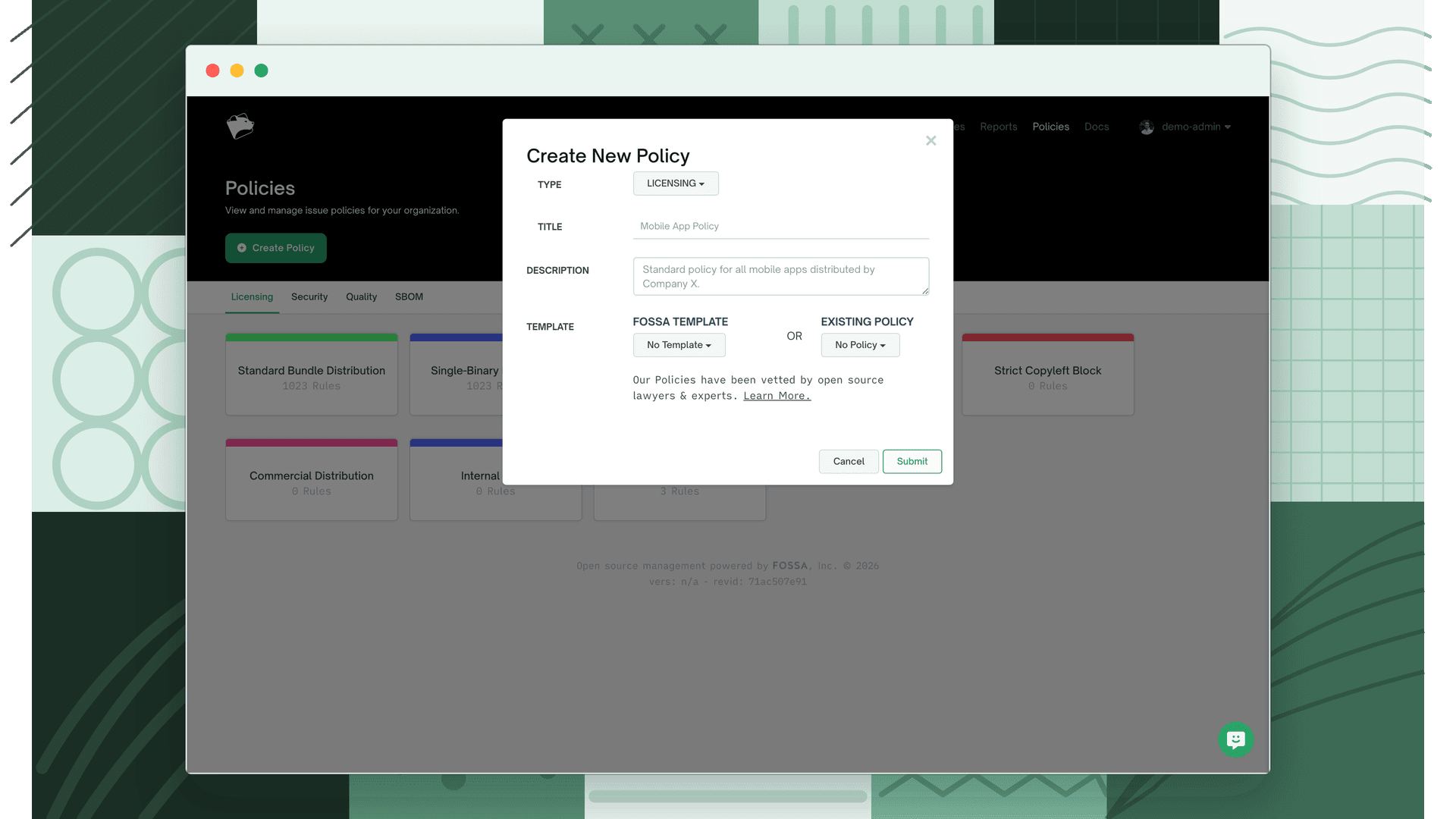
Navigate to Policies in the top navigation, then open the Licensing tab. You'll see any existing policies alongside the option to create a new one.
- 1
Open the Create New Policy dialog
Click Create New Policy.
- 2
Set the policy type
From the Type dropdown, select Licensing.
- 3
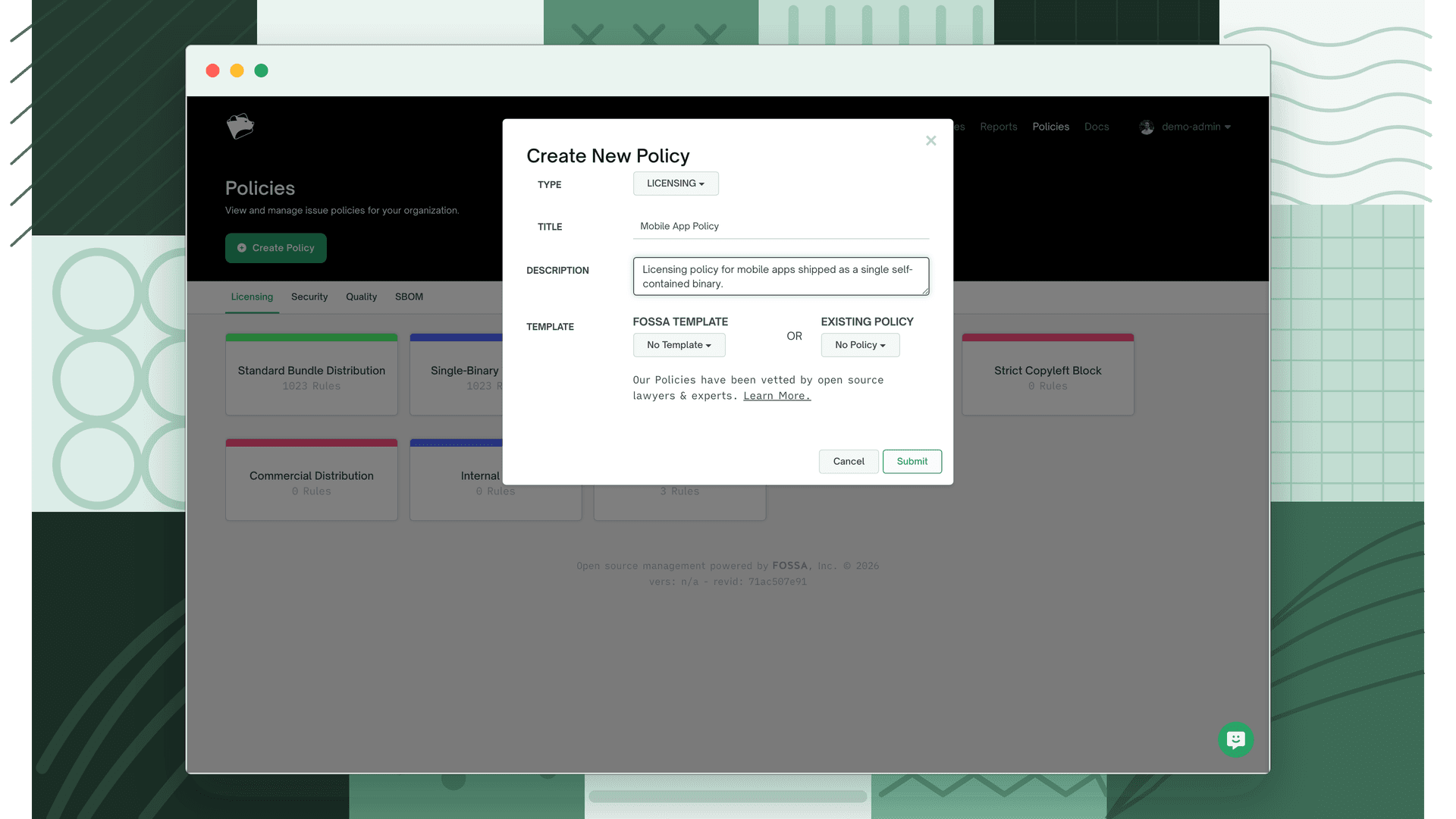
Name and describe the policy
Give the policy a Title and a Description that provides context for your team, for example, the distribution scenario it covers.
- 4
Choose a starting point (optional)
Select a FOSSA template or an existing policy from your organization to use as a skeleton.
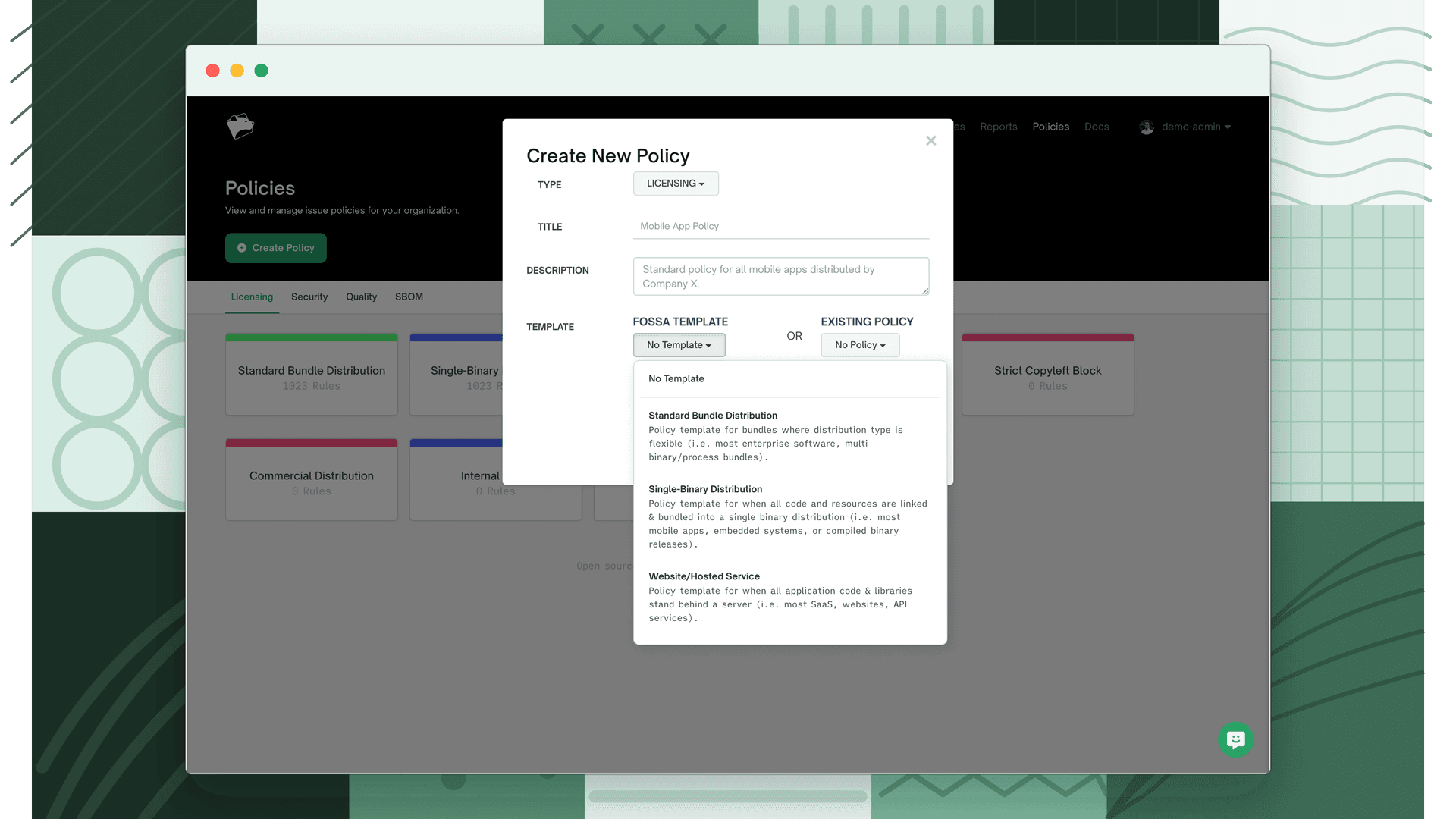
The three available templates are described in The three builtin templates above.
- 5
Submit
Click Submit to create the policy. It now appears in your Policies list and can be assigned to projects.
Tip
You can edit the title and description of any policy by clicking the pencil icon that appears when you hover over it.
Configuring policy rules
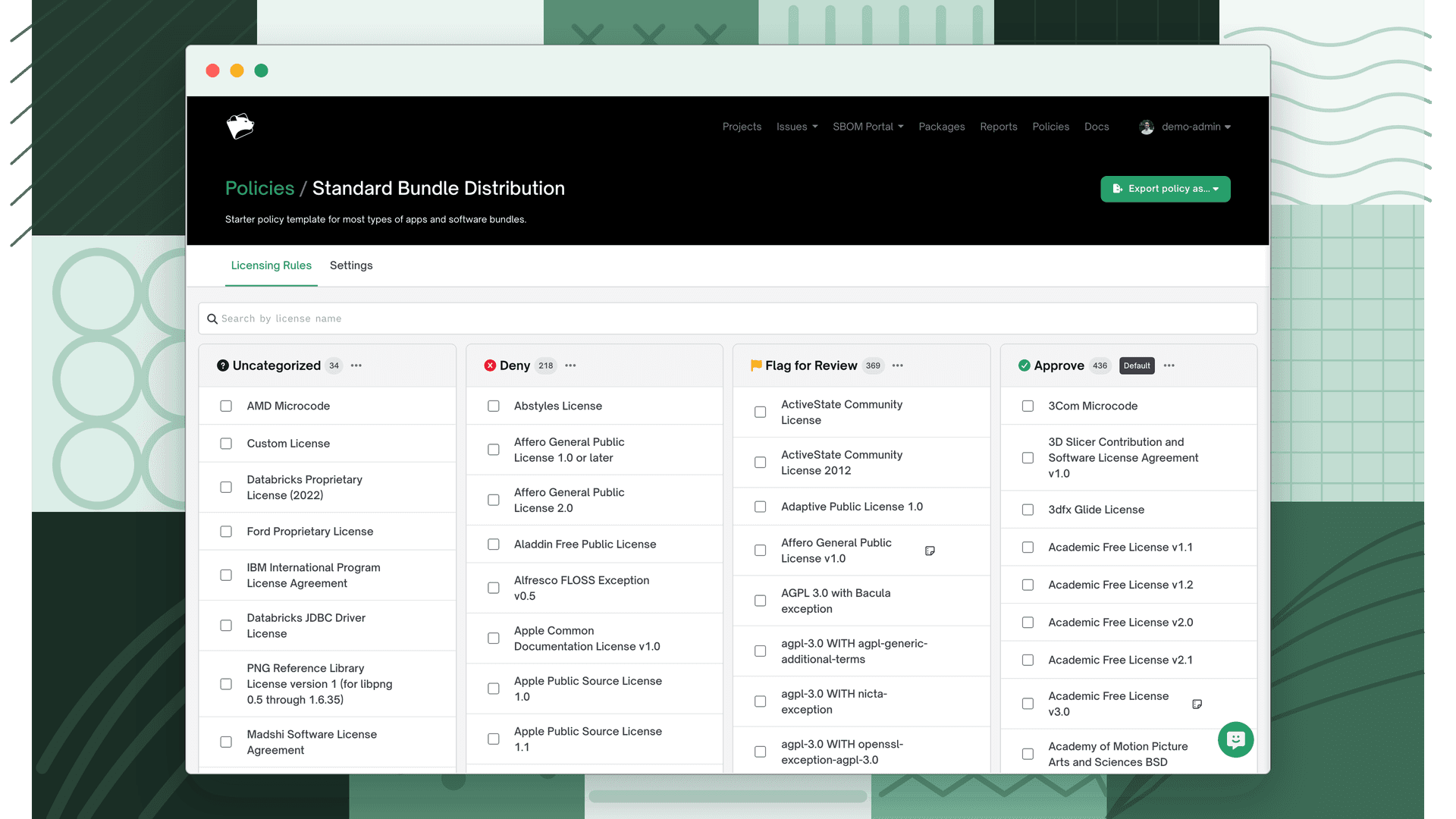
A new policy inherits its template's rules. Add, remove, or adjust rules to match your organization's standards.
Adding a rule
Open the policy you want to edit from the Policies page, then add rules to the Deny, Flag for Review, or Approve panel.
- 1
Click Add Rule
In the policy editor, click Add Rule above the panel you want to add the rule to, Deny, Flag for Review, or Approve.
- 2
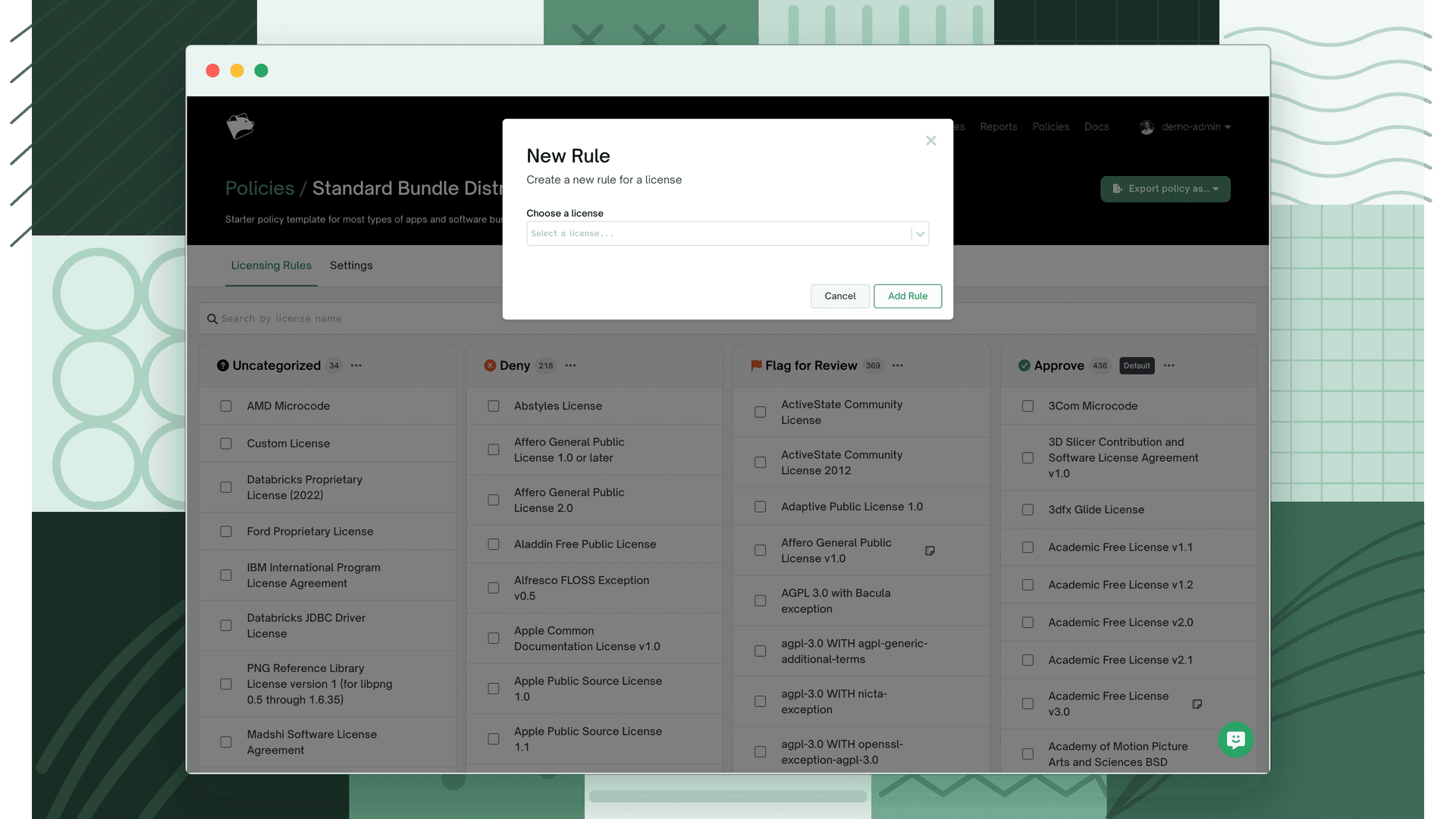
Choose the rule target
Select whether the rule applies to a license or a dependency (project), then search for and select the specific license or dependency.
- 3
Add conditions (optional)
Narrow when the rule fires by enabling one or more conditions. See Rule conditions below.
- 4
Save
Click Submit to add the rule to the policy. Changes take effect on the next scan.
Rule conditions
Conditions let you restrict a rule to specific circumstances so it only fires when relevant. Each rule supports up to three independent conditions.
| Condition | UI label | What it filters |
|---|---|---|
| License location | License is found: | Whether the license appears In your code (direct) or In a dependency (transitive). Useful for licenses like MPL that only impose obligations when you modify the licensed code. |
| Dependency name | Dependency name contains: | Whether the dependency name contains a specific substring, e.g. acme- or @acme/ to distinguish internal packages from external ones. |
| Linking type | Dependency is linked: | Whether the dependency is linked Statically or Dynamically. Relevant for licenses like LGPL where linking method affects obligations. FOSSA infers this from the language and build system. |
Setting a default for uncategorized licenses
When FOSSA encounters a license that has no explicit rule in the policy, it falls back to the policy's default action. By default this is Uncategorized, which takes no action.
Warning
Setting a default of Deny or Flag for Review on a large project can generate a high volume of issues on the first scan, one for every uncategorized license found.
- 1
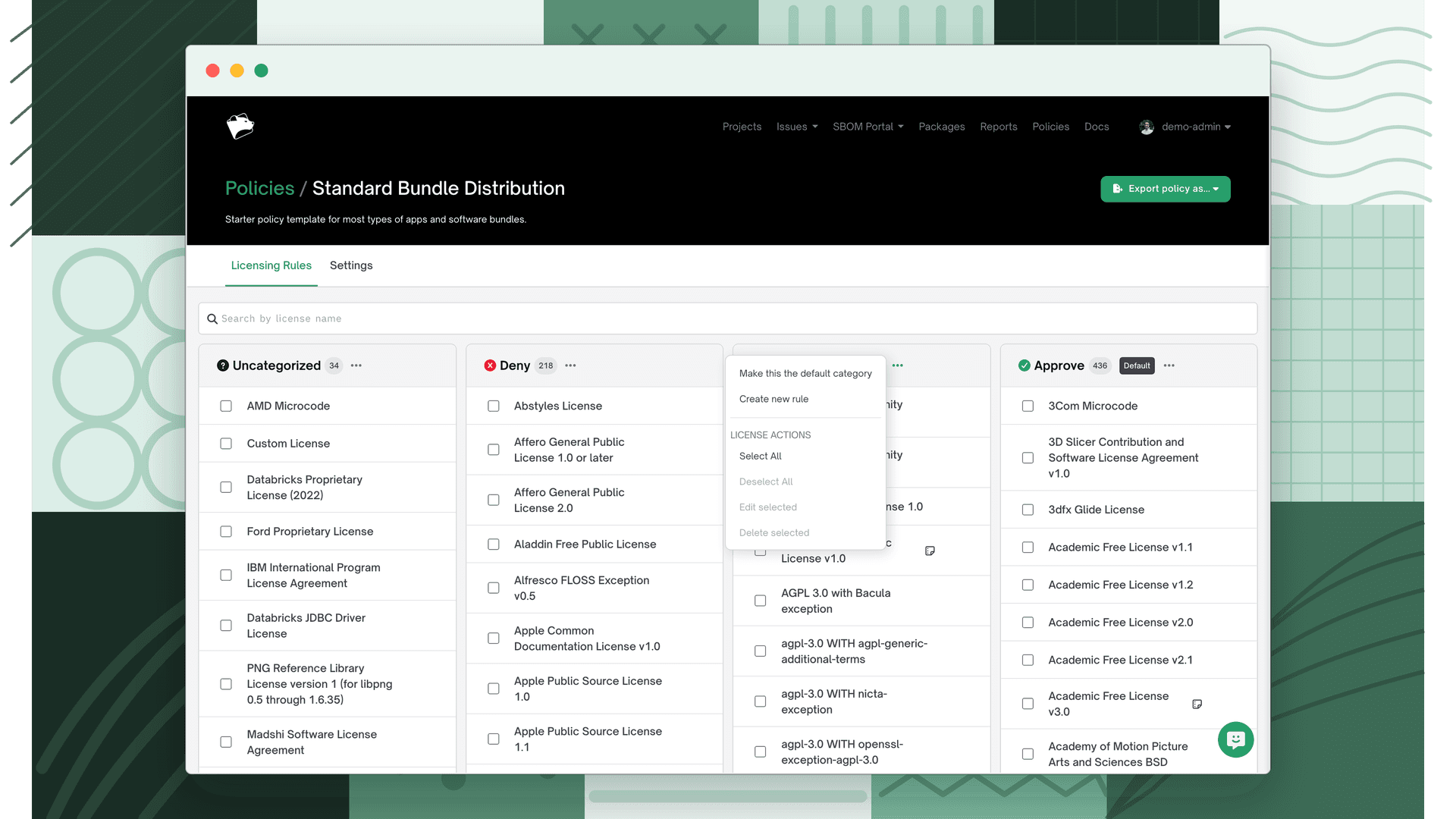
Open the rule action menu
In the policy editor, find the panel (Deny, Flag for Review, or Approve) you want to make the default. Open the action menu for that panel.
- 2
Set as default
Select Make this the default category. The panel is now marked as the default, any license with no explicit rule will be treated as if it matched this action.
The four possible defaults and their behavior:
| Default | Behavior |
|---|---|
| Uncategorized (default) | No action taken. License is noted but no issue is created. |
| Deny | Generates a Policy Conflict issue for every uncategorized license. |
| Flag for Review | Generates a Policy Flag issue for every uncategorized license. |
| Approve | Silently approves all uncategorized licenses. |
Choosing defaults across your organization
Set one builtin template as your organization-wide default, then override at the project level wherever a project's distribution model differs.
For organizations with mixed project types, a common approach is:
- Set Standard Bundle Distribution as the org-wide default for maximum flexibility.
- Override at the project level for specific distribution scenarios, for example, mobile and embedded projects → Single-Binary Distribution; backend services and internal tools → Website/Hosted Service.
For more specialized organizations, match the default to your dominant distribution model and override the exceptions:
| Organization type | Recommended default | Override with |
|---|---|---|
| SaaS / web companies | Website/Hosted Service | Single-Binary or Standard Bundle for any distributed mobile or desktop tools |
| Enterprise software vendors | Standard Bundle Distribution | Single-Binary for mobile/embedded components; Website/Hosted Service for internal tools and services |
| Hardware / embedded companies | Single-Binary Distribution | Website/Hosted Service for any cloud services or management portals |
Setting the organization default
Once you've created a policy, assign it as the organization default so it applies automatically to every new project imported going forward.
Tip
If you are setting up policies for the first time, set the default at the organization level before importing additional projects.
- 1
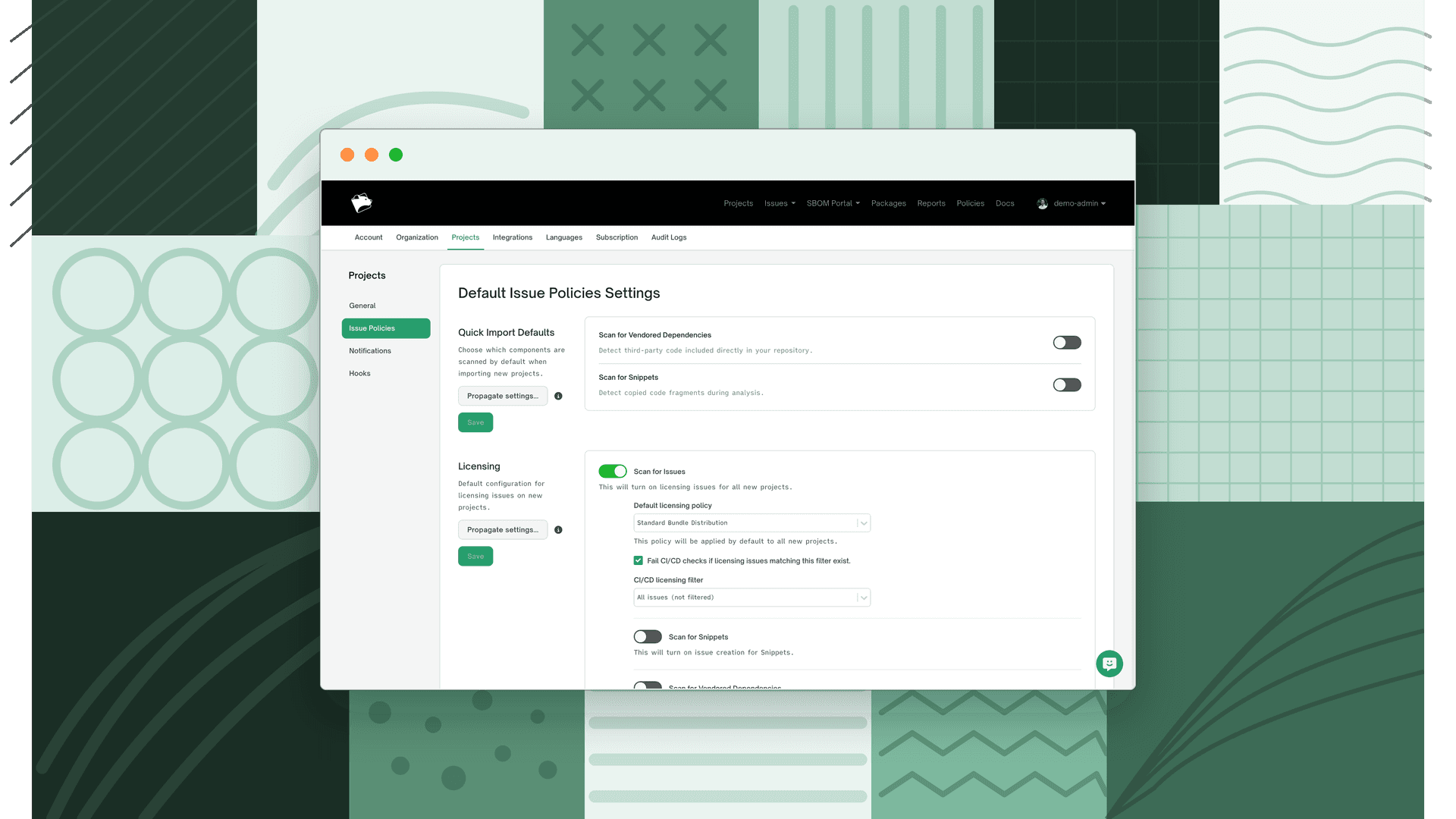
Open organization project settings
Click your username in the top-right corner and select Settings, then navigate to Projects → Issue Policies → Licensing.
- 2
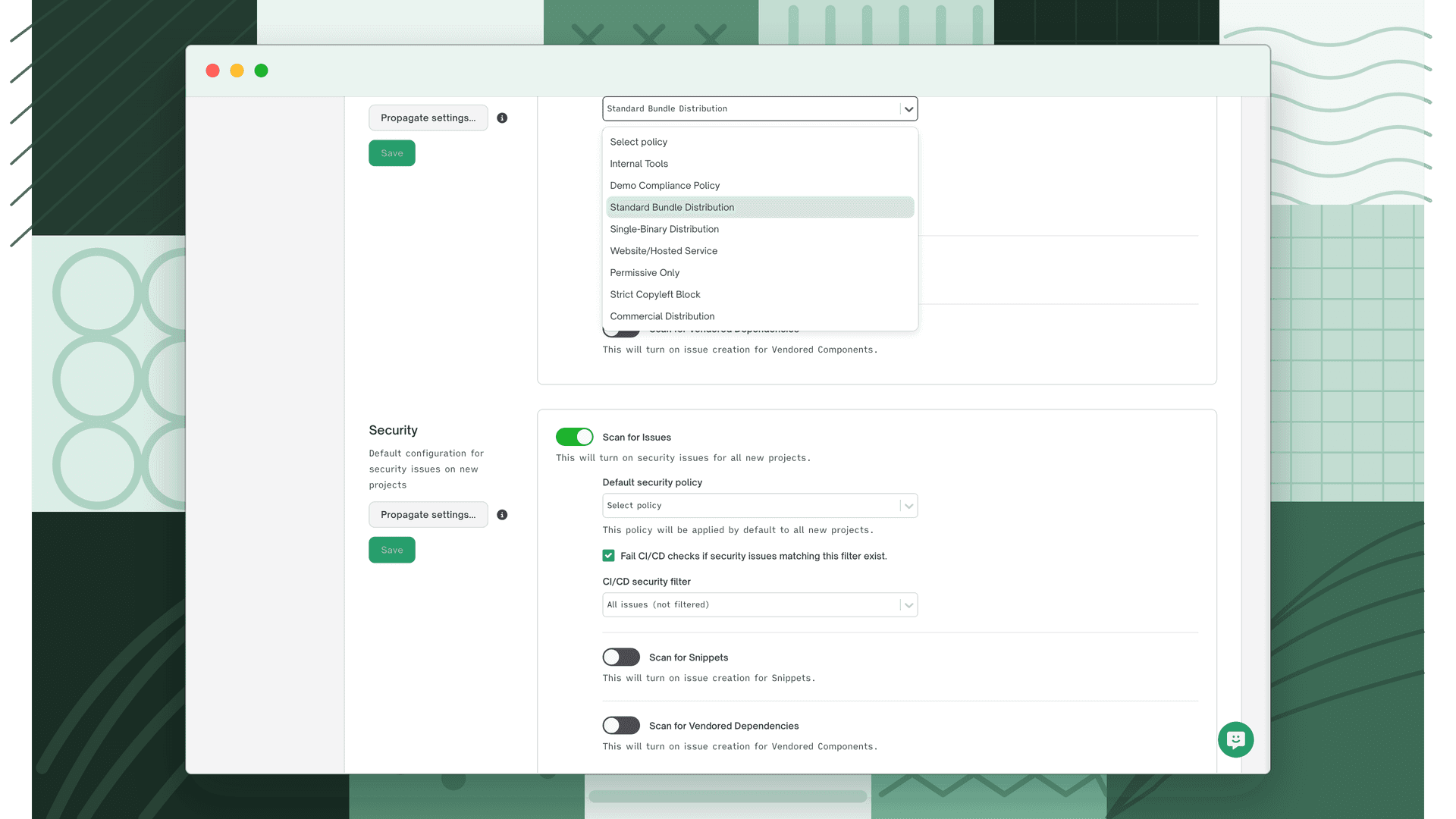
Select the policy
Under the Licensing section, use the policy dropdown to select your newly created policy.
- 3
Save
Click Save to apply the policy to all future projects.
- 4
Propagate to existing projects (optional)
To apply the change to projects already in FOSSA, click Propagate and select which settings you want to push to existing projects.
Applying a policy to a project
Override the organization default on any individual project whose distribution model differs.
Warning
Changing the policy: field in a .fossa.yml file for an existing project will not update the policy applied in FOSSA. Update the policy through project settings instead.
- 1
Open project settings
Navigate to the project in FOSSA and open its Settings.
- 2
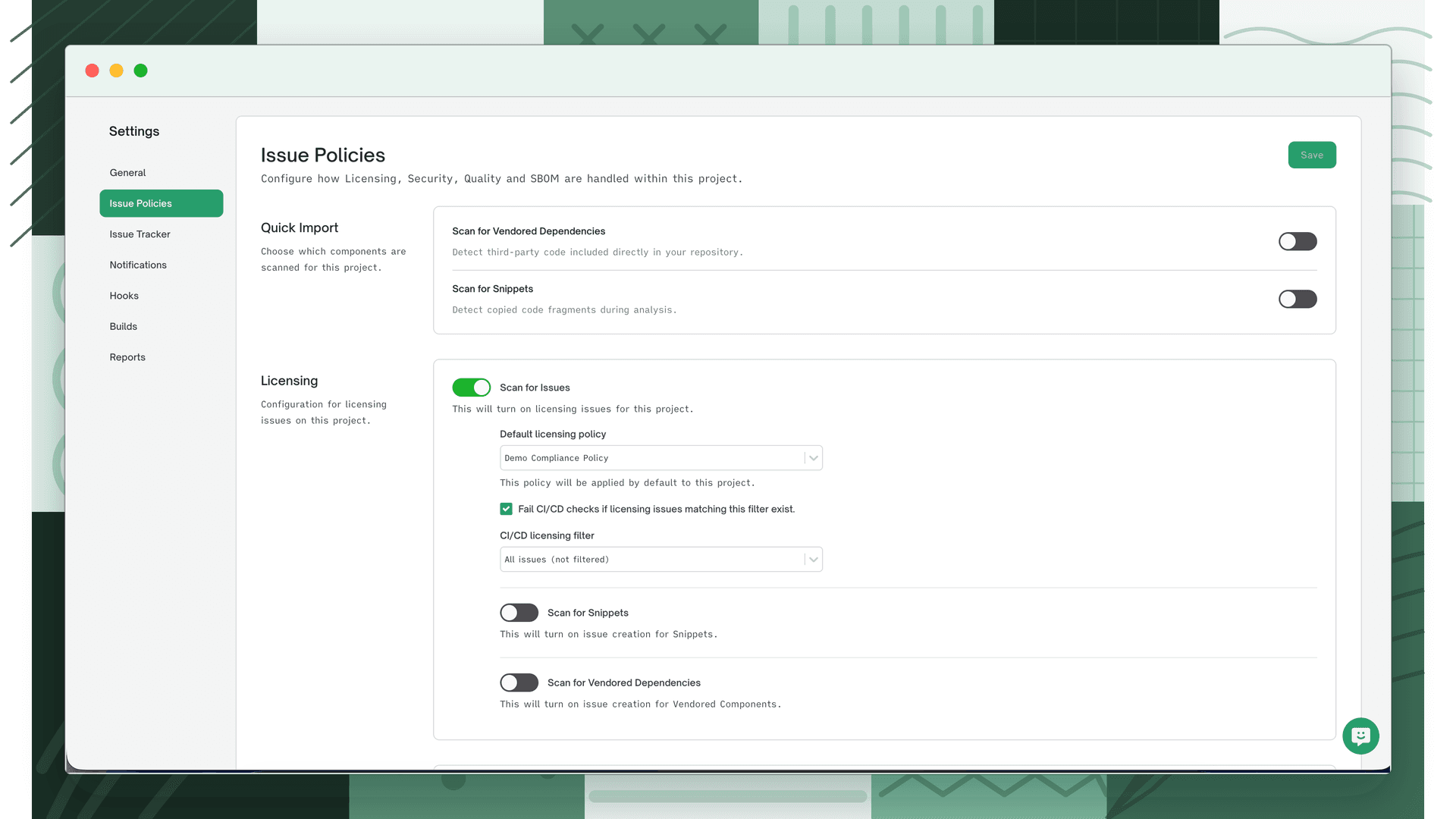
Go to Issue Policies
Select Issue Policies from the settings sidebar.
- 3
Select the policy
Choose the appropriate policy for each issue type (Licensing, Security, Quality).
- 4
Save
Save your changes. The new policy applies on the next scan.
Rolling out a policy
When introducing policy enforcement for the first time:
- Start with the most restrictive policy that fits your distribution model, so you surface compliance risk early.
- Run an initial scan across your projects to understand your current license landscape before enforcing.
- Resolve denied licenses before turning enforcement on, then relax restrictions only once you understand the implications.
- Begin from a builtin template rather than building a policy from scratch, and document any customizations along with the business reasons behind them.
- Align your team on the difference between Approve, Flag for Review, and Deny, and establish a clear escalation path for flagged-license decisions.
Migrating between policies
From no policy to a builtin template: start with Standard Bundle Distribution, run comprehensive scans across all projects, address any denied licenses, then gradually apply project-specific policies based on each project's distribution model.
Between builtin templates: understand the license differences first (see the comparison table above), test the change on a few representative projects, communicate the change to development teams in advance, and provide a timeline for addressing any newly-denied licenses.
The key is matching your policy choice to your actual distribution model and risk tolerance. Start conservatively, then adjust as you learn your organization's specific needs.
What's next
- Reviewing Licensing Issues: Resolve dependencies flagged or denied by your licensing policy.
- Security Policy: Define vulnerability handling policies to complement your licensing rules.
- Fail CI/CD Checks: Enforce your policies in CI/CD to block non-compliant builds.