

Quality Policies
Create and configure quality policies that control which dependency-health and supply-chain-risk issues FOSSA flags across your projects.
Enterprise feature
Available on: Business, Enterprise.
Check with your FOSSA account team to confirm what's enabled for your organization.
Overview
A quality policy defines which dependency-health and supply-chain-risk problems FOSSA raises as issues. Use one to keep dependencies up to date, block specific packages, and turn on FOSSA's risk-intelligence signals. Once configured, a policy can be set as the organization default or applied to individual projects.
How quality policies work
When FOSSA scans a project, the quality scanner evaluates each dependency against the active quality policy. A policy holds these rule types:
| Rule type | What it does |
|---|---|
| Stale Package Prevention | Flags dependencies that are further behind the latest release than you allow, by semantic-version distance (configurable per major, minor, and patch), by ordered versions, or both. |
| Blocked Packages | Flags dependencies your organization has deny-listed. Blocked packages also fail fossa test in CI/CD. |
| Abandonware | A risk-intelligence signal that flags packages with no new publish for two years. Available for npm, PyPI, and Maven. |
| Empty Package | A risk-intelligence signal that flags packages shipping no runnable code. Available for npm, PyPI, and Maven. |
| Native Code | A risk-intelligence signal that flags packages embedding compiled binaries. Available for npm and PyPI. |
See Understanding Quality Issues for a detailed breakdown of each signal.
Creating a quality policy
- 1
Open the Policies page
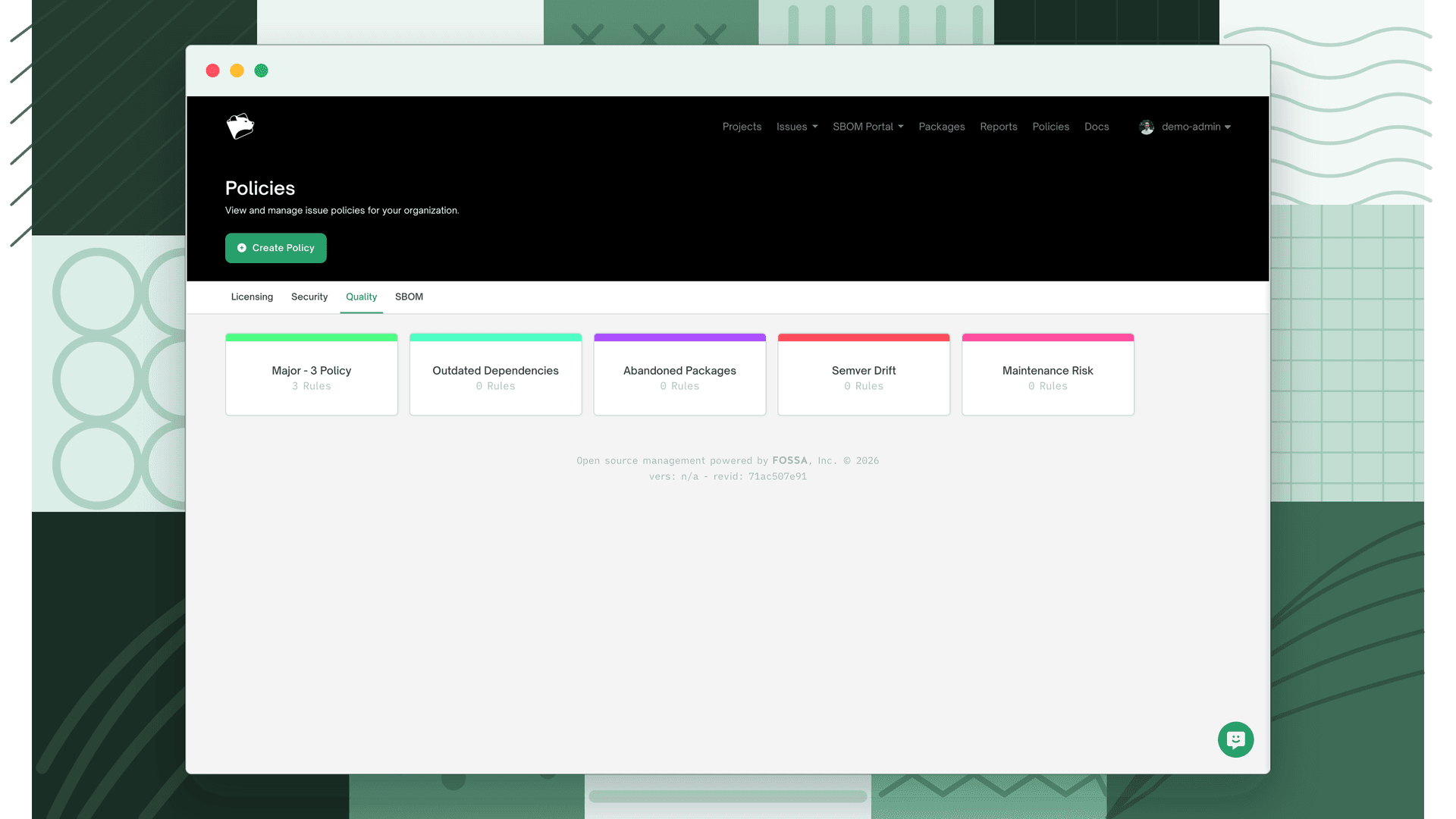
Navigate to Policies in the top navigation, then select the Quality tab.
- 2
Create the policy
Click Create Policy, confirm Type is set to Quality, enter a Title and optional Description, then submit.
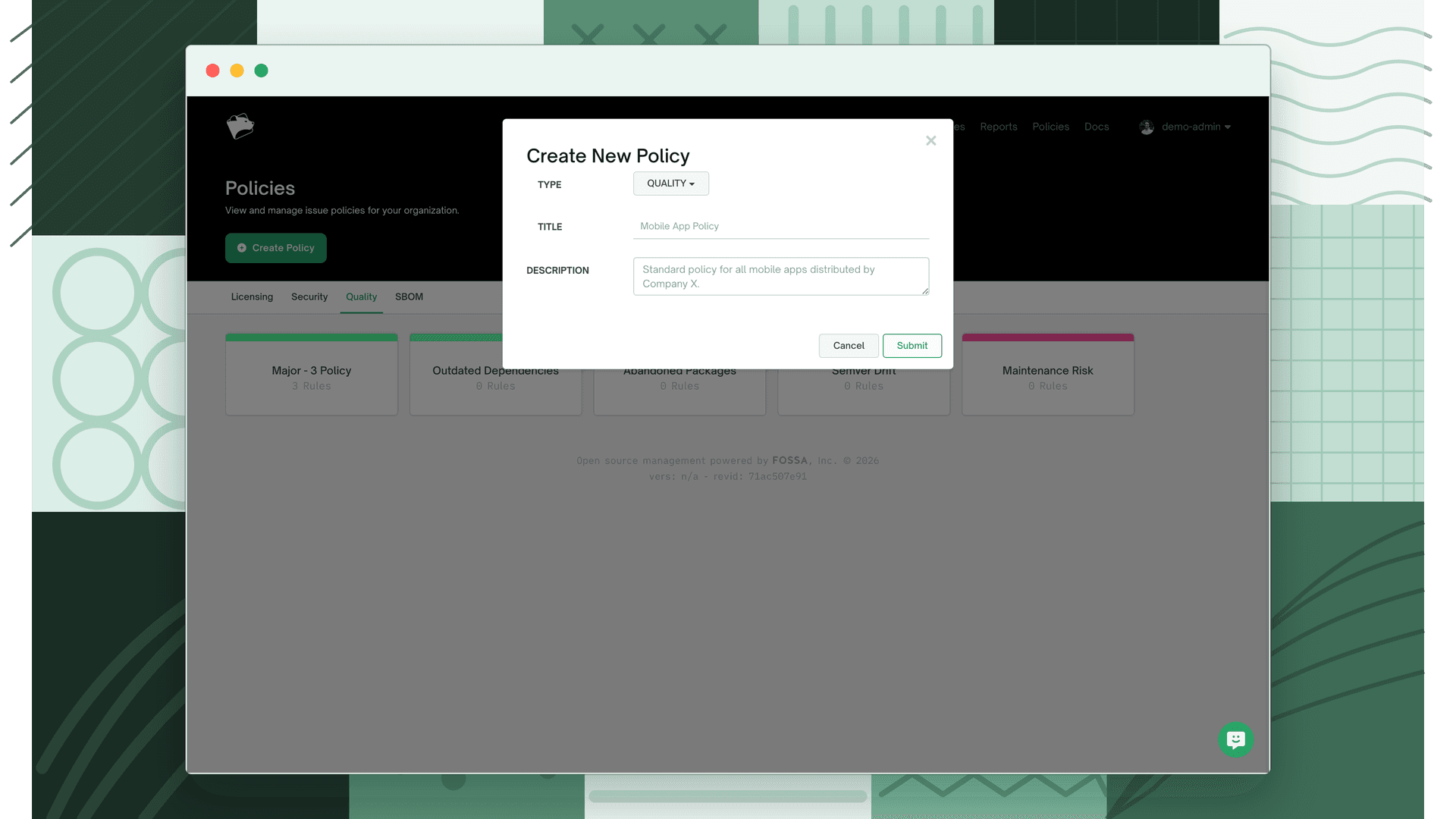
The policy is created with no rules configured. Proceed to Configuring policy rules to define thresholds.
Configuring policy rules
- 1
Enable Stale Package Prevention
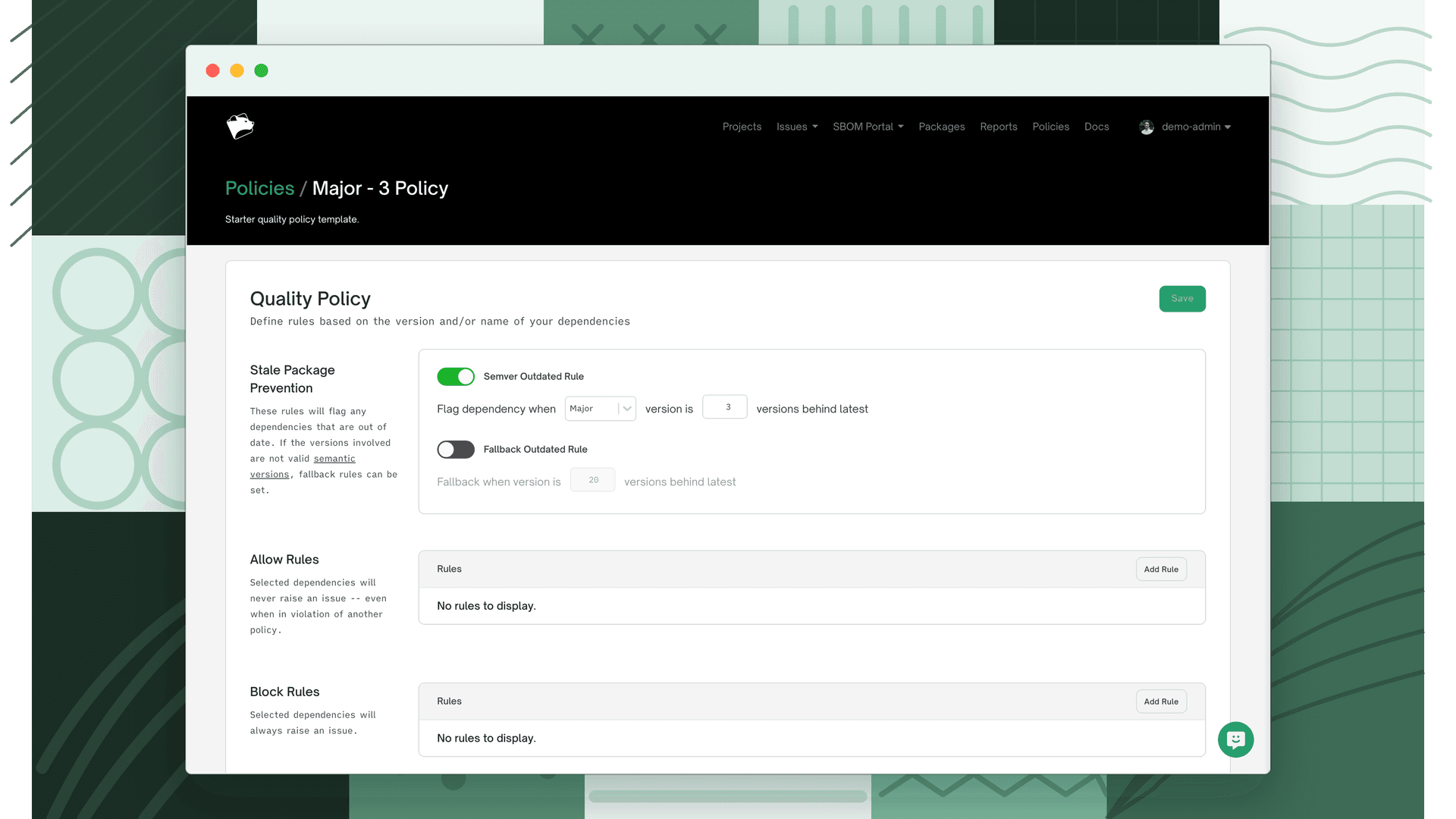
Open the policy and enable rules to flag packages by semantic version, ordered versions, or both. A package matching either rule is flagged as an issue.
- 2
Enable risk-intelligence rules
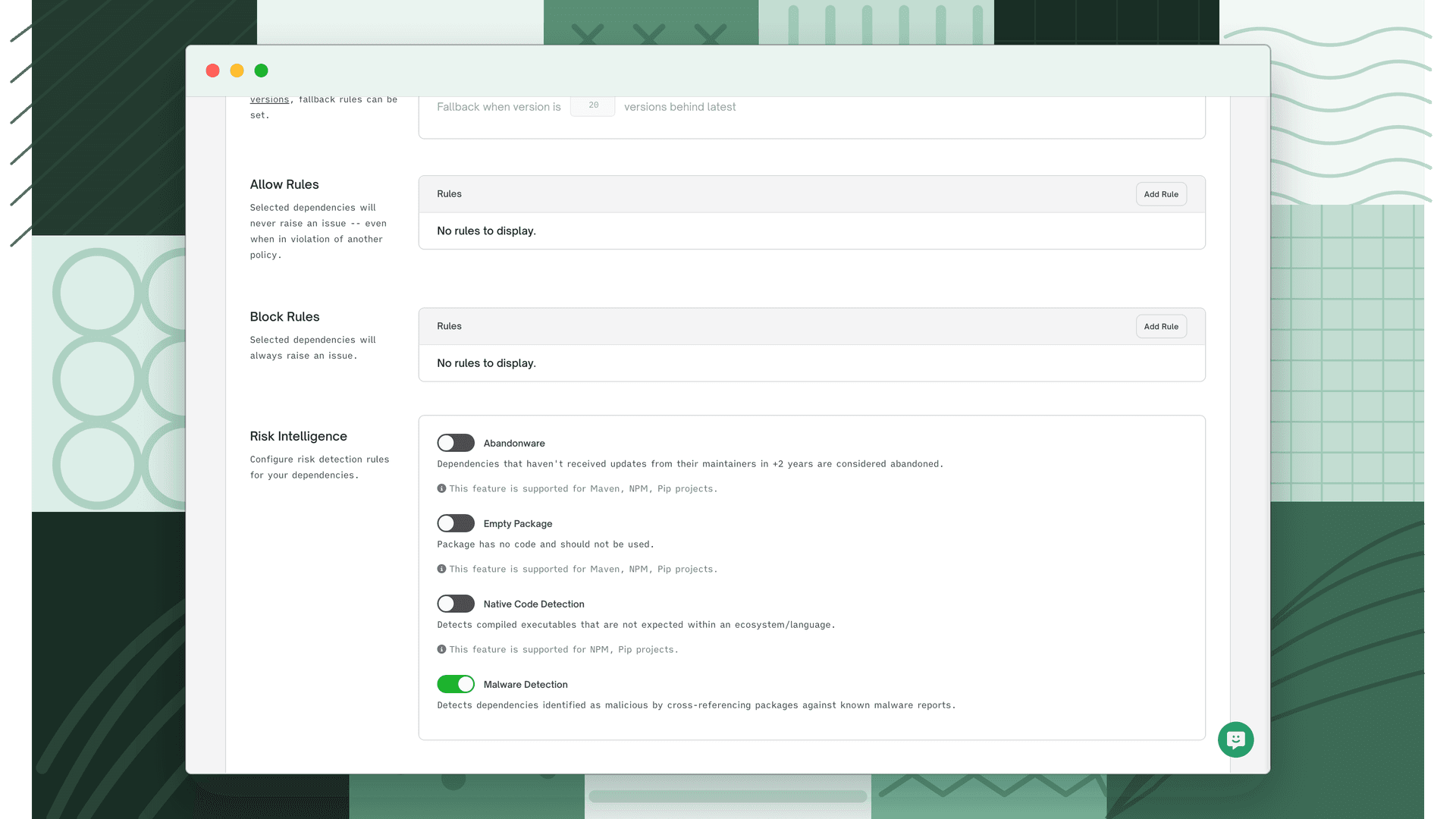
Turn on the Abandonware, Empty Package, and Native Code signals you want FOSSA to flag for projects using this policy.
- 3
Save
Save the policy to apply your changes. The rules take effect on the next completed scan.
Blocking a package
Blocked packages are managed from the Packages inventory rather than the policy editor, and are attached to a quality policy.
- 1
Find the package
Go to the Packages inventory and search or filter to the package you want to block.
- 2
Block it
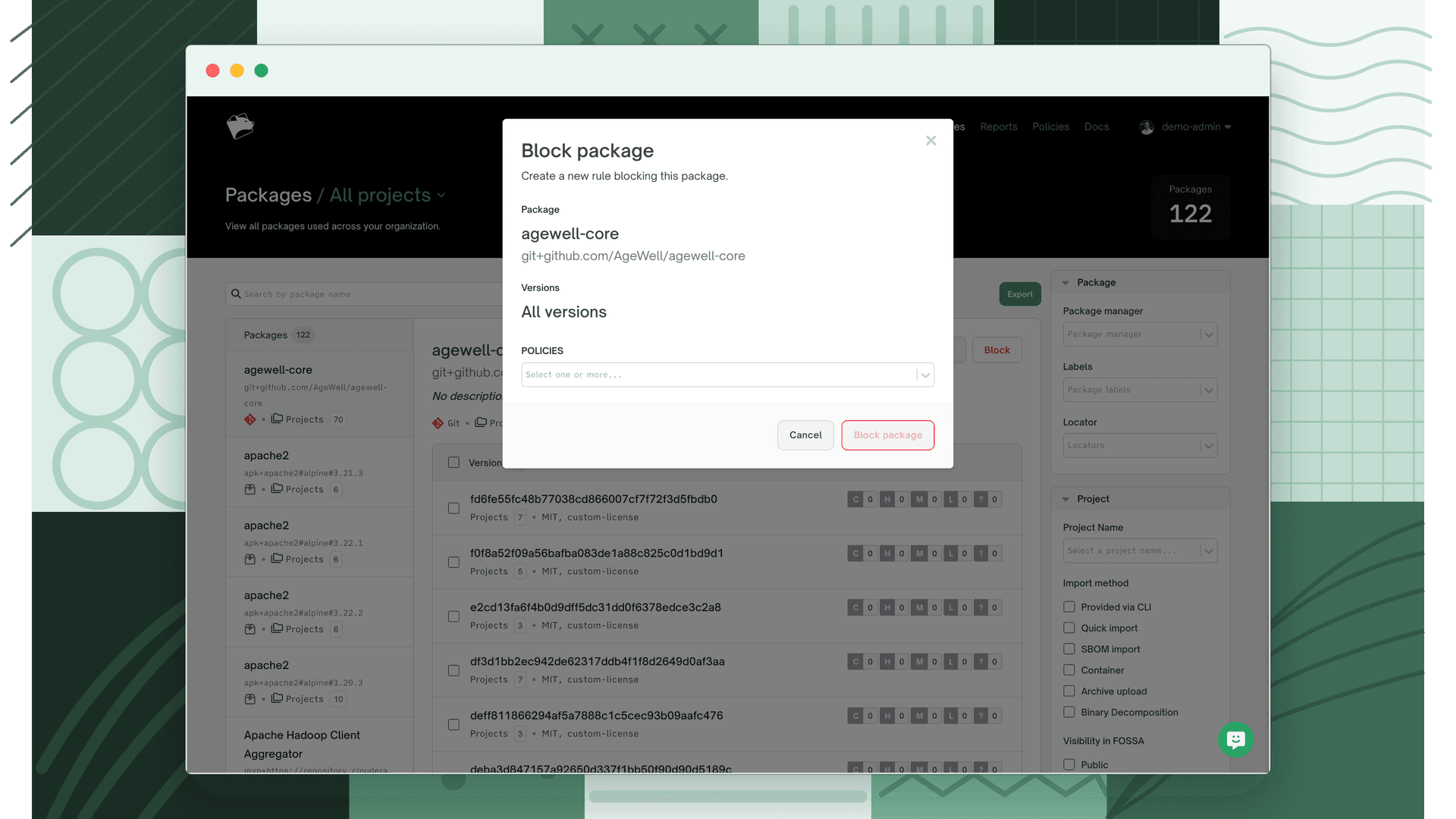
Use Block package to block all versions, or select specific versions to block.
- 3
Attach to a quality policy
Select the quality policy the blocked-package rule should apply to, then confirm. Projects using that policy will flag the blocked package, and fail
fossa testif it is present.
Setting the organization default
The organization default policy applies to all projects that have not been assigned a specific quality policy.
- 1
Open Settings
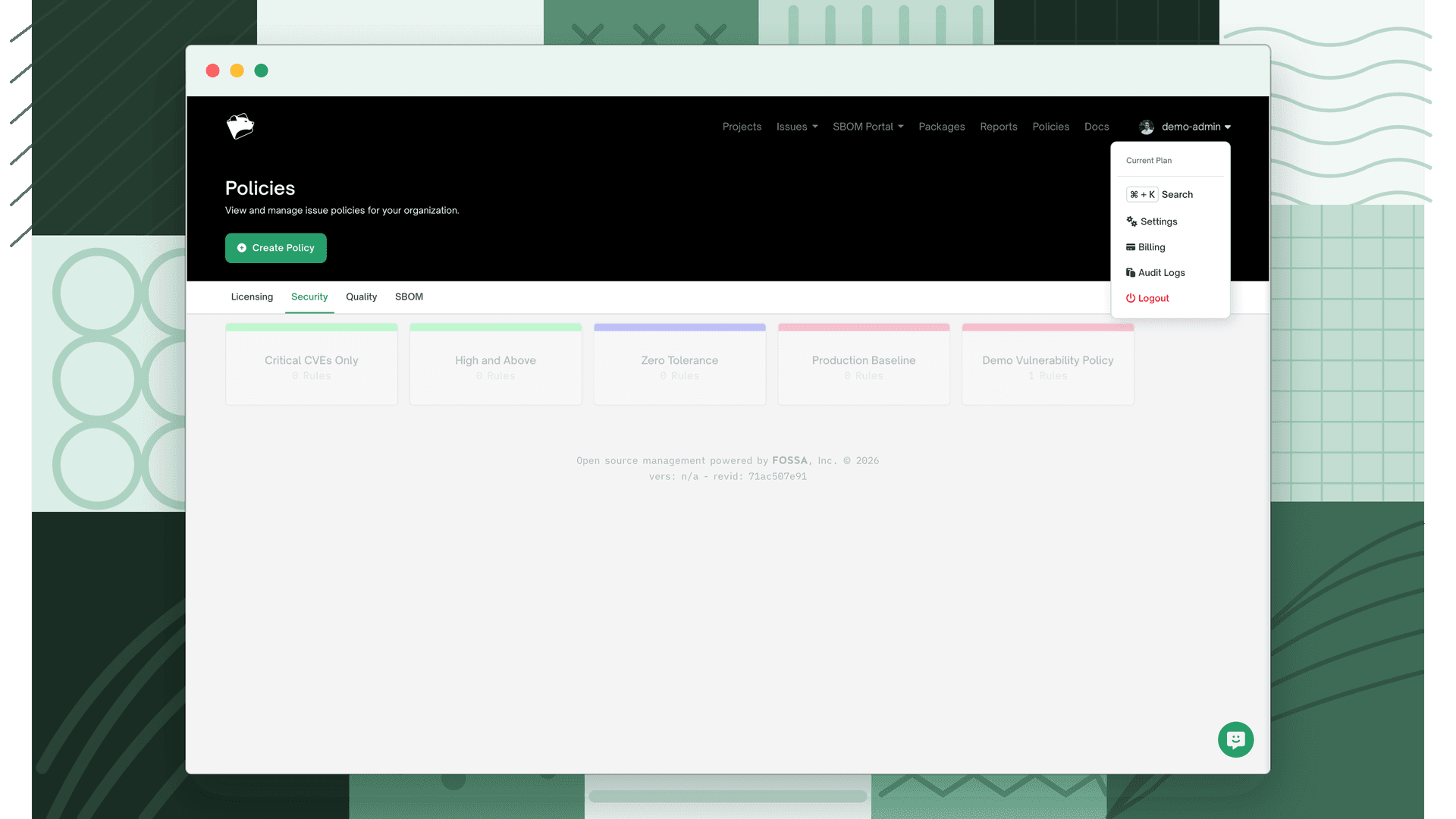
Click your username in the top-right corner and select Settings.
- 2
Navigate to Issue Policies
Go to Organization > Projects > Issue Policies.
- 3
Assign the default policy
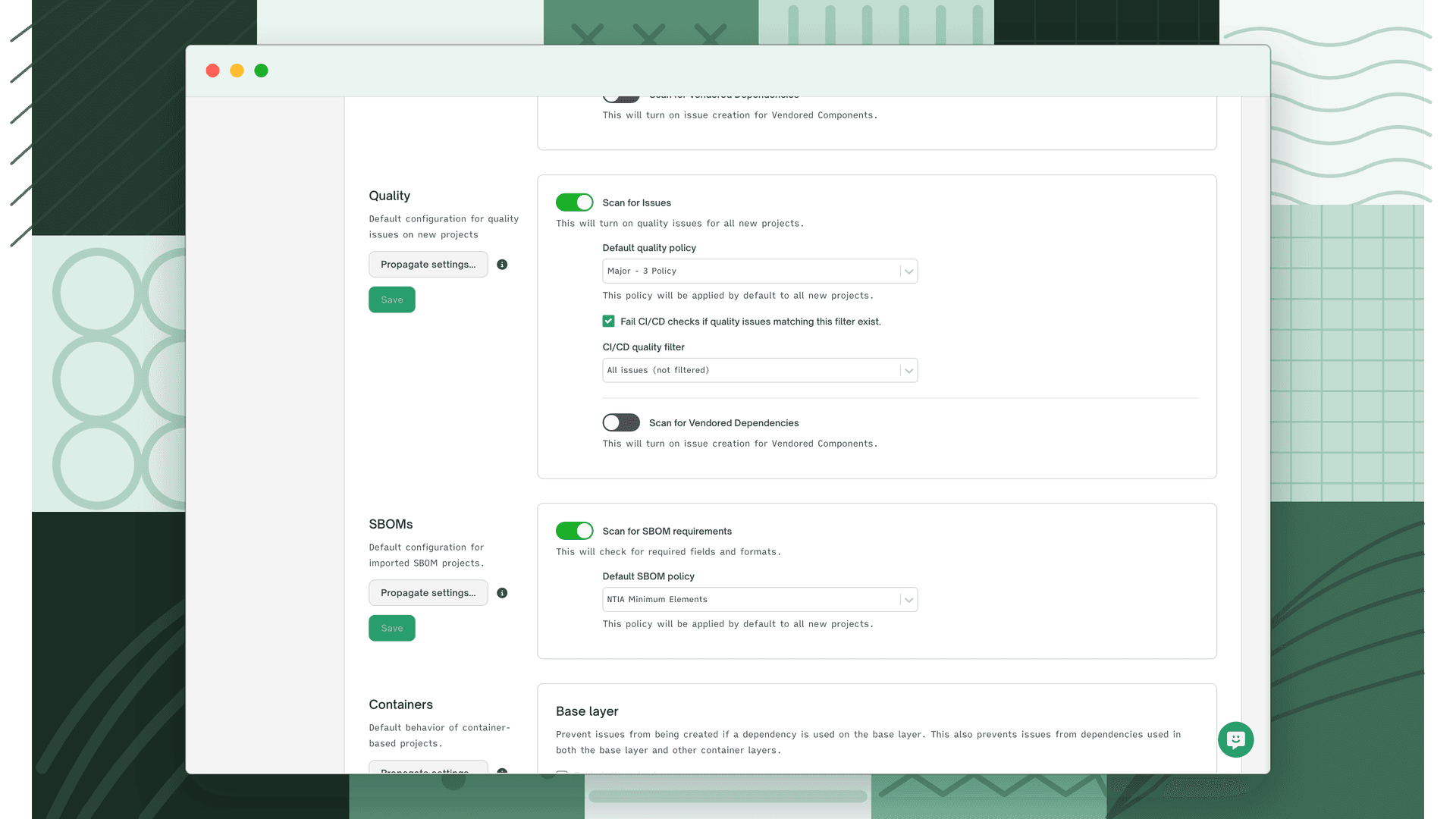
Under Quality, select your policy from the Default quality policy dropdown, then click Save. To push the new default to existing projects, use Propagate settings….
Applying a policy to a project
- 1
Open project settings
Go to your project list, select the project, then navigate to Settings > Issue Policies.
- 2
Assign the policy
Under Quality, select a policy from the Default quality policy dropdown, then click Save.
- 3
Run a new scan
Trigger a new scan. The updated policy applies to issues generated by the next completed scan.
Related
- Understanding Quality Issues: what each quality issue type means.
- Reviewing Quality Issues: triage and resolve issues.
- Issue Scanners: enable the quality scanner and gate CI/CD.