

Reviewing Quality Issues
Filter, sort, and act on quality issues across your projects, bulk actions, the issue drawer, and ignore rules explained.
Enterprise feature
Available on: Free (Outdated Packages Only), Business, Enterprise.
The Ticket and First Found filters require a paid plan.
Overview
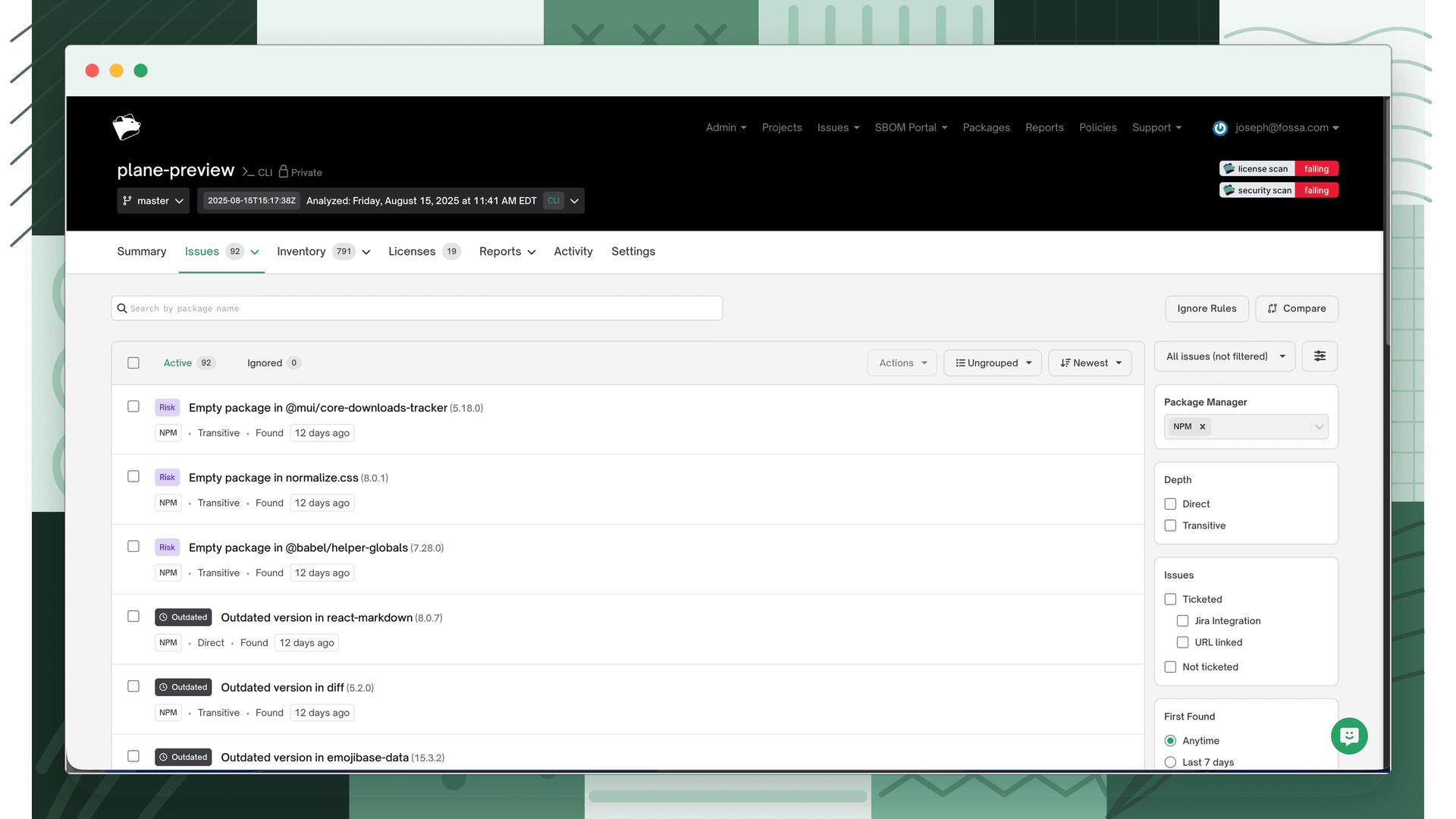
The issues inbox is where you triage, resolve, and track quality issues. You can review quality issues globally (across all projects), within a single project, or within a release group. From the main Issues tab, select Quality.
Issues are split into two tabs:
- Active: issues that require attention
- Ignored: issues that have been reviewed and suppressed
For a breakdown of what each issue type means, see Understanding Quality Issues.
Filtering
Depth
| Option | Shows |
|---|---|
| Direct | Issues on direct dependencies only |
| Transitive | Issues on transitive (indirect) dependencies only |
Issue Type
| Option | Shows |
|---|---|
| Outdated Version | Issues generated by Stale Package Prevention rules |
| Blocked package | Issues generated by blocked-package rules |
| Abandonware | Issues generated by the Abandonware risk-intelligence signal |
| Empty Package | Issues generated by the Empty Package risk-intelligence signal |
| Native Code | Issues generated by the Native Code risk-intelligence signal |
Ticket
| Option | Shows |
|---|---|
| Ticketed | Issues that have a ticket associated (Jira integration or a manually added URL) |
| Not ticketed | Issues with no ticket association |
First Found
| Option | Shows |
|---|---|
| Anytime | All issues regardless of when they were found |
| Last 7 / 14 / 30 days | Issues first detected within the selected window |
Package Manager
Filters issues to a specific ecosystem or package manager. Only ecosystems present in the current scope (global, project, or release group) appear as options.
Project Label
Filters to issues in projects tagged with a specific FOSSA or user-defined project label. Multiple labels can be selected using OR logic.
Team
Filters to issues in projects belonging to a specific team. Multiple teams can be selected using OR logic.
Note
Select Reset all filters at any time to clear all active filters and show every issue.
Sorting
Use the sort dropdown to order issues by:
| Sort option | Description |
|---|---|
| Newest / Oldest | By the date FOSSA first found the issue |
| Package (A–Z) / (Z–A) | Alphabetical by package name |
| Most / Least issues | By issue count per semantic version |
Note
The default sort is Most issues when grouped by version, and Newest when ungrouped.
Issue grouping
Issues are grouped by Version by default. To switch to an ungrouped view, select Version in the inbox header and change it to Ungrouped.
Issue actions
Select the checkbox next to any issue to open the action menu. Available actions depend on issue status, scope, and whether you're acting on one issue or many.
| Action | Description | Type | Status | Scope |
|---|---|---|---|---|
| Ignore (current version only) | Ignores the issue for the current semantic version of the affected package, in the selected project(s) only. A new revision with any other version generates a new active issue. | Individual, bulk | Active | Global, release group, project |
| Create ticket | Creates a Jira ticket containing the selected issues. Selecting a previously ticketed issue links it to the new ticket only. | Individual, bulk | Active, ignored | Global, release group, project |
| Unlink ticket | Removes the association between the selected issues and any linked tickets. | Individual, bulk | Active, ignored | Global, release group, project |
| Download CSV | Downloads a CSV of the selected issues, scoped to the current status tab. | Individual, bulk | Active, ignored | Global, release group, project |
| Unignore | Returns selected issues from Ignored back to Active. | Individual, bulk | Ignored | Global, release group, project |
Note
Unlike licensing and security issues, quality issues are ignored for the current version only; there is no all-versions auto-ignore rule for quality. To suppress quality issues more broadly, use package label ignore rules, which ignore all quality issues on dependencies carrying a given label.
Bulk actions
To act on multiple issues at once, use the select-all checkbox or check individual issues in the global view.
Warning
The bulk-select checkbox selects only the issues visible on the current page. To select all matching issues across every page, click the Select all link that appears after checking the checkbox.
Issue drawer
Click anywhere on an issue row to open the issue drawer for a detailed view without leaving the inbox. Use the controls in the top-right corner:
| Control | Action |
|---|---|
| Expand | Opens the issue in a full-screen view in a new tab |
| Share | Copies a link to the expanded issue view |
| Close | Closes the drawer |
Issue sub-navigation
| Section | Shows |
|---|---|
| Issue Details | Why the issue was flagged and how many packages or projects are impacted |
| Dependency | Package name, version, depth, and package manager/ecosystem |
Projects sub-navigation
| Column | Description |
|---|---|
| Project Name | Title of the project in FOSSA |
| Issue Status | Whether the issue is Active or Ignored in that project |
| View Path | The dependency path showing where the package was detected |
Comments
The drawer includes a time- and user-stamped comment thread for tracking triage discussions.
What's next
- Understanding Quality Issues: what each issue type means.
- Quality Policies: configure which quality problems are flagged.
- Issue Scanners: enable the quality scanner and gate CI/CD.