

Default Project Settings
Set the default Security, Licensing, and Quality settings new projects inherit, and propagate those defaults onto existing projects.
Overview
Default project settings are the Security, Licensing, Quality, and other configuration values FOSSA applies to every newly imported project. You manage them from the General tab of Organization Settings. Each settings group gives you two choices: Save the defaults for future projects, or Propagate them onto projects that already exist.
Save vs. Propagate
| Action | What it does |
|---|---|
| Save | New projects imported after you save begin using the new defaults. Existing projects keep their current settings. |
| Propagate settings | Pushes the selected defaults onto existing projects too. You choose which settings groups to override, so you can update one (for example, the security policy) without touching the others. |
Propagating a default to existing projects
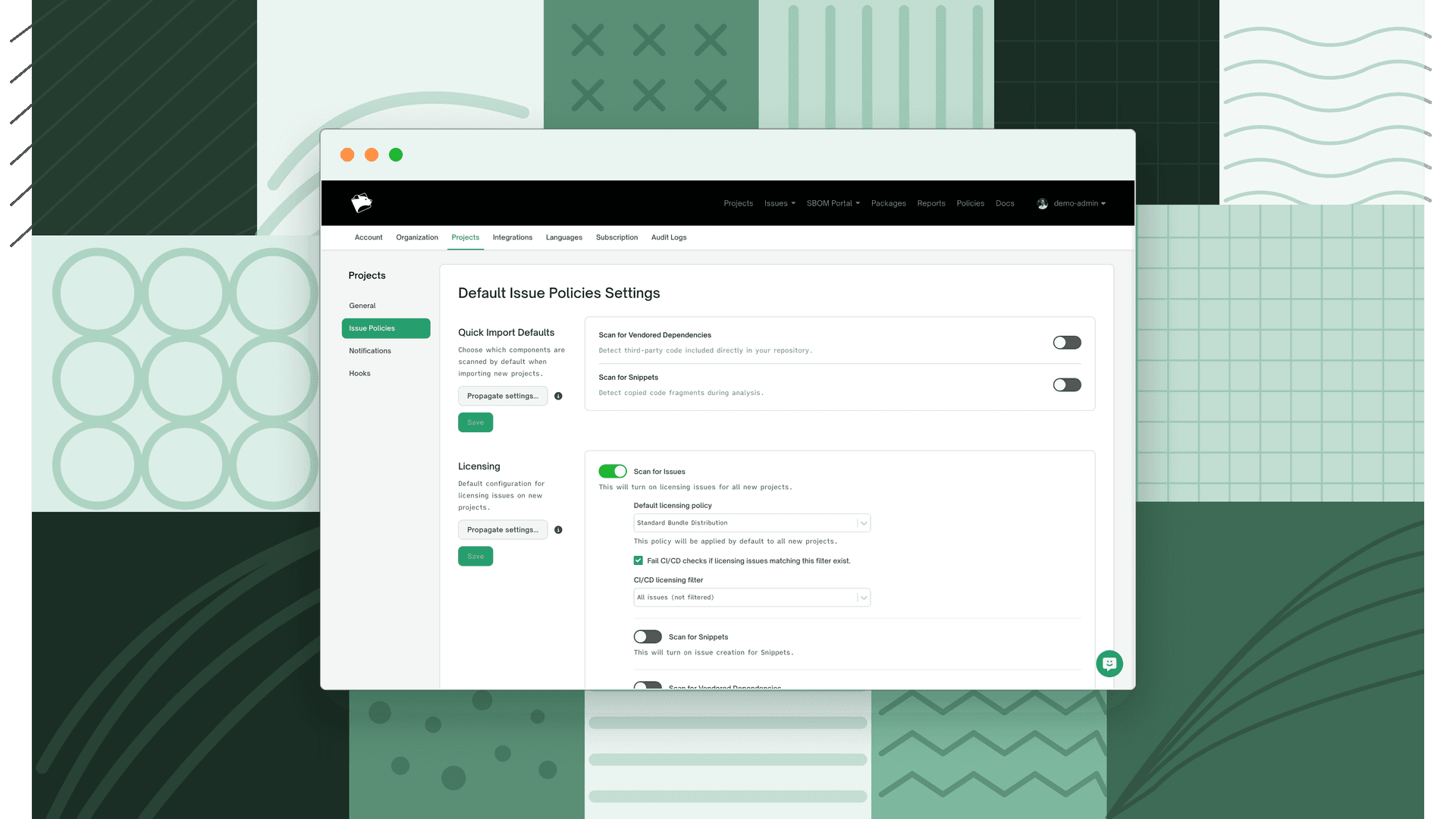
This example changes the default security policy for all projects while leaving each project's licensing policy untouched.
- 1
Select the new default and save
On the General tab, choose a new security policy and click Save.
- 2
Propagate it to existing projects
Click Propagate settings, then select Override all projects to use security policy "your policy".
Every existing and new project now uses the new security policy, while existing projects keep their individual licensing policy.
Warning
Changing a project's policy queues a fresh issue scan for that project, so the updated policy is used to scan the latest project revision. Only projects whose policy actually changes are re-scanned, projects already using the selected policy are left untouched.
Note
Propagate settings replaces the older Make default and Propagate and Make Default options. Choosing settings groups individually gives you granular control over which defaults get pushed to existing projects.