

Inviting Users
Invite people to your FOSSA organization by email so they can create an account and join automatically.
Overview
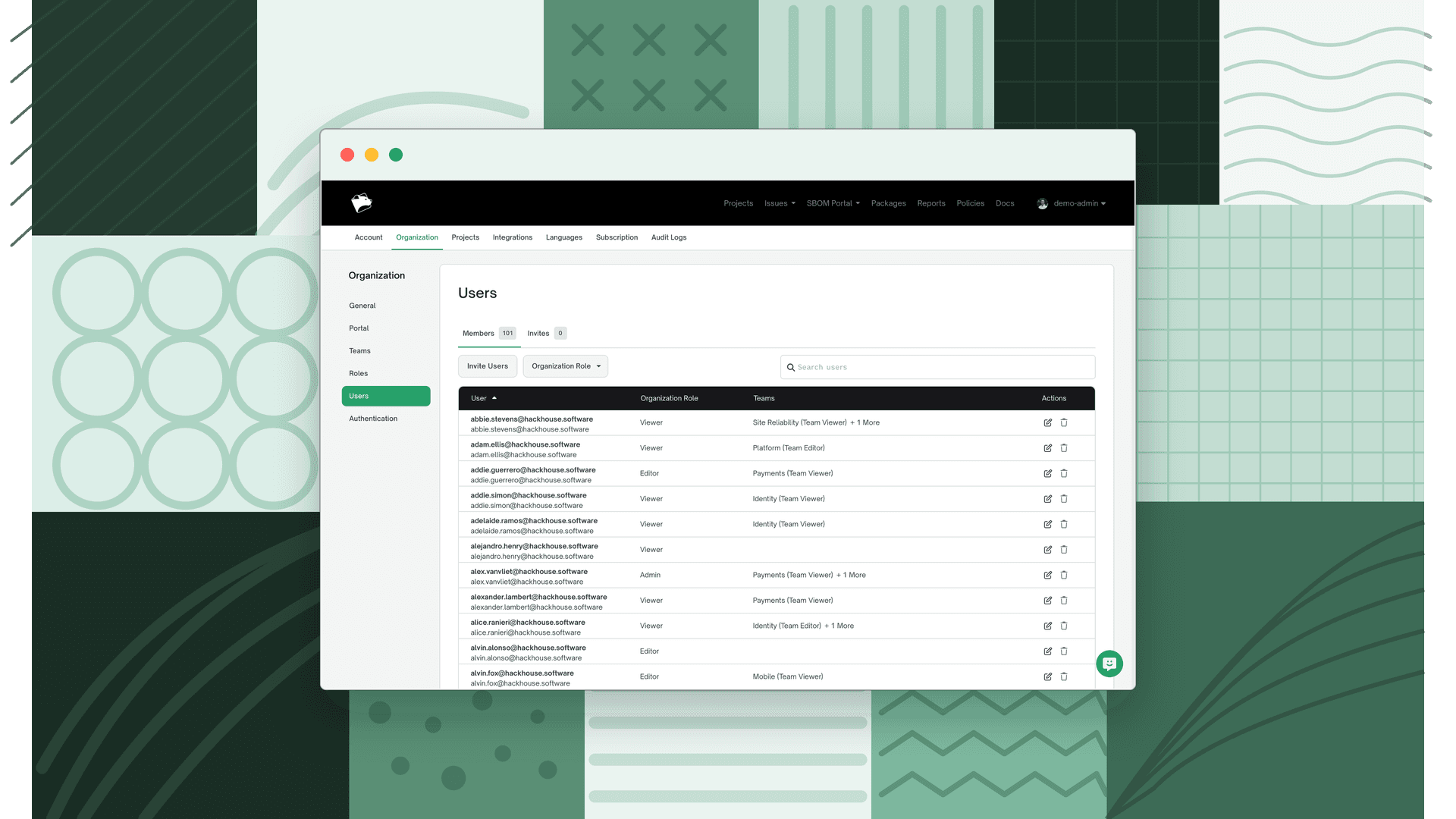
Invite teammates to your FOSSA organization by email. Each person you invite receives a link, creates their FOSSA account, and is added to your organization automatically. Inviting users lives under Settings → Organization → Users.
Warning
If your organization authenticates through SSO (or OAuth), email invites are disabled, the Invite Users flow won't appear. Users join through the SSO sign-on workflow instead. To send invites, an administrator must switch the organization's authentication mode away from SSO/OAuth.
Inviting users by email
- 1
Open the Users page
Go to Settings → Organization → Users.
- 2
Open the invite dialog
Click Invite Users to open the invite dialog.
- 3
Enter email addresses
In the Email Address(es) field, type an email address and press Enter to add it to the list. Repeat for each person you want to invite.
- 4
Send the invites
Click Send Invite. Each invited person receives an email containing an invite link.
Invited users must click the link in their email and create a FOSSA account. Once they do, they're added to your organization automatically.
Result
Pending invitations appear under the Invites tab on the Users page, where you can track who hasn't yet accepted. As people accept, they move to the Members tab.
Note
An invite link is valid for 48 hours. If it expires before the recipient accepts, repeat the steps above to send a fresh invitation.
What's next
- Role-Based Access Control: Assign roles to control what your invited users can view and edit.
- Organization Settings: Set the default role applied automatically to new users.