

Package Labels
Tag packages as 'dev-only', 'internal', or any custom label.
Overview
Package Labels let you annotate your dependencies with additional information, enabling better reporting, filtering, and automated issue management. Labels provide context about how a package is used within your projects or organization, helping your team make informed decisions about licensing obligations and compliance.
Note
Assigning package labels requires a paid (premium) subscription.
Key concepts
Label: A string applied to a package. Names are 1–50 characters and may contain letters, numbers, dashes, underscores, periods (.), and spaces.
Scope: Defines where a label is applied. Package labels support three scopes:
| Scope | Where the label applies |
|---|---|
| Organization | Across all projects in your organization |
| Project | Only within the project |
| Revision | Only within the current revision of the project |
Use cases
Package Labels are flexible and support a variety of scenarios, including:
Usage-based labeling:
- Marking dependencies as "Modified" or "Unmodified" to track changes that might affect license compliance.
- Indicating linkage type ("Statically Linked" or "Dynamically Linked") to determine how licensing rules apply.
- Tagging dependencies as "Dev", "Test", or "Production" to differentiate their usage context.
Attribute-based labeling:
- Adding Export Control Classification Numbers (ECCN) for export compliance reporting.
- Tracking FIPS compliance status.
Managing labels
Labels are created and managed in Organization Settings → General → Package Labels.
Note
Label names must be 1–50 characters and may contain letters, numbers, dashes, underscores, periods (.), and spaces.
Creating a label
- 1
Open Organization Settings
Open the Settings page from the menu under your user account, then select the Organization tab.
- 2
Go to Package Labels
Under General, navigate to the Package Labels section.
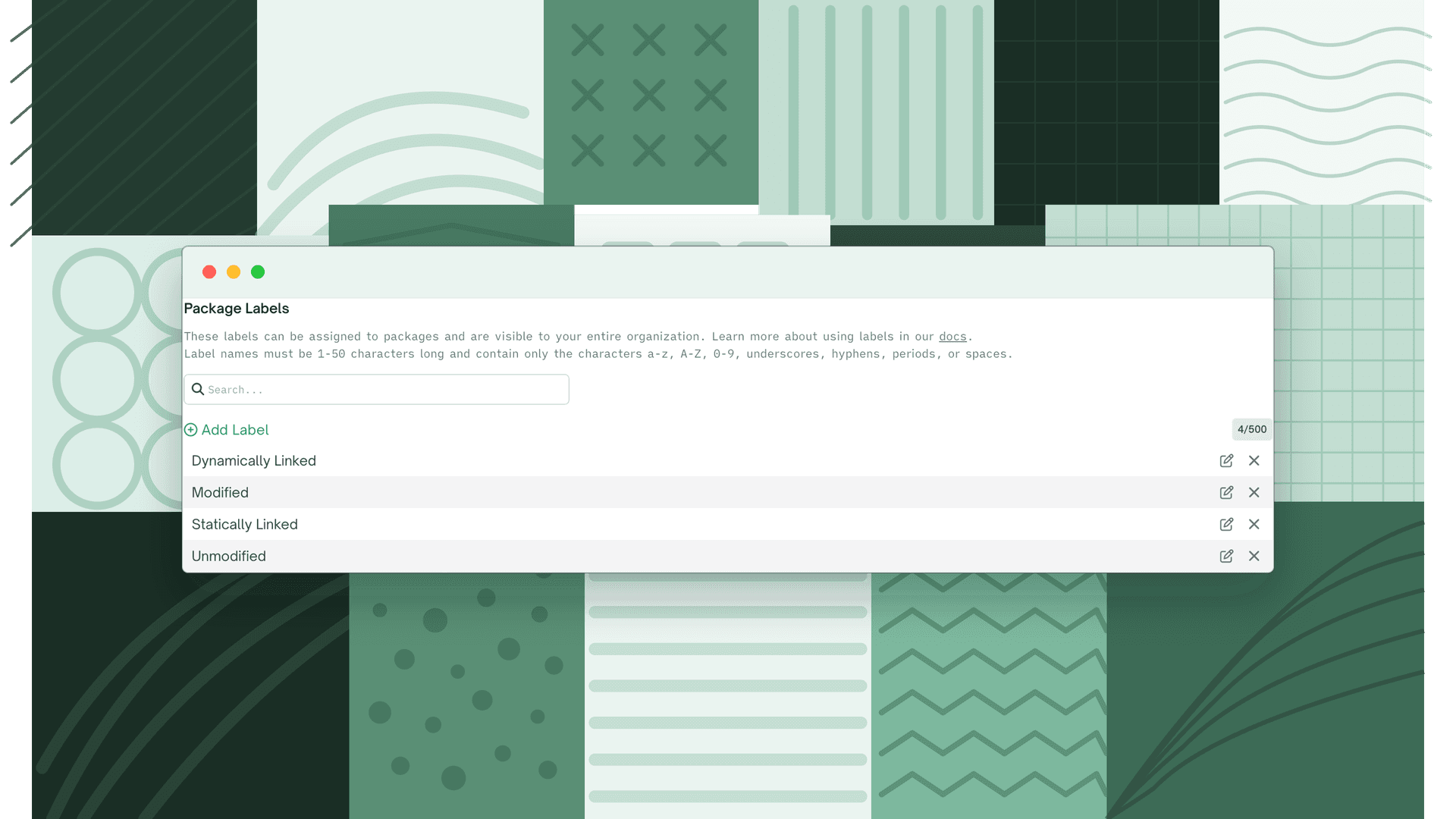
- 3
Add the label
Click Add Label to create a label. Created labels are available across the organization.
Editing a label
In Organization Settings → General → Package Labels, click the edit icon beside a label to change its name.
Deleting a label
In Organization Settings → General → Package Labels, click the x icon beside a label to delete it.
Assigning a label to a package
- 1
Open the dependency list
Navigate to the list of dependencies within a project.
- 2
Open the package menu
Click the 3-dot menu to the right of a package and select Manage Labels.
- 3
Select labels
In the modal, select the label(s) you want applied to the package.
Package labels can also be applied to a package via the Package Index.
Adding a package label ignore rule
- 1
Open an issues view
Navigate to Quality, Security, or Licensing issues.
- 2
Add an ignore rule
Click Ignore Rules, then Add Ignore Rule.
- 3
Select the package label condition
Select the option "If the dependency has Package Labels assigned" and add the package labels you want the rule to apply to.
- 4
Save
Complete the form and click Ignore to save the rule.
Package label ignore rules are viewable alongside other ignore rules on the ignore rules page.
Reports with package labels
- Include package labels in a report by checking the Package Labels box when generating a report in the UI, or by using the
?includePackageLabels=trueparameter via the API. Package labels appear in-line with each package in the report. - Exclude packages from a report based on their package labels by selecting the labels to exclude from the dropdown in the UI when generating a report.
Filtering packages by label
Dependencies across the product can be filtered by applied package label(s) by selecting the label(s) in the filter dropdown.
Permissions
- Creating and deleting labels: Org Admins can create and delete labels by default. This uses the existing Project labels permission.
- Assigning project-scoped labels: Team Admins can assign project-scoped labels by default.
- Assigning organization-scoped labels: Admins can assign organization-scoped labels by default.
Managing package labels via the API
The API reference for package labels is available in the Package Labels API reference.
Managing package labels via the FOSSA CLI
Package labels are supported when using a fossa-deps file. See the fossa-deps documentation.