

Roles & Permissions
Control access with organization and team roles, assign built-in or custom roles, and auto-assign them through SSO.
Enterprise feature
Contact sales@fossa.com for details.
Overview
Role-Based Access Control (RBAC) governs which FOSSA features a user can reach, which projects they can see, and what they're allowed to do with them. Access is granted two ways: an organization role that applies across your whole org, and team roles that scope access to specific projects and release groups.
How RBAC works
There are two scopes, and a user's effective access is the combination of both:
- Organization role: applies to every project in the organization and to org-level settings such as billing, policies, and user management. A user has at most one organization role.
- Team roles: scope access to the projects and release groups owned by a team. A user is assigned a role in each team they belong to, and can be on multiple teams.
A user can have no organization role at all. In that case they get no org-level access, only the projects granted through their team memberships.
Organization roles
Assign organization roles on the Settings → Organization → Users page. Admin, Editor, and Viewer are built in and can't be edited or deleted. None isn't a role, it's the option you pick to leave a user with no organization role at all.
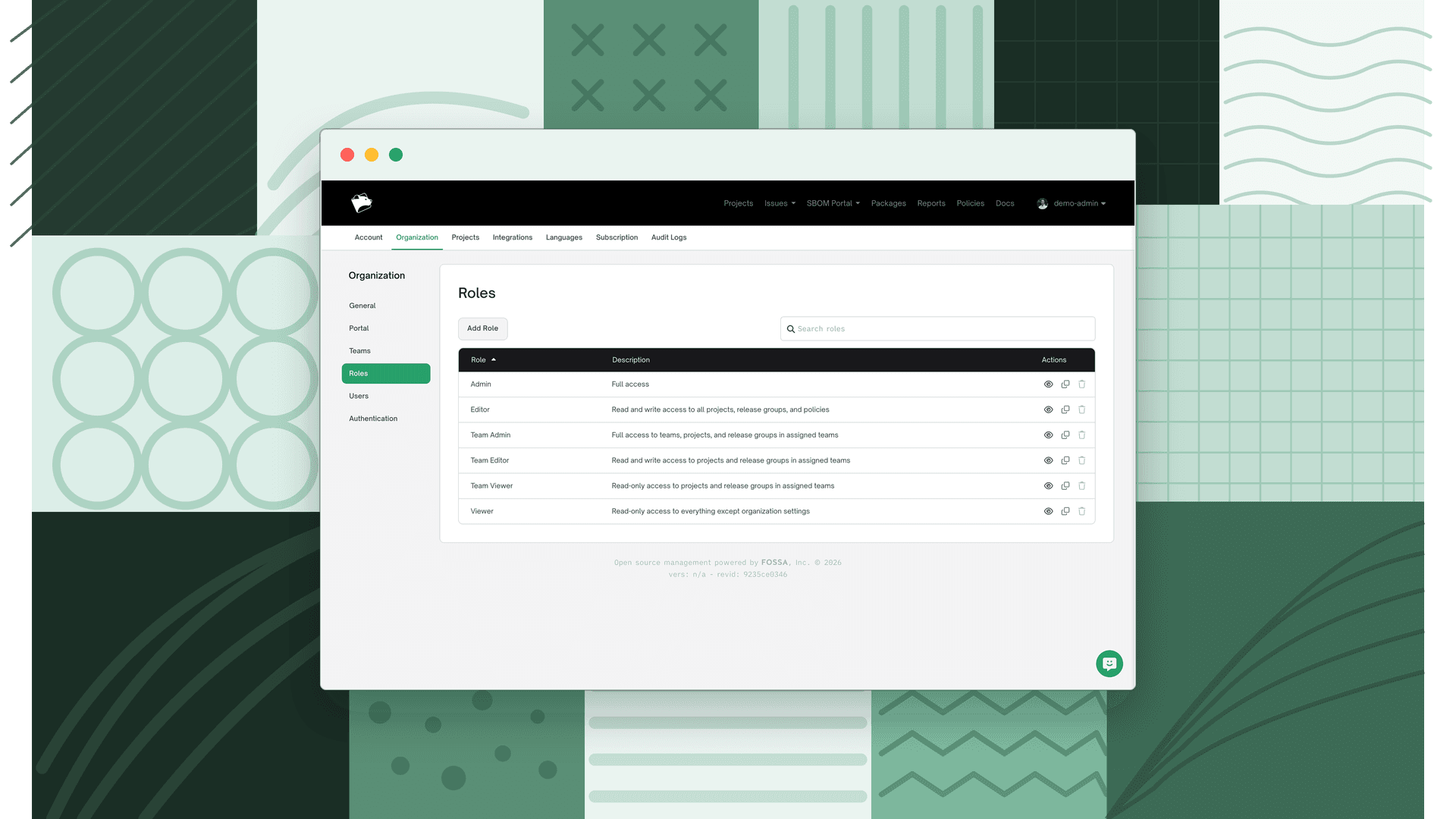
| Role | Access |
|---|---|
| Admin | Full access to every project; import projects; create, edit, and delete policies; manage teams, users, and roles; access and change billing; correct licensing information and metadata for dependencies. |
| Editor | Full access to every project; import projects; view and edit policies; change project settings; rebuild and rescan projects; correct licensing information and metadata for dependencies. |
| Viewer | Read-only access to all projects, issues, policies, and teams. Cannot import projects, create Jira tickets, modify packages, or resolve issues. |
| None | No organization-level access. The user can only reach projects granted through their team memberships. |
Note
New users are assigned your organization's default role, configured under Default Role for New Users on the Organization settings page. Set it to match how much access new members should get out of the box.
Team roles
Manage teams on the Settings → Organization → Teams page. A user with a team role must belong to a team before they can see any projects. The three team roles are built in and can't be edited or deleted.
| Role | Access (within their teams only) |
|---|---|
| Team Admin | Import and delete projects; change project settings and metadata; rebuild and rescan projects; manage the team's users; manage team options. |
| Team Editor | Import projects; change project settings; rebuild and rescan projects. |
| Team Viewer | Read-only access to the team's projects. |
Team roles only grant access to that team's projects, not to org-wide features like policies.
Warning
Team Admins and Team Editors have full access to project metadata, but editing a dependency changes it across the entire organization. That requires an organization role (Admin or Editor), a team role alone isn't enough.
Assigning an organization role
- 1
Open the Users page
Go to Settings → Organization → Users.
- 2
Set the user's role
Find the user and assign Admin, Editor, Viewer, or None. None leaves the user with no organization role, limiting them to team-based access.
Creating teams and assigning team roles
Teams gate which projects a user can see. Create a team, add members, and give each member a team role.
- 1
Open the Teams page
Go to Settings → Organization → Teams.
- 2
Create or open a team
Create a new team, or open an existing one to manage its members and projects.
- 3
Add users and assign team roles
Add users to the team and give each one a team role, Team Admin, Team Editor, or Team Viewer.
- 4
Add projects
Add the projects and release groups the team should have access to.
Creating a custom role
Beyond the built-in roles, you can create custom roles with your own set of permissions at either the organization or team scope.
- 1
Choose the scope
When you create a role, choose its scope, Organization or Team. The scope determines which permissions are available; some org-level capabilities, such as managing users, can only be granted by an organization-scoped role.
- 2
Select permissions
Select every permission that users with this role should have.
- 3
Save and assign
Save the role, then assign it to users just like a built-in role.
Warning
A role's scope can't be changed after it's created. To move a role to a different scope, create a new one.
Auto-assigning roles through SSO
When integrated with Single Sign-On, FOSSA can assign organization roles and team memberships from SAML attributes every time a user logs in.
role attribute; sets the user's organization role. Accepted values are case-insensitive:
| Value | Role |
|---|---|
admin | Admin |
editor | Editor |
viewer | Viewer |
Any other value is matched against an organization-scoped custom role of that name.
teams attribute, a team name or list of team names. FOSSA assigns the user to exactly those teams; any team that doesn't already exist is created automatically.
Note
Configuring these attributes is part of your SAML setup. See Single Sign-On, or contact support@fossa.com for help.
FAQ
Can I edit or delete the built-in roles? No. The three organization roles and three team roles are built in and can't be changed or removed. Create a custom role instead.
What happens if a user has no organization role? They get no organization-level access. They can still see and work on projects through any teams they belong to, according to their team role.
Can a team role let someone edit a dependency? No. Editing a dependency changes it across the whole organization, so it requires an organization role (Admin or Editor), even for Team Admins and Team Editors.
Can I change a custom role's scope after creating it? No. Scope is fixed at creation. Create a new role with the scope you need.
Why don't email invites appear for my organization? If you use SSO, email invites are disabled and users join through the SSO sign-on flow instead. See Inviting Users.
What's next
- Inviting Users: Add team members and assign them roles.
- Organization Settings: Set the default role for new users joining your organization.