

Audit Logs
See a timestamped record of every significant action in your FOSSA organization; who did what, when, and to which resource.
Enterprise feature
Contact your FOSSA account team or sales@fossa.com to enable it.
Overview
Audit logs give you a timestamped record of significant actions taken across your FOSSA organization, who changed a policy, resolved an issue, invited a user, or imported a project. They help administrators answer who did what, when, and where, reconstruct how your environment reached its current state, and recover from mistakes (an accidental policy change, a project uploaded to the wrong place, an issue resolved without sign-off). To prevent those mistakes in the first place, tighten who can do what with Role-Based Access Control.
How audit logging works
FOSSA records an entry automatically whenever a user performs a tracked action. This happens for every organization, with nothing to turn on or configure, the log always accumulates on its own. What the Enterprise plan unlocks is the ability to view and export that history, not the recording itself.
- Every entry captures the actor and the change: the user (by email or username), their role at the time, a timestamp, and a human-readable description of what happened.
- Actions are organized by topic and action type: for example Policy → Change Project Policy or User → Update User Role. These power the filters on the page.
- Entries are immutable and organization-wide: the log spans every team, project, and setting in the organization; it is a read-only history, not something users can edit.
Viewing and filtering audit logs
- 1
Open the Audit Logs page
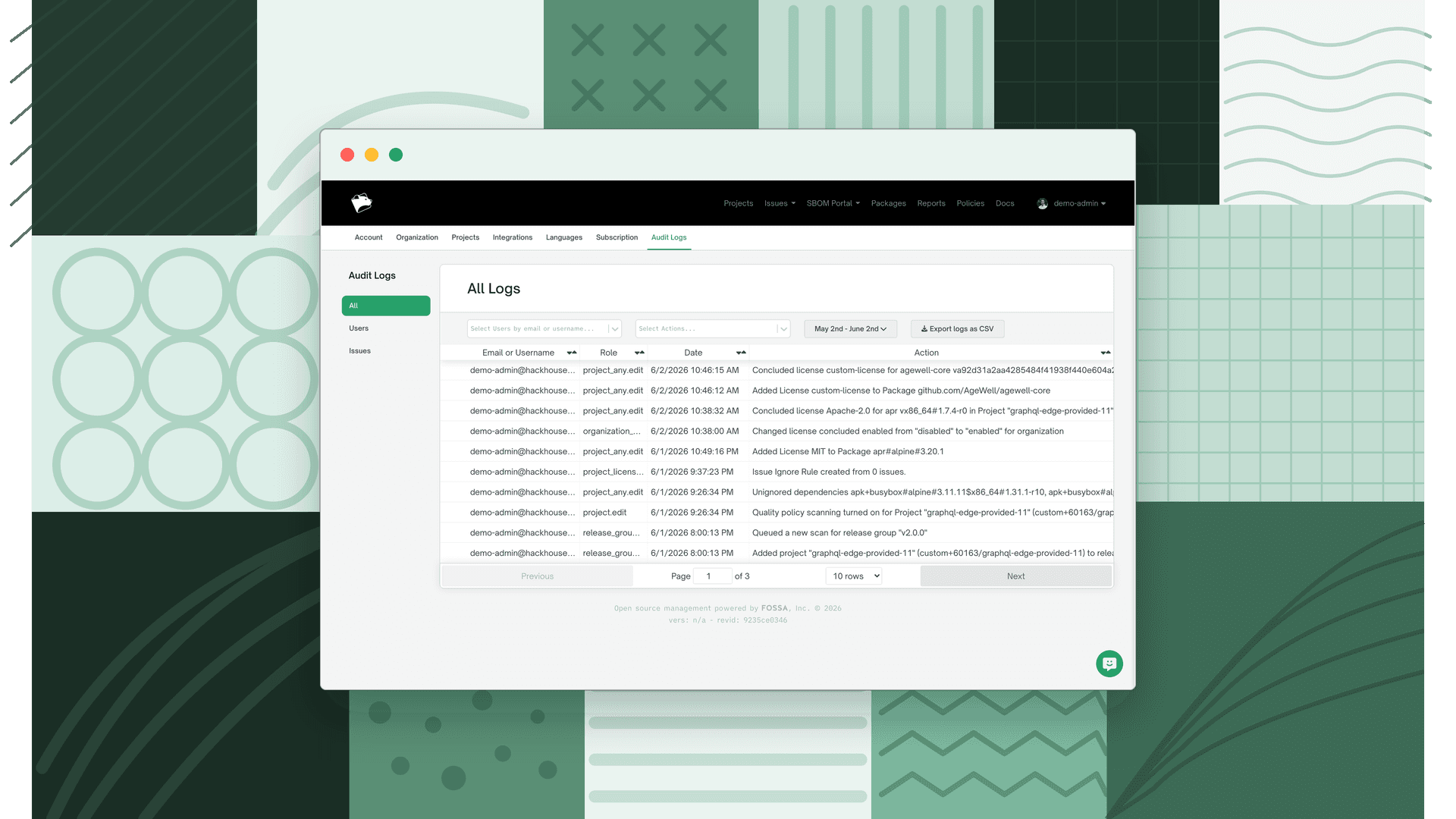
Go to Account Settings → Audit Logs. The page opens showing the most recent activity first.
- 2
Narrow the results
Use the filter bar to focus the view:
- Users: filter by one or more people, selected by email or username.
- Actions: filter by specific action types, grouped by the resource they affect (e.g. Policy, User, Project).
- Date range: click the date button to choose a range. The view defaults to the last month.
- 3
Sort and page through entries
Click a column header to sort by that column. Use the controls at the bottom of the table to move between pages or change the page size.
Exporting audit logs to CSV
Warning
The export always uses your current filters, and a start and end date must be set. Adjust the date range and any user/action filters before exporting to scope the file.
- 1
Set the filters you want to export
Choose the date range, users, and actions that define the slice of activity you need. The export mirrors whatever filters are applied on screen.
- 2
Click Export logs as CSV
FOSSA generates the file in the background as a report job, so you can keep working while it runs.
- 3
Retrieve the CSV
You'll be notified when the export is ready. The completed report is delivered to your account email.
What gets logged
FOSSA tracks actions across roughly thirty resource types. The table below groups the most common ones with example actions, it's representative, not exhaustive.
| Category | Example logged actions |
|---|---|
| Users, roles & teams | Add, delete, enable, or disable a user; invite a user; change a user's role (organization or team); create, edit, or delete roles; create, rename, or delete a team; add or remove team members; manage service accounts |
| Projects, releases & dependencies | Import or upload a project (CLI, archive, VCS); delete a project; add a revision; queue a scan; add, remove, overwrite, or ignore dependencies; change project labels, filters, or settings; add or remove projects from a release group; create a release |
| Issues | Resolve or unresolve; ignore or unignore; export; create an issue ignore rule; add, update, or remove a license on a package |
| Policies & licenses | Create a policy; change the default, project, or release-group policy; add, update, or remove policy rules; change the default action for uncategorized licenses; conclude or unconclude a license |
| Organization & security settings | Edit SAML or LDAP settings; edit organization domains; set up or remove MFA; manage API tokens, OIDC providers, and webhooks; share an SBOM; publish or unpublish a report; manage public portal tokens |
Audit log entry fields
Each entry shown on the page consists of these fields:
| Field | Description |
|---|---|
| Email or Username | The user who performed the action, shown by current email or username. |
| Role | The user's role at the time the action occurred. |
| Date | Timestamp of when the action occurred. |
| Action | A human-readable description of what happened. |
Note
These four columns are what the page displays. Depending on the type of action or resource, an entry may also record additional structured fields behind the scenes, for example a teamId, projectId, or the before-and-after values of a changed setting. The complete set of fields for an entry is returned by the audit logs API.
Who can view audit logs
Access is governed by Role-Based Access Control, not by a fixed role. A user can view the audit log only if their role grants the Organization Audit → View permission.
- The Audit Logs tab appears under Account Settings only for users whose role has that permission, others won't see it at all.
- Owners and admins can grant the permission to additional roles through RBAC role configuration, so view access is no longer limited to administrators.
- Audit logs are scoped to the whole organization.
FAQ
Why don't I see the Audit Logs page? Two things gate it. First, Audit Logs is an Enterprise feature; it's unavailable on other plans. Second, even on Enterprise the Audit Logs tab (under Account Settings) only appears if your role has the Organization Audit → View permission. Ask an owner or admin to grant it.
Who can view audit logs? Any user whose role has the Organization Audit → View permission, not just administrators. Configure this through Role-Based Access Control.
Can I access audit logs through the API? Yes. GET /api/audit_logs returns the same entries and supports the same filters (user, action, topic, and date range). See the API reference.