

Project Labels
Create and apply labels to organize projects and filter the dashboard by business context.
Overview
Project labels let you tag projects with business context, ownership, criticality, environment, or any other classification your organization needs. Labels filter the Projects dashboard, the Issues inbox, and the Package Inventory, making it easier to focus risk evaluation on the projects that matter most.
How labels work
Labels are defined at the organization level and applied to individual projects. FOSSA provides four default labels out of the box:
- Critical Impact
- High Impact
- Medium Impact
- Low Impact
You can create your own labels in addition to or instead of the defaults. Each label can be up to 50 characters, must be unique (case-insensitive), and an organization can have up to 500 labels in total.
Managing labels
Creating labels
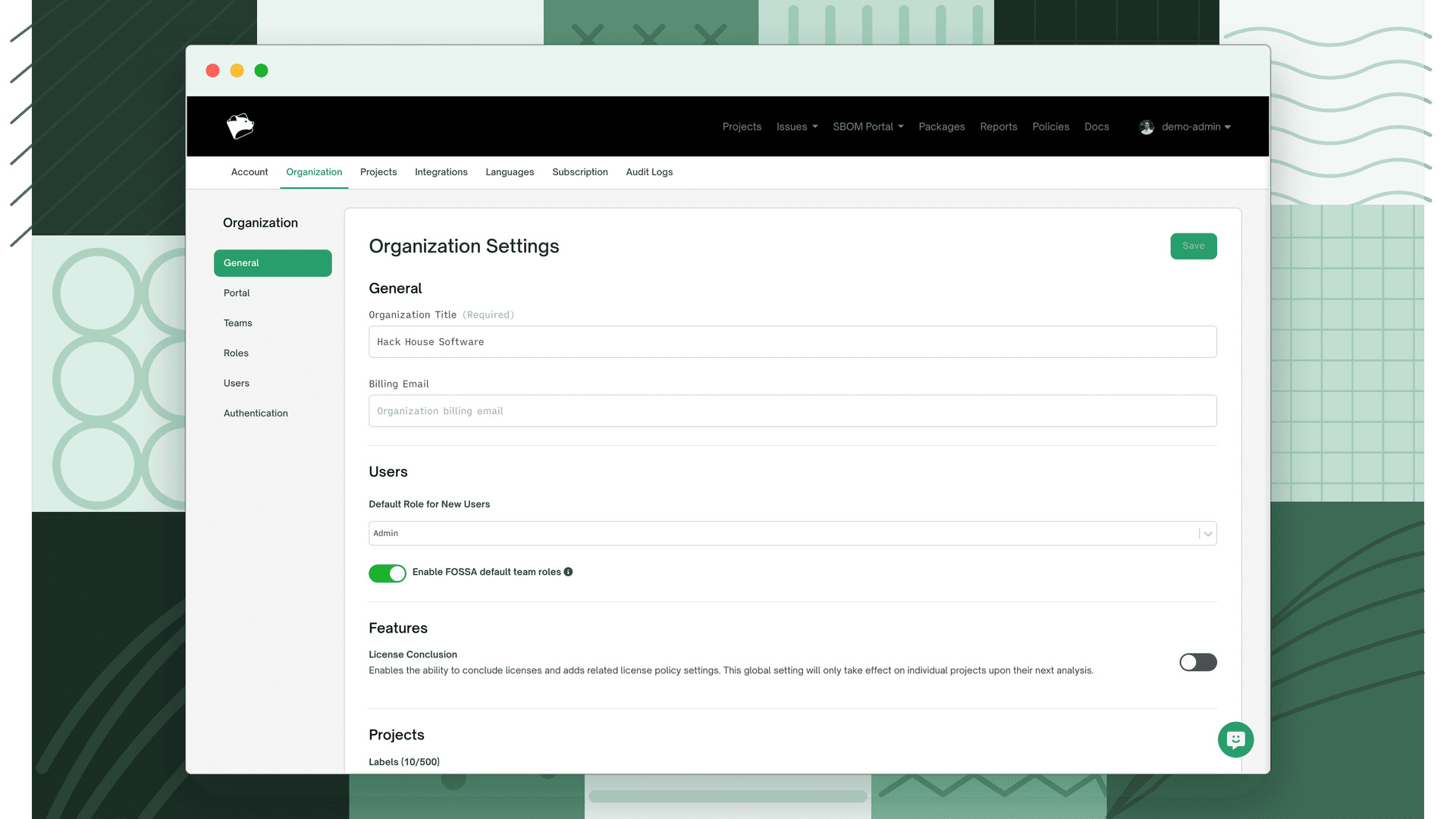
Labels are managed in Settings → Organization → General, under the Projects section. Type a label name into the input and save. Duplicate labels (including case variants of an existing label) are silently rejected.
Deleting labels
To delete a label, remove it from the list in org settings. Before the deletion is confirmed, FOSSA shows how many projects currently use the label, useful for understanding the blast radius before committing. Deleting a label removes it from every project using it. You must save your organization settings for the change to take effect.
Applying labels to a project
Labels are applied per project in Project Settings → General. Select one or more labels from the available list and save.
Bulk-applying labels via API
To apply a label to many projects at once, use the API:
POST /api/v2/projects/labels?labelId=<label_id>Pass an array of project locators in the request body. FOSSA applies the label to each project in the list. Any failures are returned per-locator so partial successes are visible.
Filtering by label
Labels are available as a filter in three places across FOSSA.
Projects dashboard
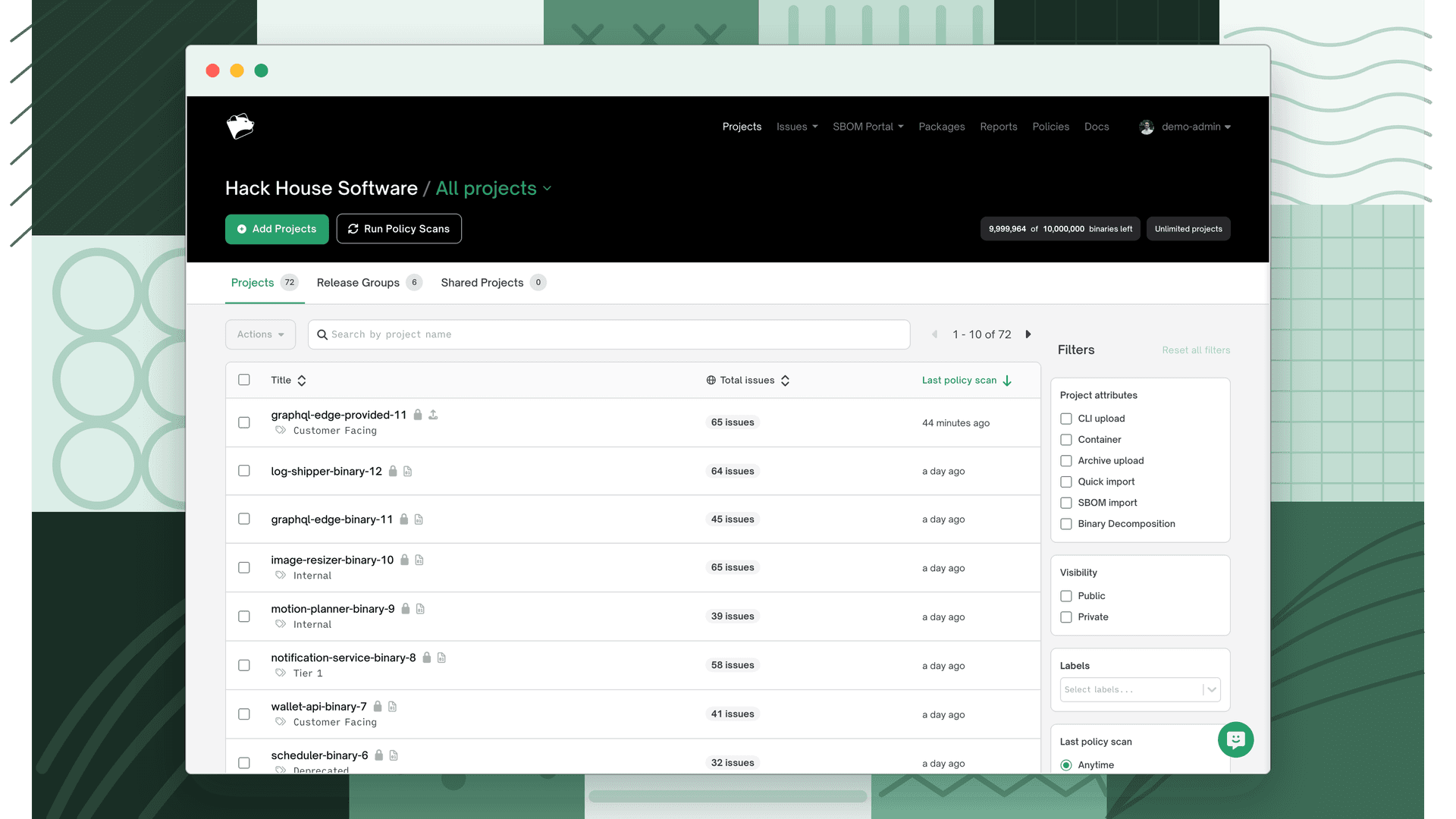
Labels appear as a filter in the Projects dashboard filter panel. Select one or more labels, multiple selections use OR logic (projects tagged with Critical Impact OR Prod are both shown).
Labels also appear as clickable chips on each project row. Clicking a chip instantly applies that label as a dashboard filter without opening the filter panel.
Issues inbox
The Issues inbox includes a Project Labels filter. Use it to scope the issue list to projects tagged with specific labels, for example, show only issues from projects tagged Critical Impact to prioritize remediation.
Package Inventory
The Package Inventory's project filter panel includes a Labels filter, letting you narrow the dependency list to packages that appear in projects with specific labels.
Release group project picker
When adding projects to a release group, the project list includes a label filter. Use it to quickly find and add all projects tagged with a given label, for example, adding every Backend service to a release group in one step.