

Archive Upload
How to upload an archive directly to FOSSA and how it's analyzed, for code that isn't pulled from a package registry.
Enterprise feature
Archive upload must be enabled by the FOSSA support team before it appears under Add Projects > Quick Import. Contact your account team or support@fossa.com to request access.
Overview
Most dependencies reach FOSSA through a package manager, a package.json, pom.xml, or lockfile tells FOSSA exactly what was pulled and from where. Sometimes you instead have a self-contained archive of code, a .tar.gz, .zip, .jar, and so on, with no registry metadata to resolve against. This page explains how to upload an archive directly in the FOSSA app and how FOSSA analyzes it. If the code is vendored or lives locally in a project you already scan with the CLI, declare it through the CLI instead. See Vendored or local code below.
Note
Archive formats are a special kind of dependency in FOSSA. They aren't introduced through a standard build tool or process, they represent instances where developers have packaged up pieces of (potentially-modified) third-party code and checked them into the source tree. When FOSSA encounters an archive, it makes a best-effort attempt to resolve it to known third-party code, falling back to scanning the archive's contents directly for license and copyright data.
How FOSSA handles an archive
When FOSSA receives an uploaded archive, it recursively decompresses it (including any archives nested inside) and then runs its standard Quick Import analysis against the extracted source tree, exactly as it would for code pulled from a connected source host. Any package manifests inside the archive (package.json, setup.py, pom.xml, and so on) resolve dependencies normally, and files that don't belong to a recognized package are license-scanned directly.
Because an archive carries no registry metadata of its own, its dependency version defaults to a hash of the archive contents, so the version changes automatically whenever the code does. The result is the same analysis depth a normally-imported project gets, applied to code that was checked into the tree instead of pulled from a registry.
Uploading an archive through the UI
You can upload an archive directly in the FOSSA app, no CLI or build required. Archive upload is one of FOSSA's Quick Import methods, so the result is a regular project, analyzed the same way as code imported from a source host.
- 1
Start adding a project
From your project list, click Add Projects.
- 2
Choose Quick Import
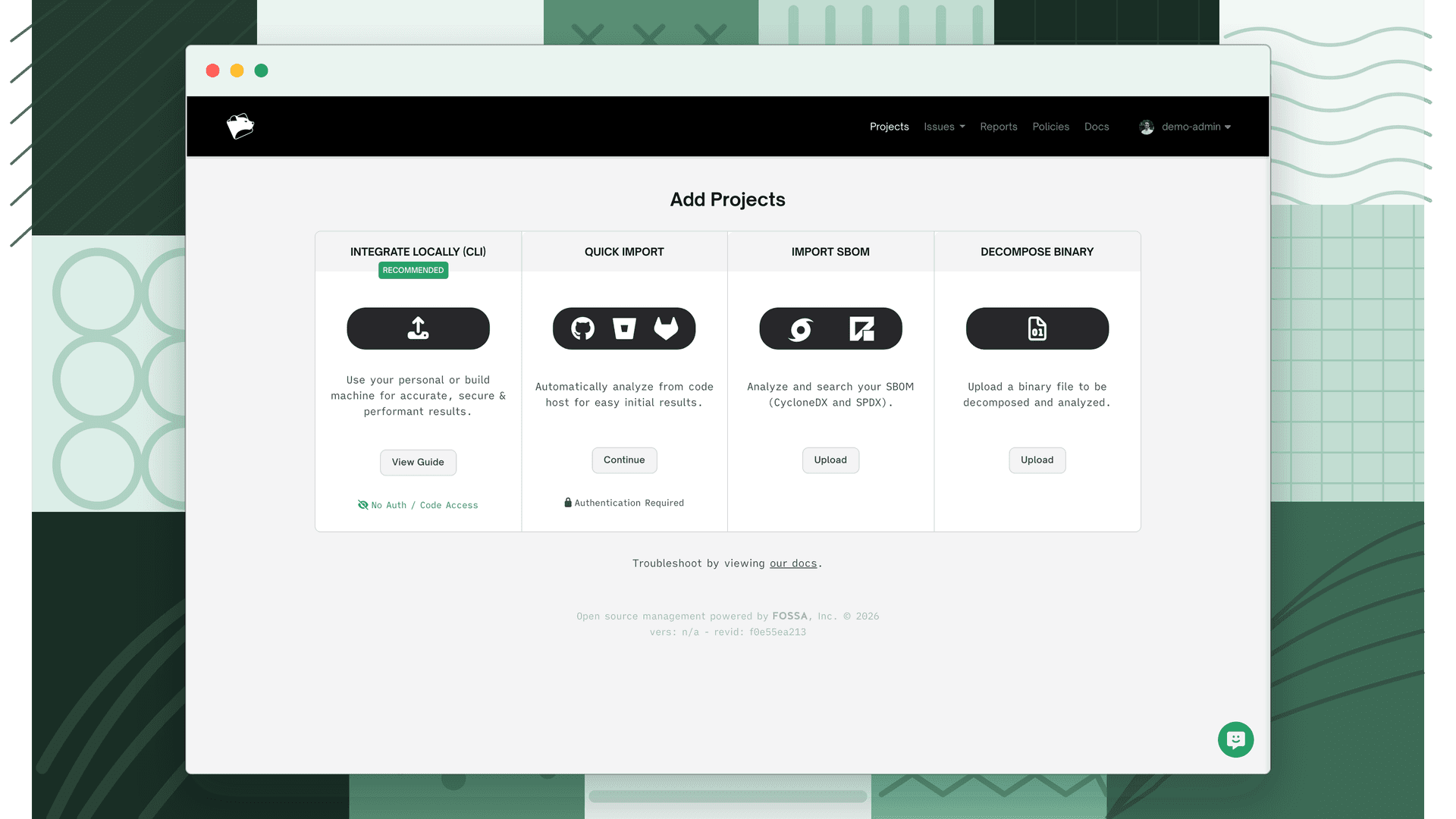
On the Add Projects screen, select Quick Import and click Continue.
- 3
Choose Upload Archive
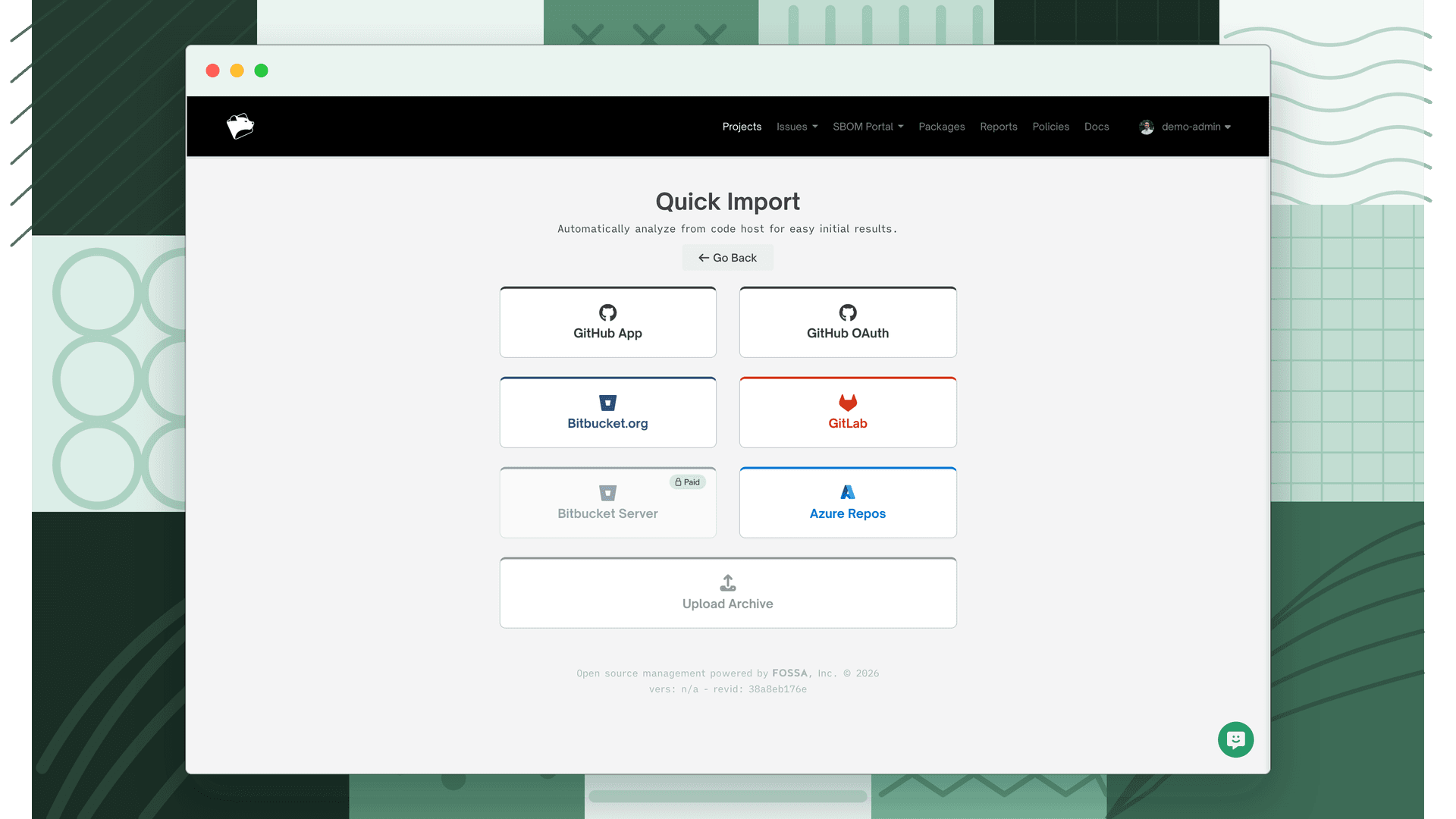
On the Quick Import screen, click Upload Archive. (You can also go straight to app.fossa.com/projects/import/upload/archive.)
- 4
Add your archive files
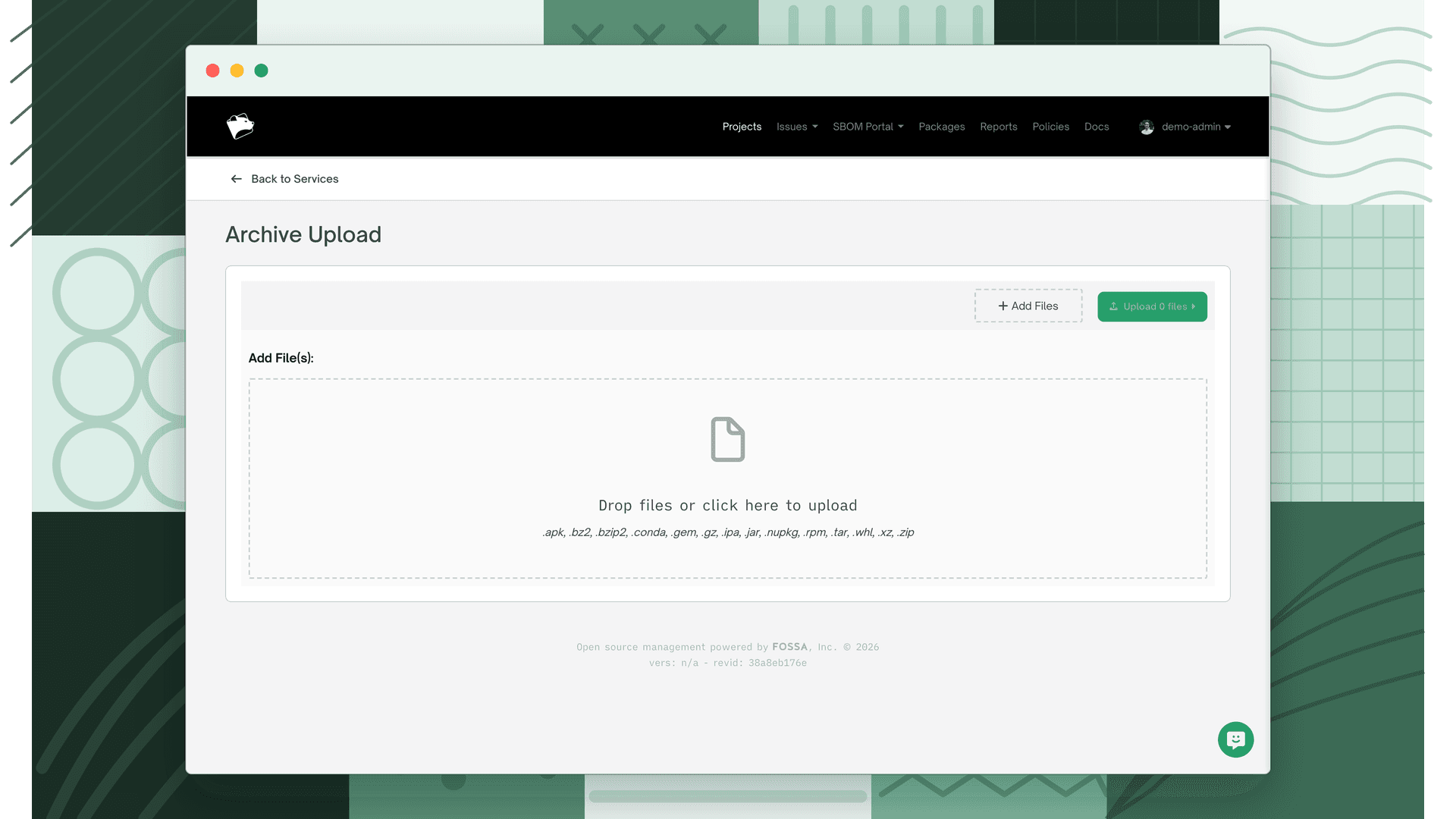
Drag files onto the drop area, or click Add Files to browse for them. The uploader accepts the formats listed under Supported formats below.
- 5
Upload and analyze
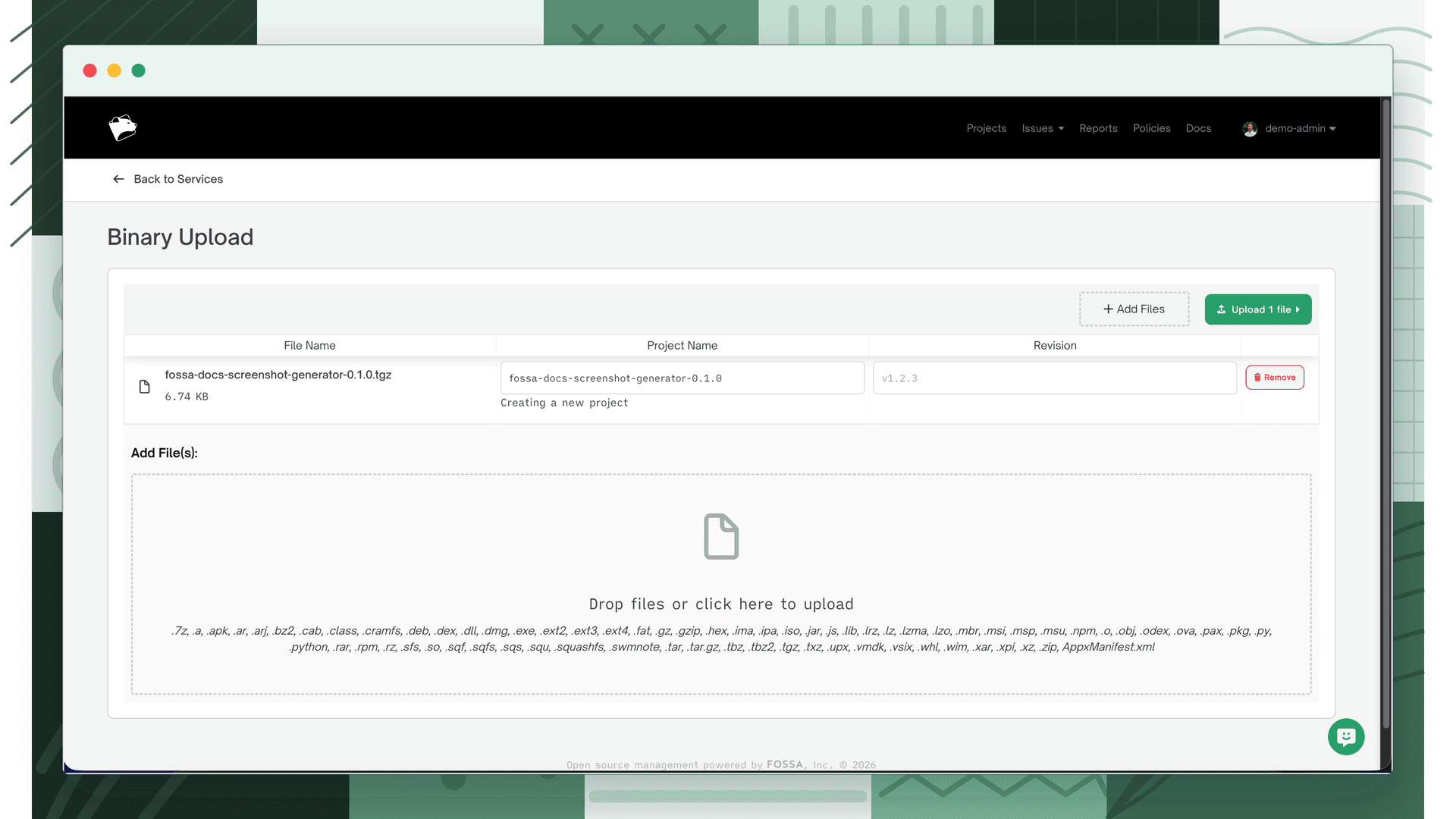
Click Upload. FOSSA stores each archive, then decompresses and analyzes it; the new project appears in your project list once the build completes.
Tip
Binary files are handled separately. Use Add Projects › Decompose Binary rather than archive upload. See Binaries.
Supported formats
The archive uploader accepts the following file types. Contents are extracted recursively, so an archive containing other archives is unpacked all the way down.
| Format | Accepted extensions |
|---|---|
| Tar (and compressed tar) | .tar, .gz, .bz2/.bzip2, .xz |
| Zip | .zip |
| Java archive | .jar |
| Android / iOS packages | .apk, .ipa |
| Linux packages (RPM) | .rpm |
| Language packages | .gem (Ruby), .whl (Python wheel), .conda (Conda), .nupkg (NuGet) |
Tip
Wheels (.whl) are decompressed and scanned directly. For richer Python dependency resolution, analyze the project through FOSSA's standard Python support so dependencies resolve from the package manager rather than from the archive alone.
Supported languages
Because the extracted contents run through the same analysis that powers Quick Import, FOSSA supports any language that Quick Import supports. Dependencies resolve from whatever package manifests the analysis finds inside (a package.json, pom.xml, setup.py, and so on), and files that don't belong to a recognized package are license-scanned directly.
For the full list of supported languages, see Supported Languages. For a deeper explanation of how Quick Import's static analysis compares to CLI-based dynamic analysis, see CLI vs Quick Import.
Vendored or local code
Archive upload is for self-contained archives. If the code is vendored (copied into a project) or lives locally in a project you already analyze with the FOSSA CLI, declare it through the CLI instead of uploading by hand, the CLI scans it as part of your normal fossa analyze run. The CLI docs cover each case in detail:
- Vendored dependencies: license-scan third-party code (an archive or a directory) checked into your tree, via the
vendored-dependenciessection offossa-deps.yml. fossa-deps.ymlreference: the full configuration file for declaring vendored, referenced, and custom dependencies.- Path dependencies: dependencies sourced from the filesystem rather than a registry.
- Binary discovery: opt-in detection that flags pre-compiled binaries found in your source tree.