

Project Settings
Configure the title, branches, ignored dependencies, labels, VCS host, and visibility for an individual FOSSA project.
Overview
The Project Settings page allows you to configure details such as the project title, any Labels, the policies used for your project, and much more.
Note
After making any changes, you must click the Save button at the top right of the screen.
General Settings
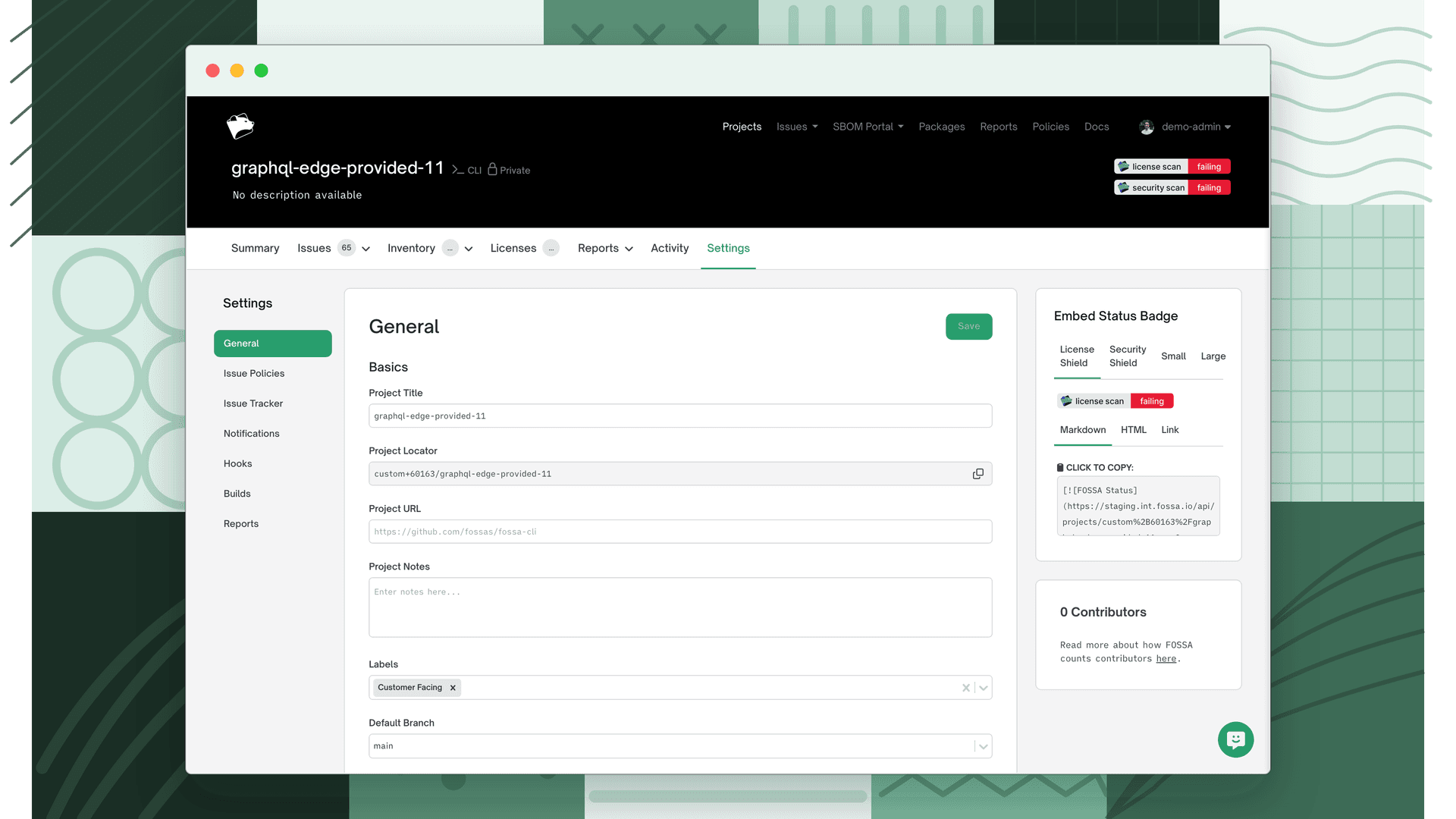
Project Title: This is the title you will see the project use in the UI when viewing the Projects table.
Project Locator: This is the internal identifier used by the FOSSA API when referring to your project. It is read-only and cannot be edited.
Project URL: This is a URL you would like to be associated with your project. When viewing the project in the FOSSA UI, you can navigate to the Project URL by clicking the icon shaped like a house.
Project Notes: These are internal notes that your team can use to share details about the project you are working on.
Labels: Labels are used to assist with project management. You can use labels to search through your projects easily. You can read more about them here.
Default Branch: When opening a project in the FOSSA UI, we will open to the latest revision of the default branch.
Tracking Branches: These branches will automatically be analyzed by FOSSA when updates are triggered.
Ignored Dependencies: A list of all dependencies which have been ignored. You can ignore dependencies from your project's dependencies tab. Here is an example of what it looks like when you have ignored a dependency.
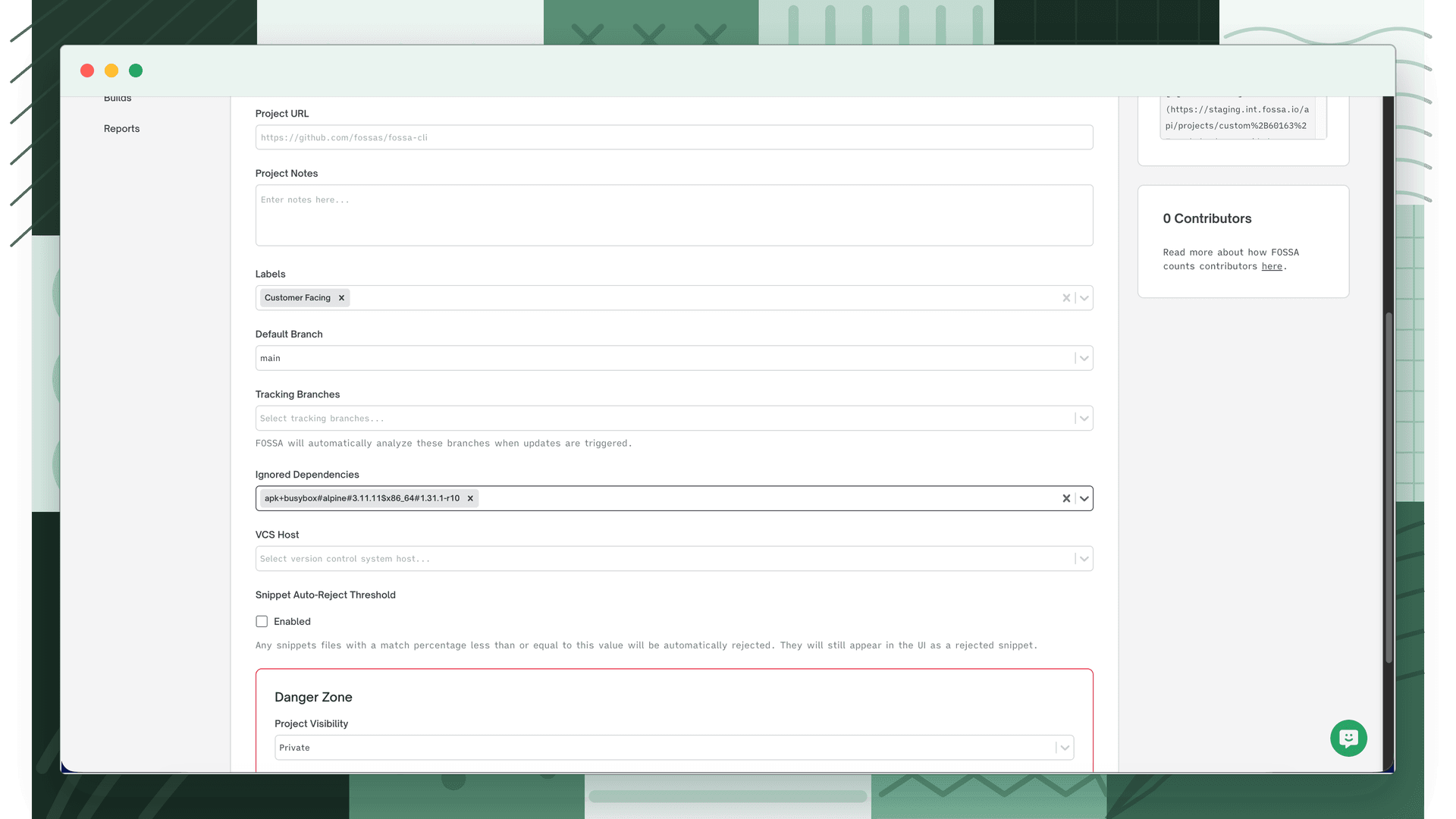
You can remove that dependency by clicking the X shown in the image above. Remember to click the Save button at the top of the screen afterward.
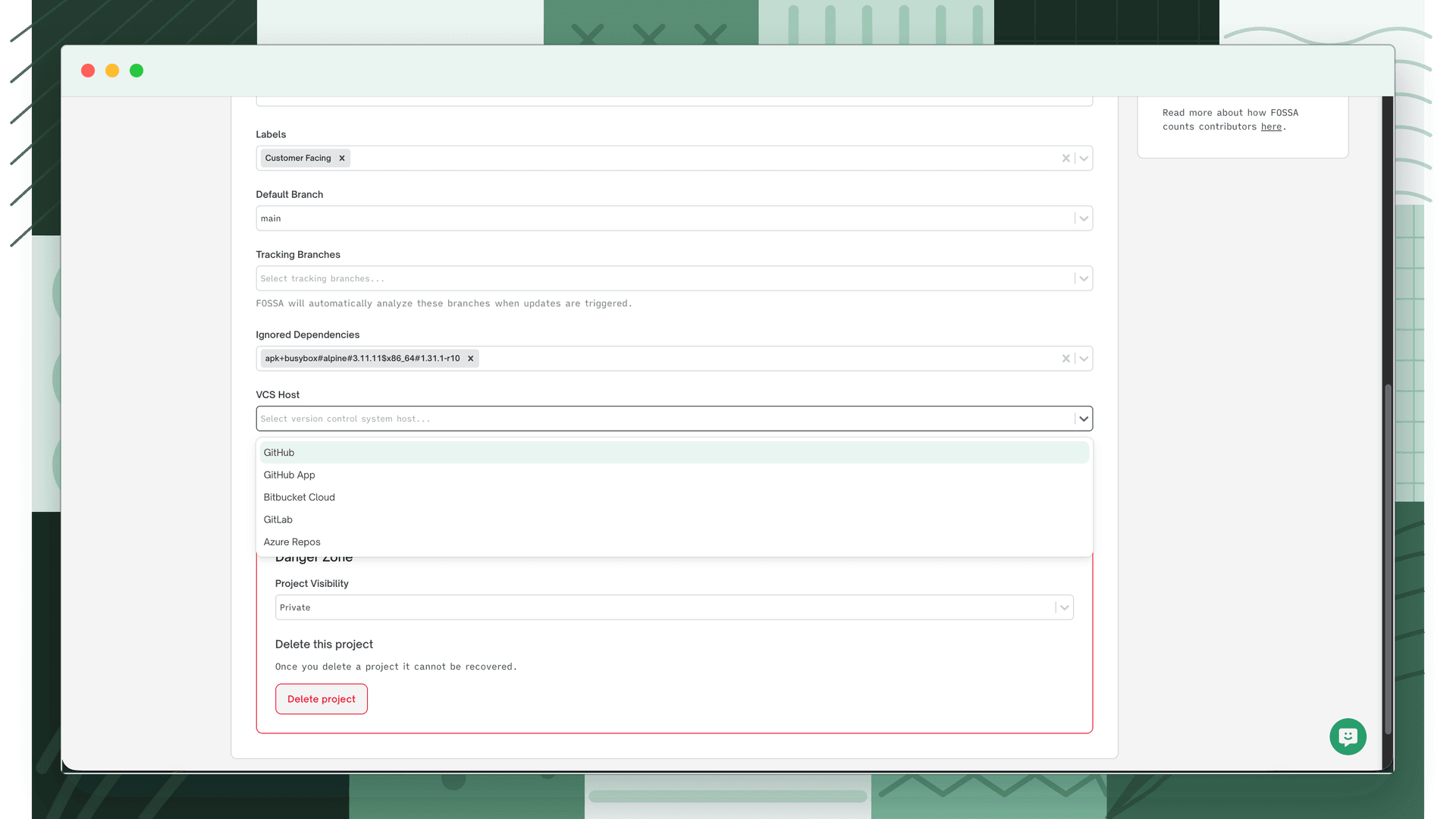
VCS Host: The Version Control Host used for the project. When a VCS host is selected, you can configure status checks if they are supported; selecting GitHub as the host enables GitHub status checks. Here is what that dropdown looks like:
Danger Zone
In the Danger Zone at the bottom of the General Project Settings, you can change the visibility of your project or delete the project entirely.
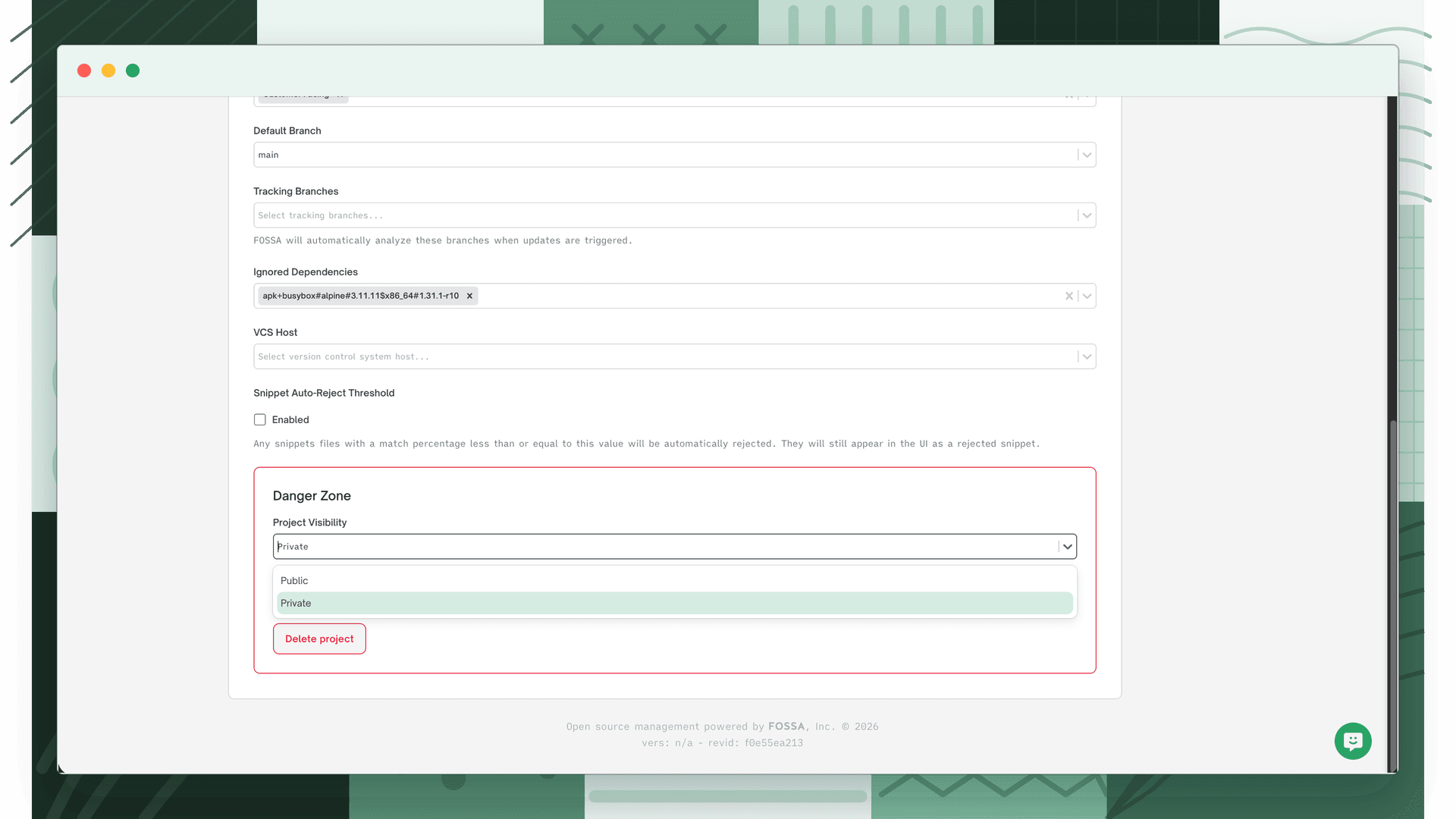
Change Project Visibility: This section allows you to change your project from private, which is the default option, to public. If you change your project to public, then you can share it with users outside of your organization.
Danger
Deleting your project is a permanent change. Once you delete your project, there are aspects of the project that cannot be brought back.