Build History and Rebuilding
View past scans for a project and trigger a rebuild or policy scan from the UI.
Overview
Every time FOSSA analyzes a project it creates a revision, a point-in-time snapshot of the dependency graph. The build history lets you navigate between revisions and see what changed over time.
Viewing build history
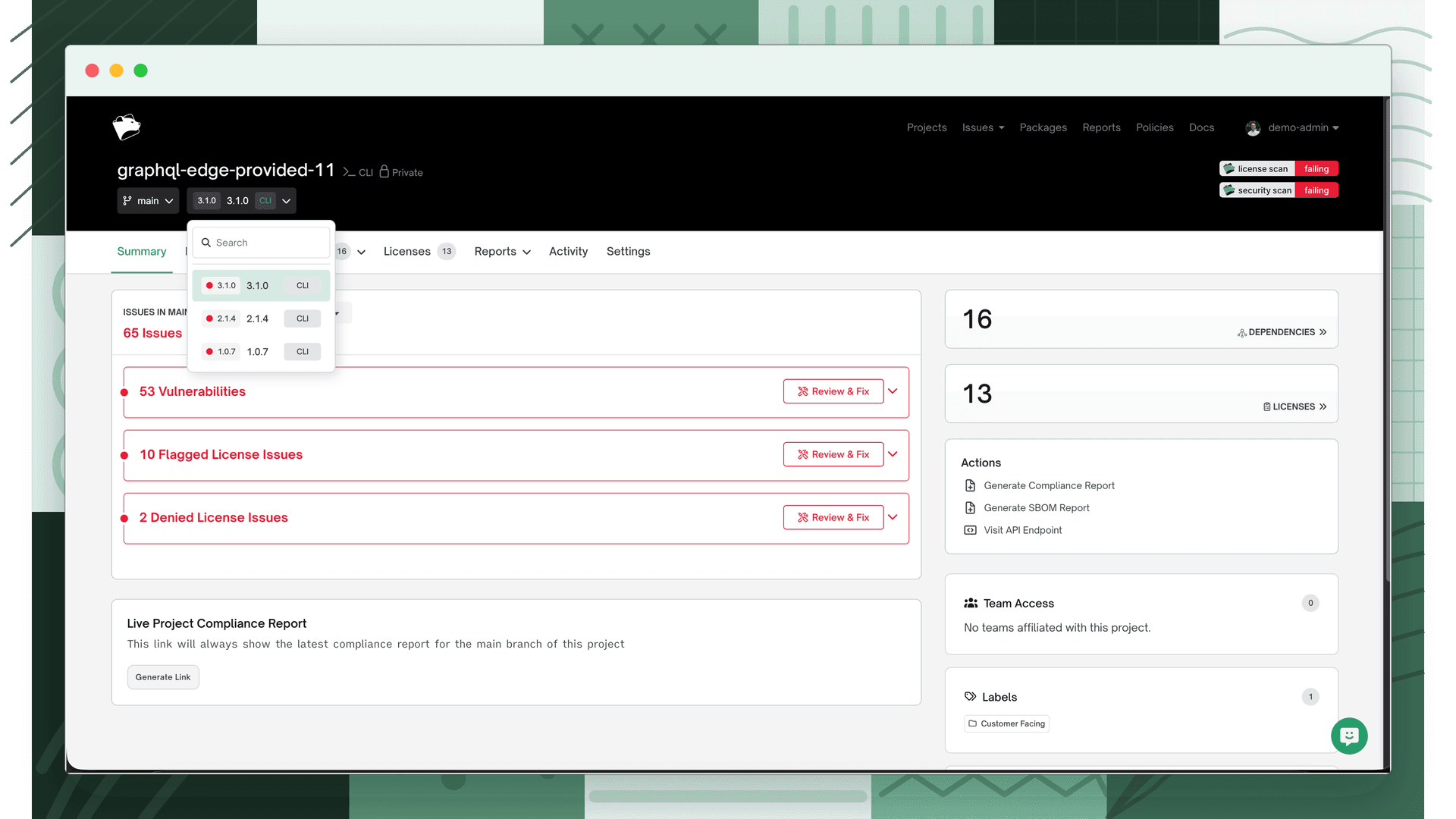
Open the revision selector dropdown in the project navigation bar. It lists all past revisions for the project, each showing:
- The revision identifier (commit hash for Git-backed projects, or timestamp for CLI uploads)
- Branch or tag reference
- Source, automated (FOSSA-triggered) or CLI (uploaded via
fossa analyze) - CI/CD check status, if GitHub status checks are configured
You can search and filter revisions by branch, tag, or source.
Triggering a rebuild
From the Actions menu. Open Actions > Rebuild & Mediate Deps from the project summary page. This re-runs the full dependency analysis for the current revision using fresh data from FOSSA's knowledge API. This option is only available for Quick Import projects and requires Edit permission.
From an unanalyzed revision; if a revision shows as unanalyzed, an Analyze this version button appears on its card. Click it to trigger analysis for that specific revision. Requires Edit permission.
Running a policy scan
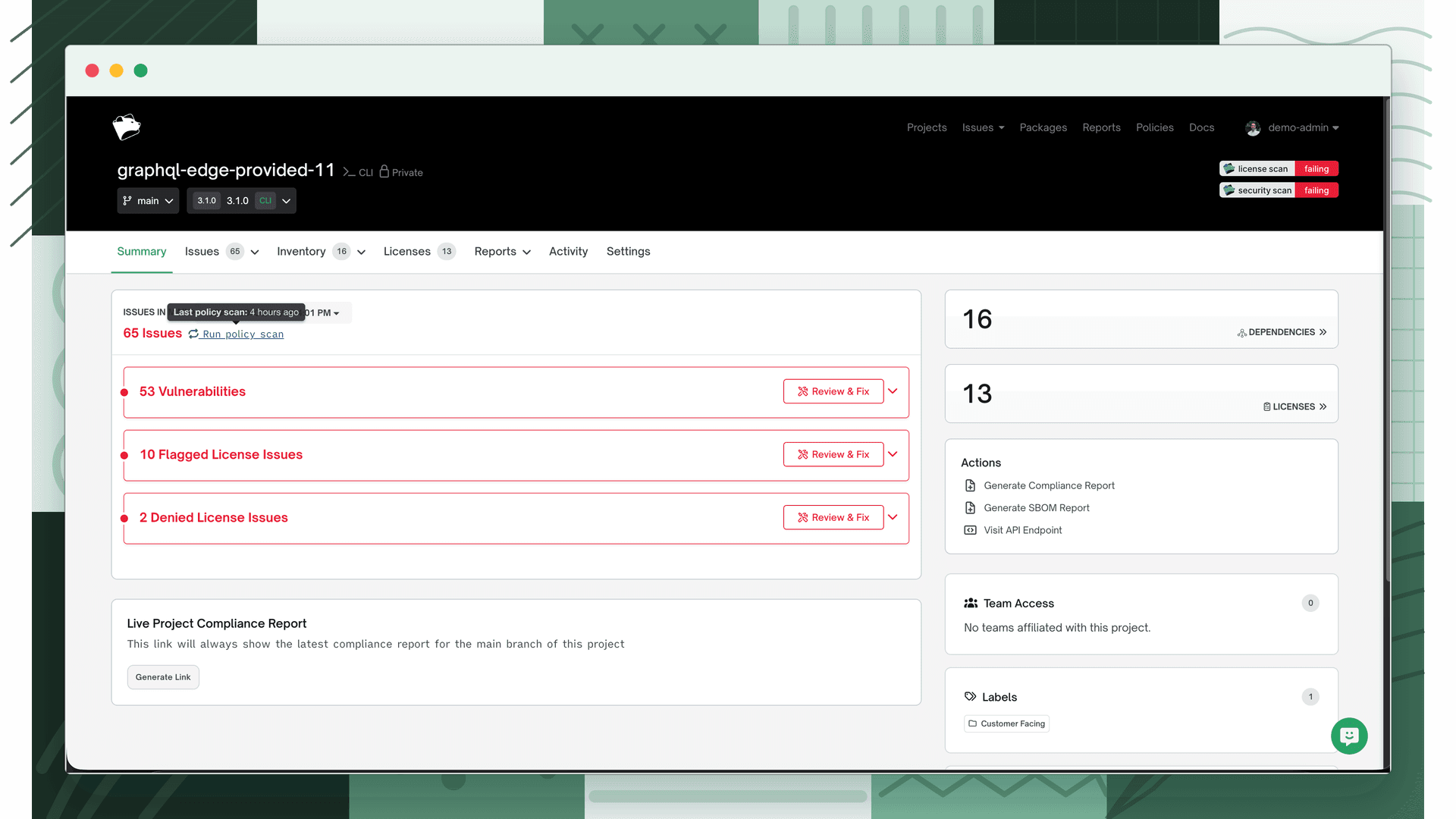
A policy scan re-evaluates the current revision's existing dependency data against your active policies, without re-analyzing dependencies. This is useful after changing a policy and wanting to see updated issue results immediately.
Click Run policy scan on the project summary page. This is available for all project types, including CI/CD scanning projects.