

Ignore a Dependency
Exclude a specific package from your project's issue tracking and reporting.
Overview
If you see a dependency in your project that you don't want to be included, you can ignore it.
- 1
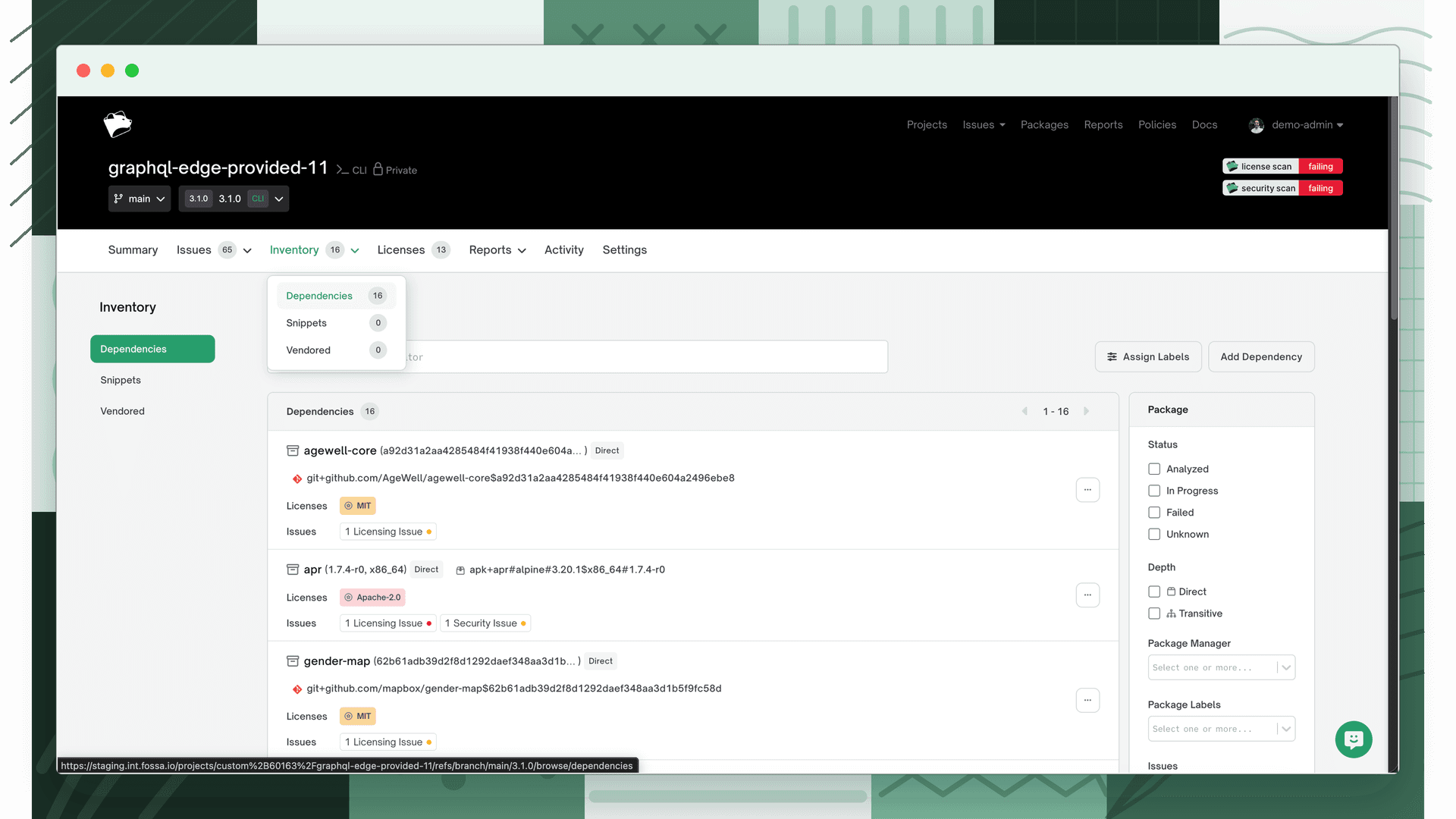
Open the dependencies tab
Navigate to the dependency tab, and hover over the dependency you want to ignore.
- 2
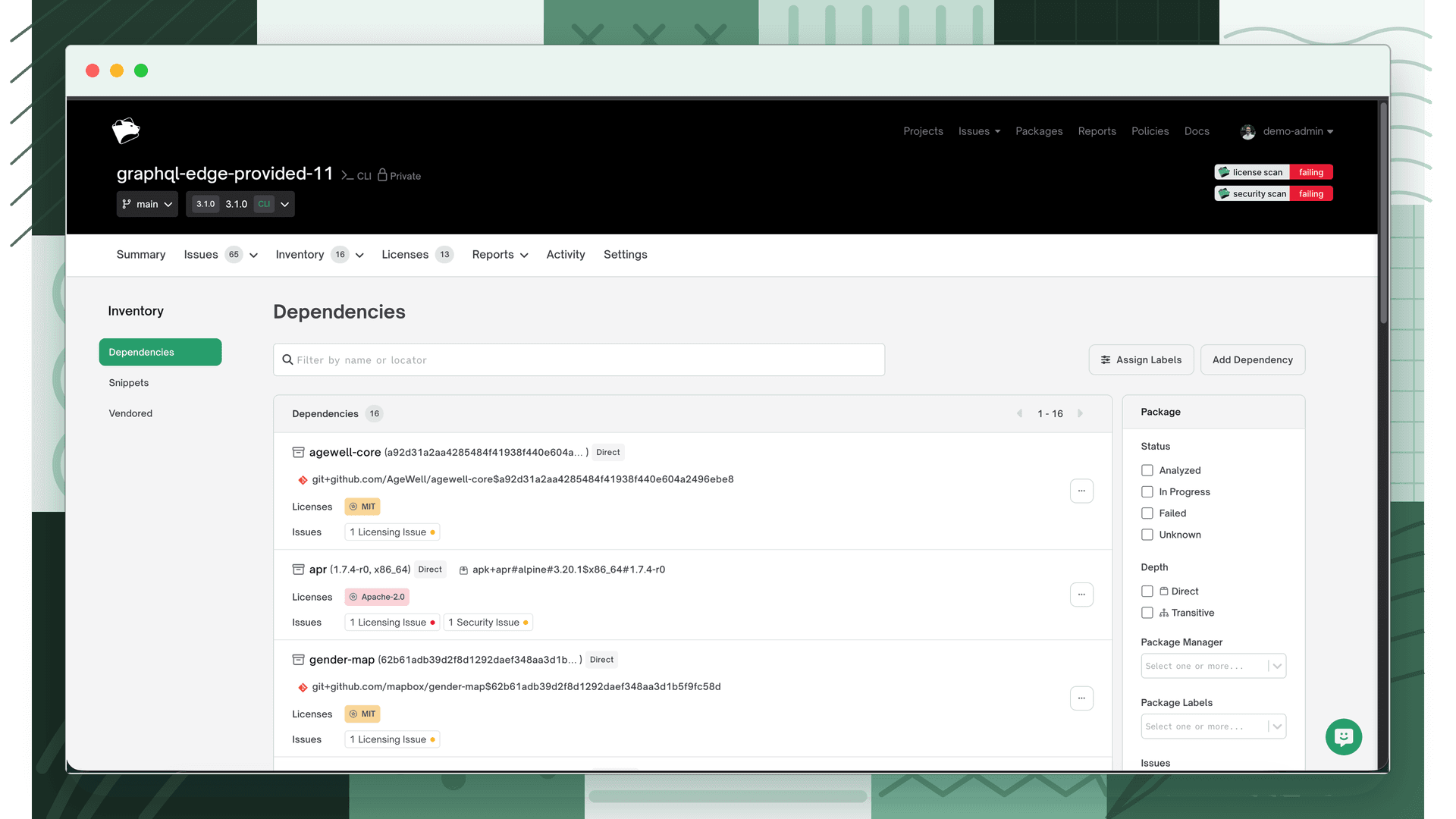
Open the overflow menu
Click the ⋯ (overflow) button on the dependency's row to open more options.
- 3
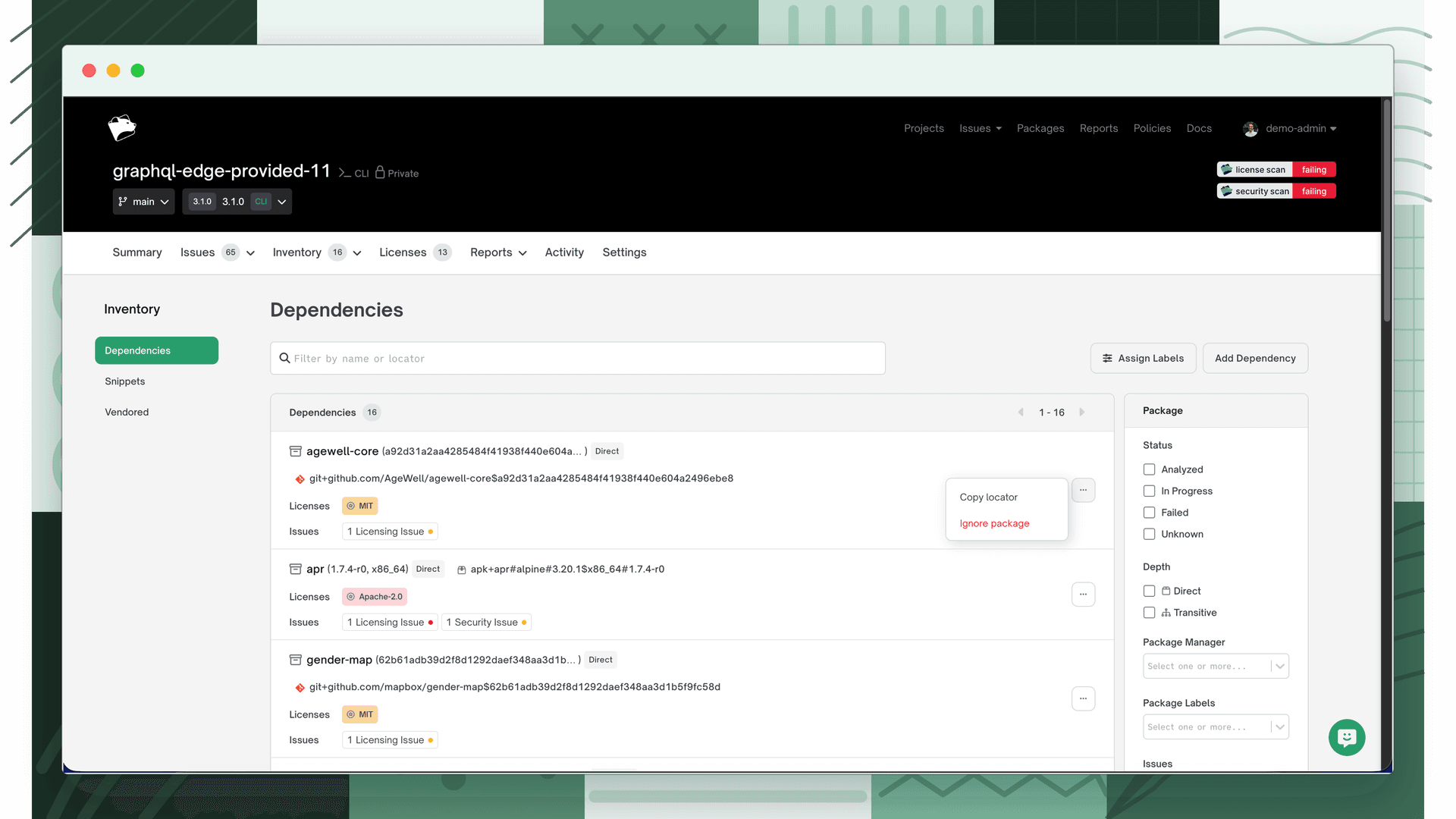
Choose Ignore package
Click Ignore package. For dependencies that were added manually, this action instead reads Delete Package.
- 4
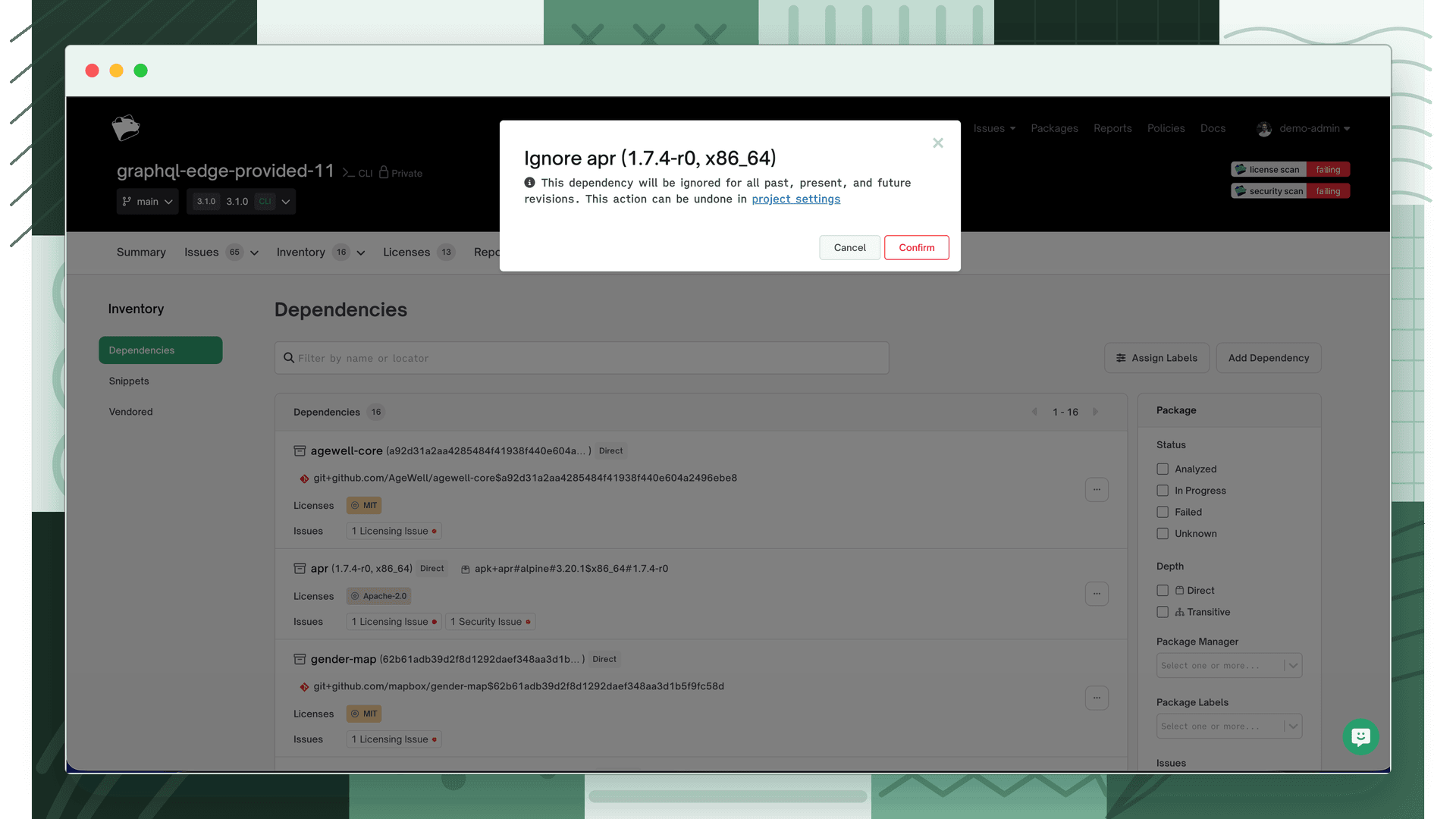
Confirm
A confirmation modal appears. Click Confirm to apply the ignore.
After a dependency has been ignored, you will see it listed on the Project Settings page under Ignored Dependencies.
Note
Ignoring a dependency applies to all past, present, and future revisions for the project. That dependency will be completely ignored until you un-ignore it.
Un-ignore a dependency
- 1
Open Project Settings
Navigate to the Project Settings page.
- 2
Find Ignored Dependencies
Find the section marked Ignored Dependencies.
- 3
Remove the chip
Click the X on the chip for the dependency you want to restore.
- 4
Save
Click the Save button.
Common use cases
Here are some examples of when users have ignored a dependency:
- Ignoring test dependencies that you don't want included in your reports.
- Ignoring proprietary dependencies that you would like to keep private.