

Quick Import
Connect GitHub, GitLab, Bitbucket, or Azure Repos and scan hundreds of repositories in one click.
Overview
Quick Import connects FOSSA to a cloud Version Control System (VCS) (such as GitHub) and analyzes the dependencies in your repositories. It gets immediate results with minimal configuration and automatically sets up webhooks, scheduled updates, and pull-request status checks.
Pick this method if:
- You want a quick setup to test integrations.
- You want to bulk-audit hundreds of repositories.
- You have many codebases that are small and relatively simple.
For the most accurate results on complex builds, use CLI instead.
Connection methods
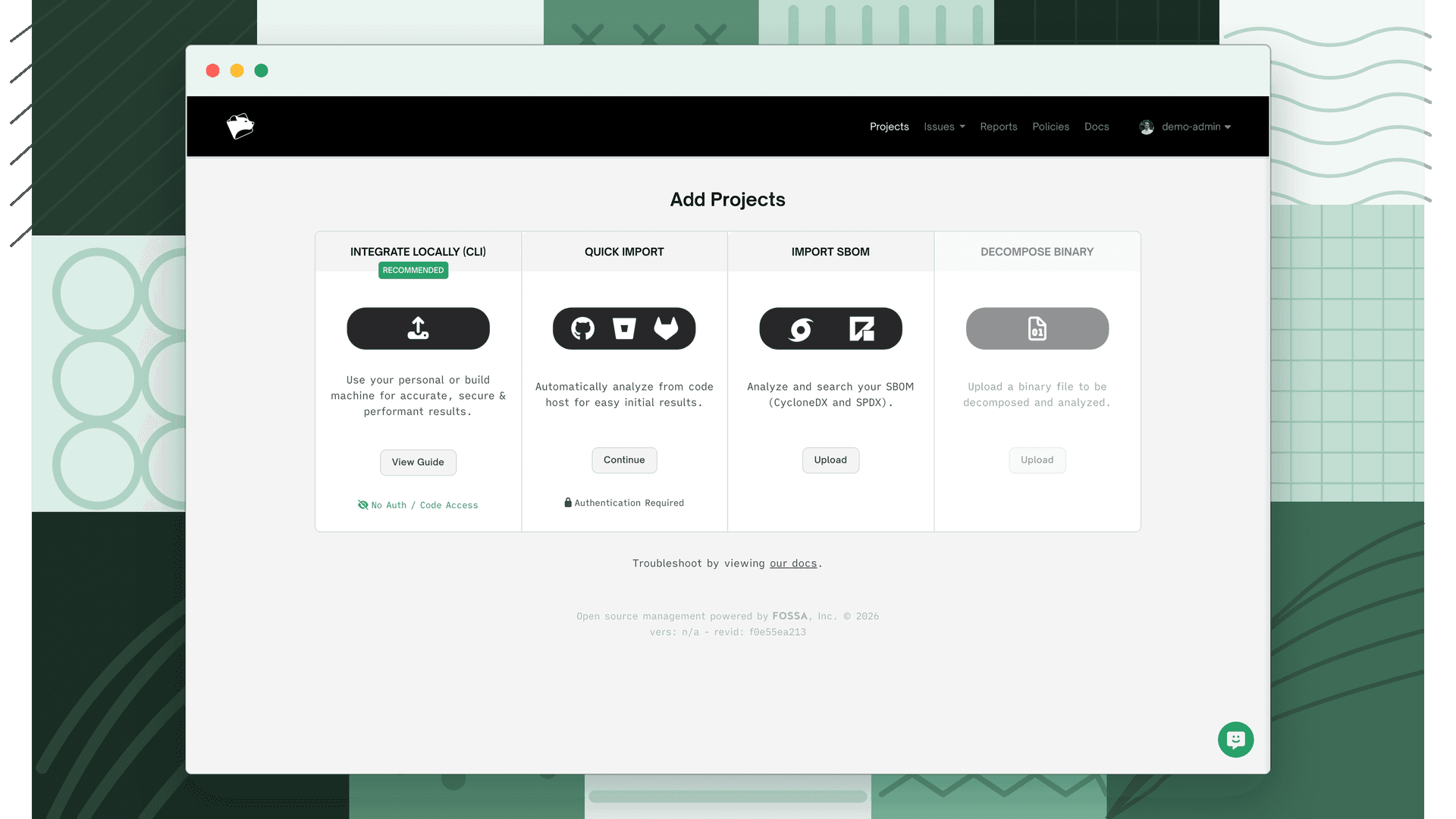
When you click Quick Import, FOSSA shows eight options for getting your projects in. Most are a one-click OAuth flow, authorize your VCS account and start selecting repositories. Two providers require an admin to complete a one-time setup before the connection is available to your team.
| Method | Use when… | Notes |
|---|---|---|
| GitHub App | Importing repos owned by a GitHub organization | Installs at the org level and isn't tied to any individual's account. Recommended for team and org-wide imports. See GitHub App. |
| GitHub OAuth | Importing your own personal GitHub repos | Connects through your personal GitHub account. Already linked if you signed in to FOSSA with GitHub. |
| GitLab | Your projects live on GitLab.com | Standard OAuth, no prerequisites. |
| Bitbucket.org | Your projects live on Bitbucket Cloud | Standard OAuth, no prerequisites. |
| Azure Repos | Your projects live in Azure DevOps | Requires a Project Collection Administrator to enable third-party OAuth in your Azure DevOps org before connecting. See Azure Repos. |
| Bitbucket Server | Your projects live on a self-hosted Bitbucket instance | On-Prem FOSSA only. Requires an Application Link and a fossabot service account. See Bitbucket Server. |
| Upload Archive | Your code isn't on a VCS at all | Upload a .zip, .tar.gz, .jar, or similar archive directly and FOSSA analyzes it as a project. See Archive Upload. |
| Other / Public | Importing from any publicly accessible repository | Paste a public repository URL, no authentication required. |
Connect your VCS
Click Quick Import to start importing from your VCS of choice, then connect your service account from the Project Imports page. If you signed in to FOSSA with a cloud VCS account, it's already connected.
Note
The rest of this page uses GitHub as the example VCS.
Danger
The GitHub integration requests write permissions on private repositories. This is a GitHub limitation. It provides no read-only scope for private repos (see dear-github#113). FOSSA never writes to your repositories. If you can't grant code access, CLI is a better fit. It requires no code access.
Import repositories
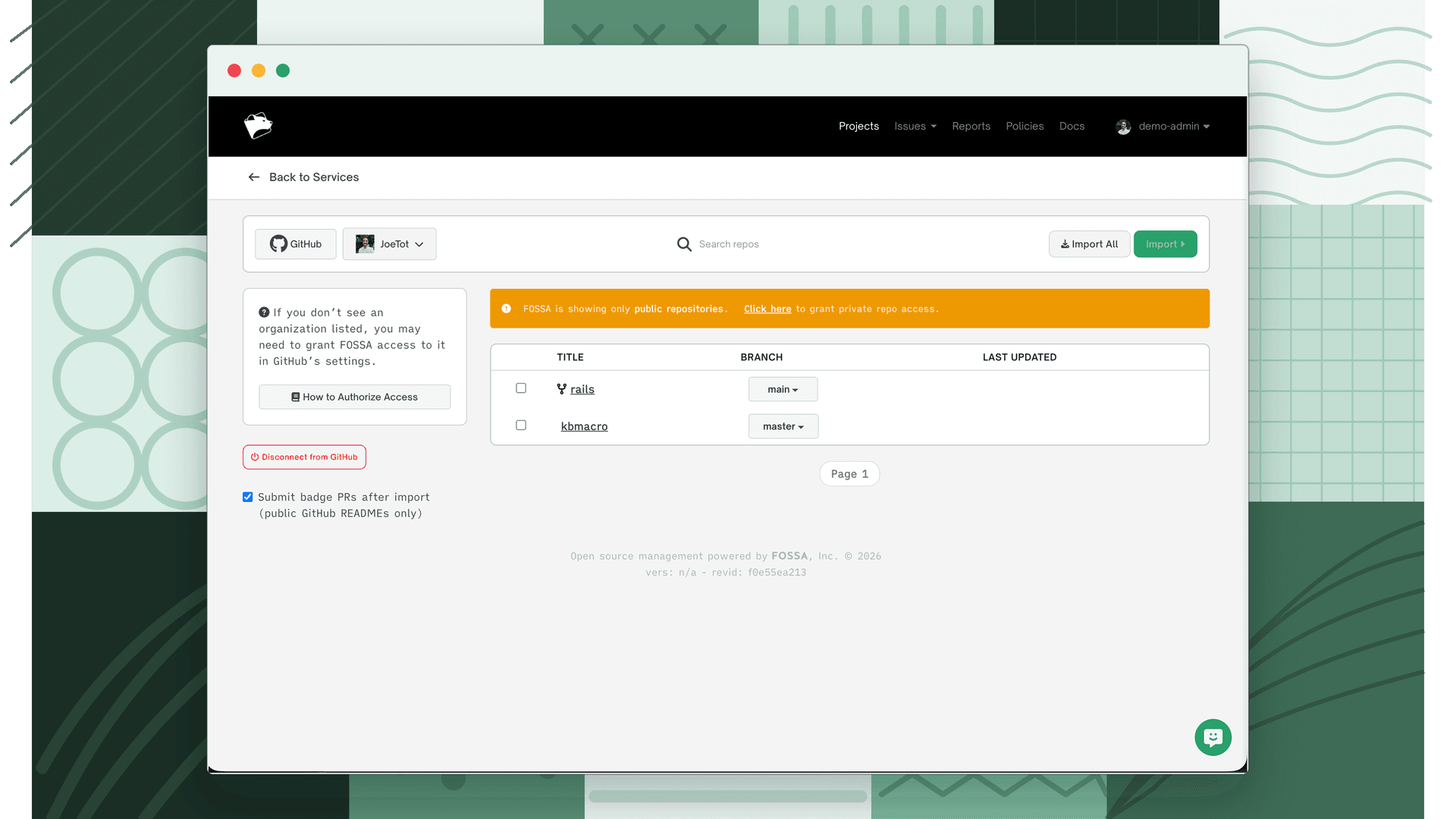
After connecting, you'll see your repositories. Select Import All, or pick specific repos and click Import.
Note
Import the branch deployed in your production environment. If a repo is missing, you may not have granted FOSSA access to that team or sub-group in your VCS; check your provider's settings.
Before importing, you can filter repositories by visibility (Public / Private / All), last-updated date, and whether to include forks.
Click Next Step to configure the import:
- Notifications: issue-based email alerts.
- Enable notifications (recommended for <20 repos)
- Configure notifications later
- Updates
- Per-commit
- Use organization defaults
- Scheduled update (recommended for >20 repos)
- Access
- Default (as-is, based off repo permissions)
- Set all public
- Set all private
- Misc
- Submit badge PRs after import (public GitHub READMEs only)
Click Confirm Import to start. Large or numerous repositories may take a while; click Back to projects to watch progress.
Find a repository
If a repository isn't listed, switch teams with the team selector, or use the search bar to filter projects.
What's next
- CI/CD Scanning: For greater accuracy on complex builds, integrate FOSSA into your CI pipeline to upload dependency data directly.
- Pull Request Checks: Block merges when new issues are detected by enabling automatic status checks on your repositories.
- Automatic Updates: Configure how and when FOSSA re-scans your projects to catch newly disclosed vulnerabilities and license changes.