

Azure Repos
Import repos from Azure Repos and run FOSSA license and security checks as part of your Azure DevOps pipeline.
Overview
Connect FOSSA to Azure Repos to import repositories and scan them for license compliance and security issues. The connection uses Azure DevOps OAuth, so an Azure DevOps organization administrator must enable third-party OAuth access before FOSSA can connect.
Prerequisites
You must be a Project Collection Administrator in your Azure DevOps organization to change the OAuth policy.
Enabling third-party OAuth access in Azure DevOps
Danger
FOSSA cannot connect to Azure Repos until third-party application access through OAuth is enabled in your Azure DevOps organization settings.
- 1
Open Organization settings
Sign in to your Azure DevOps organization at
https://dev.azure.com/{your-organization}and click Organization settings in the bottom-left corner.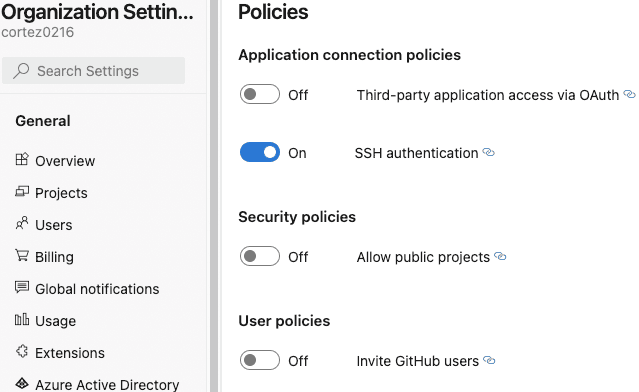
- 2
Open Policies
In the left menu under Security, click Policies.
- 3
Enable the OAuth toggle
Under Application connection policies, toggle on Third-party application access through OAuth.
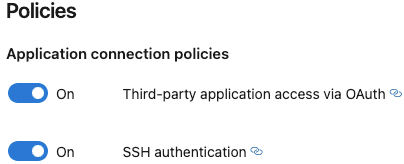
Azure Repos is now ready to connect.
Importing repos from Azure Repos
- 1
Open the Add Projects page
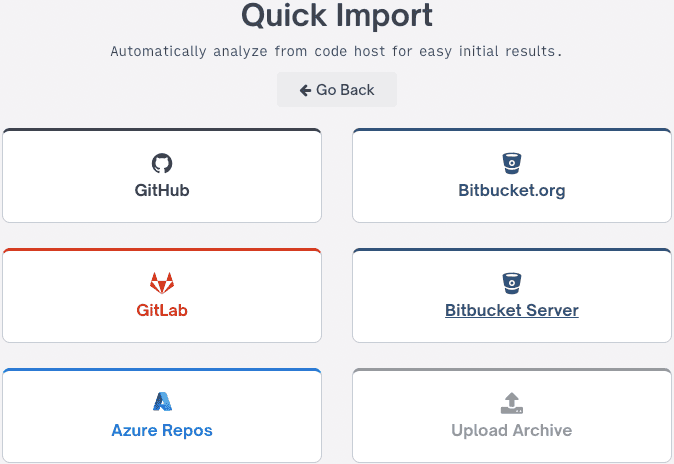
In FOSSA, go to Add Projects and select the Quick Import option. Choose Azure Repos.
- 2
Connect to Azure DevOps
Click Connect with Service to begin the OAuth authorization flow.

- 3
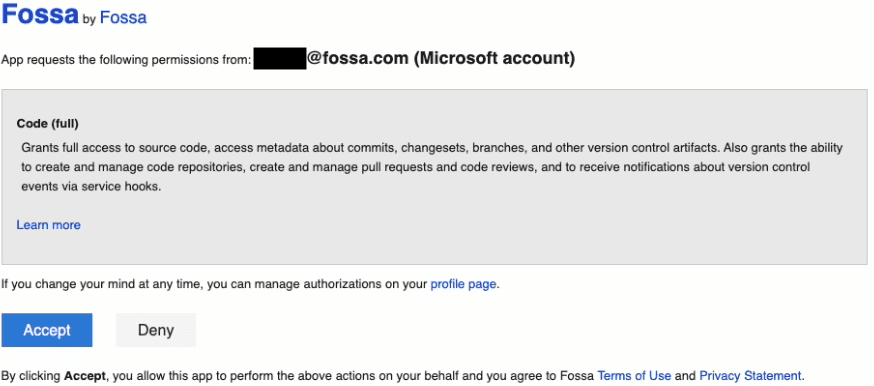
Grant FOSSA access
In the Azure DevOps authorization page, click Accept to grant FOSSA access to your repositories.
- 4
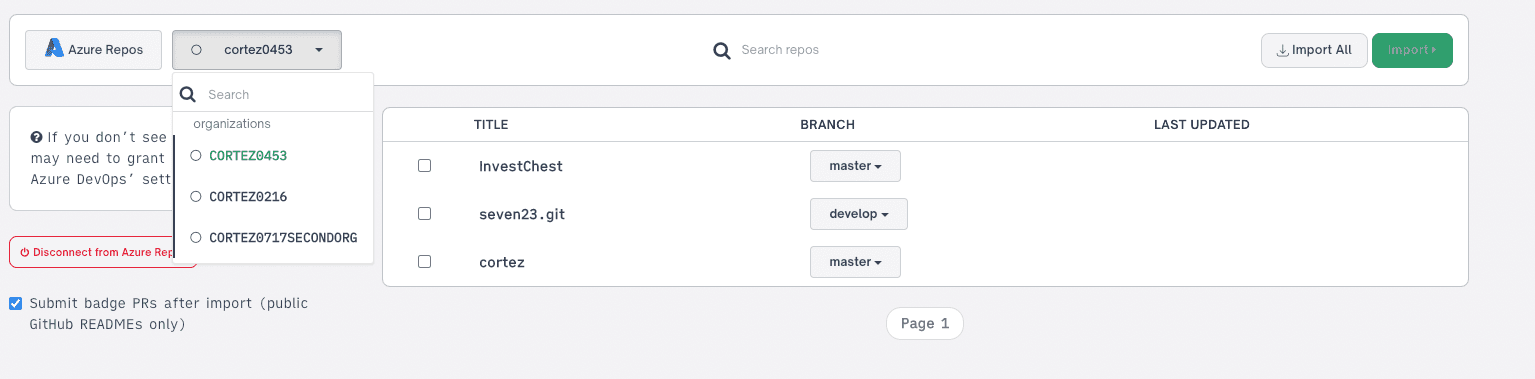
Select an organization
If you belong to more than one Azure DevOps organization, select the one you want to import from.
Note
If a repository doesn't appear in the list, you may not have granted FOSSA access to that organization. Return to the previous step and repeat the authorization for the correct organization.
- 5
Select repositories and import
Choose individual repositories to import, or click Import All to import everything. When importing all, a dialog lets you review the projects before committing.
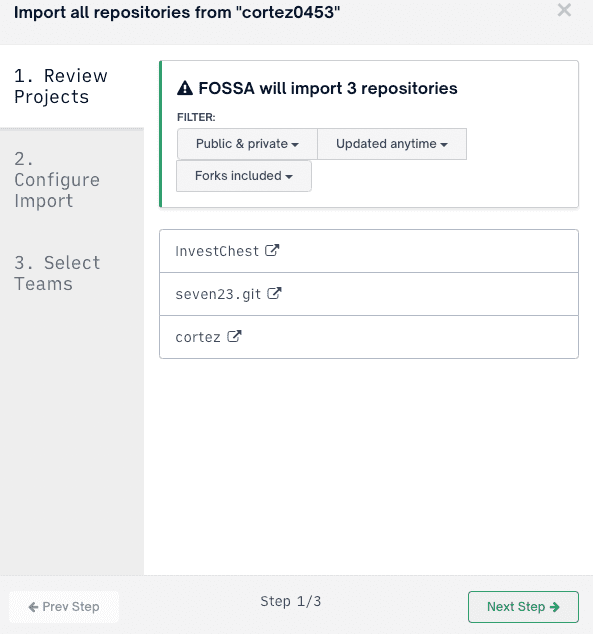
You can filter repositories by Public, Private, or All, by last-updated date, and by whether to include forks.
- 6
Configure import settings
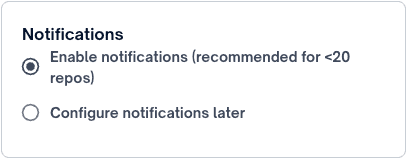
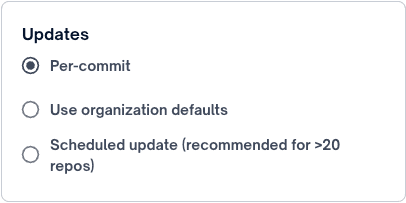
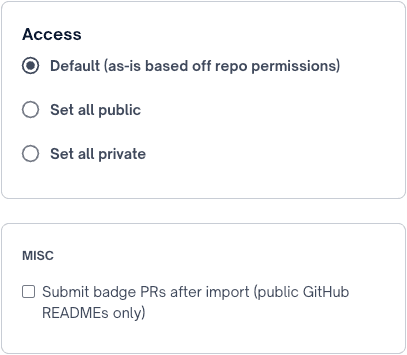
Click Next Step to configure notifications, updates, and access permissions. The recommended settings are shown below.
- 7
Assign to teams and confirm
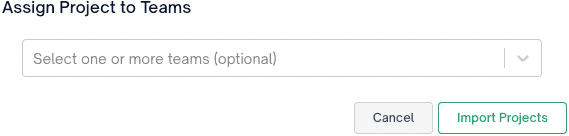
Optionally assign the imported projects to specific teams in your organization, then click Confirm Import Repos.
Note
Depending on the number of repositories and their sizes, the import may take some time to complete.
Troubleshooting
Azure Repos commits are no longer triggering new scans
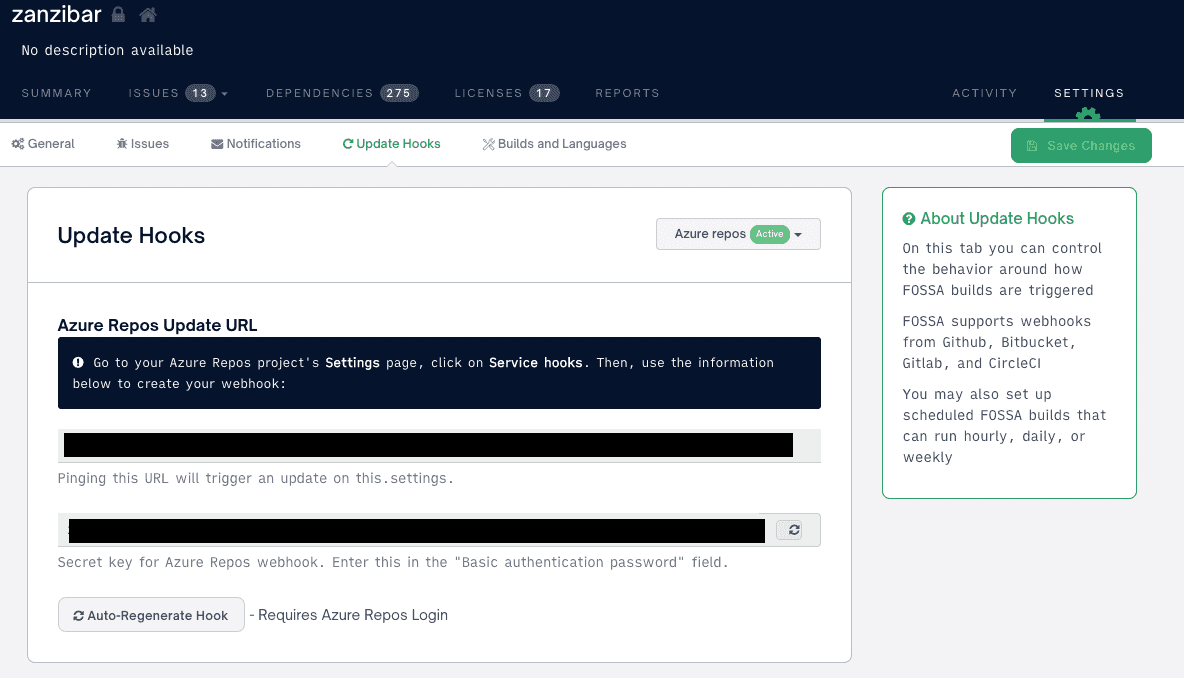
When the OAuth token used for the FOSSA webhook expires or becomes invalid, new commits to Azure Repos stop appearing as project revisions in FOSSA. Regenerating the webhook issues a fresh token.
- 1
Open project settings in FOSSA
Navigate to the affected project in FOSSA and go to Settings → Update Hooks.
- 2
Regenerate the hook
Click Auto-Regenerate Hook. FOSSA will re-authorize with Azure Repos and create a new webhook.
