

Slack
Send FOSSA issue notifications to Slack channels.
Enterprise feature
Available on: Business, Enterprise.
Overview
Connect FOSSA to Slack to receive issue notifications in your team's channels. You can add as many channels as you need, then enable notifications per project.
Connecting FOSSA to Slack
- 1
Open Slack integration settings
- 2
Authorise FOSSA
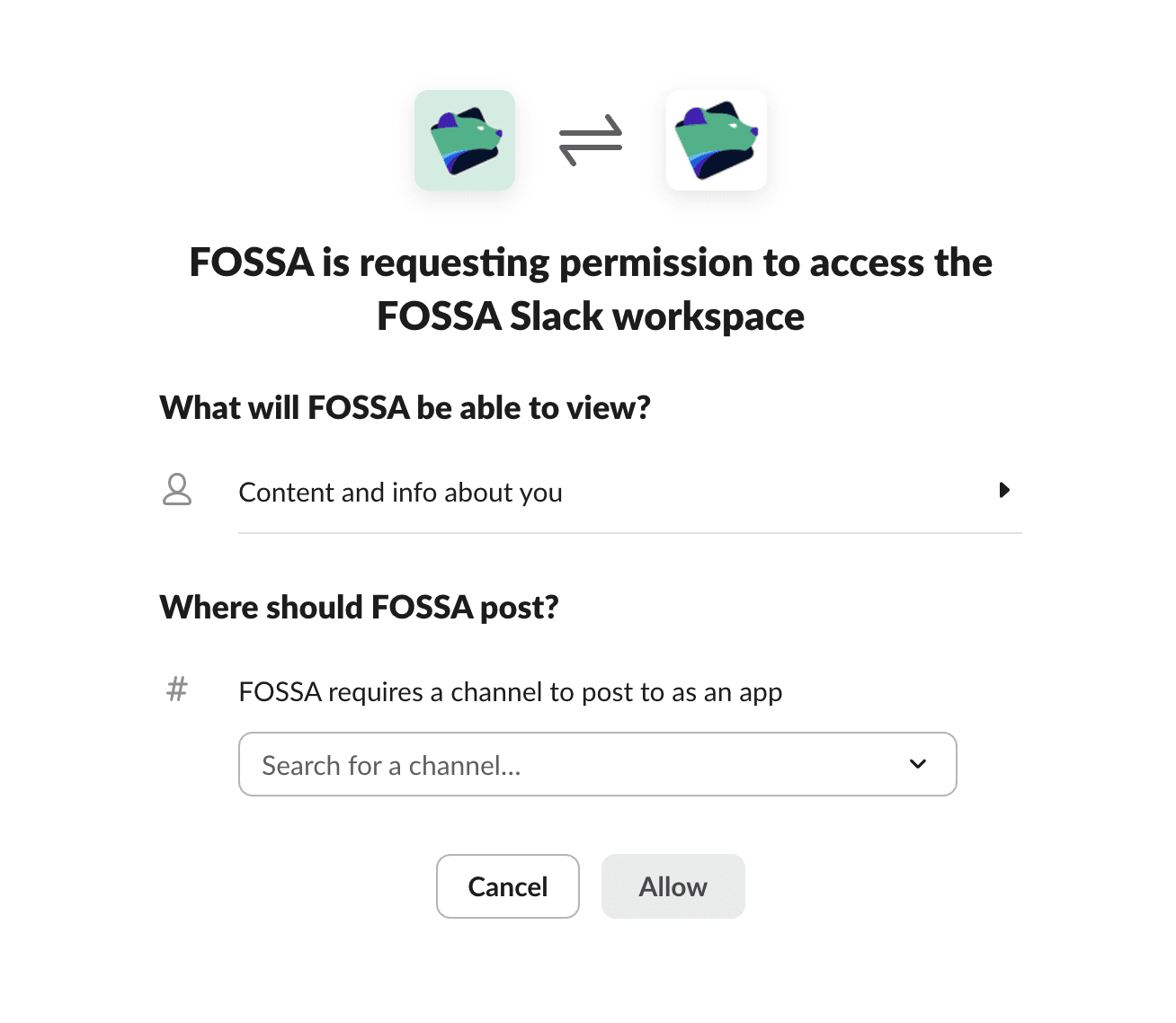
Click Connect to Slack. Select the Slack workspace you want FOSSA to connect to, then choose the channel FOSSA will post messages to.
Note
Repeat this step to add as many channels as you need. Each channel gets its own webhook connection.

Enabling project notifications
Slack notifications are configured per project. After connecting at least one channel, enable notifications for each project you want to monitor.
- 1
Open project settings
Navigate to the project in FOSSA and go to its Settings tab.
- 2
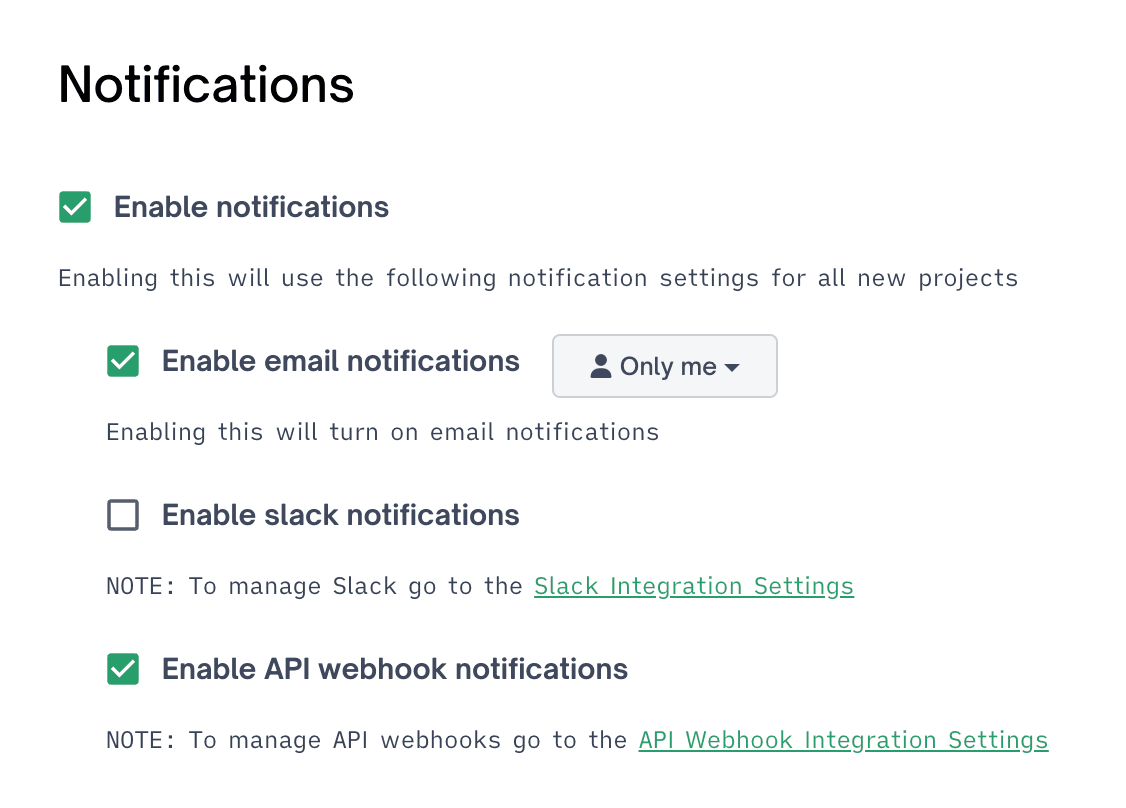
Enable Slack notifications
Select which notification types you want enabled for this project.
On-Prem configuration
Warning
The input-values.yaml schema is defined in the FOSSA On-Prem Helm chart, not the application code. Confirm key names against your installed chart version before deploying.
Add the following block to your input-values.yaml when installing FOSSA with Helm:
#### Slack Configuration### # FOSSA can send notifications to a Slack channel. This requires creating an# OAuth app on Slack, and providing the client id and secret here.slack: clientId: <your-slack-client-id> clientSecret: <your-slack-client-secret>Create a Slack OAuth app at api.slack.com/apps to obtain the client ID and secret.