

Creating Jira Tickets
Track FOSSA issues by creating Jira tickets or linking to an external URL.
Enterprise feature
Available on: Business, Enterprise.
Overview
Turn any issue in your inbox into a ticket so work gets tracked in the tools your team already uses. You can create a native Jira ticket or link an issue to an existing URL in any ticketing system. Every ticket carries the issue's details and a live link back to the FOSSA issue.
Note
Native Jira ticketing requires a connected Jira integration. See Jira to connect your instance first. Linking to an existing URL works with any ticketing system and needs no integration.
How ticketing works
- Start from the Issues inbox. Select one or more issues, then click Create Ticket.
- Choose Create a Jira ticket for native Jira, or Link to an existing URL for any other system.
- The ticket is populated with the issue's information and a live link back to the FOSSA issue.
- By default, a single Jira ticket holds the details of up to 50 issues. Beyond that, the extra issues get only a live link back to FOSSA.
- Enable Unique Jira ticket per FOSSA issue to split a selection into one ticket each, available only when fewer than 50 issues are selected.
Creating a ticket for a single issue
- 1
Select the issue
In the Issues inbox, select the checkbox next to the issue, then click Create Ticket.
- 2
Fill in the ticket details
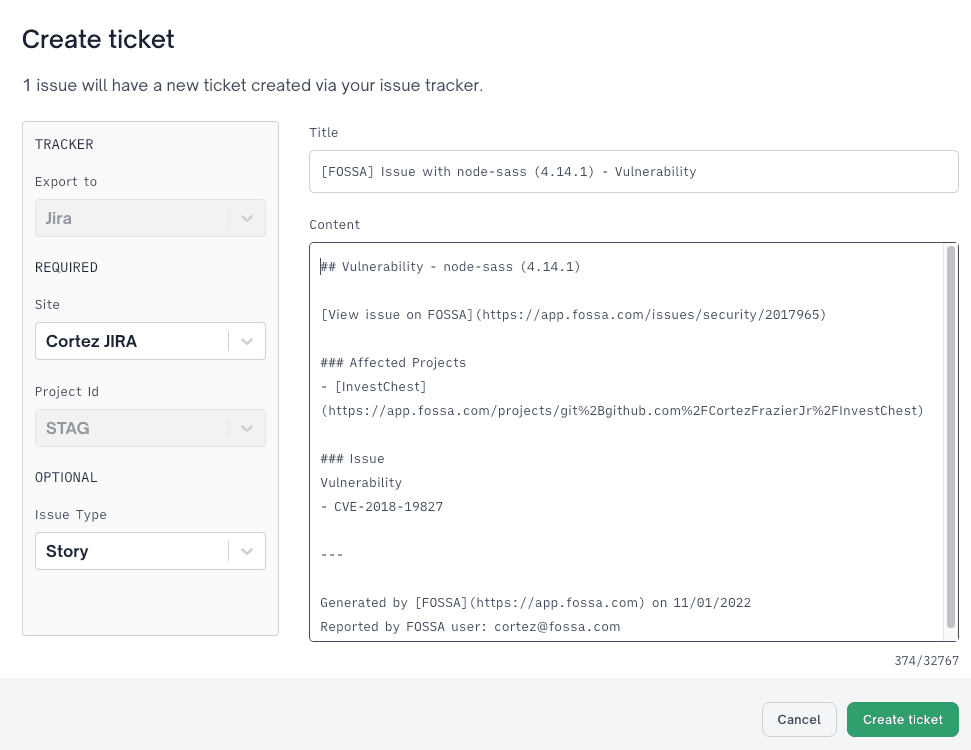
In the Create Ticket window, choose the Site and Project Id, plus any optional fields such as Issue Type or Label.
- 3
Create the ticket
Click Create ticket. The new ticket carries the issue's information and a live link back to the FOSSA issue.
Filter your inbox with the Ticketed option to find newly created tickets.
Creating tickets for multiple issues
- 1
Select the issues
In the Issues inbox, select the checkbox next to each issue. To select everything, use the bulk-select checkbox, then click Select all.
- 2
Open the ticket window
Click Create Ticket, then set the Site, Project Id, and any optional fields.
- 3
Create the tickets
Click Create ticket(s).
Danger
A single Jira ticket includes full details for only the first 50 issues. Any remaining issues get a live link back to FOSSA instead of inline detail.
Creating a unique ticket for each issue
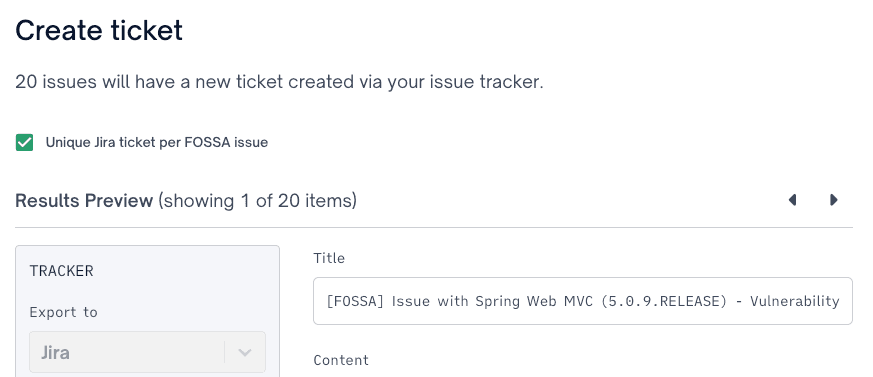
Enable Unique Jira ticket per FOSSA issue in the Create Ticket window to split your selection into one ticket per issue. Use the left and right arrows to move between issues and edit each ticket's details before creating them.
Danger
Ticket splitting is turned off when 50 or more issues are selected. Select fewer than 50 to create unique tickets.
Warning
Switching a selection to unique tickets means the selected FOSSA issues are no longer associated with their previous Jira ticket.
Enabling unique tickets by default
Admins can make unique tickets the default for every user in the organization.
- 1
Open Jira integration settings
Go to Organization Settings → Integrations → Jira.
- 2
Turn on the default
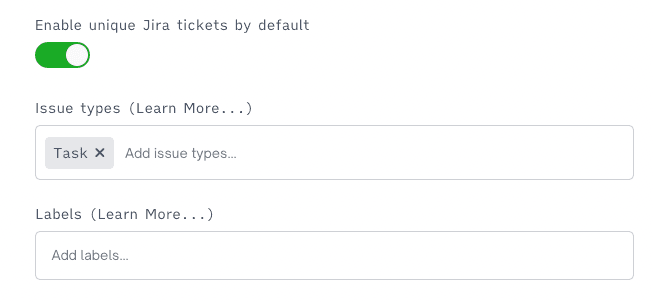
Enable Enable unique Jira tickets by default. From then on, unique tickets are the default action whenever any user creates Jira tickets.
Linking an issue to an existing URL
To track an issue in a non-Jira system, link it to any URL instead of creating a native Jira ticket.
- 1
Open the ticket window
Select the issue and click Create Ticket.
- 2
Choose Link to an existing URL
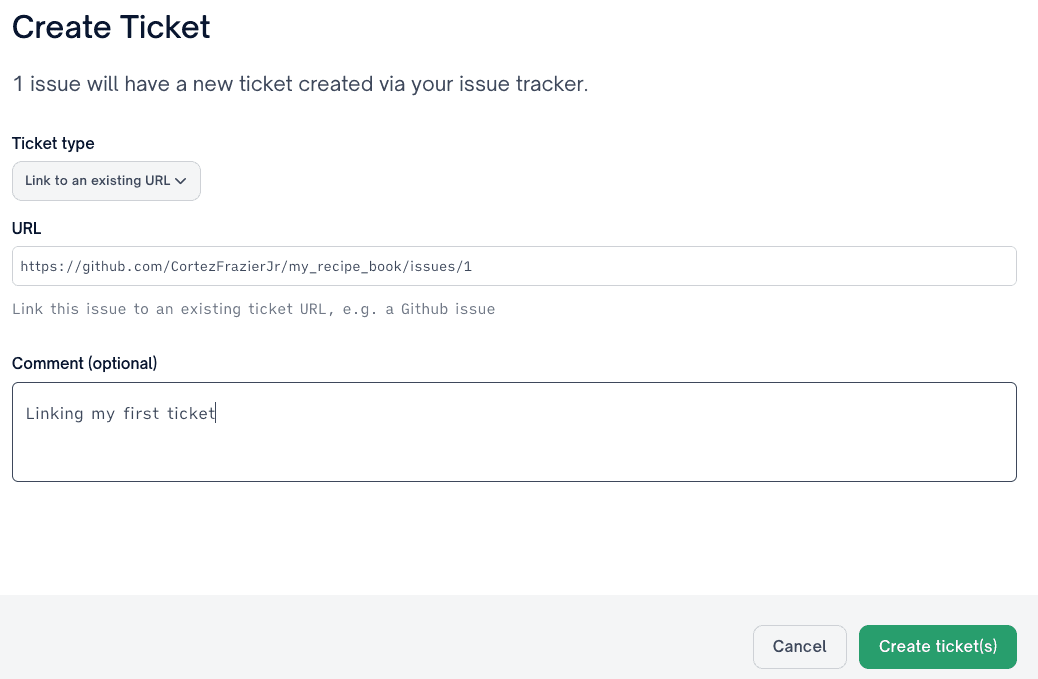
Select Link to an existing URL to open the manual ticketing window.
- 3
Add the URL
Supply the URL and an optional comment. Any comment you add appears on the tracked FOSSA issue.
Ticket fields and limits
| Field | Applies to | Notes |
|---|---|---|
| Site | Jira | The connected Jira instance. |
| Project Id | Jira | The Jira project that receives the ticket. |
| Issue Type | Jira (optional) | Jira issue type, such as Bug or Task. |
| Label | Jira (optional) | Label applied to the created ticket. |
| URL | Manual | The external ticket link. |
| Comment | Manual (optional) | Added as a comment on the FOSSA issue. |
| Limit | Value |
|---|---|
| Issues detailed in a single Jira ticket | First 50 |
| Maximum selection for unique tickets | Fewer than 50 |
FAQ
What happens to issues past the first 50 in one ticket? They are not detailed inline. Each gets a live link back to its FOSSA issue instead.
Can I track issues in a system other than Jira? Yes. Choose Link to an existing URL to link an issue to any ticketing system without a Jira integration.
Why is the unique-ticket option unavailable? You have 50 or more issues selected. Ticket splitting is only available for selections under 50.
How do I find issues that already have tickets? Filter the Issues inbox with the Ticketed option.