

Dependencies
Inspect every dependency FOSSA detected, metadata, license status, filter options, custom licenses, and notice files.
Overview
The Inventory tab in a FOSSA project has three sub-tabs:
- Dependencies: every direct and transitive component included in the analysis (this page)
- Snippets: code snippets detected by Snippet Scanning
- Vendored: vendored code detected by the Vendored Dependencies scan
(Snippets and Vendored are part of the Enterprise plan.)
This page covers the Dependencies sub-tab. Use it to understand how a dependency was introduced, review its license status, and correct any missing or incorrect data before generating reports.
Dependency metadata
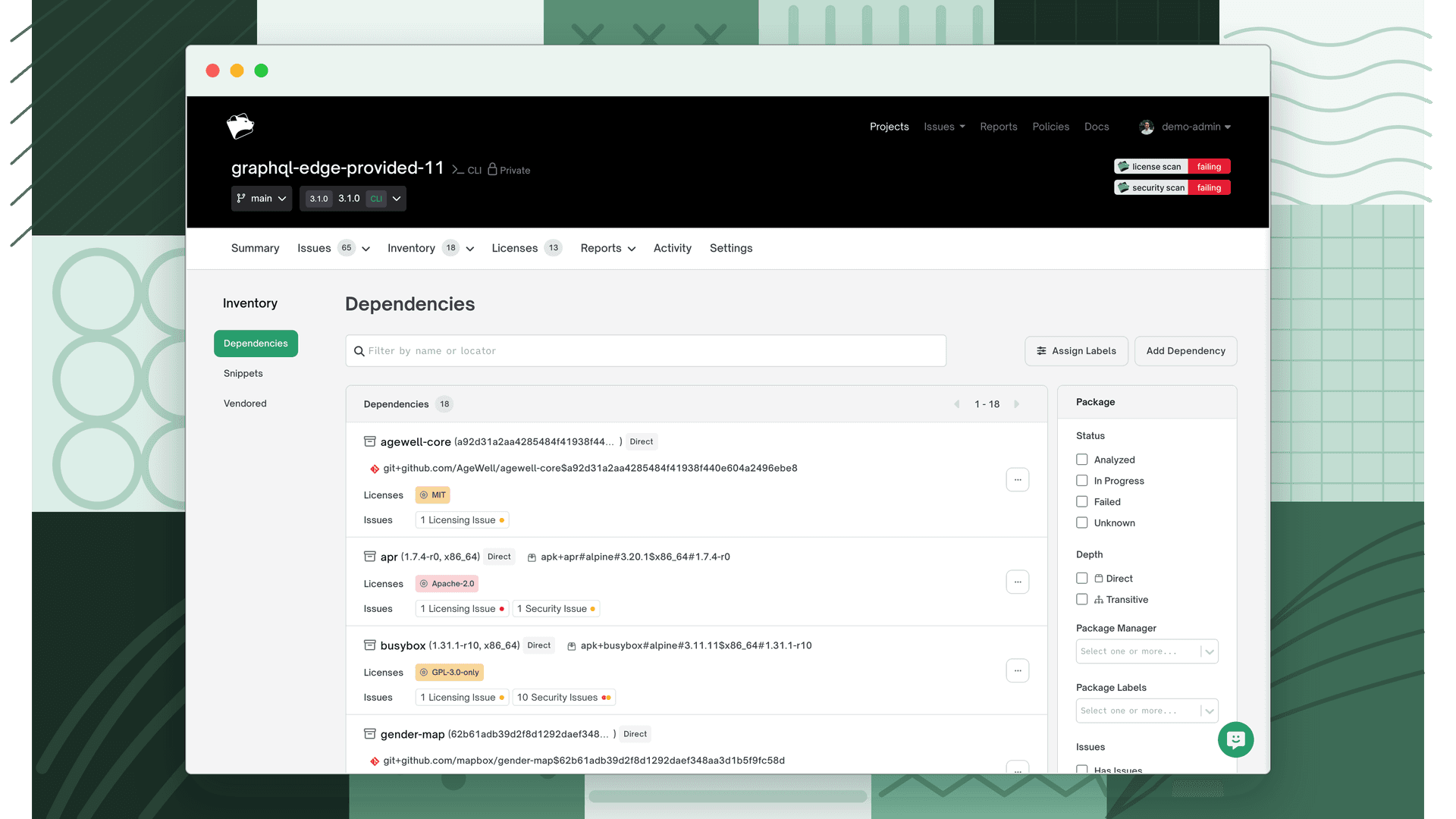
For each detected dependency, FOSSA captures the following:
| Field | Description |
|---|---|
| Name | The name or title of the dependency |
| Version | The resolved version. May be a commit hash for ecosystems that don't use semantic versioning. |
| Depth | Direct, explicitly included in your project; Transitive, pulled in by another dependency |
| Package manager | The ecosystem, package manager, or programming language managing the package |
| Package Locator | FOSSA's internal unique identifier for the component. Useful when the same package name exists across multiple ecosystems or when distinguishing public packages from private forks. |
| Origin Path | For direct dependencies: the file path where FOSSA found it. For transitive dependencies: the path to the root direct dependency. |
| Dependency Path | For transitive dependencies only, the ordered chain from the root direct dependency to the leaf. Example: jest 18.1.0 → jest-cli 18.1.0 → node-notifier 4.6.1 |
| Licenses | Detected licenses. Licenses that conflict with the project's policy are highlighted. |
| Issues | Any license, security, or quality issues detected on the dependency |
Unknown license dependencies
When FOSSA cannot access a dependency to scan it, the dependency appears with the message: FOSSA was unable to perform a license scan on this dependency. If it's behind a private registry or auth, you may need to configure FOSSA's access and rebuild this project.
The two most common causes:
Private registry authentication: the dependency lives in a private repository such as Artifactory or Nexus. Navigate to Settings → Languages and add authentication for the private registries you use.
Incorrect discovery: FOSSA found an incorrectly formatted entry in a manifest file, or detected an internal sub-project as a dependency (common in Gradle and Go projects).
Warning
FOSSA maintains the complete dependency graph even when individual packages cannot be accessed. Compliance and vulnerability information for accessible downstream packages is still surfaced correctly.
Note
If neither of the above explains your unknown dependency, contact support@fossa.com with as much detail as possible.
For help resolving missing or incomplete dependencies, see Incomplete and Unknown Dependencies.
Filtering
Licenses
Filter to dependencies that contain a specific detected license.
Package Managers
Filter to dependencies detected by a specific ecosystem, package manager, private URL, or user-defined source.
Status
| Option | Shows |
|---|---|
| In Progress | Dependencies currently being analyzed |
| Analyzed | Dependencies that completed analysis successfully |
| Failed | Dependencies that encountered an analysis error |
| Unknown | Dependencies FOSSA could not locate |
Flagged
Filter to dependencies that have at least one active license, security, or quality issue.
Dependency actions
There are two ways to interact with a dependency.
Three-dot menu
Hover over a dependency row and click the three-dot menu to access:
| Action | Description |
|---|---|
| Overwrite package | Opens a dialog to replace this dependency with a different one. You can search for a package in FOSSA's database, upload a package binary, or manually create an entry with your own package info. |
| Copy locator | Copies the dependency's internal FOSSA locator to the clipboard, useful for searching and API calls. |
Clicking a dependency
Click anywhere on a dependency row to open the dependency drawer, which has three sections:
| Section | What you can do |
|---|---|
| Details | View and edit dependency metadata |
| Licenses | Add, change, or remove license information |
| Ignore | Ignore this dependency, removing it from compliance checks and suppressing its issues |
Adding a custom license
If a dependency uses a license that isn't in FOSSA's database (such as a proprietary third-party license) you can add it as a custom license directly on the dependency.
- 1
Open the dependency
Click anywhere on the dependency row to open the dependency drawer.
- 2
Add a license group
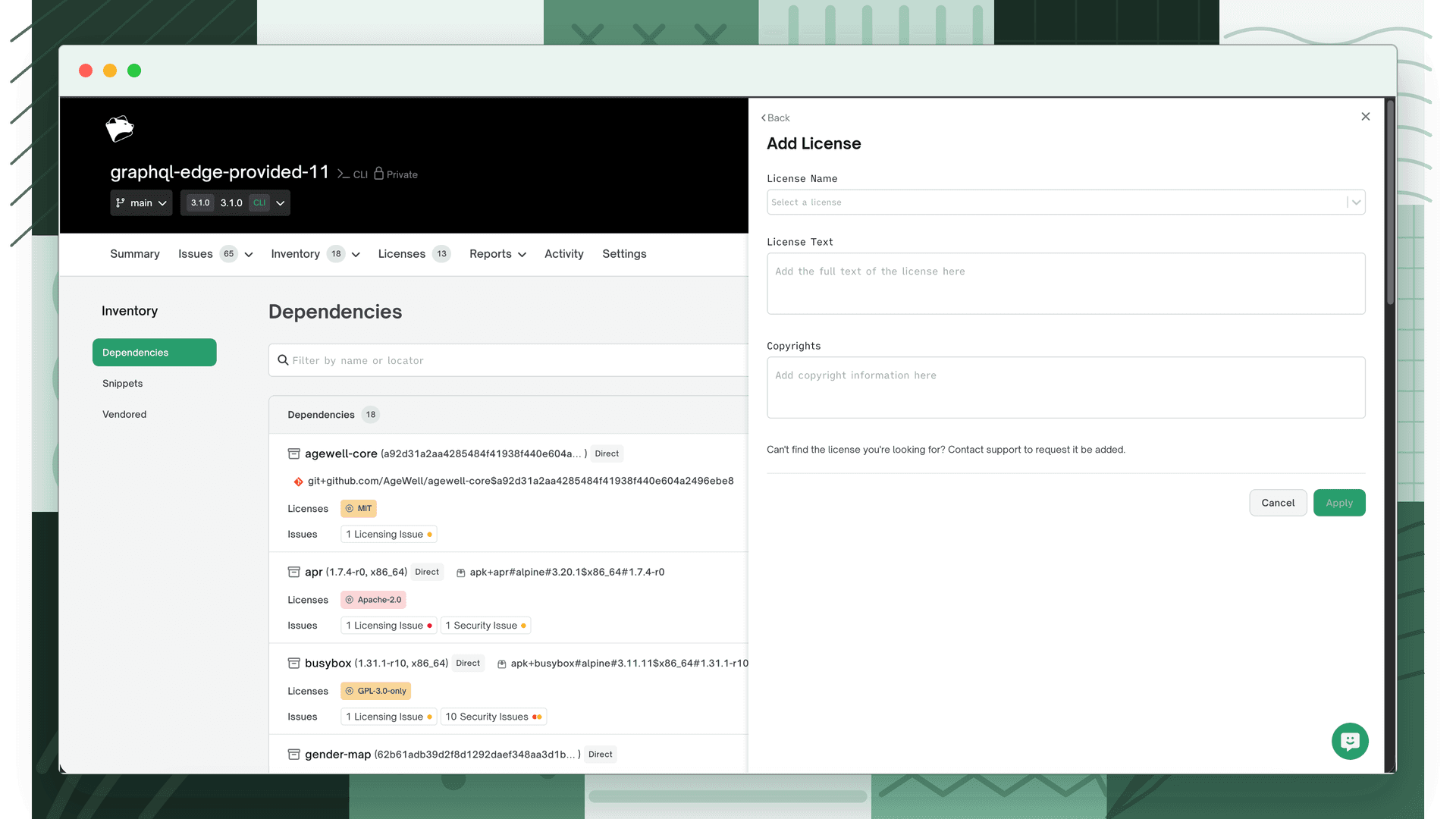
Select Add a license group, then search for Custom License in the License Name dropdown and select it.
- 3
Enter the license details
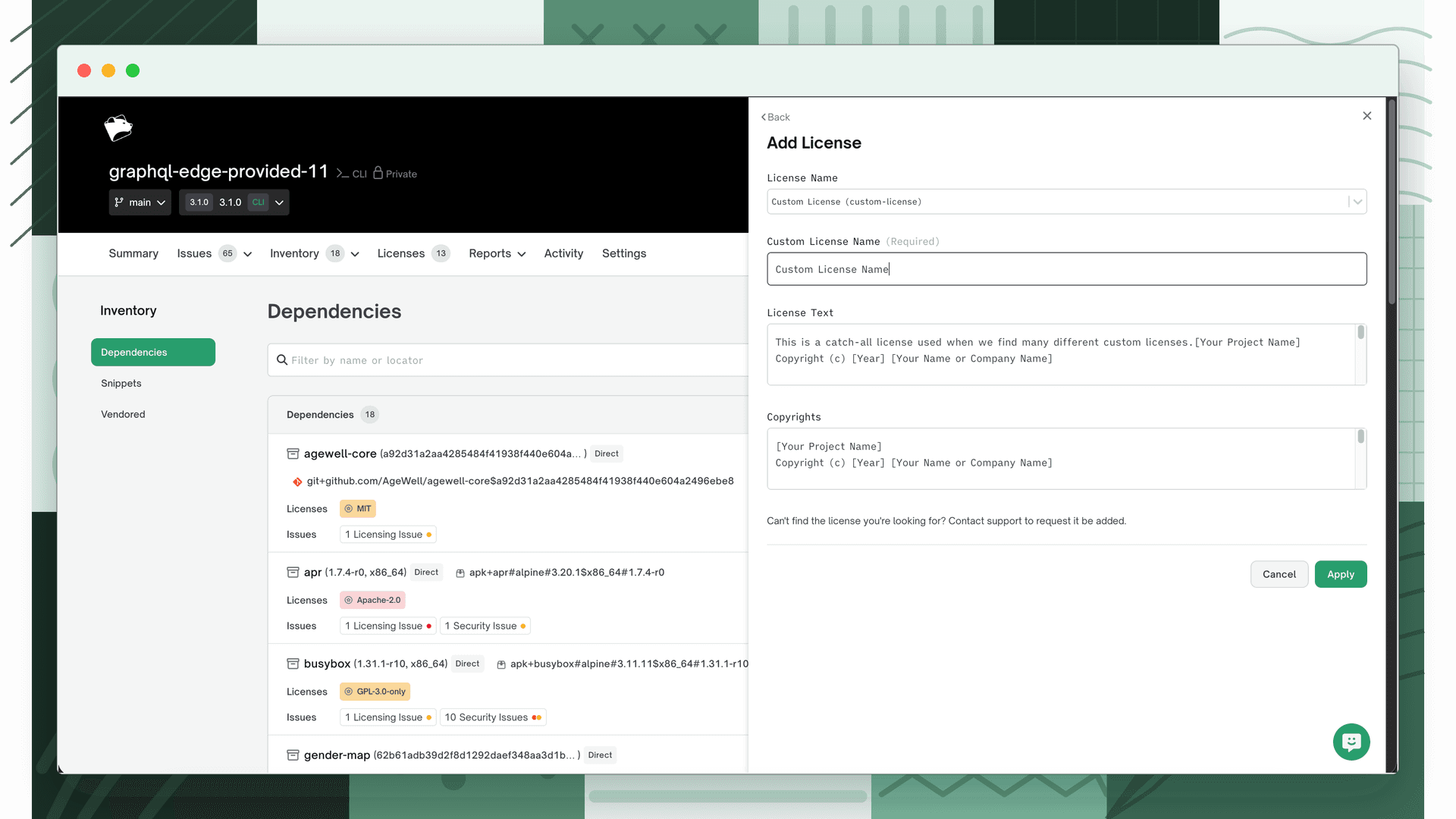
Fill in the custom license name and any additional details (license text, copyright) in the fields that appear.
- 4
Save
Select Add to add the license group, then save your changes.
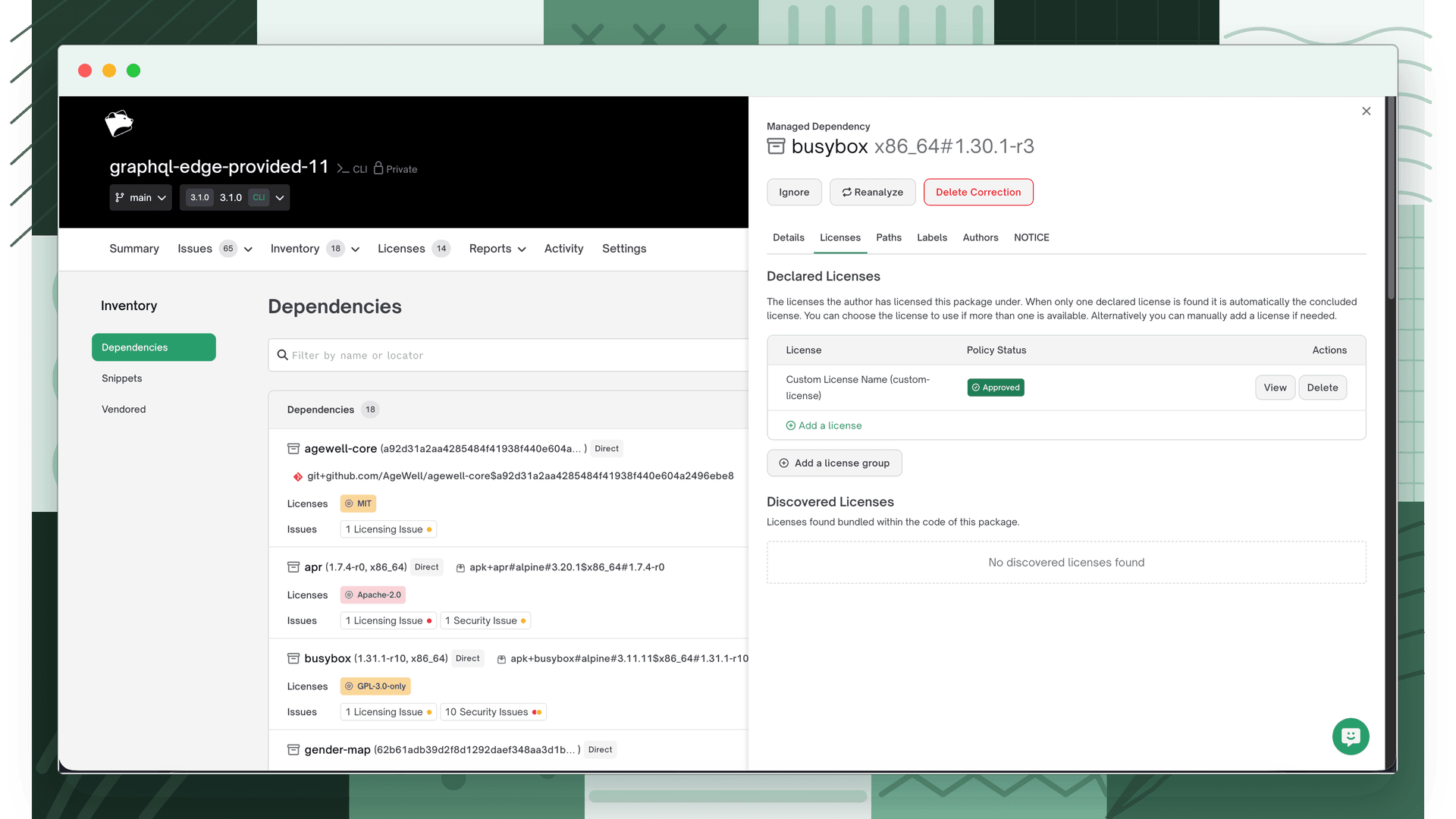
When this dependency appears in future project scans, the custom license will already be applied.
For broader dependency editing (changing metadata, concluding a license, updating copyright) see License Corrections.
Notice files
FOSSA detects notice files by filename, case-insensitively and regardless of where they appear in the directory tree. Files matching the following patterns are detected:
notice.txtthird-party-notices.txt*_notice.txt
Note
The notice file patterns listed above come from the legacy documentation and have not been verified against the current backend. If you encounter detection gaps, contact support@fossa.com.
Detected notice files appear in the Notice Files section of the dependency detail view.
Reviewing and editing notice files
Click anywhere on the dependency row to open it, then select Edit within the Notice Files section. From here you can review and modify the raw notice text and copyright data that will appear in attribution reports.
Ignoring notice files
Select Ignore to exclude the notice file text and copyrights from attribution reports. Select Stop Ignoring to restore them.
Note
Notice file edits (like all dependency corrections) apply across all projects and all versions.