

Importing SBOMs
Import CycloneDX or SPDX SBOMs into FOSSA to run license and security compliance checks against their listed components.
Overview
SBOM import lets you bring an existing bill of materials into FOSSA without running the FOSSA CLI on the source project. Once imported, FOSSA analyzes the declared components against its license and vulnerability databases and surfaces issues through your existing policies.
Supported formats
| Format | Versions supported |
|---|---|
| CycloneDX (JSON) | 1.2, 1.3, 1.4, 1.5, 1.6 |
| CycloneDX (XML) | 1.2, 1.3, 1.4, 1.5, 1.6 |
| SPDX (JSON) | 2.2, 2.3 |
CycloneDX requirements
FOSSA processes all components listed under the components array. Each component should include a purl for highest-confidence license and vulnerability matching. See PURL Support for the full list of supported PURL types and how FOSSA resolves them.
SPDX requirements
FOSSA uses relationship types to determine which packages are dependencies of your project. The following relationship types are recognized:
Package is a dependency of the project: DEPENDS_ON, CONTAINS, ANCESTOR_OF
Project is a dependency of a package: DEPENDENCY_OF, CONTAINED_BY, BUILD_DEPENDENCY_OF, DEV_DEPENDENCY_OF, OPTIONAL_DEPENDENCY_OF, PROVIDED_DEPENDENCY_OF, TEST_DEPENDENCY_OF, RUNTIME_DEPENDENCY_OF, DESCENDANT_OF
FOSSA infers the top-level project from a DESCRIBES relationship originating from SPDXRef-DOCUMENT. If no DESCRIBES relationship is present, FOSSA attempts to infer the root document automatically.
Importing via the UI
- 1
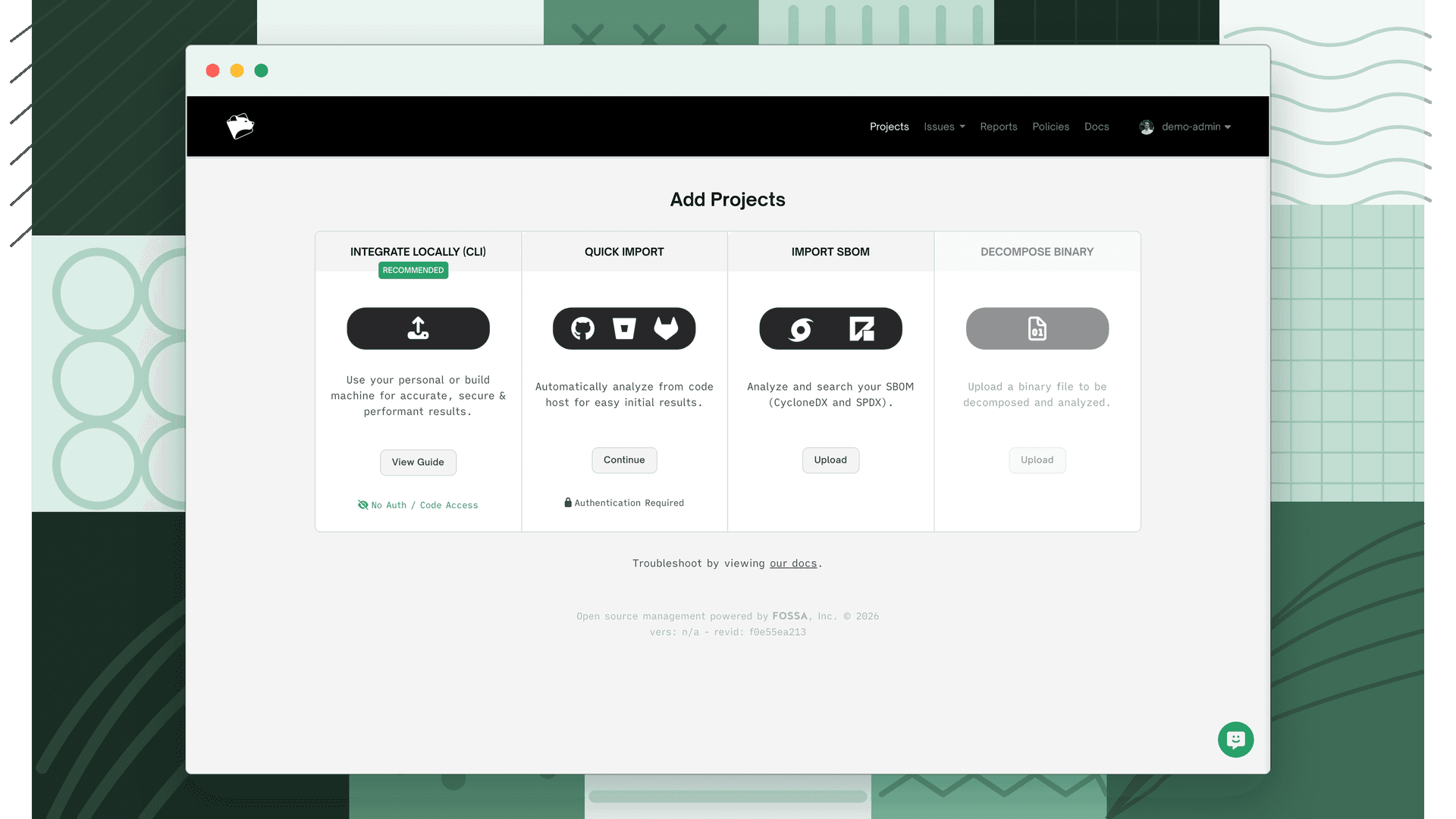
Open the Add Projects page
Navigate to Add Projects and select Import SBOM (CycloneDX, SPDX).
- 2
Add your files
Click Add Files and select one or more
.jsonor.xmlSBOM files. Bulk import is supported. Select as many files as needed in one operation.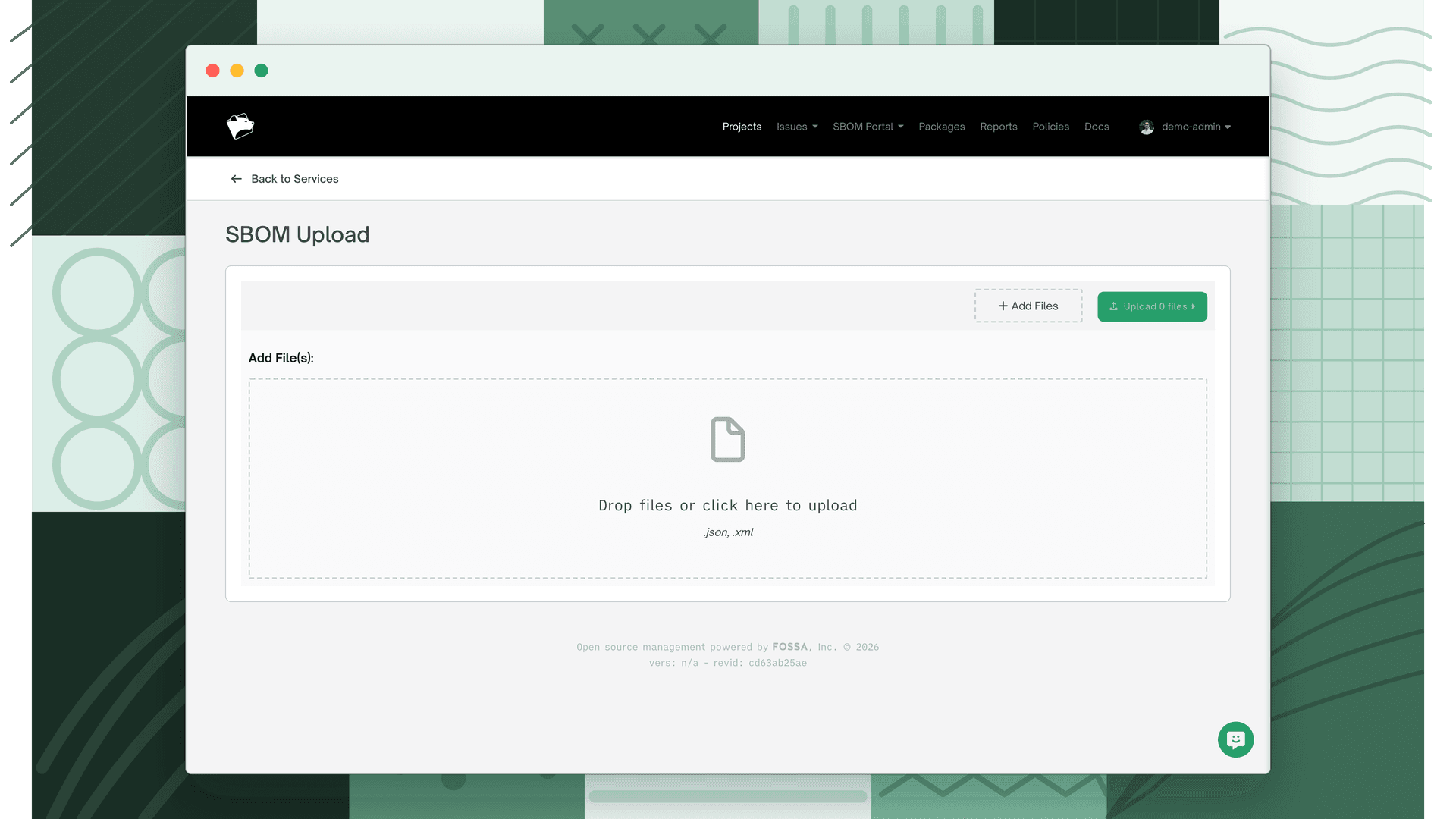
- 3
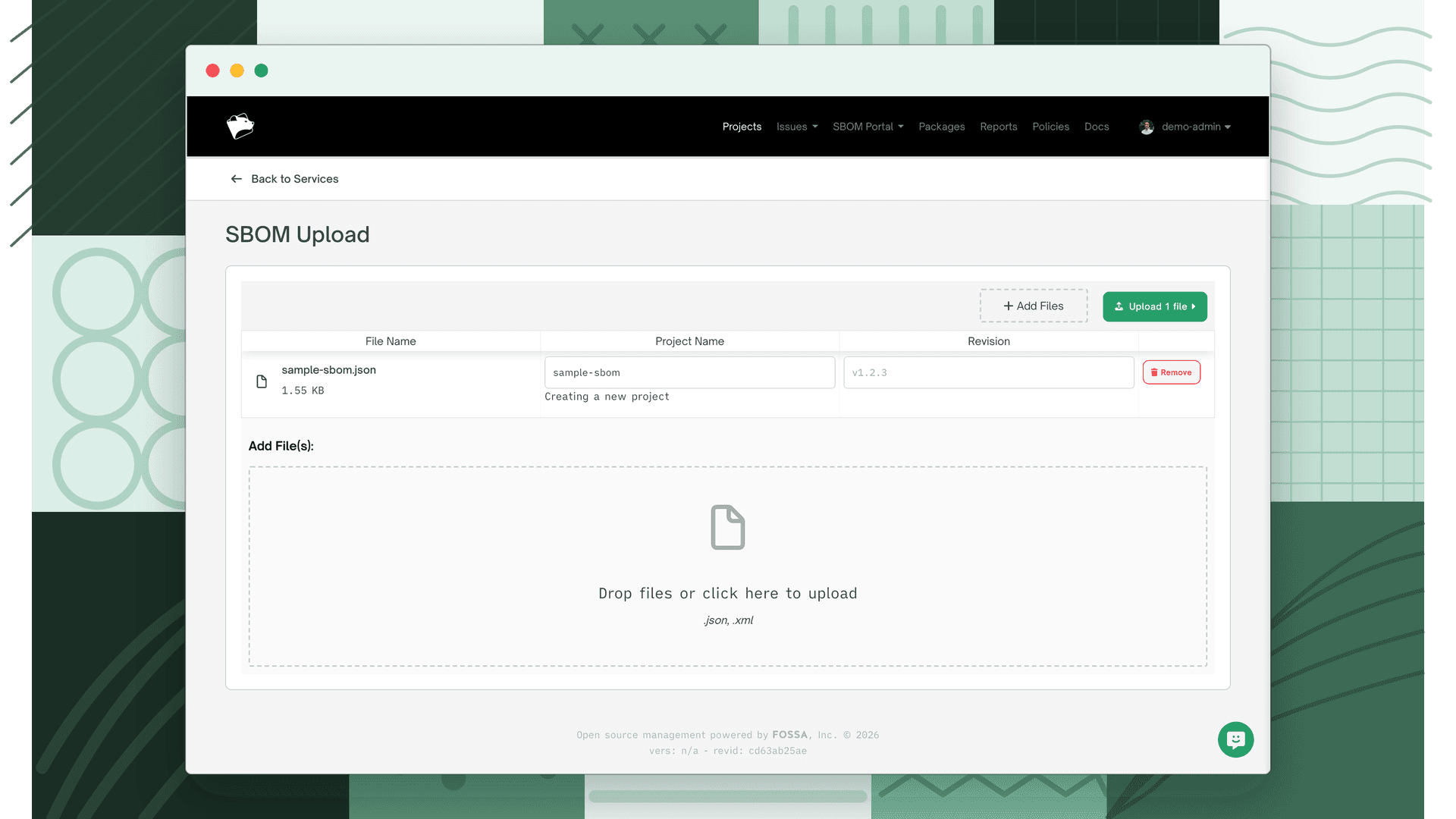
Name the project
Enter a unique project name and an applicable semantic version number.
Note
If you use a project name that already exists, FOSSA adds the SBOM as a new revision to that project rather than creating a new one.
- 4
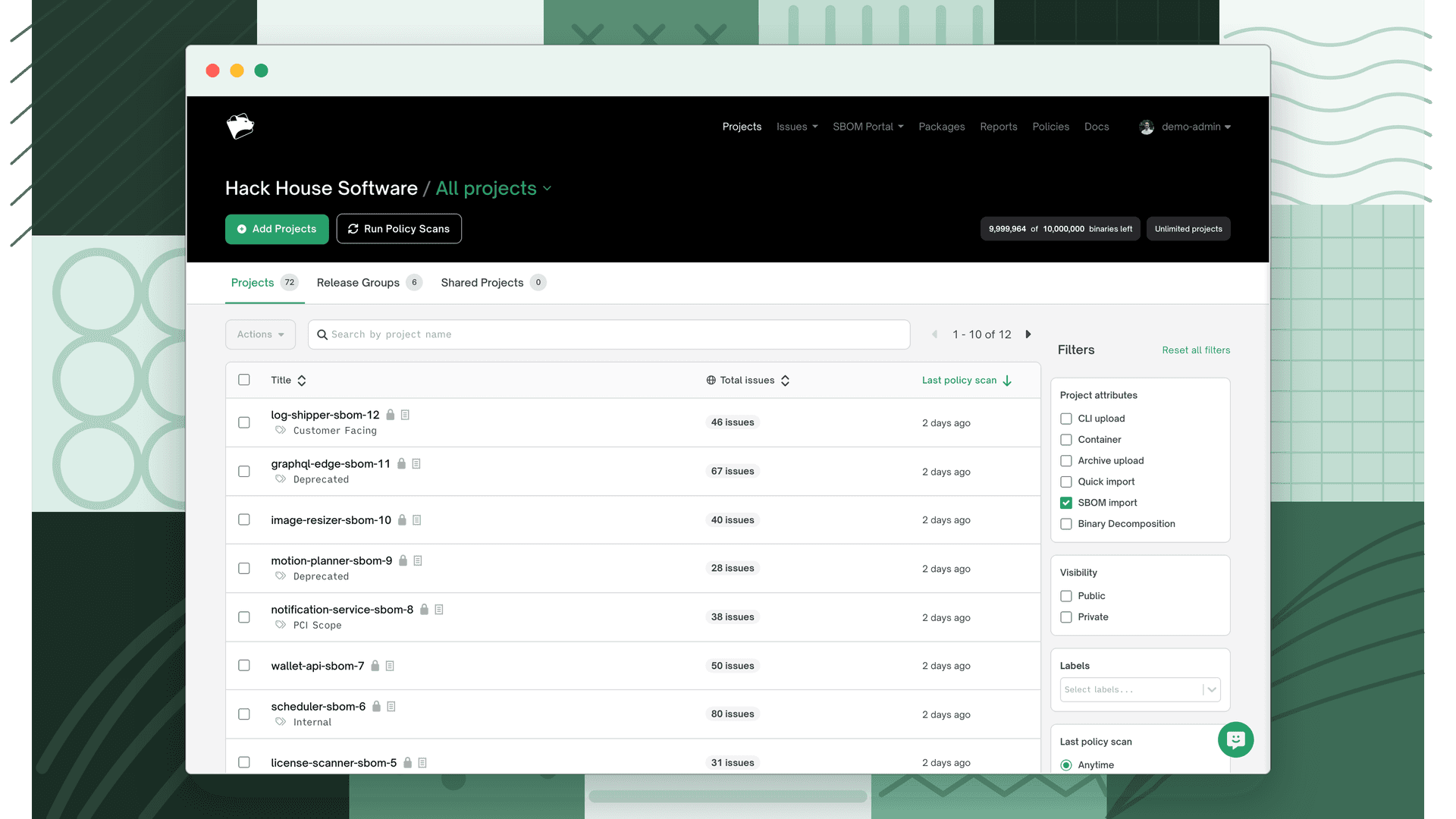
Upload and analyze
Submit the form. Once processing completes, the project appears in your Projects list marked with the SBOM icon.
Importing via the API
The API import is a two-step process: first obtain a pre-signed upload URL, then trigger a build against the uploaded file.
Step 1, Get a signed URL
Call GET /api/components/signed_url to receive a pre-signed S3 URL. The URL is valid for 5 minutes.
curl -X GET "https://app.fossa.com/api/components/signed_url" \ --data-urlencode "packageSpec=<SBOM_package_or_file_name>" \ --data-urlencode "revision=<SHA_hash_or_version>" \ --data-urlencode "fileType=sbom" \ -H "Authorization: Bearer $FOSSA_TOKEN"Upload your SBOM file to the returned signedUrl using a PUT request within 5 minutes.
Step 2, Trigger a build
Call POST /api/components/build to start analysis on the uploaded file.
curl -X POST "https://app.fossa.com/api/components/build?fileType=sbom" \ -H "Content-Type: application/json" \ -H "Authorization: Bearer $FOSSA_TOKEN" \ -d '{"selectedTeams":[],"archives":[{"packageSpec":"<SBOM_package_or_file_name>","revision":"<SHA_hash_or_version>","fileType":"sbom"}]}'A 201 Created response confirms the build was queued successfully.
Importing via the CLI
The FOSSA CLI can upload an SBOM file directly using fossa sbom analyze:
fossa sbom analyze /path/to/your-sbom.jsonThe project name defaults to the filename (minus the extension) and the revision to a timestamp. Override both with --project and --revision:
fossa sbom analyze /path/to/your-sbom.json --project "my-project" --revision "1.0.0"After uploading, run fossa sbom test to check whether the analysis raised any policy issues:
fossa sbom test /path/to/your-sbom.jsonfossa sbom test exits with a non-zero code if issues are found. See the CLI reference for the full list of flags.
Package resolution
FOSSA resolves each component in the imported SBOM against its knowledge base using the component's PURL. For details on which PURL types are supported, how FOSSA converts PURLs to its internal format, and best practices for SBOM authoring, see PURL Support.
What's next
- Reviewing Licensing Issues: Evaluate and resolve license compliance issues detected from your imported SBOM.
- Reviewing Security Issues: Address vulnerabilities identified in imported SBOM components.
- Licensing Reports: Generate compliance documentation based on imported SBOM components.