

Reviewing Security Issues
Triage, filter, sort, and action security vulnerabilities across all your projects from the Security Issues page.
Enterprise feature
Available on: Free (Limited), Business, Enterprise.
The Ticket and First Found filters require a paid plan; Fix Available, Exploit Maturity, EPSS, and CVSS Metric filters require a paid security plan.
Overview
The Security Issues page is the central place to review and act on all security issues, across all projects globally, within a specific project, or within a release group. From here you can filter and sort issues, take bulk actions, inspect individual vulnerability details in the issue drawer, and configure auto-ignore rules to persist triage decisions.
Issue types
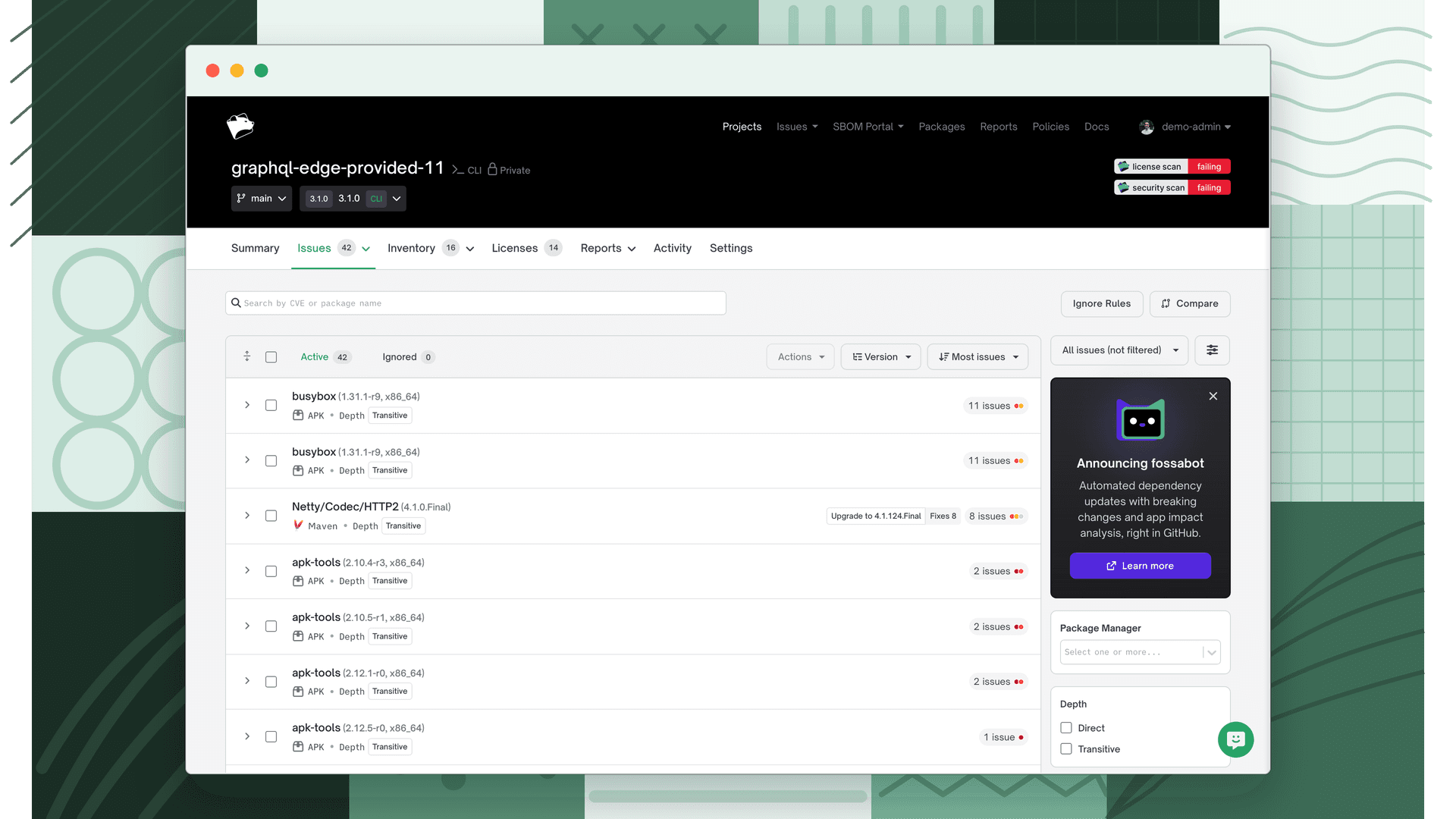
All issues are organized into two tabs:
| Tab | Contents |
|---|---|
| Active | Issues that require attention |
| Ignored | Issues that have been reviewed and ignored |
Note
Issues no longer present in the latest project revision are considered remediated and do not appear in either tab. Remediation occurs automatically when a dependency is updated to a safe version, removed from the project, or when upstream vulnerability data (e.g. NVD) marks the issue as resolved. Remediated issues can be viewed in the Issue Overview or via the revision comparison feature.
Filters
Use filters to narrow the issue list to the subset you want to address. Select any filter group to expand it.
Depth
| Option | Description |
|---|---|
| Direct | Issues from direct dependencies |
| Transitive | Issues from transitive (indirect) dependencies |
CWE
Filter issues by one or more Common Weakness Enumeration (CWE) identifiers associated with the vulnerability.
Severity
Filter by severity level and severity source. The Severity Source sub-filter is available in project and release group scope (not global).
Severity levels
| Option | CVSS score range | Custom Risk Score range |
|---|---|---|
| Critical | 9.0–10.0 | 90–100 |
| High | 7.0–8.9 | 70–89 |
| Medium | 4.0–6.9 | 40–69 |
| Low | 0.1–3.9 | 1–39 |
| Unknown | No score available |
Severity source
| Option | Description |
|---|---|
| Standard (CVSS) | Filter by FOSSA-computed CVSS severity |
| Custom Risk Score | Filter by a manually assigned custom risk score. When set on an issue, the custom risk score becomes the primary severity displayed in the issues table; the original CVSS score remains visible in the issue details. |
See Custom Risk Scores for how to assign and manage custom scores.
CVSS version
FOSSA computes the displayed CVSS score using the highest-fidelity vector available for each vulnerability: CVSS v4 is preferred when present, falling back to CVSS v3, then CVSS v2. The version used determines what appears in the NVD Base Metrics section of the issue drawer.
Fix Available
Upgrade distance is the gap between a dependency's current version and the nearest version that resolves the vulnerability, measured in semantic versioning increments. A patch-distance fix is a low-risk update; a major-distance fix may involve breaking changes and more testing effort.
Filter by upgrade distance to separate quick wins from upgrades that need planning:
| Option | Description |
|---|---|
| None | No known safe version exists |
| Patch | A patch-increment upgrade fixes the issue |
| Minor | A minor-increment upgrade fixes the issue |
| Major | A major-increment upgrade fixes the issue |
| Unknown | A fix exists but the package does not follow semantic versioning |
Warning
Some values may be unexpected. For example, an upgrade from a prerelease to a release version is classified as a Major increment under semantic versioning rules.
Note
Partial fix; the nearest update that resolves the selected CVE; may not resolve all vulnerabilities on the dependency. Complete fix; the nearest update that resolves all known vulnerabilities on the dependency.
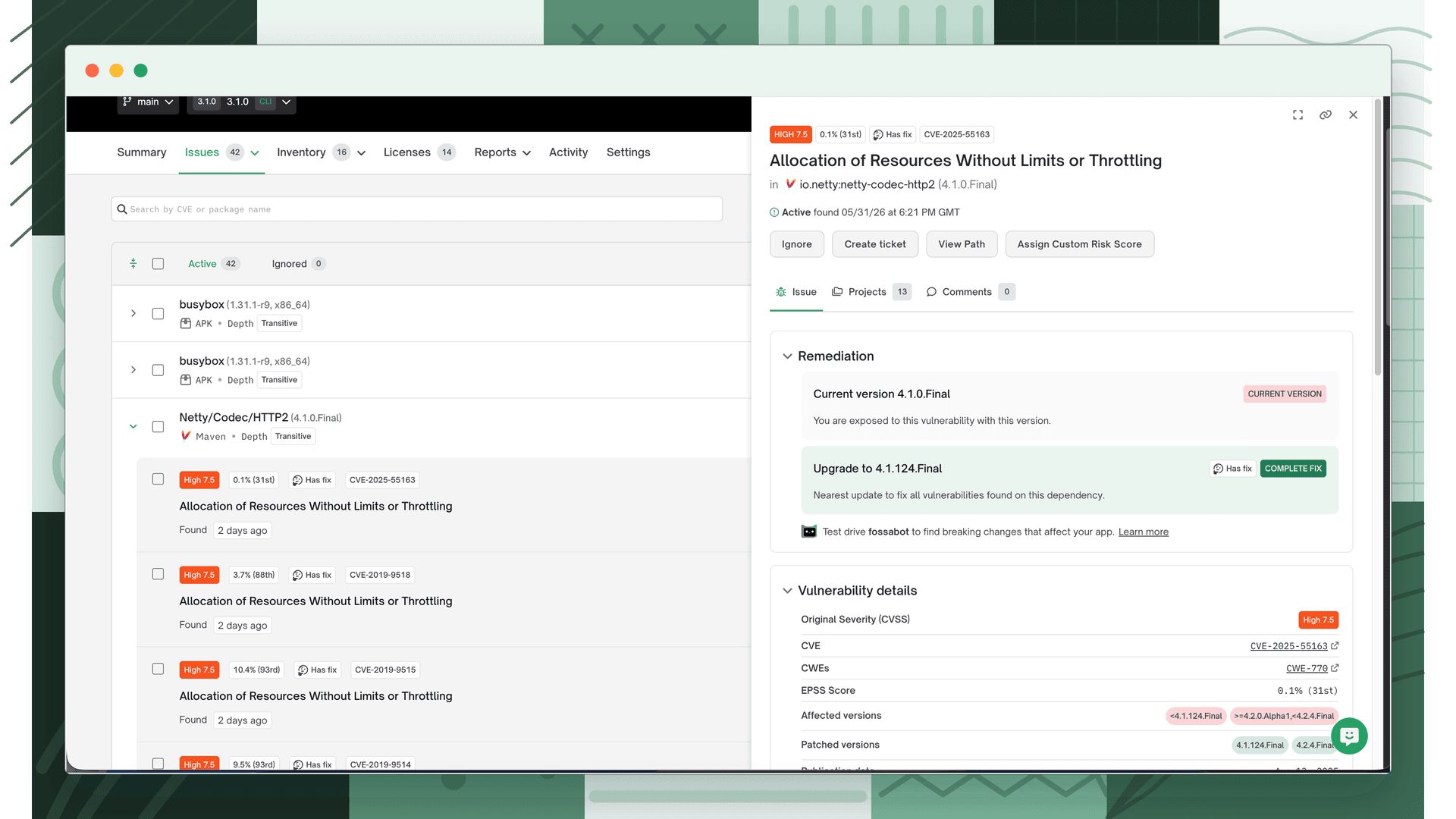
The Security Issues page also shows an upgrade distance indicator on each issue row at a glance, without opening the filter. Opening an issue surfaces the full remediation guidance, including the current version, the nearest safe version, and whether the upgrade is a complete or partial fix.
Exploit Maturity
| Option | Description |
|---|---|
| Known exploit | Vulnerability has a known exploit listed in the CISA Known Exploited Vulnerabilities catalog |
| No known exploit | Vulnerability has no known exploit in the CISA catalog |
EPSS
Filter by EPSS score or percentile range. EPSS (Exploit Prediction Scoring System) quantifies the probability that a given CVE will be exploited, using inputs such as code execution patterns, CVE age, and known exploits. Learn more at first.org/epss/model.
CVSS Metric
Filter by individual CVSS vector components. Available metrics:
| Metric | Description |
|---|---|
| Attack Vector | How the vulnerability is exploited (Network, Adjacent, Local, Physical) |
| Attack Complexity | Complexity of the attack required to exploit the vulnerability |
| Privileges Required | Level of privileges an attacker must have before exploiting |
Ticket
Filter by whether issues have an associated ticket. Requires a paid plan.
| Option | Description |
|---|---|
| Ticketed, Jira Integration | Issues linked via the native Jira integration |
| Ticketed, URL linked | Issues with a manually associated URL |
| Not ticketed | Issues with no ticket of any kind |
First Found
Filter by when FOSSA first detected the issue. Requires a paid plan.
| Option | Description |
|---|---|
| Anytime | All detected issues regardless of detection date |
| Last 7 days | Issues first detected within the past 7 days |
| Last 14 days | Issues first detected within the past 14 days |
| Last 30 days | Issues first detected within the past 30 days |
Package Manager
Filter issues to a specific ecosystem or package manager. Only ecosystems present in the current scope (global, project, or release group) appear as options.
Project Label
Available in the global security issues page only. Filter to issues detected in projects that use a specific FOSSA or user-defined project label. Multiple labels are combined with OR logic.
Ignore Reason
Available on the Ignored tab only. Filter ignored issues by the reason provided when they were ignored.
Sorting
Sort the issue list by any of the following criteria:
| Sort option | Available orders |
|---|---|
| When found by FOSSA | Newest first / Oldest first |
| Package name | A→Z / Z→A |
| Severity | Highest first / Lowest first |
| Issue count per semantic version | Most issues / Fewest issues |
| EPSS score | Highest first / Lowest first |
Note
The default sort is Issue count when grouped by version, and Severity (highest first) when ungrouped. EPSS sort is only available in the ungrouped view.
Issue grouping
By default, issues are grouped by semantic version. To switch to the ungrouped view, select Version in the page header and choose Ungrouped.
Issue actions
Select the checkbox next to any issue to access the action menu. Available actions depend on product type, issue status, issue scope, and whether you are acting on one issue or many.
| Action | Description | Action type | Product type(s) | Status | Scope |
|---|---|---|---|---|---|
| Ignore (current version only) | Ignores the issue for the current semantic version of the affected package in the selected project(s). A new revision with any other version of the package will generate a new active issue. | Individual, bulk | Licensing, security, quality | Active | Global, release group, project |
| Ignore (auto-ignore all versions) | Ignores the issue for all semantic versions of the affected package in the selected project. Applies only to the selected issue type (denied/flagged license or CVE). Future revisions with any version of the package are auto-ignored. | Individual only | Licensing, security | Active | Project only |
| Create ticket | Creates a JIRA ticket containing the selected issues. Selecting a previously ticketed issue links it to the new ticket only. | Individual, bulk | Licensing, security, quality | Active, ignored | Global, release group, project |
| Unlink ticket | Removes the association between the selected issue(s) and any linked tickets. | Individual, bulk | Licensing, security, quality | Active, ignored | Global, release group, project |
| Download CSV | Downloads a CSV of the selected issues scoped by their current status (active or ignored). | Individual, bulk | Licensing, security, quality | Active, ignored | Global, release group, project |
| Unignore | Returns selected issue(s) from ignored to active. Does not end any existing auto-ignore rules. | Individual, bulk | Licensing, security, quality | Ignored | Global, release group, project |
Bulk actions
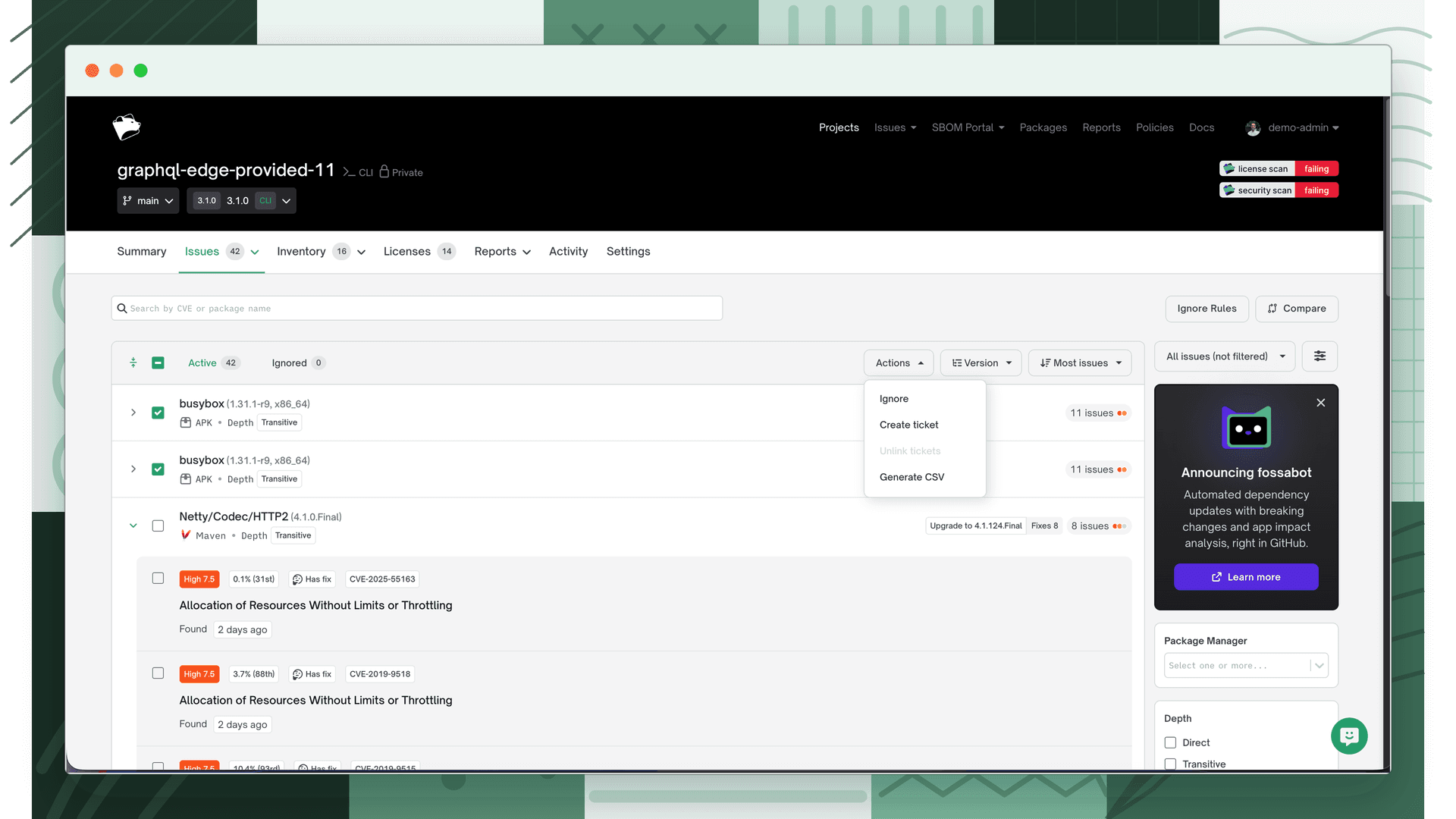
To act on multiple issues at once, use the select-all checkbox or check individual issues in the global issues view.
Warning
The bulk-select checkbox selects only the issues visible on the current page. To select all matching issues across all pages, click the Select all link that appears after checking the checkbox.
Issue drawer
Click anywhere on an issue row to open the issue drawer. See Issue Details for a full breakdown of what's shown, status, actions, vulnerability details, affected projects, and comments.
Auto-ignore rules
Auto-ignore rules persist an ignore decision across package versions, future revisions, or other projects. Select View Ignore Rules from the security issues page to create and manage them. See Auto-Ignore Rules for scope options, version coverage, package label rules, and permissions.
What's next
- Custom Risk Scores: Override CVSS severity with context-aware scores that reflect your organization's actual exposure.
- Issue Exceptions (VEX): Formally document why a vulnerability doesn't apply using VEX justifications.
- Auto-Ignore Rules: Persist ignore decisions across versions and projects to keep your issue list focused.