

Licensing Reports
Generate, customize, and publish licensing reports and bills of materials from FOSSA.
Overview
Open source licenses require you to give attribution to their authors in specific ways. FOSSA generates the compliance documentation automatically (licensing reports, copyright disclosures, and bills of materials) based on the dependencies it has analyzed.
Licensing reports are useful for:
- Distributing attribution notices with your product
- Customer-facing bills of materials for sales, partnerships, or OEMs
- Audit reports for due diligence events
- Security vulnerability reviews
Generating a report from the UI
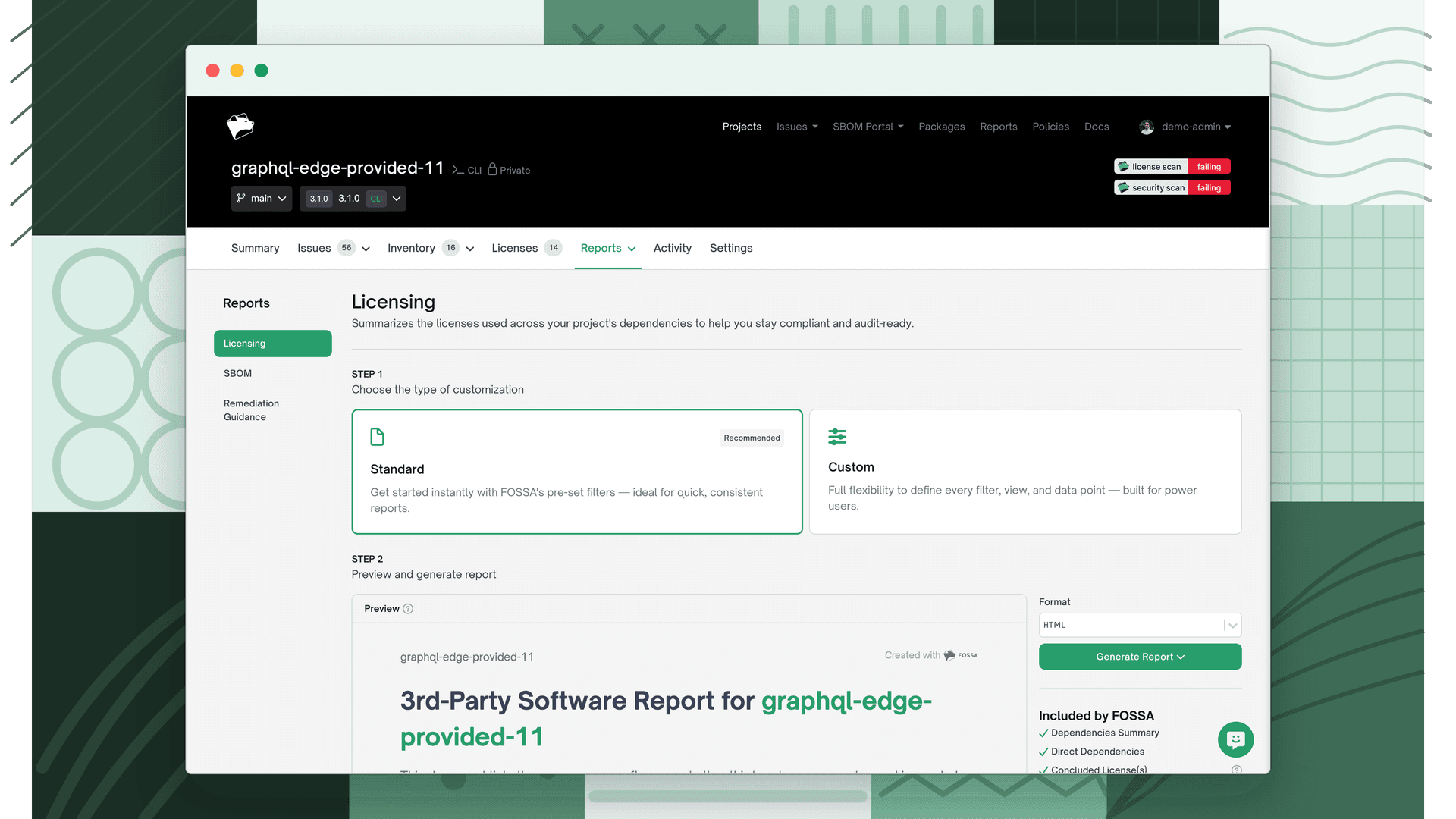
Navigate to a project or release group, open Reports, and select Licensing from the sidebar. Generating a report takes two steps: choose a flow, then select an output format and adjust the content options. A live preview updates as you change options.
Note
All FOSSA plans can generate Standard reports using pre-set filters. The Custom report flow (which lets you control every filter, view, and data point) requires a paid plan.
Choosing a flow
| Flow | Description |
|---|---|
| Standard (Recommended) | Pre-set options, consistent, quick, available to all plans |
| Custom | Full control over included content and data points, paid plans only |
The Standard flow includes a fixed set chosen by FOSSA: Dependencies Summary, Direct Dependencies, Notice File(s), Package Metadata, and Concluded License(s) when license conclusions are enabled for your organization.
Selecting a format
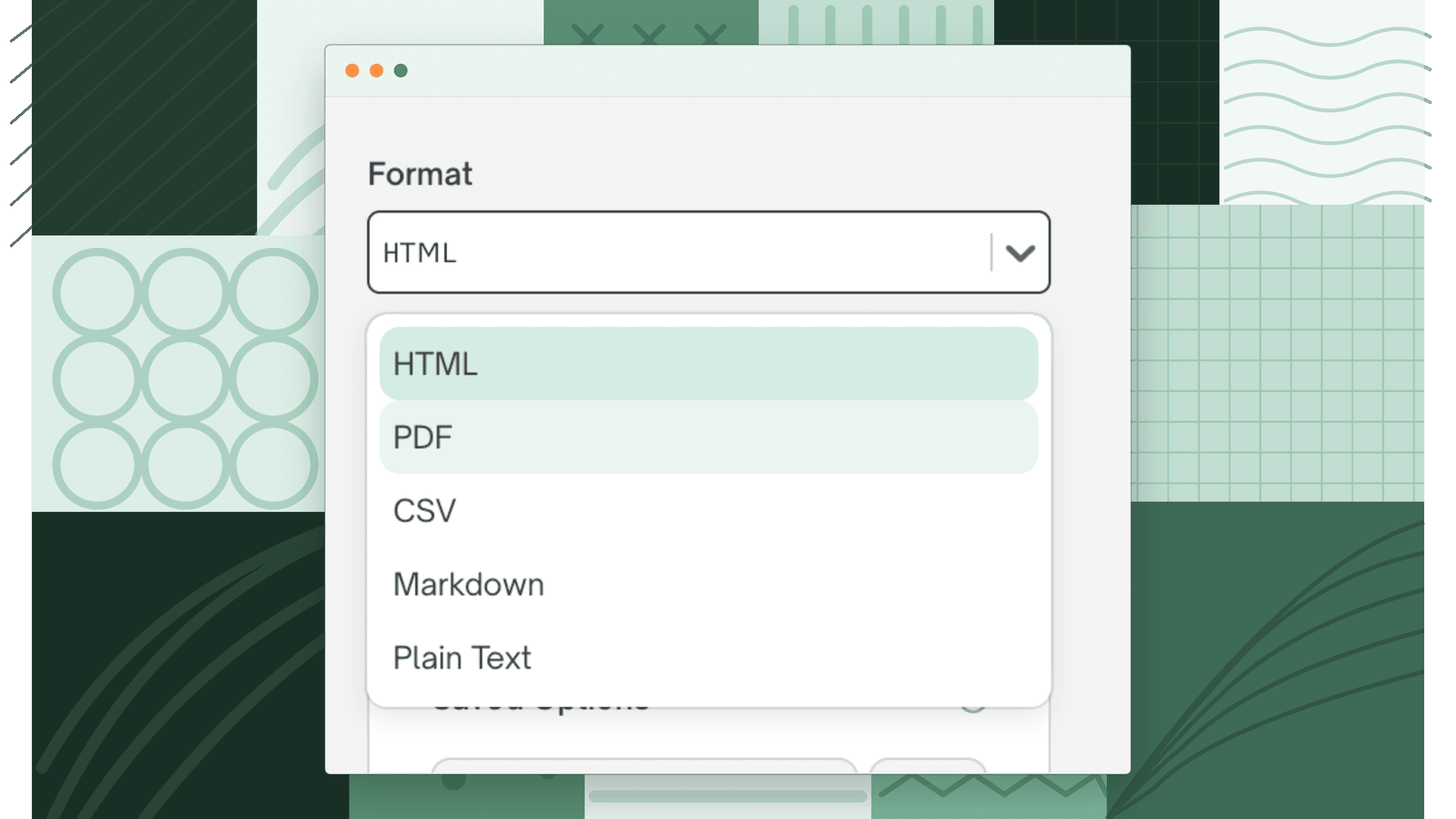
FOSSA supports five output formats for licensing reports:
| Format | Best for |
|---|---|
| HTML | Hosting on your website or a public page |
| Distributing as a document to customers or auditors | |
| CSV | Spreadsheet-based review or processing |
| Markdown | Embedding in source code or documentation |
| Plain Text | Simple distribution or embedding in built artifacts |
Selecting report content
The following options control what appears in the generated report:
| Option | Description |
|---|---|
| Dependencies Summary | An overview of all dependencies and licenses found. |
| Direct Dependencies | First-level dependencies explicitly included in your project. |
| Transitive Dependencies | Indirect dependencies pulled in by your direct dependencies. |
| Snippet Dependencies | Dependencies detected via code snippets. Available when snippet detection is enabled for your organization. |
| Hash and Version Data | Includes package hashes and version identifiers for each dependency. |
| Package Labels | Includes any package labels assigned to packages in your organization. |
| List of Licenses | Includes license information for each dependency. Choose which license data to include: Declared Licenses, First Party Licenses, Copyrights from non-license text. |
| Exclude Package Labels | Excludes packages that have certain labels, such as Dynamically Linked, Modified, Statically Linked, or Unmodified. |
| Concluded License(s) | Any licenses that have been manually concluded on a dependency. Only available when the License Conclusion feature is enabled for your organization. |
| Notice File(s) | Verbatim text from NOTICE.TXT, THIRD-PARTY-NOTICES.TXT, and similar files. |
| Dependency Metadata | Per-dependency details. Choose which fields to include: Project, Authors, Description, Concluded License, Declared License, License Header, Full License Text, Discovered License(s), File Path, Package Manager, Package Homepage, Package Download URL, Dependency Paths, Issue Resolution Notes, Copyrights, License URL. |
Excluding by package label
In Custom mode, the Exclude Package Labels filter lets you omit dependencies that carry specific package labels from the report output, useful for excluding test-only or internal dependencies that shouldn't appear in customer-facing attribution.
Saving custom options
In the Custom flow, save a configuration you use often as a named preset from the Saved Options control, then apply it to future reports in one click. See Report Settings for managing presets and choosing a default. Saved options require a paid plan.
Downloading, emailing, or hosting
Once generated, you can:
- Download the report to your computer immediately
- Email the report, for large projects, click Email to queue generation as a background job; the completed report is delivered to your email address
- Host the report via FOSSA, FOSSA generates a persistent public URL that always serves the latest version, updating automatically with each new scan
Generating a report from the CLI
The FOSSA CLI can generate licensing reports directly, which is useful for automating report generation in CI.
export FOSSA_API_KEY=XXXXXXXXfossa analyze && fossa report attribution --format spdxNote
The CLI supports additional formats beyond the web UI: csv, cyclonedx-json, cyclonedx-xml, html, json, markdown, spdx, spdx-json, and text. See fossa report for the full reference.
Keeping reports up to date
Attribution notices become stale as dependencies change. To keep them current:
- Integrate FOSSA into your CI pipeline so a fresh report is available at every commit
- Use the FOSSA API to fetch the latest file as part of your release process
- If using hosted reports, FOSSA updates them automatically
Modifying dependency data for reports
If a dependency appears in your report with incorrect or missing information (wrong license, missing author, no copyright text) you can correct it directly in FOSSA before regenerating.
See License Corrections for the full workflow, including how to:
- Conclude or change a detected license
- Update author and description metadata
- Add or edit copyright text
- Remove a dependency from the report entirely
What's next
- Generating SBOMs: Export your project's full bill of materials in SPDX or CycloneDX format.
- Licensing Policies: Configure which licenses are approved, flagged, or denied to improve future report outcomes.
- Reviewing Licensing Issues: Resolve open licensing issues before regenerating your report.