

Global Reports
Generate org-wide license, audit, and issue reports across all projects from the Reports dashboard.
Overview
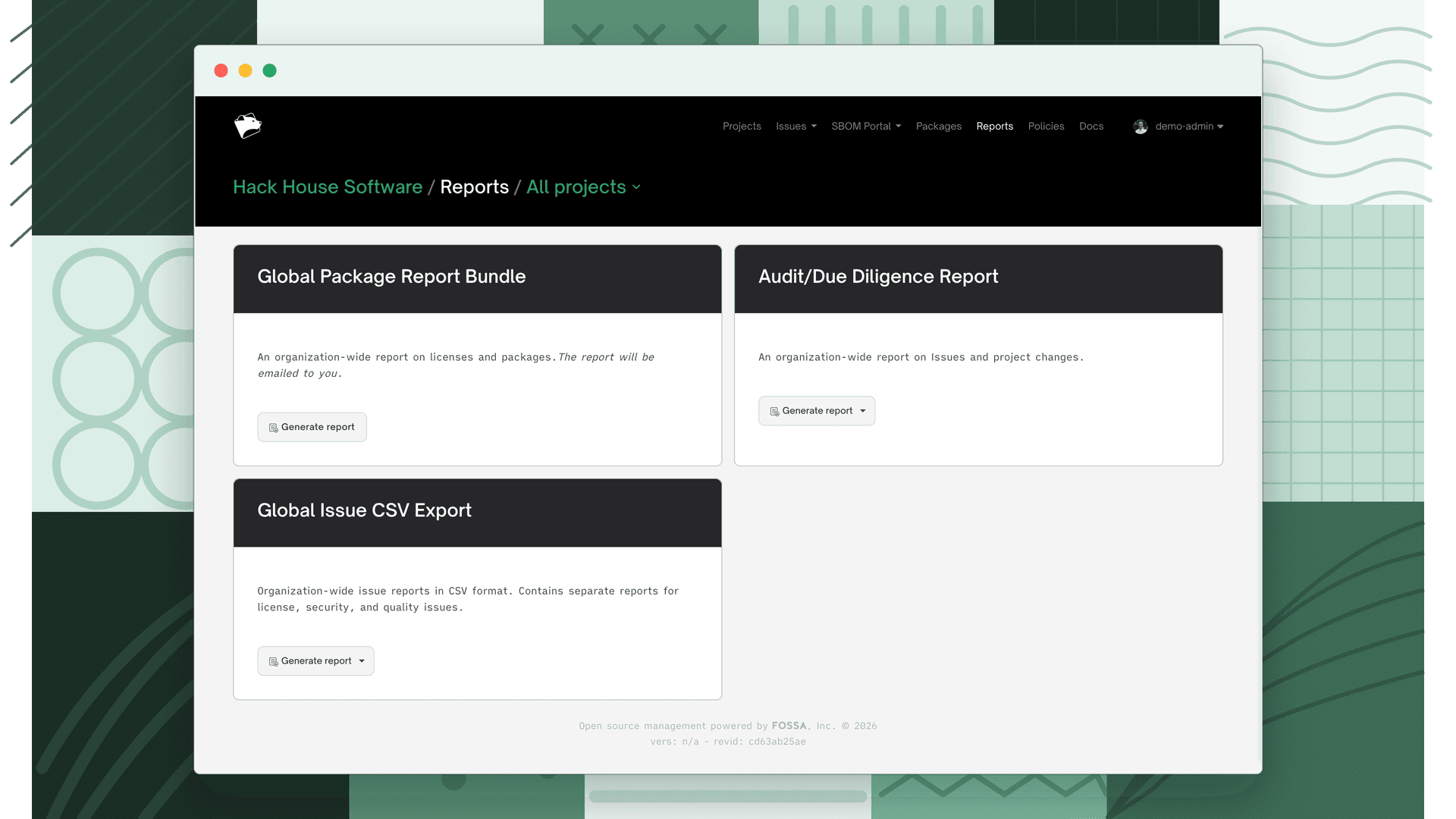
Global reports aggregate data across every project in your organization rather than a single project or release group. They live on the Reports dashboard, accessible from the main navigation.
Note
Generating global reports requires Organization Report or Team Report create permission. Users without either permission see a notice on the Reports page rather than the report cards.
Team filtering
The Reports page header includes a team menu, labeled All projects until you select a team. When a team is selected, the Audit/Due Diligence report and Global Issue CSV Export are scoped to projects belonging to that team. The Global Package Report Bundle is not affected by the team selection.
If your organization uses team groups, you can select a team group the same way to cover the projects of every team in the group.
Users with the Viewer, Editor, or Admin organization role can select any team. Users with only team roles can select the teams they belong to.
Global Package Report Bundle
An org-wide report on licenses and packages across all your projects, delivered by email.
Click Generate report to open the configuration modal. Choose which content to include in the bundle:
| Option | What it includes |
|---|---|
| Package | Package name and version for each dependency |
| Authors | Individuals or organizations credited with creating each package |
| Description | Short summary of each package's purpose |
| Teams | Teams associated with each project |
| Package Homepage | URL pointing to each package's main project page |
| Package Manager | The ecosystem each dependency comes from |
| Dependency Paths | The path from your project root to each dependency |
| Projects | Which projects each dependency appears in |
| Issue Resolution Notes | Comments or clarifications made during license identification |
| License Template | The standard license text for each detected license |
| Discovered License(s) | Licenses FOSSA identified by scanning package files |
| Concluded License | Final license determined after FOSSA's full analysis |
| Packages from Binary Decomposition | Dependencies identified from binary decomposition scans (shown only when Binary Decomposition is enabled for your organization) |
Enter your email address and click Generate. The bundle is sent when processing completes.
Audit / Due Diligence Report
An org-wide report on issues and project changes, delivered by email.
The Audit/Due Diligence report summarizes licensing and security issue status across your organization, along with a history of project changes. It is designed for due diligence events, audits, and legal review.
Click Generate report and select Email. The report is processed as a background job and emailed when ready.
Global Issue CSV Export
An export of your organization's active issues in CSV format, available for immediate download or email delivery. With All projects selected, it covers every project you can view. Select a team to narrow it to that team's projects or one of its release groups, and to add issue counts over time.
What the export contains
| File | Contents | Included when |
|---|---|---|
licensing.csv | Active licensing issues | The issues list is included |
vulnerability.csv | Active security issues | The issues list is included and security scanning is enabled for your organization |
quality.csv | Active quality issues | The issues list is included and Quality is enabled for your organization |
issue_counts.csv | Issue counts by date for the selected team | Include issue counts over time is checked and no release group is selected |
release_counts.csv | Issue changes across the release group's recent releases | Include issue counts over time is checked and a release group is selected |
The issues list is always included in an org-wide export. When a team is selected, Include issues list controls it.
Generating the export
Click Generate report and choose Download or Email.
| Delivery | What you get |
|---|---|
| Download | A single report.zip containing the files above |
| An email with a separate download link for each file. The subject is [FOSSA] Team Issues - New CSV Report for a team-scoped export and [FOSSA] Global Issues - New CSV Report otherwise. |
To generate the export from the API, see Generating reports.
Scoping the export to a team
Enterprise feature
This functionality is gated behind a feature flag and may not be enabled for your organization by default. Reach out to your account team to request access.
When a team is selected, the card names the selected team and shows a panel of export options.
- 1
Select a team
Open the All projects menu in the Reports page header and select a team.
- 2
Choose a release group (optional)
The Release group list offers the release groups that belong to the selected team. Pick one to export that release group only, or leave it on All release groups to cover every project in the team. See Release group scope.
- 3
Choose what to include
Check Include issues list, Include issue counts over time, or both. Include issues list is checked by default. Generate report is disabled until at least one option is checked.
- 4
Generate the report
Click Generate report and choose Download or Email.
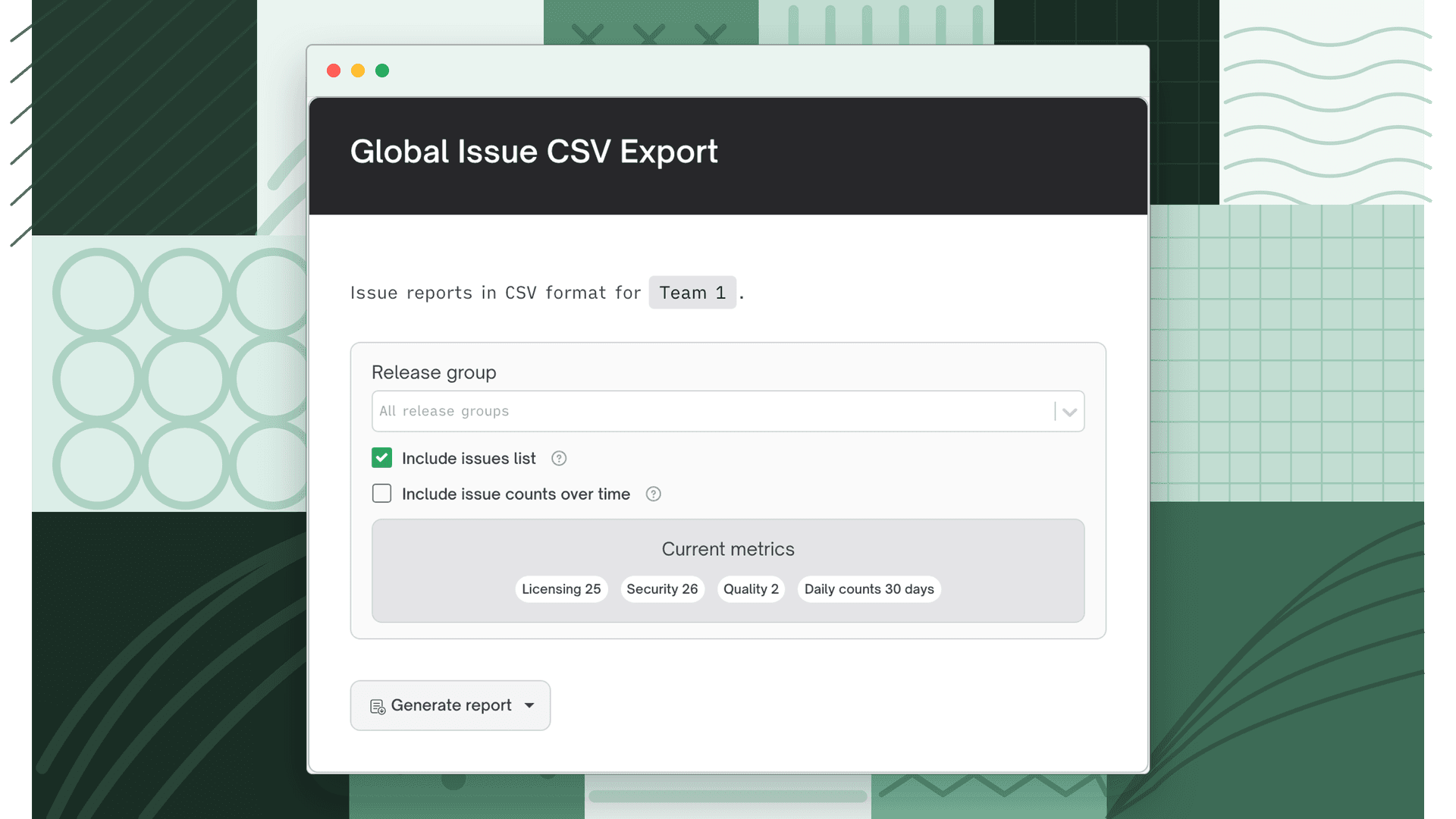
The Current metrics panel shows the number of active licensing, security, and quality issues in the selected team or release group, so you can confirm the scope before you export. It reflects the scope only, not which files you chose to include.
Issue counts over time
The counts file depends on the scope:
| Team scope | Release group scope | |
|---|---|---|
| File | issue_counts.csv | release_counts.csv |
| Rows | One per date in the last 30 days on which issue counts changed | One per release, oldest first, covering up to the 10 most recent scanned releases |
| Columns | Date, then Active, Ignored, and Remediated for each enabled category (for example Licensing Active or Security Ignored) | Release, Date, New, Remediated, Unchanged |
| Values | Totals as of that date | Changes compared to the previous release, summed across licensing, security, and quality issues |
In release_counts.csv, New counts issues that appear in a release but not in the release before it, Remediated counts issues from the previous release that are no longer present, and Unchanged counts issues present in both. Date is the date the release was created. If the oldest release in the file has no earlier release to compare against, all of its issues count as New.
Note
Issue counts come from the same issue history as the Global Issue Summary and have the same requirements. FOSSA builds this history from nightly snapshots, so an export that includes issue counts fails until your organization's history is available. Export the issues list on its own in the meantime.
Release group scope
Selecting a release group changes what the export covers:
- The export reflects the release group's latest release, the same issues shown on its Issues tab.
- It includes every project pinned in that release, even projects that belong to other teams.
- You need view access to the release group.