

Your First Scan
Create an account, import your first project, read the results, and automate future scans.
Overview
By the end of this guide you'll have a FOSSA account, your first project imported and scanned, and a clear view of its licenses and vulnerabilities, in about five minutes.
1. Create your account
Sign up at the FOSSA signup page. You can register with email or through GitHub, Bitbucket, or GitLab.
Tip
If you'll import via a source host, sign up with that provider (e.g. GitHub). It connects automatically, saving a step later. You can connect or disconnect providers anytime.
2. Import your first project
In FOSSA, go to Projects → Add Project and choose an import method:
- Quick Import: connect a source host and import repositories in a click. The fastest way to get broad coverage.
- CLI: run
fossa analyzein your build for the most accurate results and no code access for FOSSA.
Not sure which? See CLI vs Quick Import. You can also import containers, binaries, or an SBOM.
Note
Once import finishes, your project appears in the Projects list with a scan in progress.
3. Read your first scan
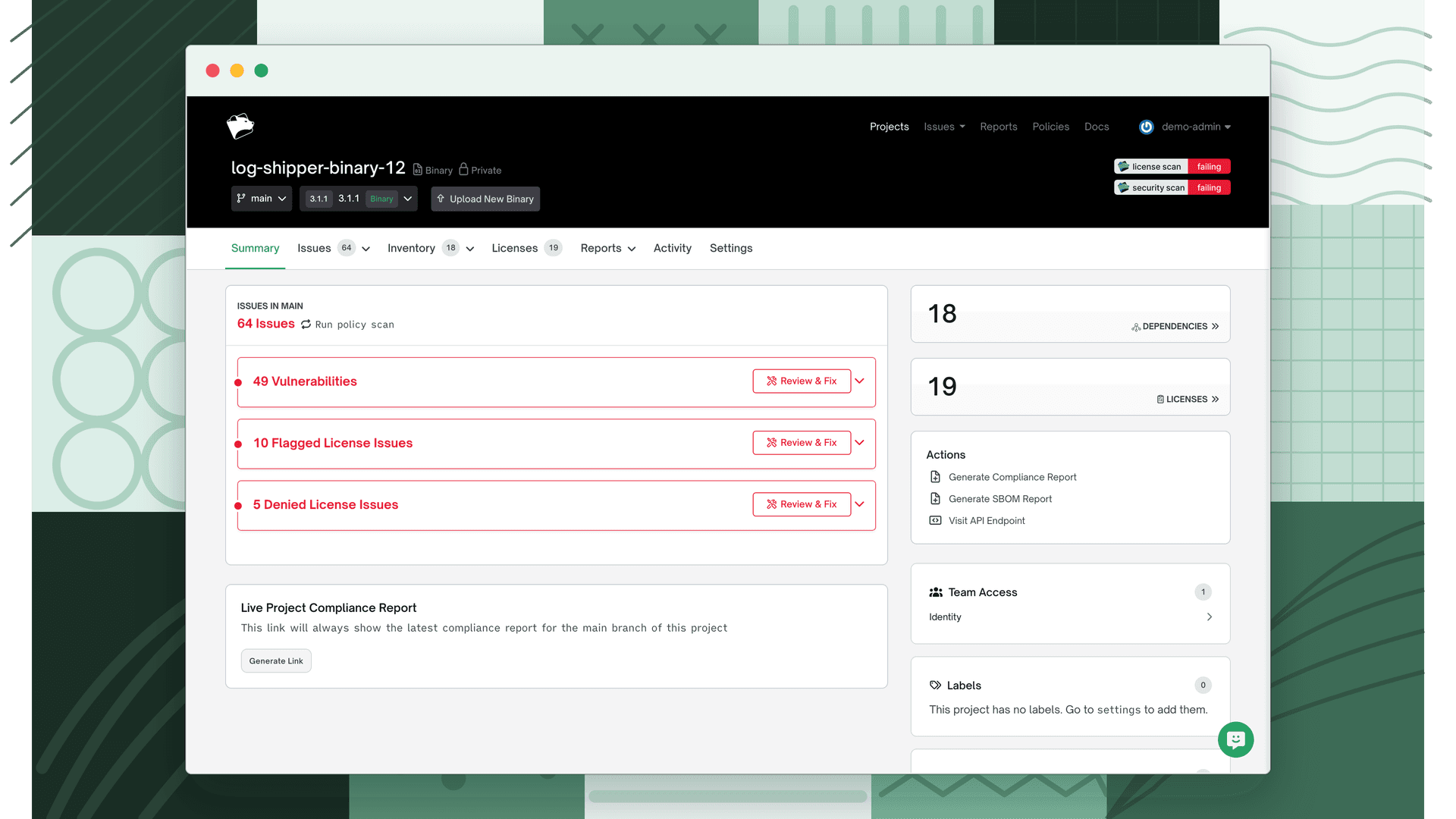
When the scan completes, open the project. Each FOSSA project is organized into tabs; which tabs you see depends on your plan and whether you're logged into your organization.
| Tab | What it shows |
|---|---|
| Summary | High-level counts and status: total dependencies, license count, and issue summary. The starting point for any project. |
| Issues | License violations, compliance alerts, and security vulnerabilities flagged against your policy. |
| Inventory | All components FOSSA discovered. Has three sub-tabs: Dependencies (direct and transitive packages with licenses), Snippets (Snippet Scanning results), and Vendored (Vendored Dependencies results). |
| Licenses | Every license detected across your dependency tree, deduplicated and searchable. |
| Reports | Tools to generate attribution notices, SBOMs, and compliance documentation for distribution. |
Enterprise feature
The Snippets and Vendored sub-tabs are gated behind a feature flag and may not be enabled for your organization by default. Reach out to your account team to request access.
Sanity-check your dependency list
Before digging into issues, open the Inventory → Dependencies tab and review what FOSSA found. On a first scan, the total number of dependencies, including transitive ones, is often larger than expected.
Note
If you see many test or documentation packages, FOSSA may be running against a non-production build. Verify that you're analyzing a production artifact, or configure .fossa.yml to exclude the paths you don't want scanned.
Dig into the findings by category: Licenses, Vulnerabilities, and Quality.
4. Automate it
Make FOSSA catch new risk on every build instead of after release:
- Define a Policy for the licenses and vulnerabilities your organization allows.
- Add a check to your CI/CD pipeline so builds fail when a policy is violated.
What's next
- Tune how each project is scanned in Project Setup.
- Bundle related projects with Release Groups.
- Generate attribution and compliance documents in Reports.