

Time-based Ignore Rules
Snooze an issue for a set time window. It reappears automatically when the rule expires.
Enterprise feature
Available on: Business, Enterprise.
Without a paid plan, the expiration dropdown in the Ignore modal is disabled.
Overview
Time-based ignore rules let you ignore an issue for a set period of time. When the rule expires, the issue becomes visible again in the product. This is useful when you want to temporarily set an issue aside and review it at a later date rather than ignoring it indefinitely.
Creating a time-based ignore rule
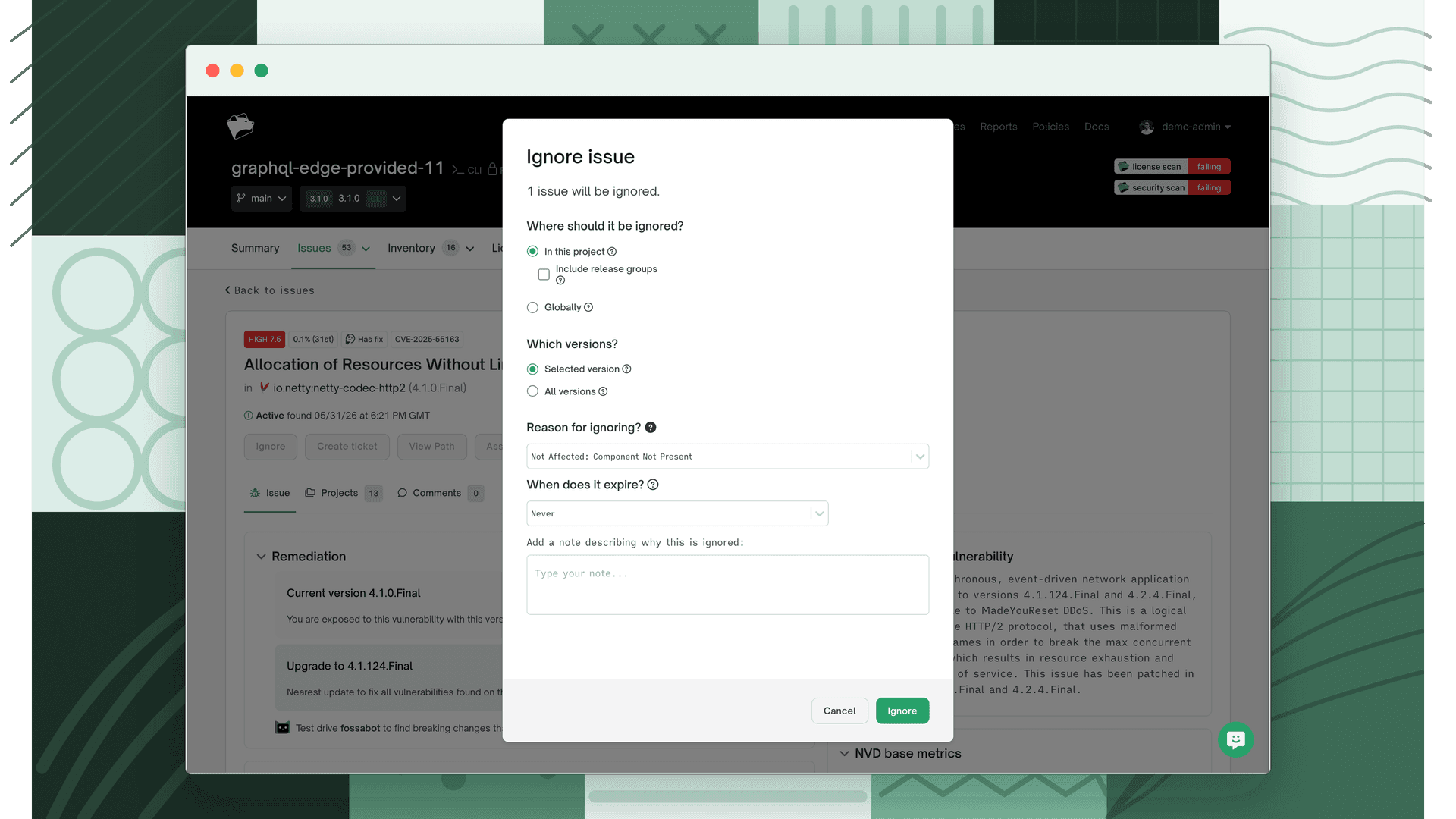
When you create or edit an ignore rule (for a single issue or in bulk) the "Ignore issues" modal includes a "When does it expire?" field. This field renders unconditionally for every ignore rule, regardless of the scope you choose.
- 1
Choose an expiration duration
Open the "When does it expire?" dropdown and select a duration:
- Never (default)
- 1 day
- 1 week
- 1 month
- 1 quarter (90 days)
- 1 year
Select Never if you want the rule to last indefinitely.
- 2
Set the reason and scope
Configure the rest of the ignore rule as usual, the reason, the project/organization scope, and the versions it applies to.
- 3
Apply the rule
Click Ignore.
You can apply time-based rules to multiple issues at once using bulk actions.
What happens when a rule expires
- The ignore rule is automatically removed the day after its expiration date.
- Any issues that were ignored only by that rule become visible again in your scans and reports.
Supported issue types
This feature is supported for all issue types in FOSSA.
Viewing expiration dates
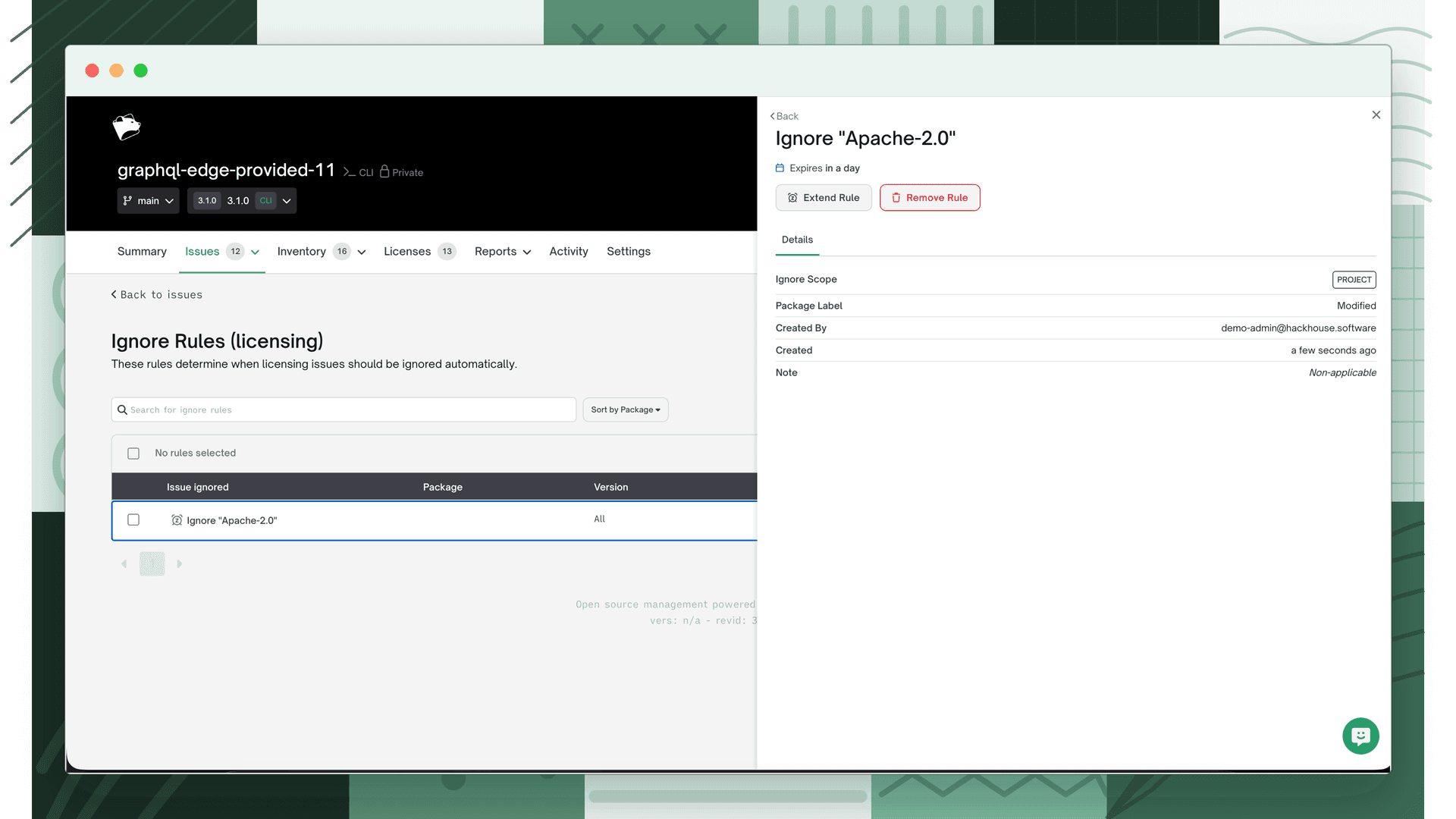
Ignore rules with an expiration show an alarm icon with a tooltip displaying the expiration date. Click the icon to extend the expiration. Ignore rules that never expire do not show this icon.
What's next
- Ignoring Issues: Learn how to choose the right scope when permanently ignoring issues.
- Reviewing Security Issues: Apply time-based rules to security vulnerabilities across your projects.