

Managing Releases
Clone, edit, and manage releases within a release group to track compliance at specific points in time.
Overview
A release is a named, pinned snapshot of the projects in a release group. Each release locks a specific revision of every member project, making the compliance result reproducible; the same release always reflects the same code.
The Releases tab
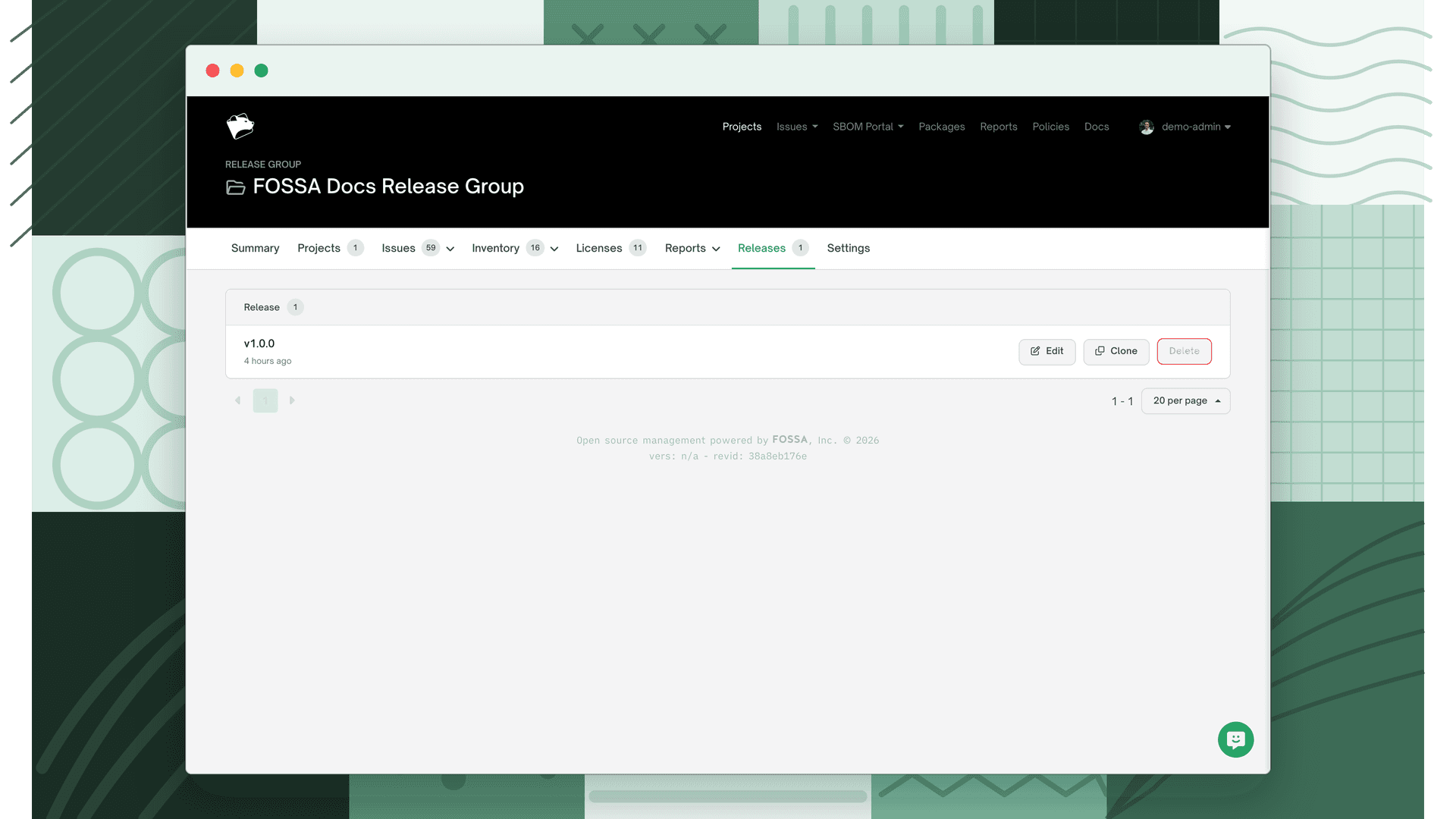
Open a release group and click Releases to see all releases for that group. Each row shows the release title and when it was created. From here you can clone a release into a new one, edit an existing release, or delete one.
Note
Every release group must have at least one release. The delete button is disabled on the last remaining release.
Cloning a release
Cloning is how you add a new release to a group. It copies an existing release's project list and pinned revisions as a starting point, so you adjust only what changed rather than rebuilding the project list from scratch. (The group's very first release is created with the group itself. See Creating a Release Group.)
From the Releases tab, click Clone on the release you want to copy. Name the new release (e.g. v2.0.0), select the projects and revisions to include, then save. Projects are drawn from the same pool as the rest of the group.

Editing a release
Click Edit on any release to change its name, add or remove projects, or update the pinned branch and revision for any member project.

Warning
Editing a release's pinned revisions changes what FOSSA evaluates. If you need a permanent record of a release's compliance state, generate a report before editing. See Settings.
Switching between releases
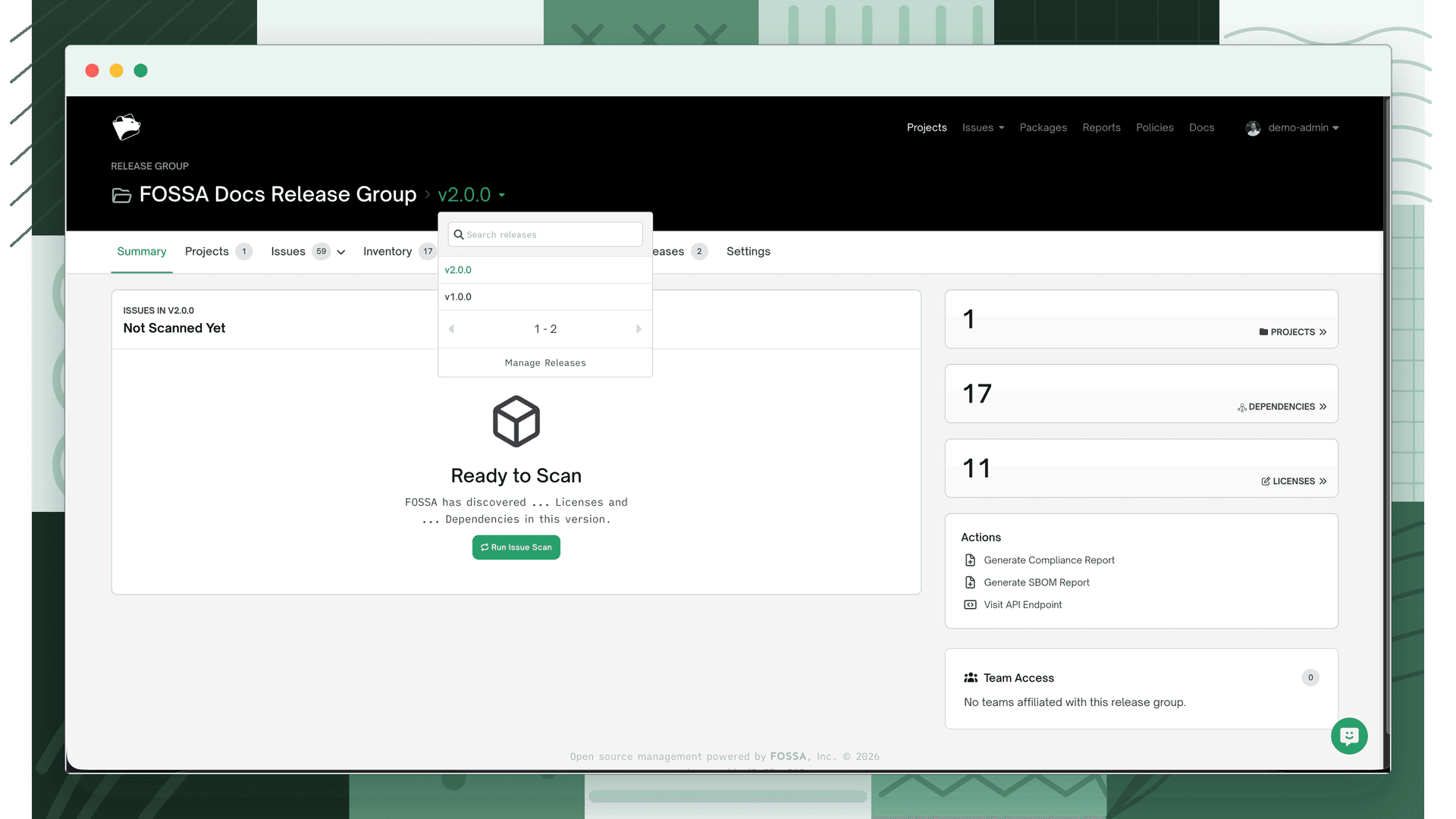
From any release group view (summary, issues, inventory), a release selector in the header lets you switch which release's data you're viewing. Settings and the Releases tab are group-level. They are not scoped to the selected release.
Scanning a release
FOSSA scans a release when it is first created. To trigger a fresh analysis (for example after a policy change or to pick up updated vulnerability data) click Scan Release from the Summary tab.
Scans run against the exact revisions pinned in the release. Because revisions are fixed, a rescan reflects changes in FOSSA's data (updated vulnerability feeds, new license detections) rather than changes to your code.
Scan history
Every scan of a release is recorded. From the Summary tab, a scan history selector lets you switch between past scans and view the compliance state at each point in time. This is useful for auditing: you can show what the release looked like at a specific date without modifying the current state.
Note
When generating a report, FOSSA uses the most recent scan by default. To generate a report against a specific historical scan, select that scan from the history selector before generating.