

Context-Aware Remediation
Open a fossabot pull request that upgrades a vulnerable dependency directly from a vulnerability issue in FOSSA, then track it through review and merge.
Overview
Context-Aware Remediation lets you fix a vulnerable dependency without leaving FOSSA. From a vulnerability issue, click Create PR and fossabot opens a pull request on the project's GitHub repository that upgrades the dependency to a fixed version. fossabot then analyzes the upgrade for breaking changes, and FOSSA shows the pull request's status on the issue until it is merged or closed.
Context-Aware Remediation is useful when you want to:
- Turn a vulnerability finding into a ready-to-review pull request in one click.
- Choose between a fix that resolves every known vulnerability on a dependency and, where one exists, a smaller upgrade that resolves only the one you are looking at.
- Follow a fix from FOSSA through fossabot analysis, review, and merge without switching tools.
Note
Prerequisite: The project must be imported from GitHub through the GitHub App option in Quick Import, the fossabot GitHub App must be installed on the project's repository, and the vulnerable dependency must be an npm, Maven, or pip package. Context-Aware Remediation is not available for projects imported any other way.
How it works
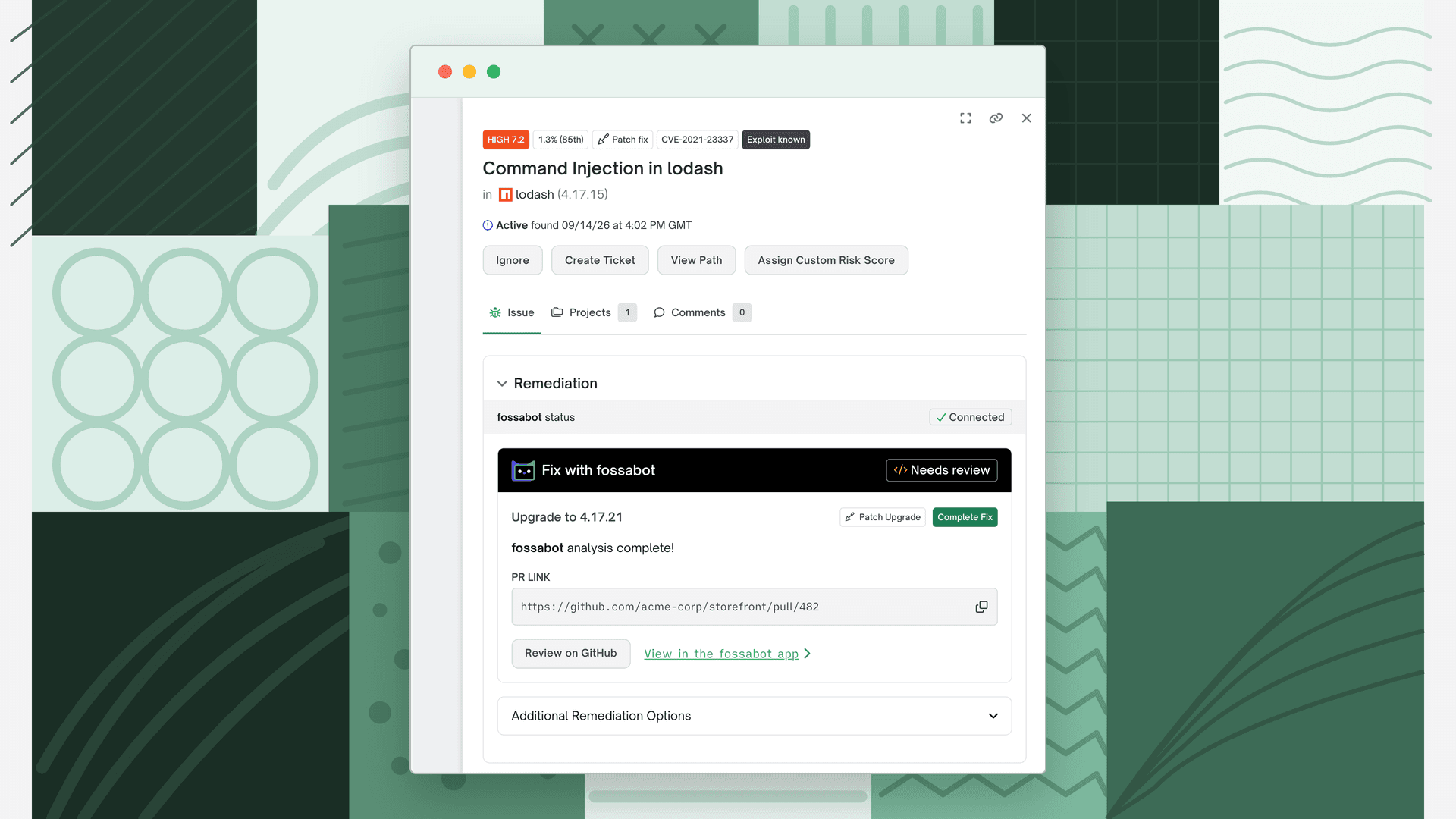
Context-Aware Remediation lives in the Remediation section of a vulnerability issue, shown in both the issue drawer and the full-page issue view.
- FOSSA picks a recommended fix. The Fix with fossabot card shows the version to upgrade to, its upgrade distance, and what it fixes. A complete fix resolves every known vulnerability on the dependency. A partial fix resolves only the current CVE, and other known vulnerabilities on the dependency remain.
- You create the pull request. fossabot opens a pull request on the project's repository that bumps the dependency in its manifest.
- fossabot analyzes the upgrade. fossabot checks the change for breaking changes and their impact on your code, the same analysis it runs on dependency upgrade pull requests.
- FOSSA tracks the result. The card's status follows the pull request until it is merged or closed.
A fossabot pull request targets exactly one repository, so you create it from an issue viewed at the project level. If you open the issue from the global issues view or a release group, the Remediation section links you to the issue's affected projects instead.
Installing the fossabot GitHub App
Creating pull requests needs the fossabot app installed on the GitHub organization or account that owns the project's repository. You need permission to install GitHub Apps on that organization or account.
| App | What it does | Permissions it requests |
|---|---|---|
| fossabot app | Opens pull requests on your behalf, runs breaking change analysis, and tracks fix status. For organizations new to the GitHub App, it is also the app FOSSA imports through. | Read & write PRs, Read repository contents, Read metadata |
| FOSSA GitHub app | Reads your repositories so FOSSA can import and analyze your projects. Organizations that already import through it keep doing so. | Read repository contents, Read metadata |
How you install the fossabot app depends on how your organization imports from GitHub:
| Your organization | Where to install the fossabot app |
|---|---|
| Imports through the FOSSA GitHub app | From an issue, with the Connect button. Quick Import keeps using the FOSSA GitHub app and does not offer the fossabot app. |
| Is new to the GitHub App | From Quick Import. Installing the fossabot app is the import step itself, so there is no second app to add. |
You can also install and manage the fossabot app from the fossabot dashboard. See fossabot Setup. For more on both apps, see GitHub App.
Installing from an issue
- 1
Click Connect on the issue
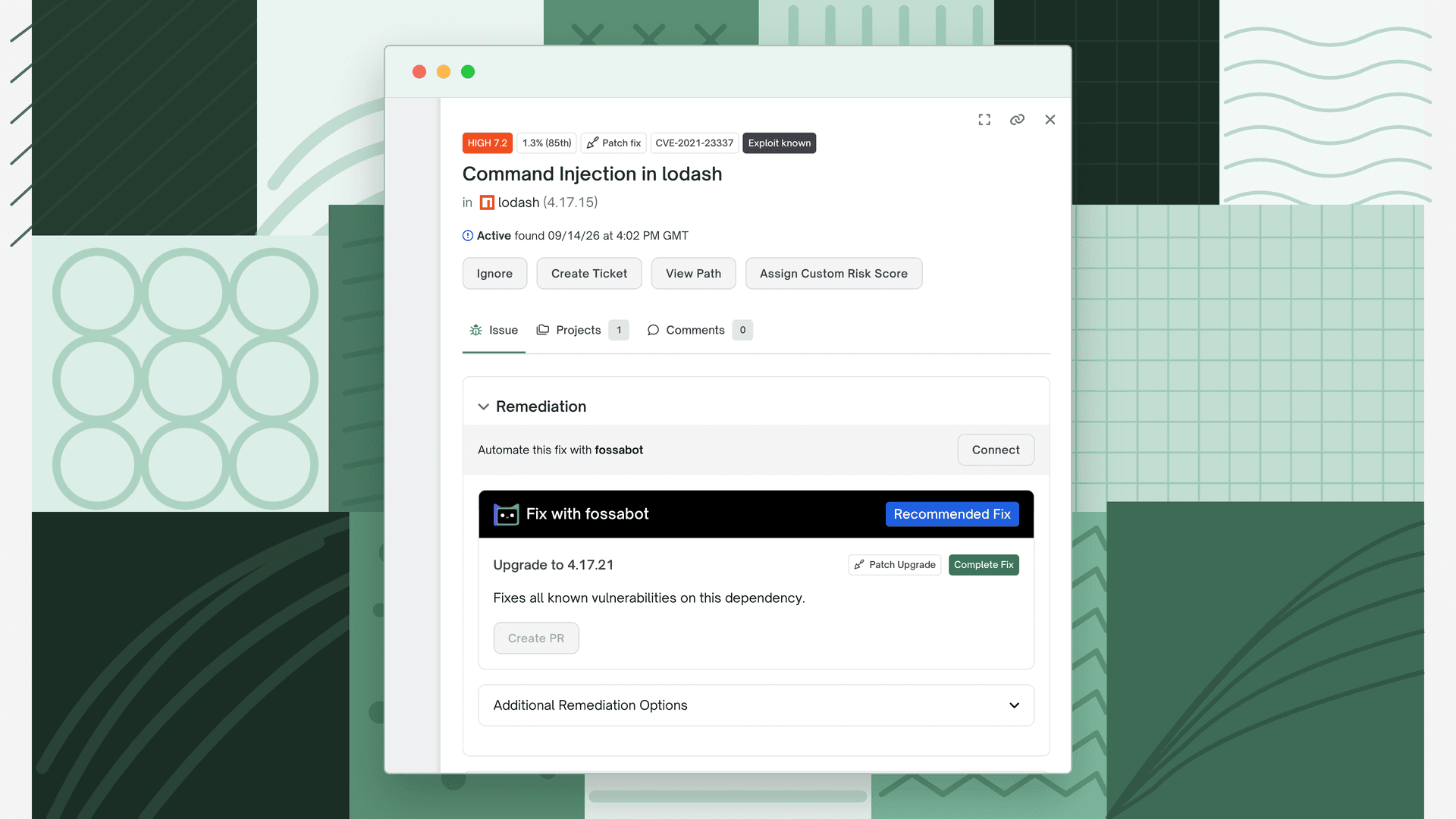
Open a vulnerability issue at the project level. If fossabot is not connected, the Remediation section shows Automate this fix with fossabot. Click Connect.
- 2
Install the app on GitHub
GitHub asks you to authorize the fossabot app, then opens its installation page. Select the organization or account that owns the repository. Choose All repositories, or choose Only select repositories and include the project's repository. Review the permissions listed in the table above and click Install.
- 3
Check the connection on the issue
GitHub returns you to the issue. The banner shows Setting up while fossabot finishes onboarding the repository, which can take a few minutes, then Connected. Create PR is now enabled.
Warning
If the installation does not complete, the issue shows no error. The banner still shows Connect. Click it again to restart the installation.
Installing from Quick Import
- 1
Open the GitHub App import page
Go to Add Projects, click Continue on Quick Import, then choose GitHub App. The page shows Install the fossabot app. Click Install on GitHub.
- 2
Authorize with GitHub
GitHub asks you to authorize the fossabot app. If the app is already installed on one or more of your GitHub accounts, FOSSA shows Choose a GitHub account. Click Connect next to the account that owns the repository, or click Install on another account to continue to GitHub.
- 3
Choose repositories and approve the permissions
On GitHub's installation page, select the organization or account that owns the repository. Choose All repositories, or choose Only select repositories and include the project's repository. Review the permissions and click Install.
- 4
Import your repositories
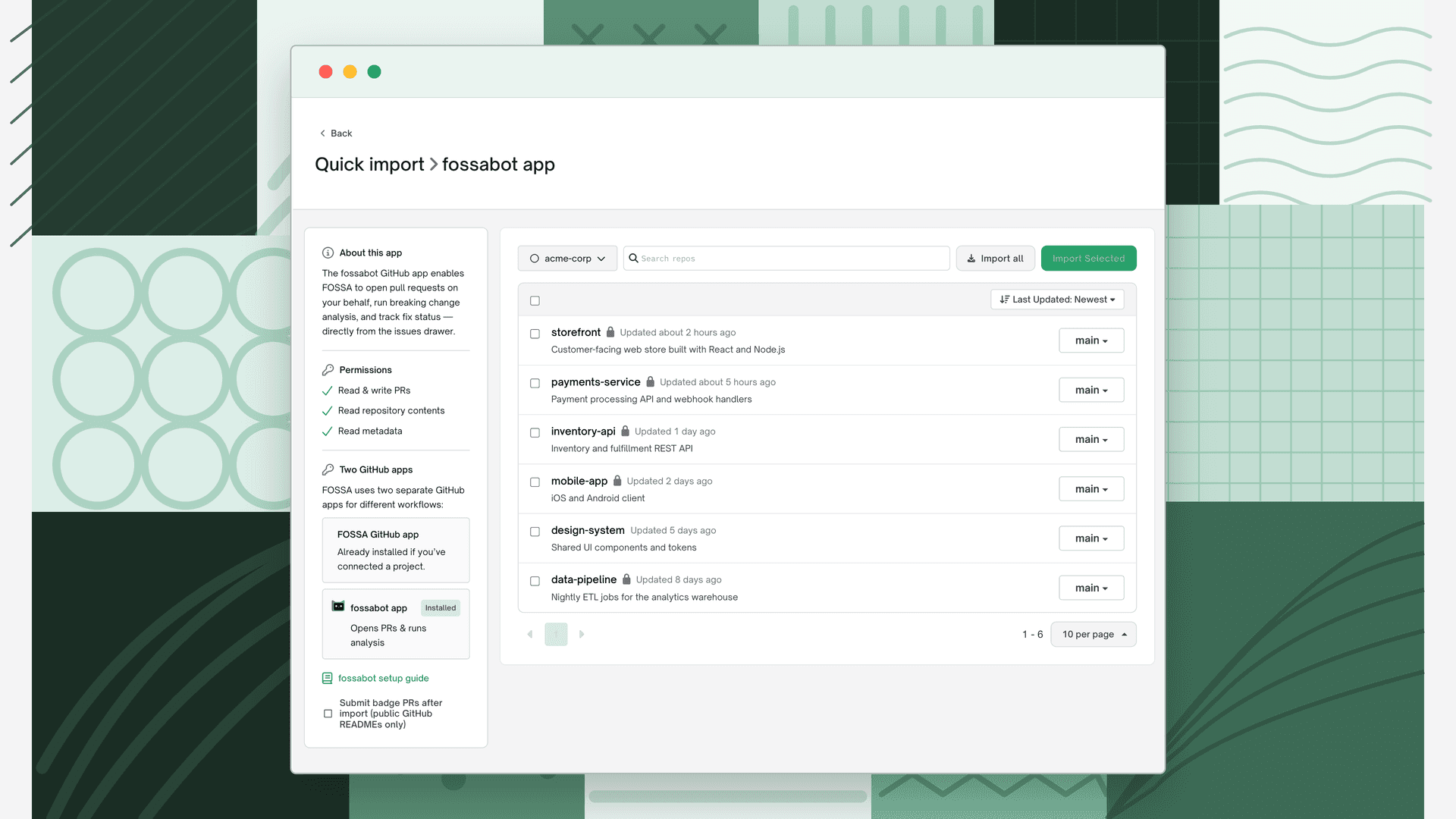
GitHub returns you to the import page. The Two GitHub apps panel shows Installed next to fossabot app, and the repositories the app can access are listed on the right. The badge only reports the install state; it is not a button. Import the repositories you want. See Quick Import.
Warning
If the import page shows The GitHub App installation could not be completed. Please try again., click Install on GitHub again.
Connection states
The banner at the top of the Remediation section shows the connection state:
| Banner | Meaning |
|---|---|
| Checking | FOSSA is checking whether fossabot is connected to the repository. |
| Automate this fix with fossabot with Connect | The fossabot app is not connected. Click Connect to install it. |
| Setting up | The fossabot app is installed and finishing setup. This may take a few minutes. |
| Connected | fossabot is connected to the repository. You can create pull requests. |
| Action required | fossabot setup needs attention. Contact your FOSSA administrator. |
| Error | FOSSA could not check the connection. Hover the badge to see the error. Create PR stays disabled until the check succeeds. |
Creating a fix pull request
- 1
Open the issue at the project level
Open the project, go to its vulnerability issues, and click the issue.
- 2
Review the recommended fix
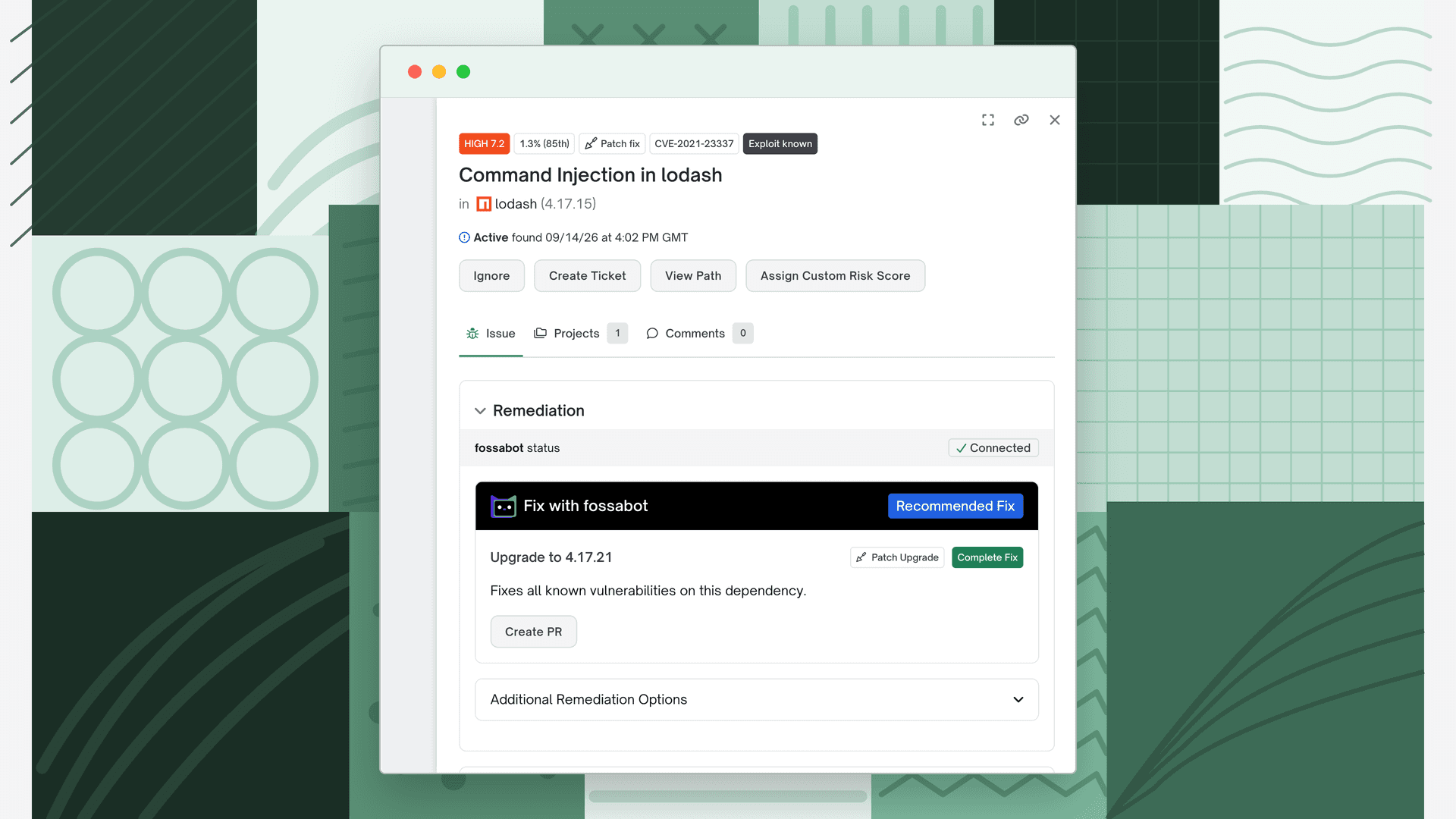
In the Remediation section, check the Fix with fossabot card. It shows Upgrade to the fixed version, the upgrade distance, and whether the fix resolves all known vulnerabilities on the dependency or only the current CVE.
- 3
Click Create PR
Click Create PR. The status changes to Creating PR, then to Analyzing once the pull request is open and fossabot starts its analysis.
- 4
Review the pull request
Click Review on GitHub to open the pull request, or View in the fossabot app to see fossabot's analysis. The PR LINK field holds the pull request URL and opens it when clicked.
Choosing a smaller upgrade
The Fix with fossabot card recommends the complete fix when one exists. When a partial fix with a different version also exists, Additional Remediation Options offers it as a smaller upgrade. A partial fix resolves only the current CVE, and other known vulnerabilities on the dependency remain.
- 1
Expand Additional Remediation Options
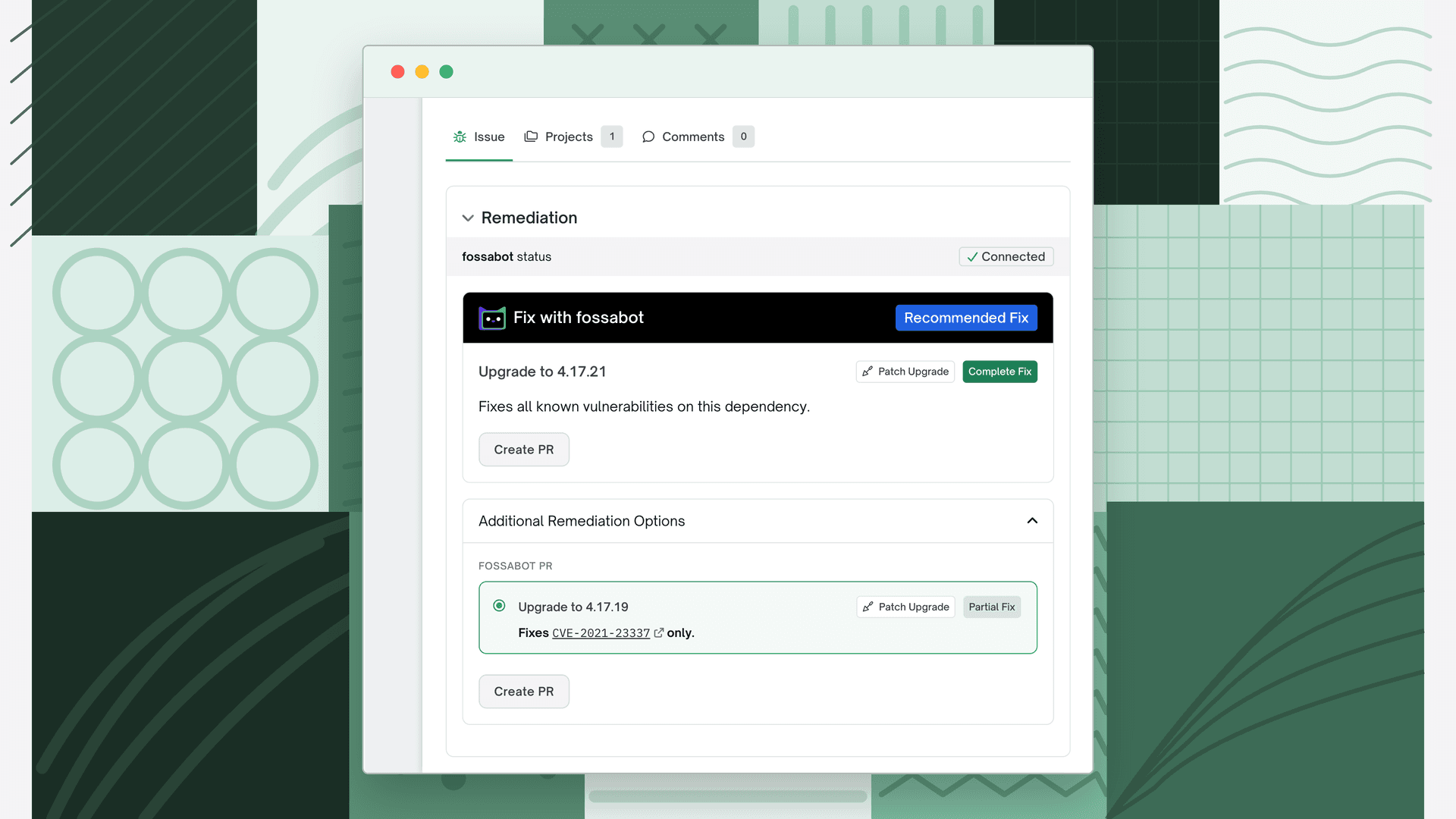
Click Additional Remediation Options. The partial fix appears under FOSSABOT PR with its version and the CVE it fixes.
- 2
Create the PR
Click Create PR under the option.
If there is no partial fix with a different version, Additional Remediation Options does not appear.
Tracking a pull request
The status chip on the Fix with fossabot card shows where the pull request stands.
| Status | Meaning | Actions |
|---|---|---|
| Recommended Fix | No pull request has been created for this issue yet. | Create PR |
| Creating PR | fossabot is opening the pull request on your repository. | None |
| Analyzing | The pull request is open and fossabot is analyzing it. | Review on GitHub, View in the fossabot app |
| Analyzing (delayed) | Analysis is taking longer than expected. | Try Again re-runs the analysis, which uses fossabot credits; View in the fossabot app shows live status |
| Analysis not run | The pull request was created without fossabot analysis. | Review on GitHub, View in the fossabot app |
| Needs review | fossabot finished its analysis and the change needs human review. | Review on GitHub, View in the fossabot app |
| Ready to merge | Review is complete and the pull request is waiting to be merged. | Review on GitHub, View in the fossabot app |
| Merged | The pull request has been merged. | View in the fossabot app |
| Closed | The pull request was closed without merging. | View on GitHub, View in the fossabot app |
| Failed | fossabot could not create the pull request. The card shows the reason, for example Your organization is out of fossabot credits. | Try Again |
| Error | FOSSA could not read the pull request status. | Try Again checks the status again |
Once the merged upgrade reaches the branch FOSSA scans and the project is analyzed again, the issue is remediated and leaves the open issues list. See Reviewing Security Issues for how remediated issues are handled.
Note
fossabot analysis uses your organization's fossabot credits, including Try Again on a delayed analysis. When the organization runs out, creating a pull request fails with Your organization is out of fossabot credits.
To see every fossabot pull request for a project in one place, use the PRs tab.
Reviewing pull requests in the PRs tab
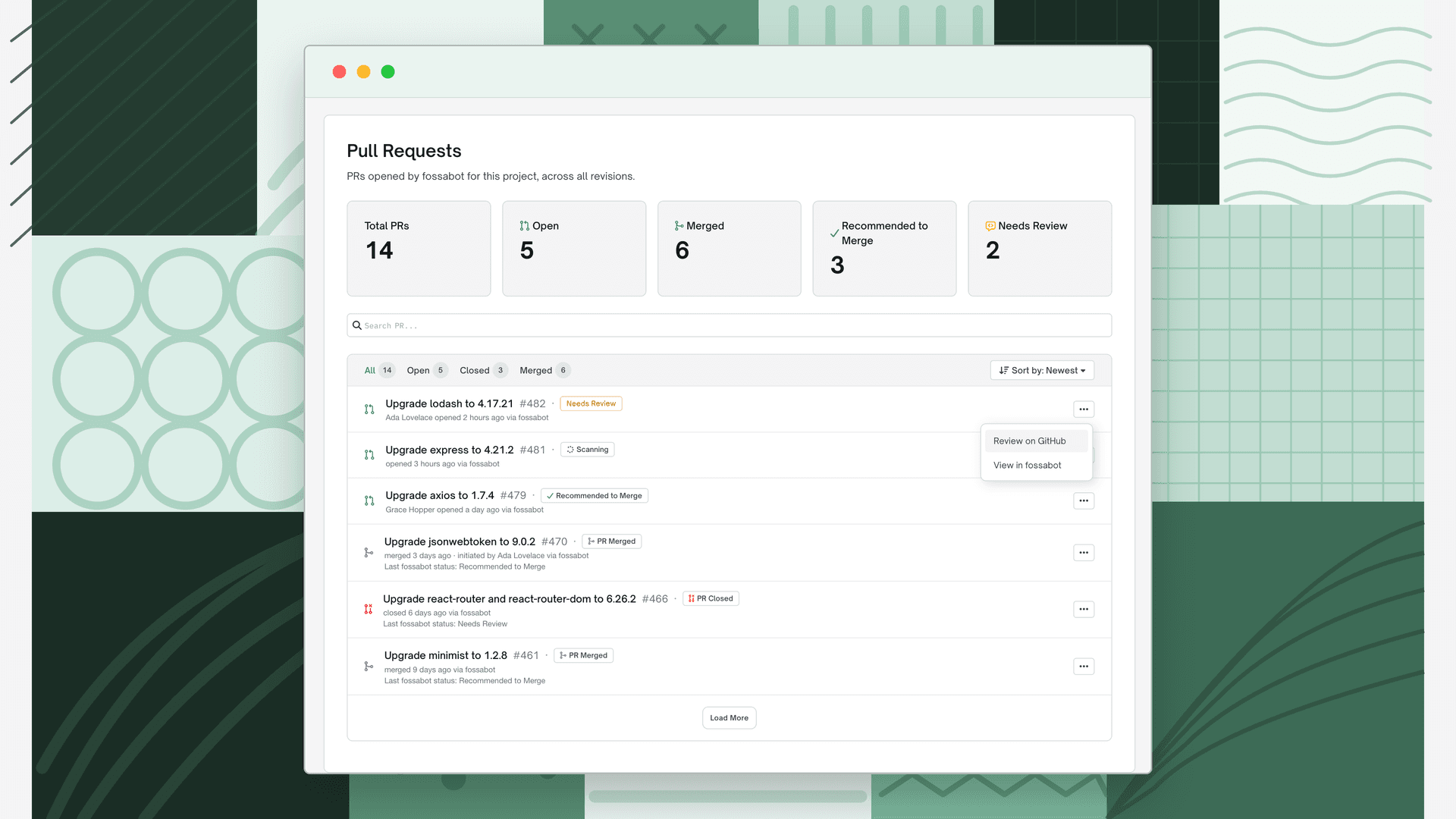
Every project imported through the GitHub App has a PRs tab that lists the pull requests fossabot has opened for the project, across all revisions. It includes the fix pull requests created from issues with Context-Aware Remediation and the upgrade pull requests fossabot opens on its own. The badge on the tab shows the total number of fossabot pull requests.
Note
The PRs tab appears only for users whose role includes fossabot permissions (see Permissions). If the fossabot app is not installed for your organization, the tab shows Install the fossabot app instead of the list.
- 1
Open the PRs tab
Open the project and click PRs in the project navigation. The Pull Requests page opens.
- 2
Find the pull request
Use the summary cards at the top for an overview, then narrow the list:
- Type in Search PR... to search the list.
- Click All, Open, Closed, or Merged to filter by state. Each filter shows its count.
- Use Sort by to switch between Newest and Oldest.
- Click Load More at the bottom of the list to show older pull requests.
- 3
Review the pull request on GitHub
Click the actions menu at the end of the row and choose Review on GitHub. The pull request opens in a new tab, where you can review the changes and merge or close it.
- 4
View fossabot's analysis
Click the actions menu at the end of the row and choose View in fossabot. The pull request opens in the fossabot app, which shows fossabot's analysis of the upgrade, including the breaking changes it checked and their impact on your code. See fossabot for Dependency Upgrades for what the analysis covers.
Summary cards
The cards count every fossabot pull request in the project. Search and state filters do not change them.
| Card | What it counts |
|---|---|
| Total PRs | All pull requests fossabot has opened for the project. |
| Open | Pull requests that are currently open, regardless of analysis result. |
| Merged | Pull requests that have been merged. |
| Recommended to Merge | Open pull requests fossabot recommends merging, including those with fixes applied. |
| Needs Review | Open pull requests with concerns or an inconclusive analysis. |
Reading a pull request row
Each row shows the pull request's state icon, its title and number, and a status badge. The line below says who opened it and when. An open pull request reads like Ada Lovelace opened 2 hours ago via fossabot. A merged or closed one reads like merged 2 hours ago · initiated by Ada Lovelace via fossabot. Pull requests fossabot opened on its own show no name.
| Badge | Meaning |
|---|---|
| Scanning | fossabot is analyzing the pull request. |
| Recommended to Merge | fossabot finished its analysis and recommends merging. |
| Needs Review | fossabot found concerns, or its analysis was inconclusive. Review the changes before merging. |
| PR Open or PR Draft | The pull request is open (or a draft) and has no analysis result yet. |
| PR Merged | The pull request has been merged. |
| PR Closed | The pull request was closed without merging. |
Merged and closed pull requests keep fossabot's last verdict on a Last fossabot status line below the byline.
When Context-Aware Remediation isn't available
fossabot edits the version declared in your manifest, so it can only open a pull request for a direct npm, Maven, or pip dependency in a project imported from GitHub. When one of these doesn't hold, the Remediation section shows the standard remediation guidance, with the fix versions FOSSA found, and a caption underneath explaining why. The fossabot banner and the Fix with fossabot card do not appear.
| Caption | Cause |
|---|---|
| Auto PRs aren't available for CLI projects. | The project was uploaded with the FOSSA CLI, so there is no connected repository. |
| Auto PRs aren't available for SBOM projects. | The project was created from an uploaded SBOM. |
| Auto PRs aren't available for this project. | The project did not come from a repository, such as an uploaded archive. |
| Auto PRs aren't available for Vendored Dependencies. | The dependency is vendored, so no manifest entry declares it. |
| Auto PRs aren't available for manually added dependencies. | The dependency was added in FOSSA, not in a manifest. |
| Auto PRs aren't available for transitive dependencies. | The vulnerable package is a transitive dependency. Only direct dependencies can be upgraded. |
| Auto PRs aren't available for snippets. | The match is a code snippet copied into the project, not a declared dependency. |
| Auto PRs aren't available for ecosystem dependencies. | The dependency is not an npm, Maven, or pip package. Context-Aware Remediation supports only these three ecosystems. |
When FOSSA finds no fixed version, No fix available replaces the whole fossabot section, including the banner. When it cannot calculate a fix, Unable to calculate does the same.
GitLab and other non-GitHub projects get no caption. The section shows Automate this fix with fossabot with Connect instead, but installing the fossabot GitHub App does not enable pull requests for them.
Permissions
| Role | Can view fix status | Can create pull requests |
|---|---|---|
| Admin | Yes | Yes |
| Editor | Yes | Yes |
| Viewer | No | No |
| Team Admin, Team Editor, Team Viewer | No | No |
Custom roles need the organization_fossabot_upgrade permission: view to see fix status and the PRs tab, and view plus create to open pull requests. Users without permission see the standard remediation guidance on the issue instead of the Fix with fossabot card. See Role-Based Access Control.
FAQ
Why is Create PR disabled? FOSSA can't confirm that fossabot is connected to the project's repository. If the banner shows Connect, install the fossabot GitHub App. If it shows Error, the connection check failed; hover the badge to see why, then reload the issue. The Create PR tooltip reads Connect fossabot to create PRs in both cases.
Why don't I see the Fix with fossabot card on an issue? Either you are viewing the issue outside a project (open it from the project instead), your role does not include fossabot permissions, or the dependency is one fossabot can't upgrade. The table above lists those cases.
Can I use Context-Aware Remediation with GitLab or a CLI-scanned project? No. It requires a project imported from GitHub through the GitHub App option in Quick Import. GitLab projects still show a Connect button, but installing the fossabot GitHub App does not enable pull requests for them.
Which ecosystems are supported? npm, Maven, and pip. Dependencies from other ecosystems show the caption Auto PRs aren't available for followed by the ecosystem name.
Can I fix a transitive dependency? No. fossabot only edits versions declared in your manifest. Upgrade the direct dependency that pulls in the vulnerable package instead.
How is this different from fossabot's own upgrade pull requests? fossabot also proposes upgrades on its own through a weekly scoring process. Context-Aware Remediation opens a pull request on demand for the specific vulnerability you are looking at. See fossabot for Dependency Upgrades.