

index
Analyze Gradle projects with FOSSA through Quick Import or the FOSSA CLI, including subproject filtering, configuration selection, and private Maven registries.
Overview
FOSSA supports Gradle projects, which are most often JVM-based (Java, Kotlin, Android, Scala). You can analyze a project two ways: Quick Import in the web app, or the FOSSA CLI for complex builds. Because Gradle resolves dependencies from Maven repositories, FOSSA treats Gradle as part of the Java ecosystem.
Tool support
| Tool | Quick Import (app.fossa.com) | CLI (fossa-cli) |
|---|---|---|
| Gradle | build.gradle or custom *.gradle | build.gradle, build.gradle.kts, settings.gradle, settings.gradle.kts |
How Quick Import works
When Gradle code is imported through the web app, FOSSA attempts to get results out of the box by incrementally running your build and statically resolving the dependency signatures it produces. This supports a wide variety of build states, but more complicated builds often require configuration or inlined settings.
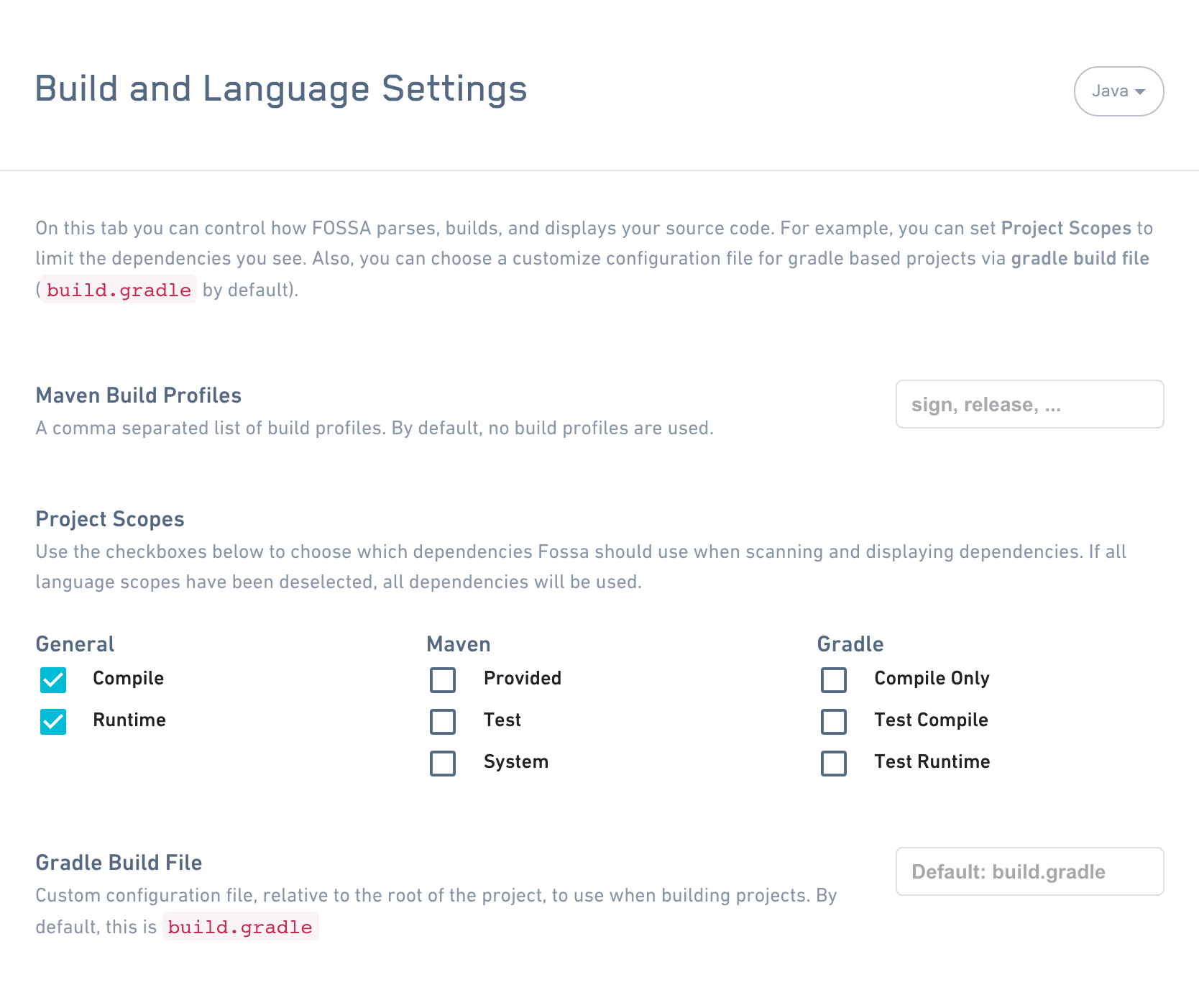
You can configure how FOSSA scans Gradle (and the rest of the Java ecosystem) under each project's settings, in Project Settings → Builds & Languages → Java. FOSSA elects sane defaults, choosing only compile and runtime scopes, setting default build profiles, intelligently handling optional dependencies, and more. To pass environment variables (such as GRADLE_OPTS) during repository scanning, add them under Project Settings → Builds & Languages → General.
Note
Java builds are generally complicated, so it is both impossible to generically build every codebase and impossible to get accurate results from pure static analysis of build.gradle files. For larger builds that require significant configuration, use CLI analysis below for fast and accurate results.
Analyzing with the CLI
For complex Gradle builds, run the FOSSA CLI in CI or on your local machine to upload results from an existing build. The CLI runs inside your build environment, so it can resolve dependencies that Quick Import cannot.
Warning
Gradle analysis requires dynamic analysis. FOSSA must execute Gradle to enumerate subprojects and evaluate build scripts. This means the CLI must run in an environment where your Gradle build succeeds.
Install the latest release of fossa-cli:
curl -H 'Cache-Control: no-cache' https://raw.githubusercontent.com/fossas/fossa-cli/master/install-latest.sh | bashThen run fossa analyze from your repository's root directory.
Gradle is a polyglot build tool, popular with Java and Android projects. Builds are specified in a build.gradle/settings.gradle file (Groovy) or a build.gradle.kts/settings.gradle.kts file (Kotlin), and are evaluated as programs that must be dynamically executed.
Analysis strategies
The CLI selects tactics by trying them in preference order and uses the results of the first tactic to succeed.
| Tactic | Direct Deps | Transitive Deps | Edges | Container Scanning |
|---|---|---|---|---|
| Plugin | ✅ | ✅ | ✅ | ❌ |
Concepts
Subprojects and configurations
Most sizable Gradle builds organize their dependencies with two concepts: subprojects and configurations.
Subprojects are used when you have multiple "projects" in a single Gradle build (managed with a single settings.gradle and zero or more build.gradle files). Gradle calls these "multi-projects": one root project, and one or more subprojects. A single subproject roughly corresponds to a single set of outputs, so FOSSA treats subprojects as separate analysis targets. For details, see Creating a multi-project build.
Within a single subproject, Gradle declares dependencies for different "scopes" (contexts such as compilation, test execution, or runtime execution). Gradle calls these scopes configurations, for example implementation, testRuntime, or compileClasspath. Different subprojects can have different configurations, although many common configurations (such as compileClasspath) appear in most subprojects. For more details, see What are dependency configurations.
Each pair of (subproject, configuration) corresponds to one dependency graph. Ideally each pair would be a separate analysis target; for technical reasons the current implementation treats separate subprojects as analysis targets, and treats each subproject as the union of all of its configurations. In practice this should not affect returned dependency results.
Gradle wrappers
Instead of invoking gradle directly, most Gradle projects use a "Gradle wrapper", a shell script vendored in the project that selects and downloads the correct version of Gradle. See The Gradle Wrapper for details. Because of this, the analyzer has logic for selecting which gradle executable to use.
When executing Gradle for an analysis target at ANALYSIS_TARGET_DIR, the CLI prefers (in order):
gradlew: first inANALYSIS_TARGET_DIR, then recursively searching parent directories.gradlew.bat: first inANALYSIS_TARGET_DIR, then recursively searching parent directories.gradle(from$PATH).
In the documentation below, for brevity, the selected tool is always referred to as gradle.
Discovery
This strategy discovers analysis targets by looking for files whose names start with build.gradle or settings.gradle. This matches build.gradle and settings.gradle as well as Gradle build scripts in other supported languages (build.gradle.*, settings.gradle.*).
It then executes gradle projects in the directory where the build file is found to get the list of subprojects, which are used to create the analysis targets. If there are no subprojects, an analysis target is created for the root project. Otherwise, one analysis target is created per subproject.
Debugging
Tip
These steps apply to Gradle generally, independent of tactic. Also check the Plugin tactic documentation for the specific tactic your project uses.
Determine whether Gradle targets are detected
To confirm the CLI is detecting your Gradle project, run fossa list-targets. The output lists analysis targets in the format type@path.
Note
For more information on fossa list-targets, see the reference guide.
For each Gradle subproject, you should see a gradle@PATH_TO_ROOT_PROJECT:SUBPROJECT target. If you don't, one of two things is likely happening:
- Your Gradle project does not have a
build.gradlefile. This is an unsupported configuration. gradle projectsis failing to execute. Make sure a Gradle wrapper is accessible and thatgradle projectsruns successfully.
Manually checking Gradle dependency results
To verify the CLI's results, run gradle :dependencies in your root project and gradle $SUBPROJECT:dependencies for each subproject. The CLI should produce a graph that is the union of each subproject's dependencies.
If the CLI uploads versions that differ from gradle $SUBPROJECT:dependencies, check whether the subproject dependency's version is the actual version resolved across the entire Gradle build. Different subprojects may select different versions when resolved independently, but a single resolved version is selected when the build is resolved as a whole.
If you'd like to file a bug report about incorrect dependencies, include the list of incorrect dependencies and the commands you ran to obtain that list.
Walkthroughs
Analyzing only specific subprojects
If your Gradle project has multiple subprojects, you may want to analyze only a specific set. In fossa-cli, this is achieved with exclusion filtering.
First, run fossa list-targets to identify the project directory and subproject identifiers:
[ INFO] Found project: gradle@./ # <- The root project. './' means "the project is at the root of the analysis directory".[ INFO] Found target: gradle@./::app # <- Submodule of the root project.[ INFO] Found target: gradle@./::list[ INFO] Found target: gradle@./::utilitiesNote
Targets are denoted as type@path:target. For example, gradle@./::utilities means "a Gradle project at the scan root, with the target :utilities", while gradle@./subdir/ means "a Gradle project inside subdir, without a target (a root project)". For more information, see the list-targets reference.
Warning
Gradle attaches a leading colon to submodules, and FOSSA also uses a colon to separate "path" and "target". So gradle@./::utilities breaks down as:
gradle  @           ./      :         :utilities
------ ---          ---    ---        -----------
Type   Path         Path   Target      Target
       separator           separator
Because Gradle prepends a colon, the :utilities target corresponds to the "utilities" submodule of the main project.
To analyze only utilities, add a .fossa.yml file in the project root:
# filename: .fossa.yml## analyze only gradle@./::utilitiesversion: 3targets: only: - type: gradle path: ./ target: ':utilities'Likewise, to exclude a specific set of subprojects:
# filename: .fossa.yml## do not analyze gradle@./::app, and gradle@./::utilitiesversion: 3targets: only: - type: gradle exclude: - type: gradle path: ./ target: ':app' - type: gradle path: ./ target: ':utilities'Manually specifying Gradle dependencies
Note
The FOSSA Gradle integration internally refers to Gradle dependencies as Maven dependencies, because Gradle is used to integrate dependencies from Maven code hosts (such as Maven Central). This usually isn't relevant to end users, but it is relevant when manually specifying dependencies.
If the CLI doesn't natively integrate with your build tool but your build tool uses Gradle dependencies, you can still add them to an uploaded build via manual dependencies:
# fossa-deps.ymlreferenced-dependencies:- type: maven # <- Note that this is not "gradle", as referenced in the note above. name: javax.xml.bind:jaxb-api # <- Note that this uses the Maven convention of 'groupId:artifactId'. version: 1.0.0For more details, see the manual dependencies documentation.
Selecting a set of configurations for analysis
You can use a configuration file to provide the set of configurations to filter analysis to. Any configurations not listed are excluded.
Warning
This feature is experimental and may be changed or removed at any time, without warning. For more information, see the experimental features reference.
version: 3 experimental: gradle: configurations-only: - example-1-config-to-include - example-2-config-to-includeConfiguration reference
Note
The CLI excludes deprecated configurations from analysis. With newer Gradle versions, some configurations (such as compile) are no longer supported. Before removal, Gradle deprecates them with a warning; these configurations should not declare dependencies, and their resolution would be incorrect (see this Gradle issue).
By default, the CLI excludes test and development dependencies from analysis. Configurations are classified as follows:
- Development:
compileOnly. - Test:
testImplementation,testCompileOnly,testRuntimeOnly,testCompileClasspath,testRuntimeClasspath.
For Android projects, FOSSA classifies a larger set of configurations as development or test dependencies. This includes the per-variant compile/runtime classpath and metadata configurations (debugCompileClasspath, releaseCompileOnly, the *DependenciesMetadata configurations, lint configurations, the Kotlin compiler classpath configurations, and so on), and the test-metadata configurations (test*DependenciesMetadata, androidJacocoAnt, etc.). FOSSA also classifies any dependency whose configuration name is prefixed with androidTest, debugAndroidTest, releaseUnitTest, or debugUnitTest as a test dependency.
Authenticating to private registries
FOSSA can fetch and resolve Gradle dependencies from private registries like Artifactory, Nexus, or any custom Maven registry. Because Gradle resolves from Maven repositories, these settings live under the Java language settings, which govern the entire Java ecosystem.
- 1
Open Java language settings
Go to Account Settings → Languages → Java (
https://app.fossa.com/account/settings/languages/java). - 2
Add a public registry
To add a public registry, add a new entry under Repositories. FOSSA will begin checking that registry (in order) for the packages your projects bring in.
- 3
Add a private registry
To add an authenticated registry, add two entries (one under Repositories and one under Servers) with a matching
Id, and include your credentials in the Servers entry.
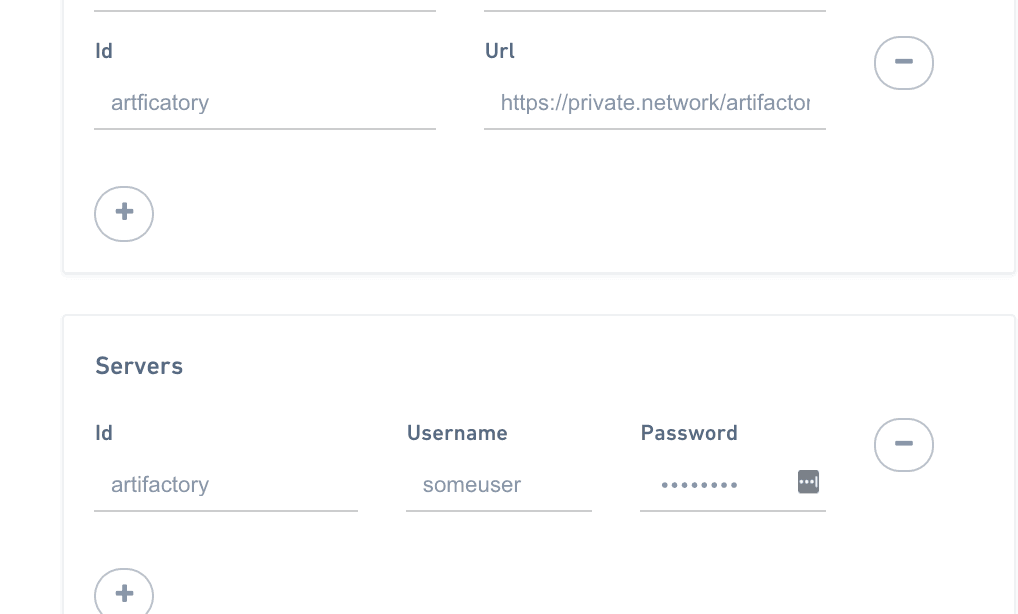
By default, FOSSA resolves Java-ecosystem packages from a set of public registries (Maven Central first, then Cloudera, Sonatype, and others) in order. If you know which registries you'd like FOSSA to prefer, re-order them in the Java Language Settings so the registries most likely to succeed are checked first. This resolves dependencies without cycling through subsequent registries.
Package data
The Gradle build system pulls in dependencies from the repository it resolves against:
| Repository type | Supported |
|---|---|
| Maven | Yes |
| Ivy | No |
| Local | No |
The metadata FOSSA pulls in is similar to Maven: available versions, home page URL, and per-dependency Group ID, Artifact ID, resolved version, transitive excludes, and scopes.
FOSSA parses data from all package metadata and scans all code provided in an artifact or associated code archives. If references to license webpages are found, FOSSA crawls the web for licensing information. Where no source code is included in an artifact, FOSSA attempts to resolve it to a known codebase and perform a full code audit. In the Java ecosystem it is common for license data to be stripped when artifacts are published; in these cases license data can be regenerated from the FOSSA registry by enriching build artifacts with data from associated VCSs, parent artifacts, and more.
Gradle properties
Gradle properties can be set via environment variables. Property names should be prefixed with ORG_GRADLE_PROJECT_, as described in the Gradle documentation.