
OpenID Connect
OIDC Authentication
OpenID Connect (OIDC) authentication allows you to exchange JSON Web Tokens (JWTs) from trusted identity providers for FOSSA API tokens. This eliminates the need to manage long-lived credentials in CI/CD pipelines and Kubernetes clusters.
Overview
OIDC authentication uses short-lived tokens automatically generated by your CI/CD platform or identity provider. The authentication flow:
- Your identity provider (GitHub Actions, GitLab CI, etc.) generates a signed JWT
- The JWT is exchanged for a FOSSA API token via
/api/oidc/token-exchange - The FOSSA API token is used for subsequent API calls
- The token expires automatically (15 minutes to 12 hours)
Requirements:
- Service accounts only (not for regular user accounts)
- Identity provider must support OIDC with JWT issuance
- Provider must use HTTPS and asymmetric signing algorithms (RSA, ECDSA, EdDSA)
Configuration
Step 1: Create an OIDC Provider
Navigate to Integrations → OIDC Providers → Add an OIDC provider.
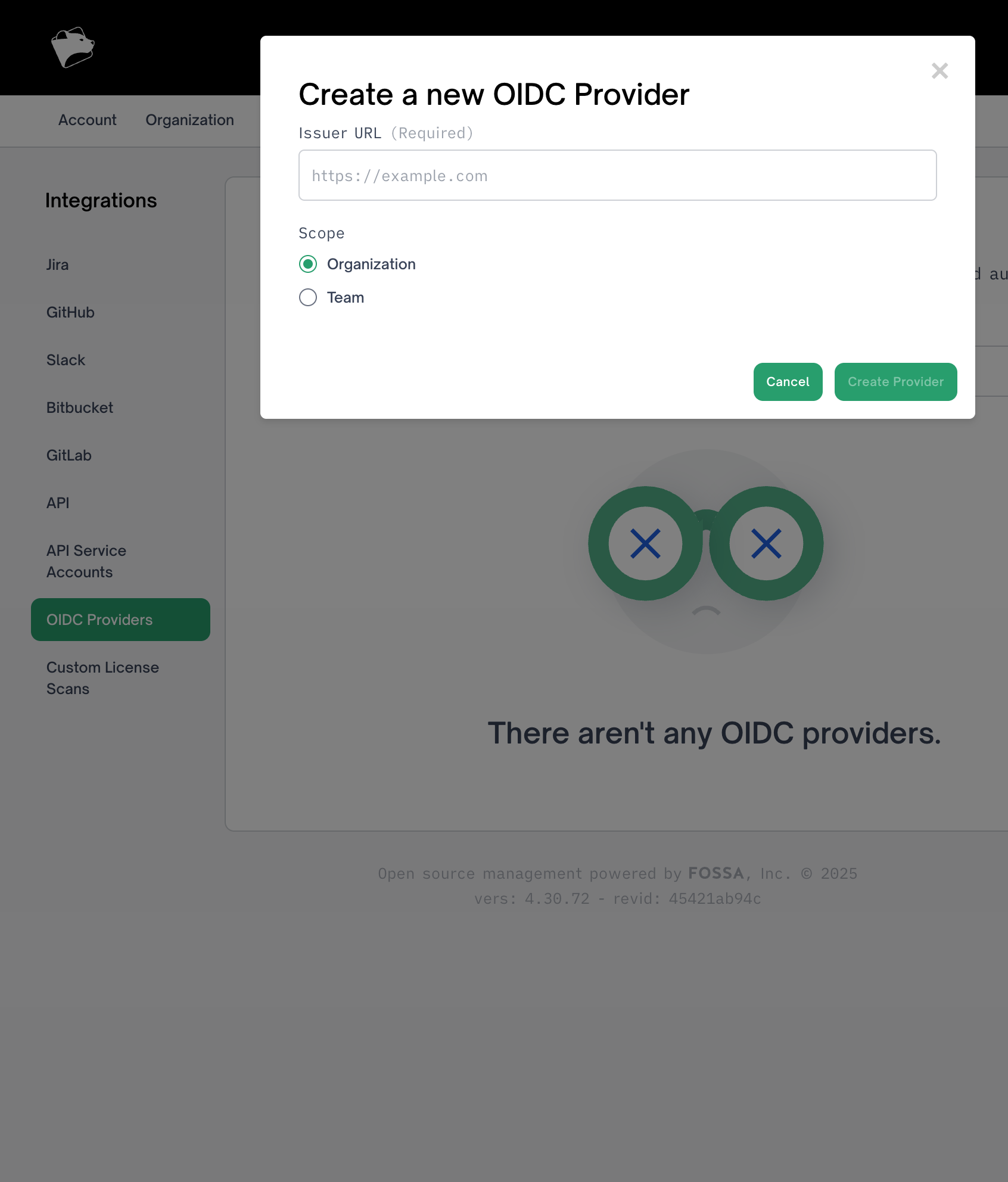
Required Fields:
- Issuer URL: HTTPS URL of your OIDC provider's token endpoint
- GitHub Actions:
https://token.actions.githubusercontent.com - GitLab CI:
https://gitlab.com - CircleCI:
https://oidc.circleci.com/org/YOUR_ORG_ID
- GitHub Actions:
- Scope:
OrganizationorTeam- Organization: Visible to all teams, requires org admin to create
- Team: Only visible to the specific team
FOSSA automatically discovers the provider's JWKS configuration from {issuer}/.well-known/openid-configuration.
After creation, note the Provider ID (numeric) for use in the token exchange API.
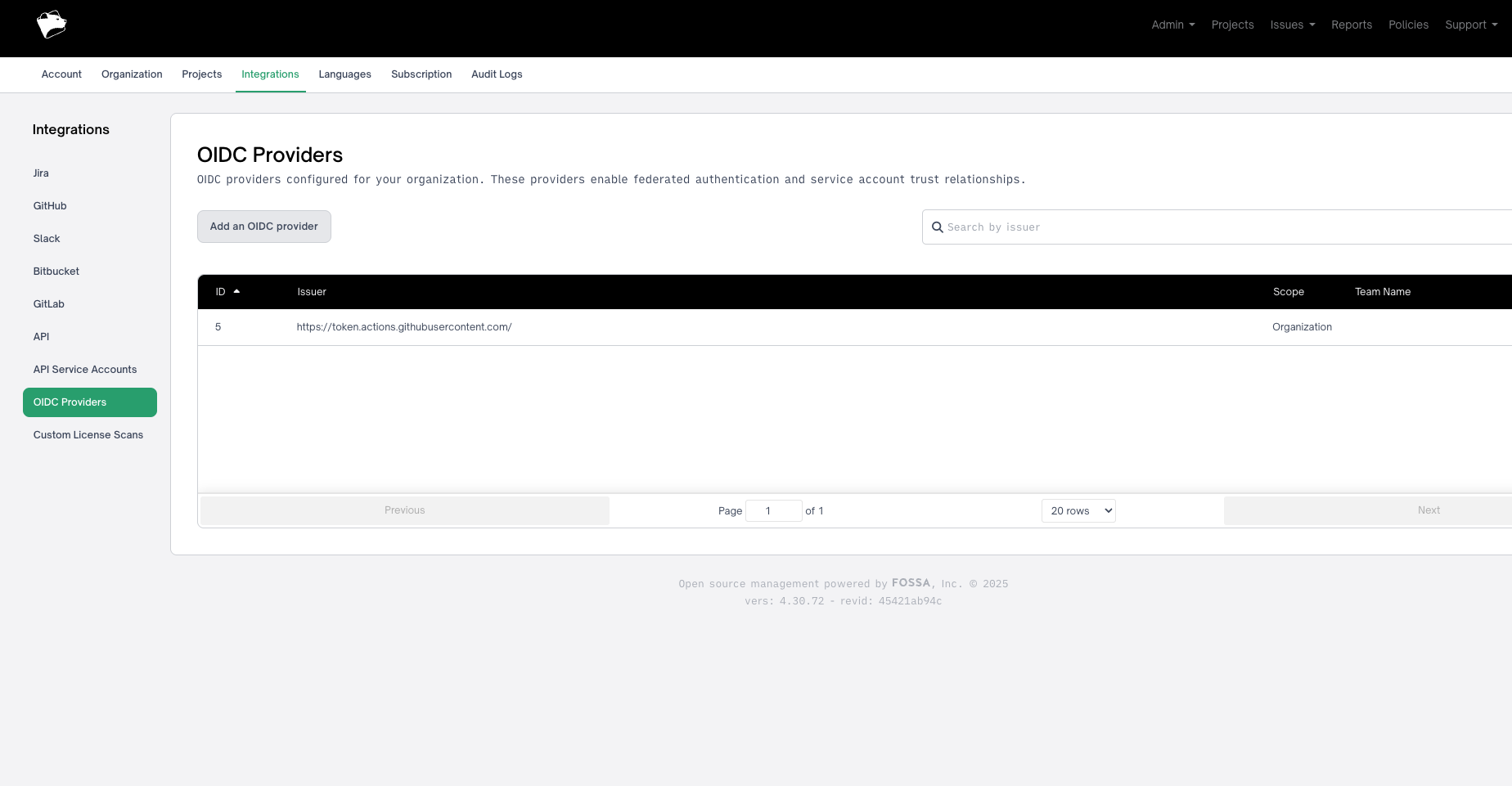
Step 2: Create or Select a Service Account
Navigate to Organization → Users. Service accounts appear with a "Service Account" badge.
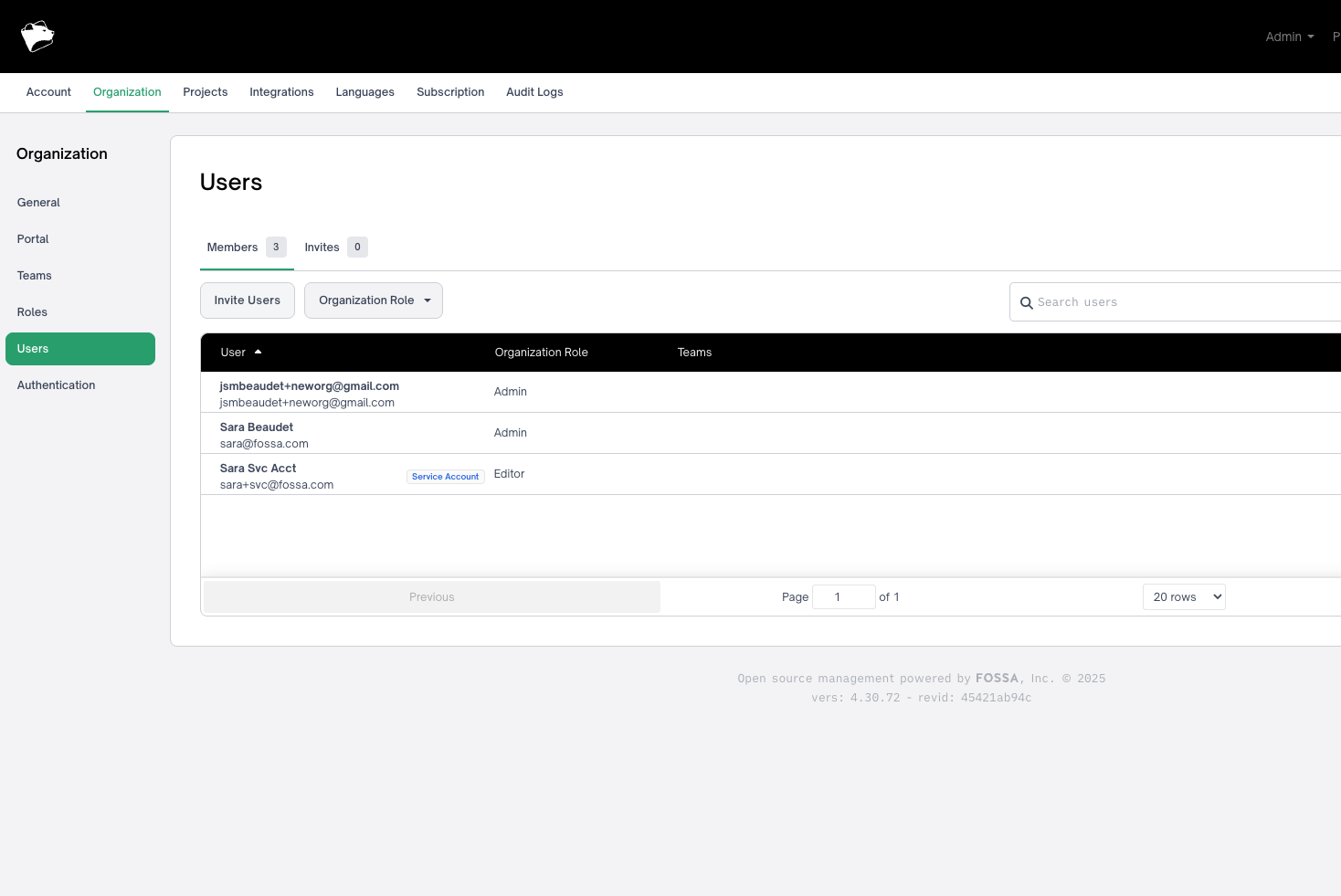
To create a new service account, use Integrations → API Service Accounts.
Service Account Requirements:
- Must be a service account (not a regular user)
- Account must be enabled
- Account must belong to your organization
- Note the username for the token exchange API
Step 3: Configure Trust Relationships
Trust relationships define which JWTs are allowed to authenticate as a specific service account.
Navigate to Integrations → OIDC Providers, click the view icon for your provider, then click Add a trust relationship.
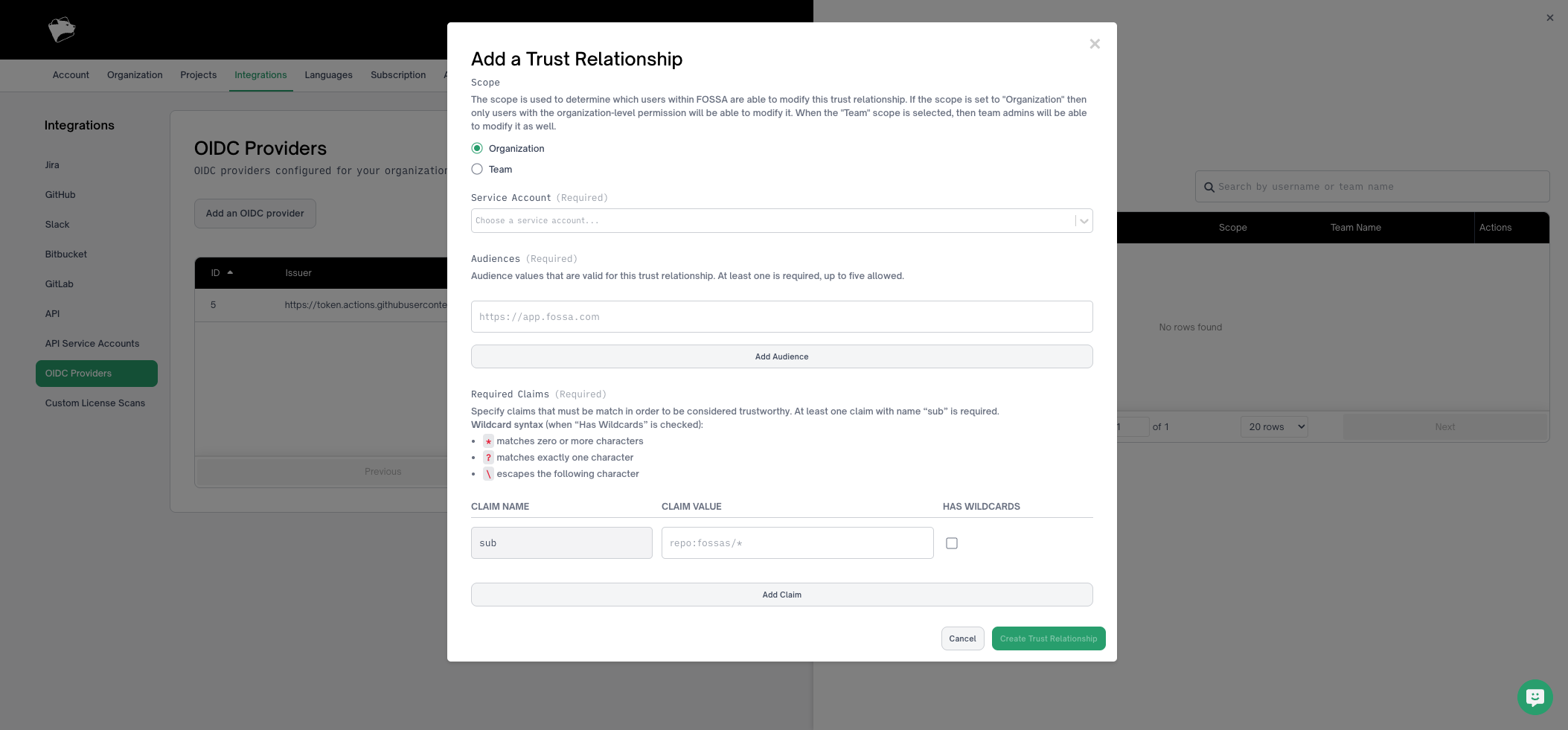
Configuration Fields:
Scope:
- Controls who can view and modify the trust relationship (does not affect service account permissions)
- Org-scoped: Viewable by everyone, modifiable by org admins only
- Team-scoped: Viewable by org admins and team admins, modifiable by both
- Must match or be more restrictive than the provider's scope
- Org-scoped provider → org or team trust relationship allowed
- Team-scoped provider → only that team allowed
Note: Provider scoping follows the same logic - org-scoped providers are viewable by everyone but modifiable by org admins only, while team-scoped providers are viewable and modifiable by org admins and team admins.
Service Account (Required):
- Select the service account to associate with this trust relationship
Audiences (Required, 1-5 entries):
- Valid JWT audience values that will be accepted from the provider
- Each provider has different default audience values:
- GitHub Actions: Defaults to your organization's URL
- CircleCI: Defaults to your organization's UUID
- Recommended: Specify a FOSSA-specific audience (e.g.,
app.fossa.comor your FOSSA instance URL) for additional security - The audience must match the JWT's
audclaim
Required Claims (Required, at least 1):
- JWT claims that must match for authentication
- Must include one
sub(subject) claim - this is pre-filled and cannot be changed - Supports wildcard matching:
*(zero or more characters),?(exactly one character),\(escape) - Enable "Has Wildcards" checkbox per claim to use wildcard syntax
Common Claim Patterns:
GitHub Actions:
{
  "claim": "sub",
  "value": "repo:your-org/*",
  "hasWildcards": true
}
Available GitHub Actions claims:
sub: Formatrepo:org/repo:ref:refs/heads/branchrepository_owner: GitHub organization or user namerepository: Full repository name (org/repo)ref: Git reference being builtworkflow: Workflow name
GitLab CI:
{
  "claim": "sub",
  "value": "project_path:mygroup/myproject:*",
  "hasWildcards": true
}
Available GitLab CI claims:
sub: Formatproject_path:group/project:ref_type:branch:ref:refs/heads/branchproject_path: Full project pathnamespace_path: Group or namespace pathref: Git referenceref_type: Type of reference (branch, tag)
Step 4: Configure CI/CD Workflow
Update your CI/CD pipeline to exchange the JWT for a FOSSA API token.
Implementation Examples
GitHub Actions
name: FOSSA Analysis
on: push

jobs:
  fossa-check:
    runs-on: ubuntu-latest
    permissions:
      id-token: write  # Required for OIDC
      contents: read
    steps:
      - uses: actions/checkout@v5

      - name: Get FOSSA Token via OIDC
        run: |
          # Get JWT from GitHub Actions
          JWT=$(curl -H "Authorization: bearer $ACTIONS_ID_TOKEN_REQUEST_TOKEN" \
            "$ACTIONS_ID_TOKEN_REQUEST_URL&audience=app.fossa.com" | jq -r '.value')

          # Exchange JWT for FOSSA API token
          FOSSA_API_KEY=$(curl --request POST \
            --url https://app.fossa.com/api/oidc/token-exchange \
            --header 'accept: application/json' \
            --header 'content-type: application/json' \
            --data '{
              "token": "'$JWT'",
              "providerId": 5,
              "username": "github-oidc-service-account",
              "expiresIn": 3600,
              "isPushOnly": true
            }' \
            | jq -r '.credential.token')

          echo "FOSSA_API_KEY=$FOSSA_API_KEY" >> "$GITHUB_ENV"

      - name: Run FOSSA Analysis
        run: |
          curl -H 'Cache-Control: no-cache' https://raw.githubusercontent.com/fossas/fossa-cli/master/install-latest.sh | bash
          fossa analyze
          fossa test
GitHub Actions Configuration:
id-token: writepermission enables JWT generation- Audience specified in URL:
$ACTIONS_ID_TOKEN_REQUEST_URL&audience=app.fossa.com - Environment variables
ACTIONS_ID_TOKEN_REQUEST_TOKENandACTIONS_ID_TOKEN_REQUEST_URLare automatically available
GitLab CI
fossa-analysis:
  image: ubuntu:latest
  id_tokens:
    GITLAB_OIDC_TOKEN:
      aud: app.fossa.com
  script:
    # Exchange GitLab JWT for FOSSA API token
    - |
      FOSSA_API_KEY=$(curl --request POST \
        --url https://app.fossa.com/api/oidc/token-exchange \
        --header 'accept: application/json' \
        --header 'content-type: application/json' \
        --data "{
          \"token\": \"$GITLAB_OIDC_TOKEN\",
          \"providerId\": 2,
          \"username\": \"gitlab-ci-service-account\",
          \"expiresIn\": 3600,
          \"isPushOnly\": true
        }" \
        | jq -r '.credential.token')

    # Install and run FOSSA CLI
    - curl -H 'Cache-Control: no-cache' https://raw.githubusercontent.com/fossas/fossa-cli/master/install-latest.sh | bash
    - fossa analyze
    - fossa test
GitLab CI Configuration:
id_tokens:configuration requests JWT with specified audience- JWT automatically available in specified environment variable (
GITLAB_OIDC_TOKEN) - Requires GitLab 15.7 or later
Security
Token Security
- Tokens expire automatically based on
expiresInparameter (15 minutes to 12 hours) - OIDC tokens prefixed with
oidc-for identification - Tokens are securely stored and automatically purged at expiration
JWT Validation
- Only asymmetric algorithms accepted (RSA, ECDSA, EdDSA)
- Symmetric algorithms (HMAC) rejected for security
- Signature validated using provider's JWKS public keys
- Issuer and audience claims verified against configuration
Access Control
- Trust relationships use claim-based validation
- Wildcard support for flexible patterns
- Multiple required claims for restrictive policies
- Push-only mode recommended for CI/CD (limits API surface)
Troubleshooting
Note on Error Messages: For security reasons, FOSSA returns generic error messages to prevent brute-force attempts at valid requests. Detailed validation errors are logged to internal systems. If you encounter authentication issues, contact FOSSA support for assistance with troubleshooting.
JWT Validation Failures
Generic error returned: JWT does not match any trust relationship or failed validation.
Check:
- Provider ID is correct
- Issuer URL matches JWT
issclaim exactly - Provider's
/.well-known/openid-configurationis accessible - All required claims exist in JWT
- Claim values match (or match wildcard pattern if enabled)
- At least one
subclaim configured - JWT
audclaim matches configured audience - JWT not expired (
expclaim) - JWT algorithm is asymmetric (not HS256/HS384/HS512)
Decode JWT at jwt.io to inspect claims.
Token Exchange Errors
400 Bad Request - Provider not found:
- Verify
providerIdmatches a provider in your organization - Ensure you have permission to view the provider
400 Bad Request - Service account not found:
- Verify
usernameexactly matches a service account - Ensure service account is enabled
- Confirm account is a service account (not regular user)
400 Bad Request - No trust relationships found:
- Create a trust relationship between service account and provider
- Verify trust relationship is in same organization
- Check trust relationship scope matches or is more restrictive than provider scope
401 Unauthorized:
- All trust relationships failed JWT validation
- Review JWT validation steps above
Platform-Specific Issues
GitHub Actions:
id-token: writepermission requiredACTIONS_ID_TOKEN_REQUEST_TOKENandACTIONS_ID_TOKEN_REQUEST_URLonly available when permission set- Audience must be in request URL, not headers
GitLab CI:
- Requires GitLab 15.7 or later
- Use
id_tokens:configuration to request JWT - Audience specified in
id_tokensconfiguration
CircleCI:
- Only available on CircleCI Cloud (not self-hosted)
- Issuer URL format:
https://oidc.circleci.com/org/{YOUR_ORG_ID} - Obtain organization ID from CircleCI settings
Limitations
Token Limitations
- Maximum lifetime: 12 hours (43,200 seconds)
- Minimum lifetime: 15 minutes (900 seconds)
- No token refresh capability
- All OIDC tokens prefixed with
oidc-
Trust Relationship Limitations
- Maximum 5 audiences per trust relationship
- At least one
subclaim required - Claim values: strings, numbers, or booleans only (no arrays/objects)
- Wildcards are basic pattern matching (not full regex)
- Trust relationship scope cannot be less restrictive than provider scope
Provider Limitations
- One provider per (organization, issuer, scope, scope ID) combination
- HTTPS required for issuer URLs
- Only
organdteamscopes supported - Symmetric signing algorithms not supported
Service Account Requirements
- Service accounts only (not regular user accounts)
- Account must be enabled
- Account must belong to same organization as provider
Migration from Long-Lived Tokens
To migrate from traditional API tokens:
- Create OIDC provider in FOSSA
- Create trust relationship for your service account
- Note provider ID and service account username
- Update CI/CD workflows to use OIDC authentication
- Test in non-production environment
- Deploy to production
- Revoke old long-lived API tokens