

Snippets
Find open source code copied into your codebase without being declared as a dependency.
Enterprise feature
Requires the Enterprise plan and must be enabled for your organization. Contact your FOSSA account team to enable it.
Overview
Snippet Scanning identifies where sections of your first-party source code may have originated from open source projects, and what license obligations that may create. Rather than only analyzing declared package dependencies, it examines the actual contents of your code files to find matches against a database of open source code.
This is useful when:
- Your codebase includes code copied or adapted from open source libraries without being declared as a dependency.
- You want license compliance to cover code that was inlined, vendored, or manually incorporated.
- You need a more complete picture of the open source components present in your software.
How it works
When you run a snippet scan, FOSSA:
- Fingerprints your source files: the FOSSA CLI generates a fingerprint for each file in your project.
- Matches against an open source code index: fingerprints are compared against a database of known open source code.
- Resolves matched packages: FOSSA identifies and builds the open source packages behind the matches, so license and issue data is available for them.
- Surfaces results in the UI: matches appear in the Snippets tab of your project inventory, with their license and issue information.
Running a snippet scan
Snippet scanning runs through the FOSSA CLI with the --snippet-scan flag:
fossa analyze --snippet-scanThis fingerprints your project's files and submits snippet results alongside the standard dependency analysis. For the CLI mechanics, see the CLI snippet scanning reference.
Viewing snippets
Open your project and select Inventory → Snippets. The page uses a two-panel layout:
- Left, file tree: browse your project's directory structure; click a folder to filter the list to that path.
- Right, snippet table: each detected snippet with its matched package, version, match count, and any associated license or security issue counts.
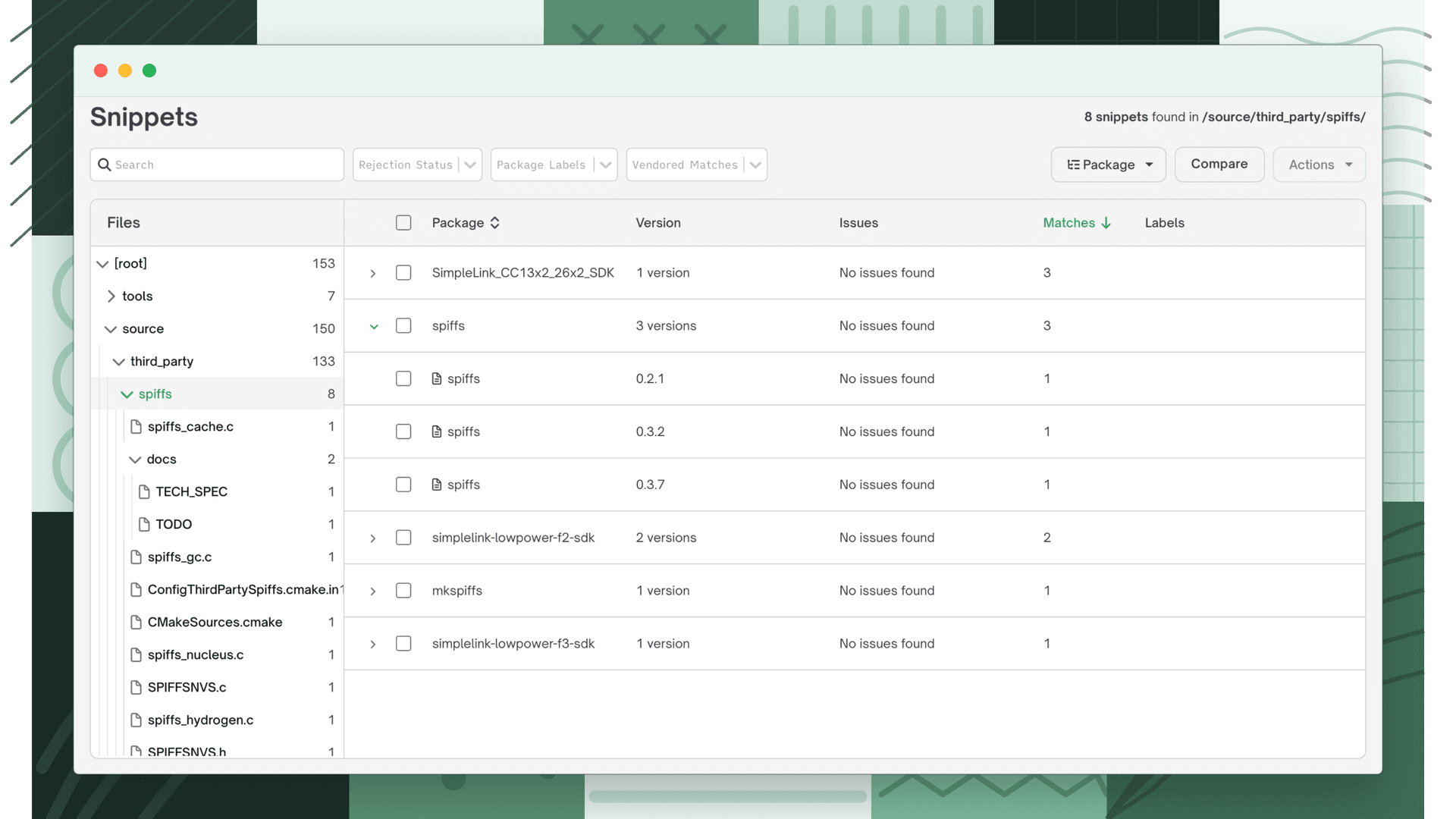
Snippet table columns
| Column | Description |
|---|---|
| Package | The name and version of the open source package the snippet matched. |
| Matches | The number of files in your project where the snippet was detected. |
| Licenses | Licenses associated with the matched package. |
| Issues | License or security issues for the matched package (when issue scanning is enabled). |
Use the Group by dropdown to switch between Ungrouped (each match listed individually) and By Package (matches grouped by the package they matched).
Note
If no snippet scan has run, the Snippets tab shows "Snippet analysis has not been run on this revision."
Snippet details
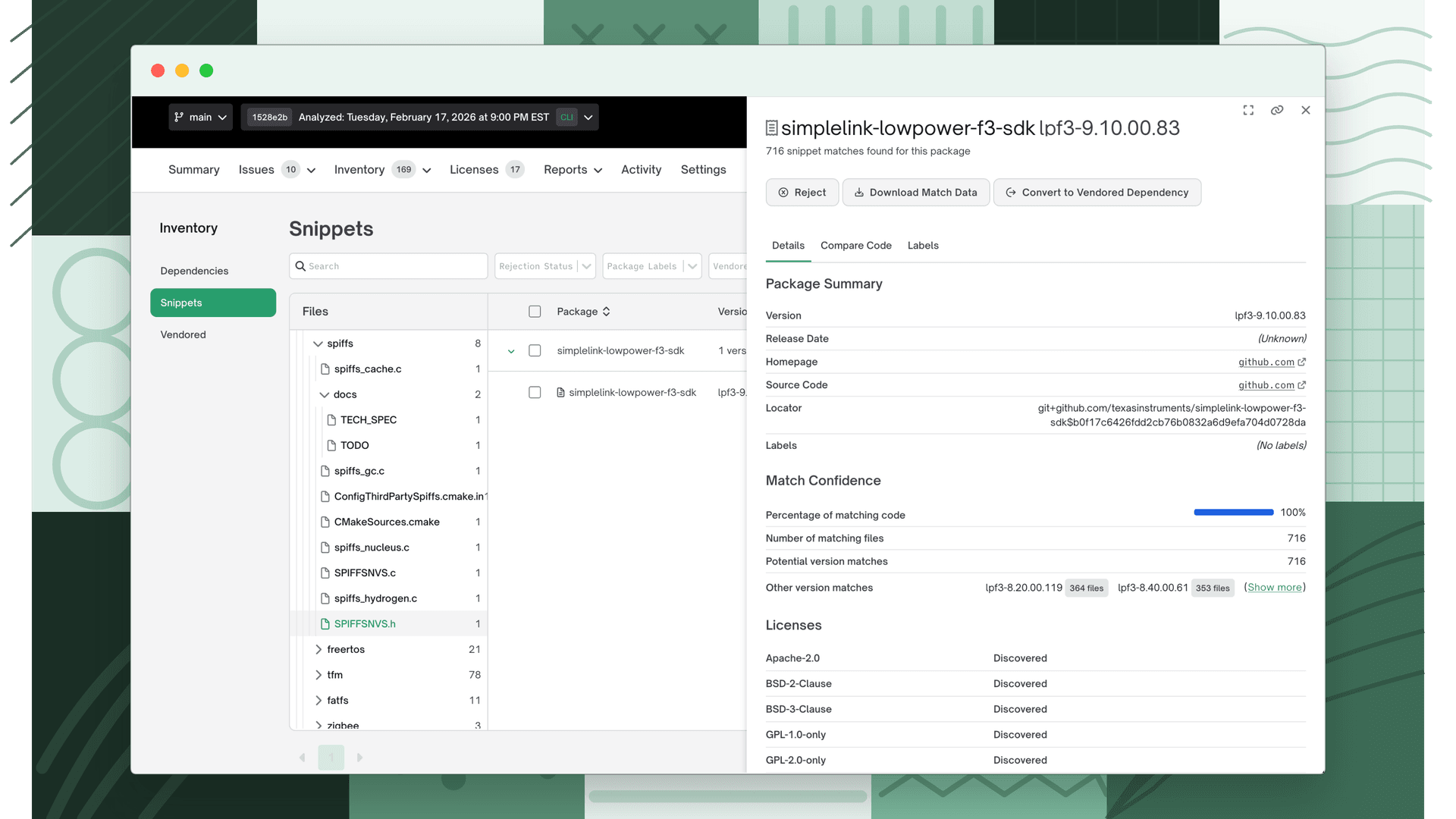
Click any row to open the Snippet Details drawer, which has three tabs:
- Details: package name, version, ecosystem, match count, license info, and any associated issues.
- Compare Code: a side-by-side view of your source and the matched open source code for each file; navigate matches from the list on the left, and reject or un-reject individual file matches here.
- Labels: package labels applied to the matched package (available once the snippet resolves to a known FOSSA package).
Filtering and searching
- Search: filter snippets by package name.
- Rejection status: Active (not rejected) or Rejected.
- Package labels: filter by labels on matched packages (e.g. "Testing only", "Internal use only").
Managing rejections
Rejecting a snippet excludes it from issue scanning and compliance reporting, appropriate for a false positive, or a match that doesn't carry license obligations for your use case.
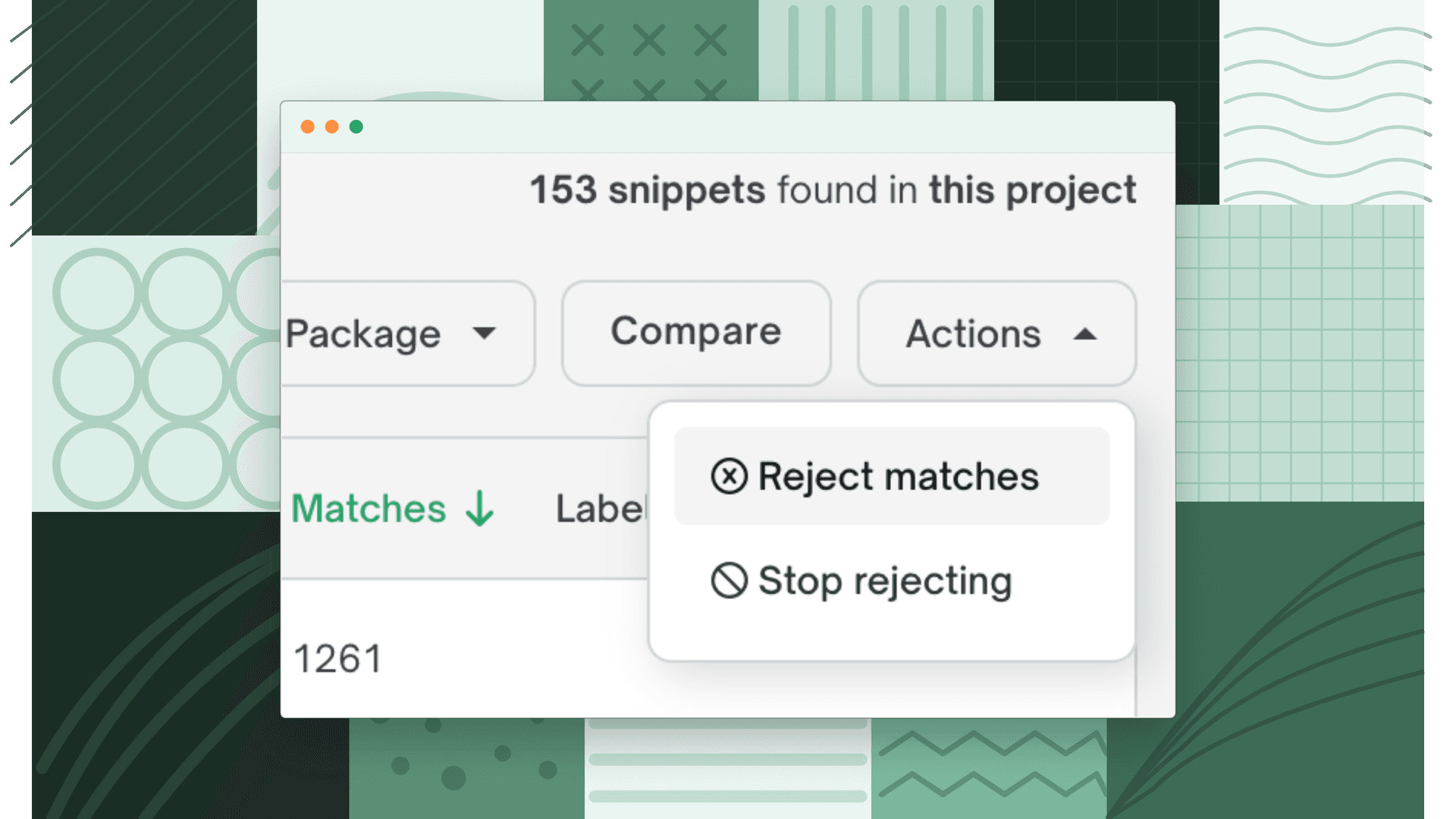
- 1
Reject matches
Select one or more snippets with the checkboxes, then choose Actions → Reject matches. To reject a single file-level match, open the snippet's Compare Code tab, select the file match, and click Reject.
- 2
Stop rejecting
Filter by Rejected, select the snippets, and choose Actions → Stop rejecting. To un-reject a single file match, open Compare Code, select the rejected match, and click Stop Rejecting.
Warning
Rejections apply across all revisions of a project. They are not scoped to a single revision.
Snippet settings
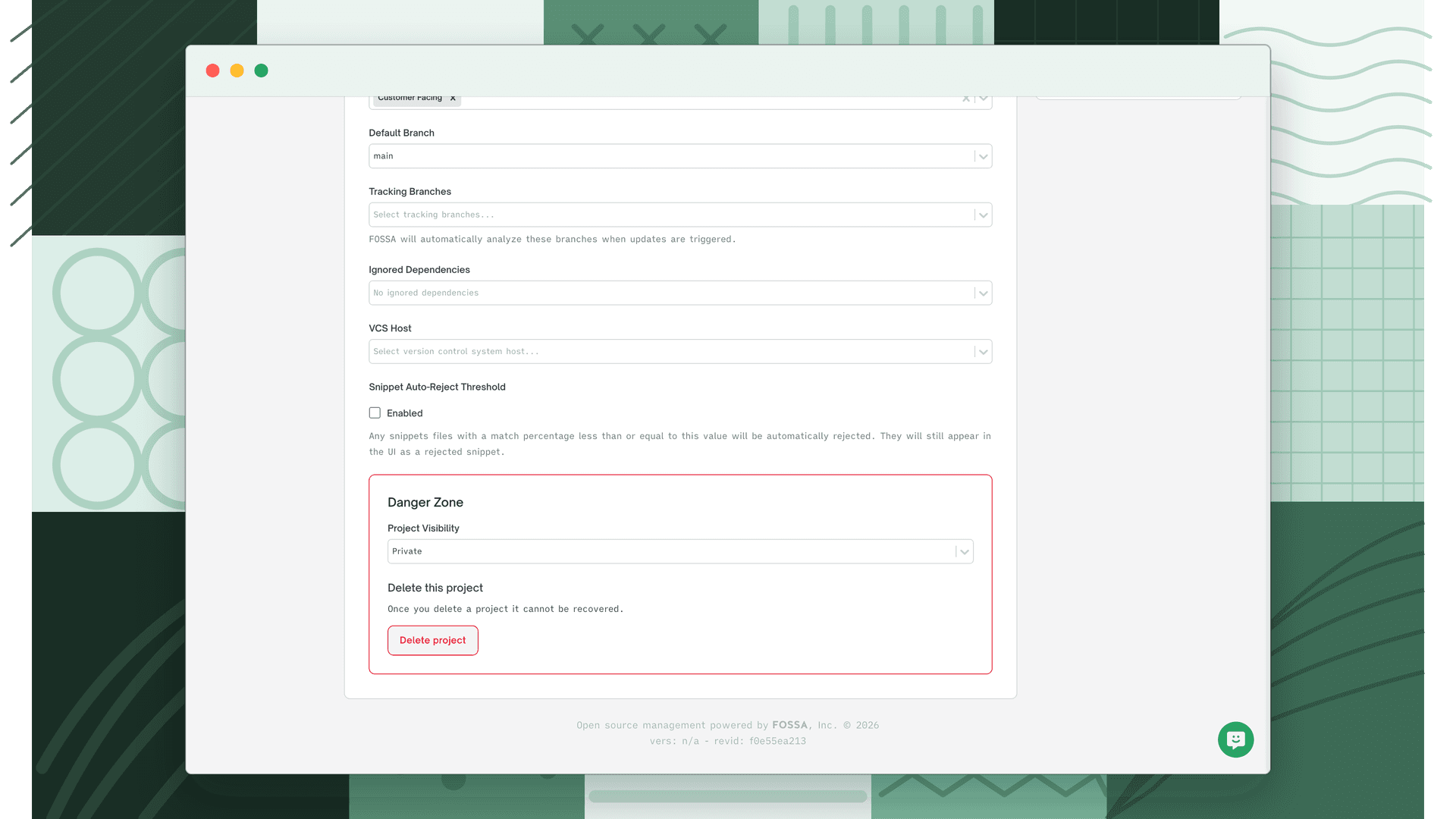
Auto-reject threshold
FOSSA can automatically reject low-confidence matches when a scan completes. Configure this per project under Settings → General → Snippet Auto-Reject Threshold.
Enable the threshold and set a percentage (default: 10%). Any snippet file match with a match percentage at or below that value is automatically rejected when the revision's analysis reaches steady state. Auto-rejected snippets still appear in the Snippets tab with a rejected status. You can review and un-reject them individually if needed.
Note
Your FOSSA account team can set an organization-wide default threshold that all new projects inherit. Individual projects can override it in their own settings.
Source code retention
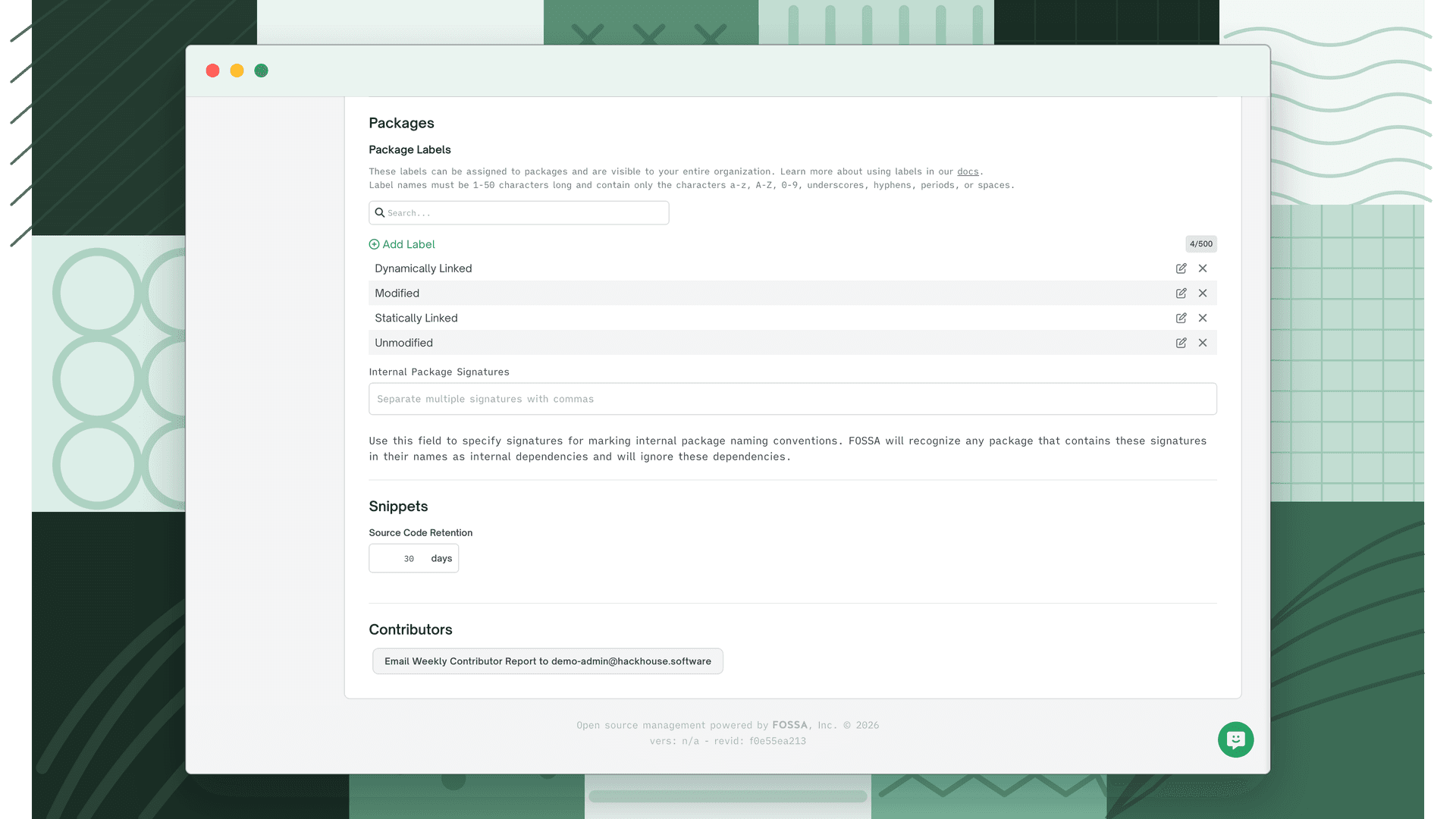
To perform snippet matching, FOSSA temporarily stores source code from your repositories. Source Code Retention controls how long that source code is kept before it is deleted from FOSSA's systems.
Configure it at Organization Settings → General → Snippets → Source Code Retention. The value must be between 1 and 30 days (default: 30 days).
Comparing snippets between revisions
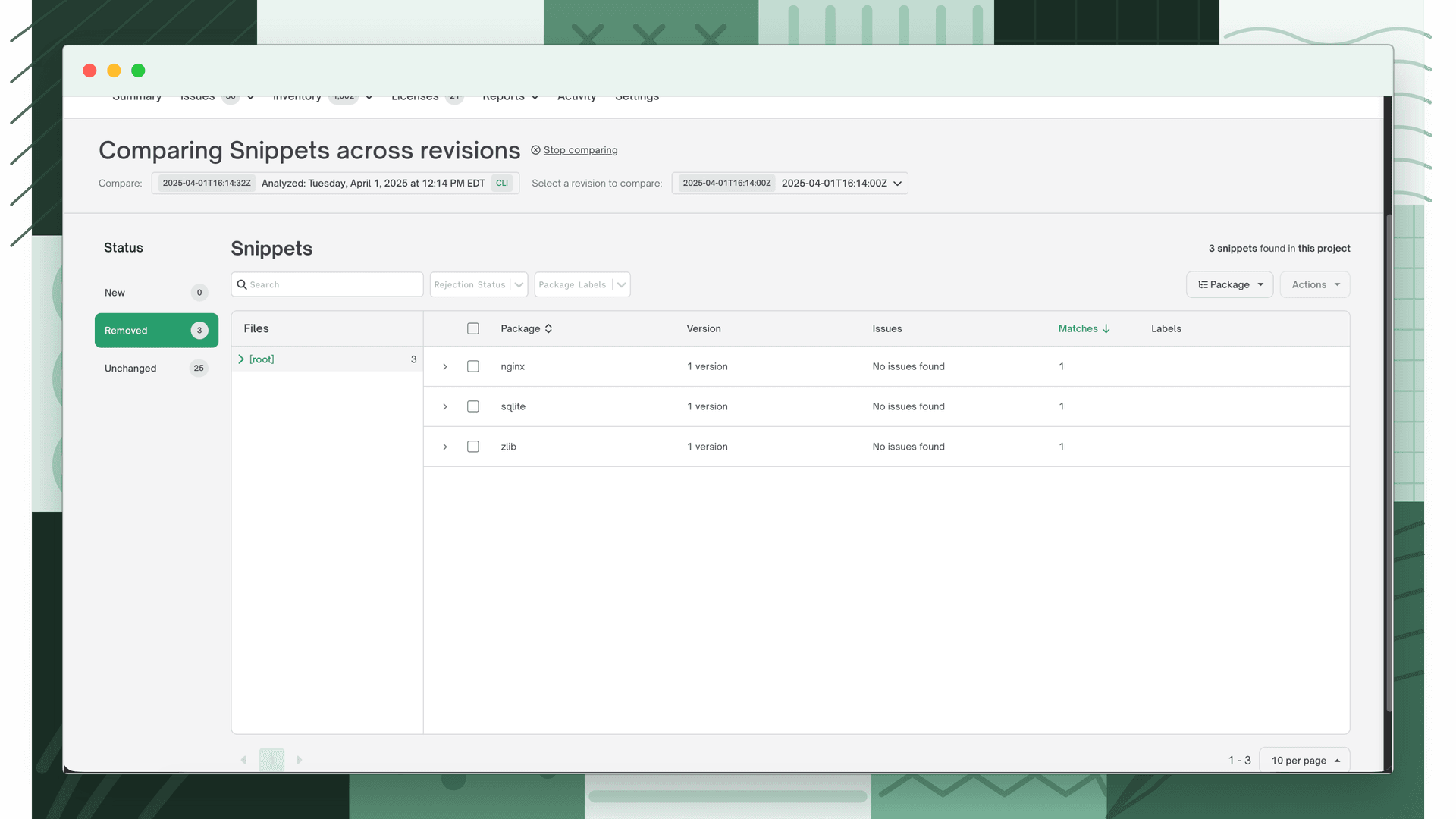
FOSSA can compare snippet results between two revisions of the same project. From Inventory → Snippets, click Compare and select the older revision. The comparison view groups snippets as:
| Category | Description |
|---|---|
| New | Present in the current revision but not the older one. |
| Removed | Present in the older revision but not the current one. |
| Unchanged | Present in both. |
All filtering, searching, and rejection functionality is available in the comparison view.
Note
Rejecting or un-rejecting snippets in the Removed category operates on the older revision, since those snippets don't exist in the current one.
Issue scanning for snippets
FOSSA can scan snippet matches for licensing and security issues, just like declared dependencies. Enable it per issue type under your project's Settings → Issues, in the Licensing or Security section, with the Scan for Snippets toggle. Non-rejected matches are then included in issue scans, and their issues appear in the project's Issues tab.
Note
Issue scanning for snippets requires the Snippet Detection feature to be enabled for your organization.
How snippet issues appear
Issues derived from snippet matches appear in the standard Issues tab alongside issues from declared dependencies, but carry a Snippet badge identifying their source. This badge helps distinguish them during triage, the underlying issue data (CVE, severity, license type) is the same, but the confidence of the relationship to your code differs.
Match confidence and noise
Unlike declared dependencies where the package relationship is certain, snippet matches are probabilistic. A match means FOSSA found portions of your code that resemble code from the matched open source package; it does not mean the package is definitely included in your build. A low-confidence match (a small percentage of files overlapping) flagging a critical vulnerability may not reflect real exposure.
This is the primary source of noise when snippet issue scanning is enabled. Two tools help manage it:
- Rejection: rejecting a snippet removes its issues entirely. Rejected snippets show no issue counts and are excluded from issue scans. This is the most direct way to remove a false positive from your issue list.
- Auto-reject threshold: automatically rejects snippets below a match percentage you set, before they ever generate issues. Set this under Project Settings → General → Snippet Auto-Reject Threshold. See Snippet settings for details.
The practical workflow is: review match confidence in the Snippets tab before acting on issues. Use the Compare Code view to see exactly which files matched and how much overlap exists, a high-confidence match with substantial file overlap is worth investigating; a handful of matching lines in a test file usually isn't.
Snippets in reports
Snippet matches can be included in reports as Snippet Dependencies.
Licensing reports
| Format | Snippet behavior |
|---|---|
| HTML, PDF, Markdown | Snippet dependency revisions are included in the full dependency list. |
| CSV | An optional Snippet Dependencies section is included. |
| Plaintext | Snippet dependency revisions appear with a Package Depth of Snippet. |
SBOM reports
All four SBOM report formats support optional inclusion of snippet dependencies; the package behind a snippet is treated as a direct dependency in the relationship graph.
Note
Issue information for snippets is included in reports only when the matching issue-scanning setting (Licensing or Security) is enabled for snippets on the project.
FAQ
What types of projects support snippet scanning? Source-based project types. On an unsupported project type, the Snippets tab indicates that snippet analysis isn't available.
Are rejections revision-specific? No, rejections apply at the project level, so a rejection for a given snippet and file path carries across all revisions of the project.
Do snippet issues appear alongside dependency issues? Yes. When issue scanning is enabled for snippets, snippet-match issues appear in the same Issues view, marked with metadata indicating they came from a snippet match.
Do rejected snippets affect reports? Yes; rejected snippets are excluded from issue scanning and from report output.